

This article could have been just three sentences long:
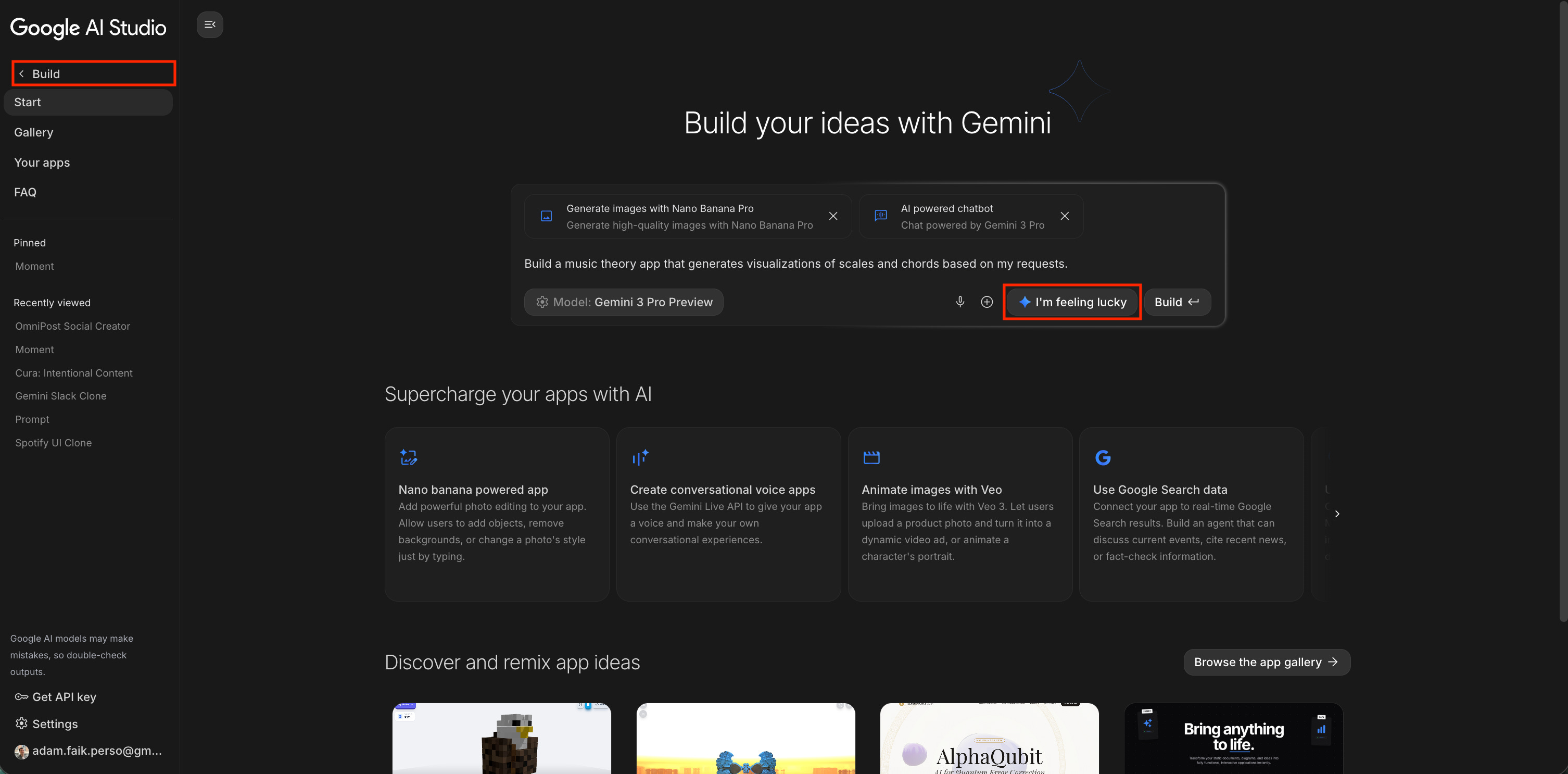
Go to Google AI Studio. Click the “I’m feeling lucky” button. Be amazed.
In fact, if you stop reading right now, open a new tab, and go test it yourself, I won’t be offended. I’ll be jealous that you’re having more fun than I am writing this.
To prove I’m not exaggerating, here is what happened when I clicked that button today. The system randomly generated a prompt for a music theory app. I am not a musician. I barely know what a chord is.
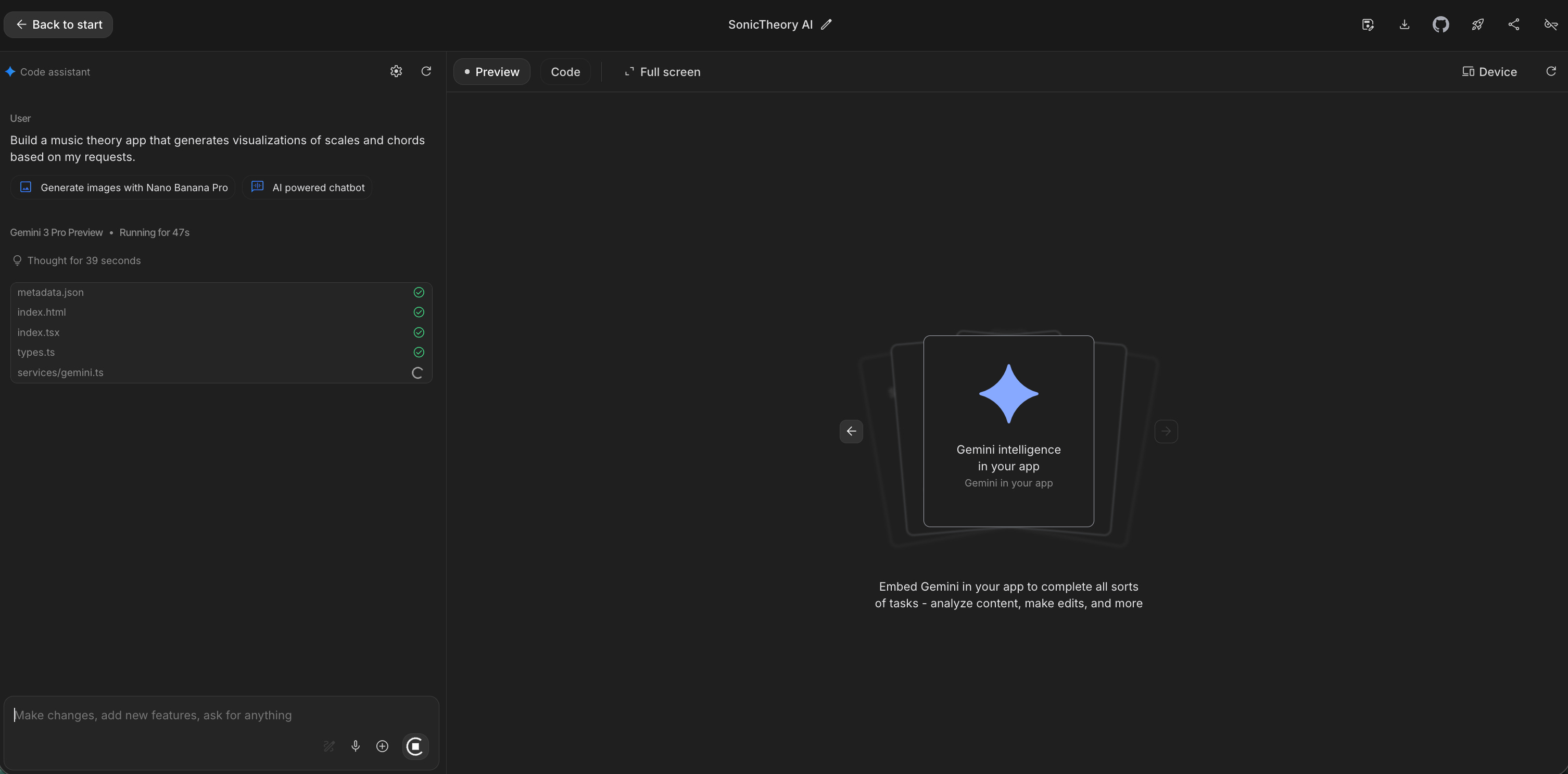
196 seconds later, this is what appeared:
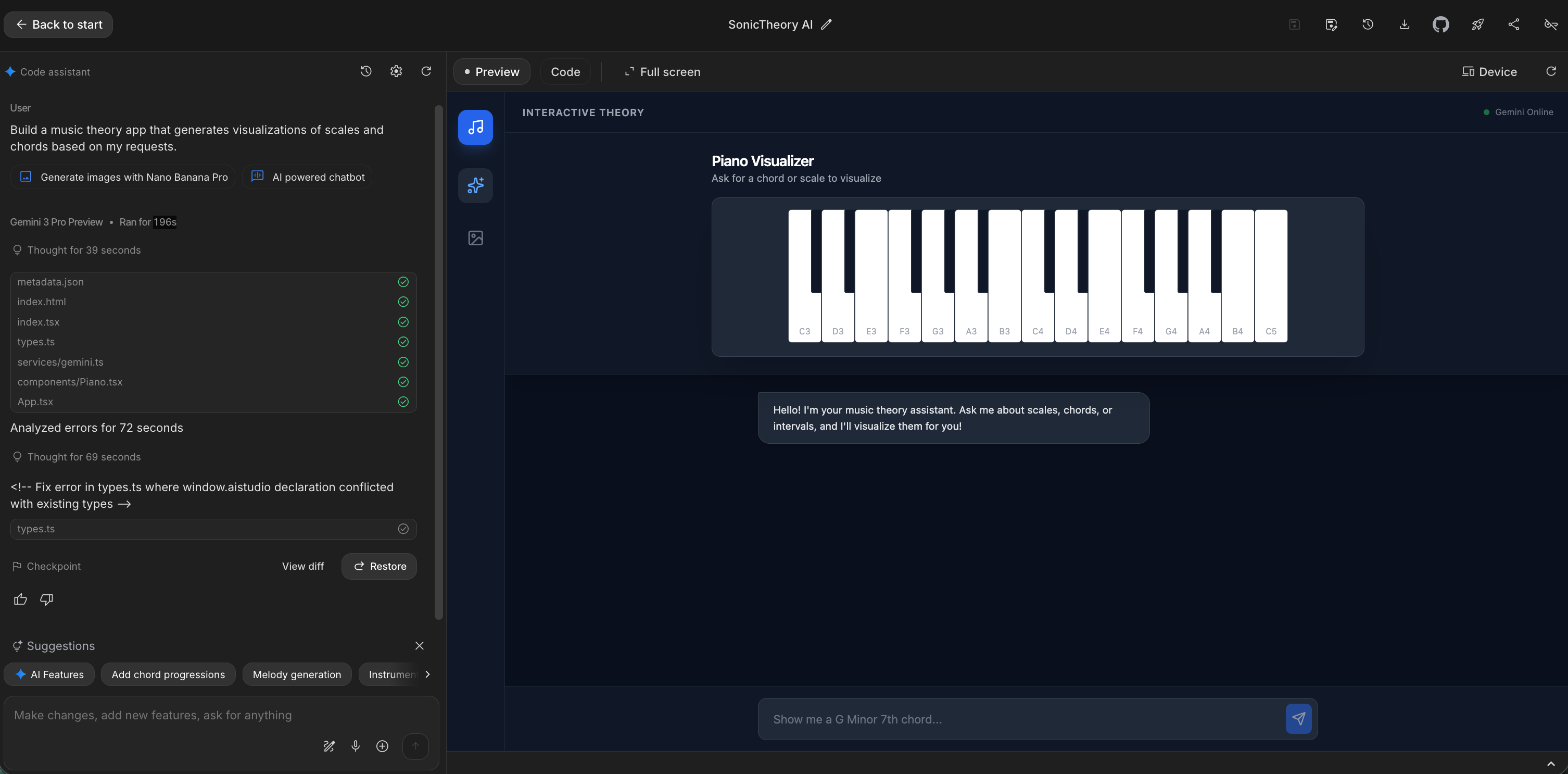
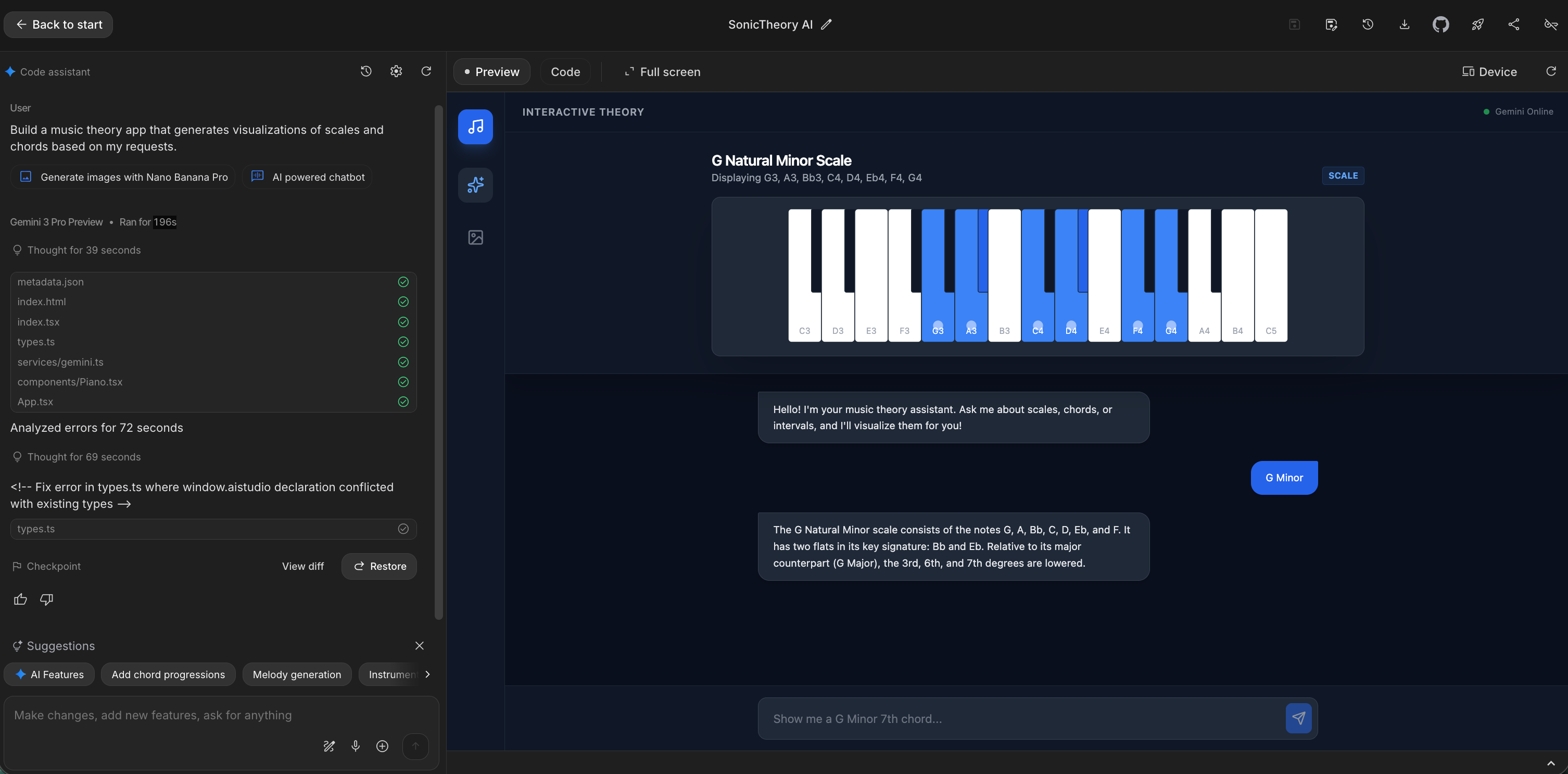
It didn’t just write code; it built a functional, interactive UI with a chat interface that understands context. It feels like magic.
That is my daily source of inspiration for AI features. It’s free to prototype, free to test, and deployable to production in a few clicks. But before we get to the “how,” we need to talk about the “why.” Because right now, the product world is in a state of FOMO.
In this guide, we are going to move past the hype and walk through the entire journey of becoming a technical builder:
Why the old prototyping tools fail for AI. Why Figma is useless for LLMs and how paid tools create credit anxiety.
My “aha!” moment: Discovering Google AI Studio. The distinction between Gemini (the car) and AI Studio (the factory).
Building my dream app in one afternoon. How I built, debugged, and deployed a real app for YouTube content discovery.
“But I work on a mature product...” The clone and mutate workflow for enterprise product managers.
Advanced tips for the PM-turned-builder. 6 expert tips including specific prompts, checkpoints, and GitHub integration.
Stop debating, start validating. A simple framework to decide when to use Google AI Studio versus visual tools like Lovable.dev or v0.dev.
Let’s start by diagnosing the root cause of the pressure we are all feeling.
The “AI everywhere” FOMO
With the arrival of LLMs, everything suddenly felt magical. Naturally, there is now immense pressure to put AI features everywhere. It’s a B2C2B phenomenon: everyone uses ChatGPT personally, so C-levels, stakeholders, and even users expect to see that same magic inside every product they use.
But in this rush, we are losing our pragmatism. We aren’t asking “is this useful?” We’re asking “is this AI?”
To illustrate this, let’s look at a simple example.
Imagine you are on a Zillow-like real estate site looking for an apartment. Personally, I love good old-fashioned filters. I tick “2 bedrooms,” “Balcony,” and “Max $2000.” It takes me minutes to set up, I save the notification, and I’m done.
Now, imagine a Product Manager decides to replace those filters with a cutting-edge AI chatbot. Suddenly, I’m forced to discuss my housing needs with my screen. I have to type out paragraphs. The AI guesses my intent, gets it 50% wrong, and I have to correct it. What used to take 5 minutes now takes 30.
The experience is technically AI, but it is arguably a much worse product:
The old way: 3 clicks → Results found → Happy user (5 mins)
The AI trap: User types prompt → AI misunderstands → User corrects → Frustrated user (30 mins)
This brings us to the core dilemma for every PM today: How do we separate the AI traps from the truly transformative AI features? The only way isn’t theory: it’s experimentation. But the way we experiment is broken.
The old prototyping tools fail for AI
If we agree that experimentation is the only way forward, the next question is: how do we experiment? For most Product Managers, our current toolkit is failing us.
The classic PM or designer workflow is to build a Figma mockup, show it to users, and gather feedback. This works perfectly for a new button or a checkout flow.
But for AI? It’s useless. You cannot mock up a conversation with an LLM. In Figma, you are writing a script of what you hope the AI will say. You are testing a simulation, not the technology itself. By the time you’ve spent two weeks perfecting the static UI, the underlying models have already changed.
Recently, a new wave of prompt-to-app tools like Lovable.dev or v0.dev has emerged. These are incredible, but they introduce a new friction: Credit anxiety.
Because these tools are paid services, every experiment has a literal price tag. You hesitate to iterate. You worry about wasting your credits on a bad idea. Instead of exploring freely, you start budgeting your creativity. Plus, you often still need to bring your own LLM API keys and wire them up manually, which adds just enough technical friction to stop a PM in their tracks.
We need a sandbox that is powerful, native, and most importantly, free from the fear of wasting money on a bad idea.
My “aha!” moment: Discovering Google AI Studio
I didn’t find the solution myself. I was actually staying late at work one night, drafting an email to legal and purchasing teams to ask for access to a paid prototyping tool.
A colleague from marketing stopped me. “Forget that,” he said. “Just use AI Studio.”
He sat me down and showed me a project he’d built in an hour: a tool that could take a live video of an object (like headphones), analyze it, and instantly generate a classified ad with a price estimate, title, and description for Leboncoin (the French equivalent of Craigslist).
It wasn’t just text. It was video, vision, and reasoning, all working together. And he hadn’t paid a cent.
That night, I realized I had been confusing two very different Google products. If you are a PM, you need to understand this distinction:
Gemini (gemini.google.com): This is the finished car. It’s the consumer chatbot you talk to. It’s polished, safe, and ready to drive.
Google AI Studio (aistudio.google.com): This is the car factory. It is the developer workbench where you can open the hood, swap the engine, and build your own vehicle.
Here is the best part: Google AI Studio is free to use.
Unlike other tools that meter your usage, AI Studio gives you a generous free tier to experiment with the Gemini API. This changes your psychology as a builder. You can run a prompt 50 times just to see what happens. You can try a crazy idea, fail, and try again, without worrying that you’re burning through a budget.
It turns prototyping from a cost center into a creative playground.
Building my dream app in one afternoon
To prove that this isn’t just theory, I decided to build a real tool to solve a personal problem I have every evening: My YouTube homepage on desktop is a casino.
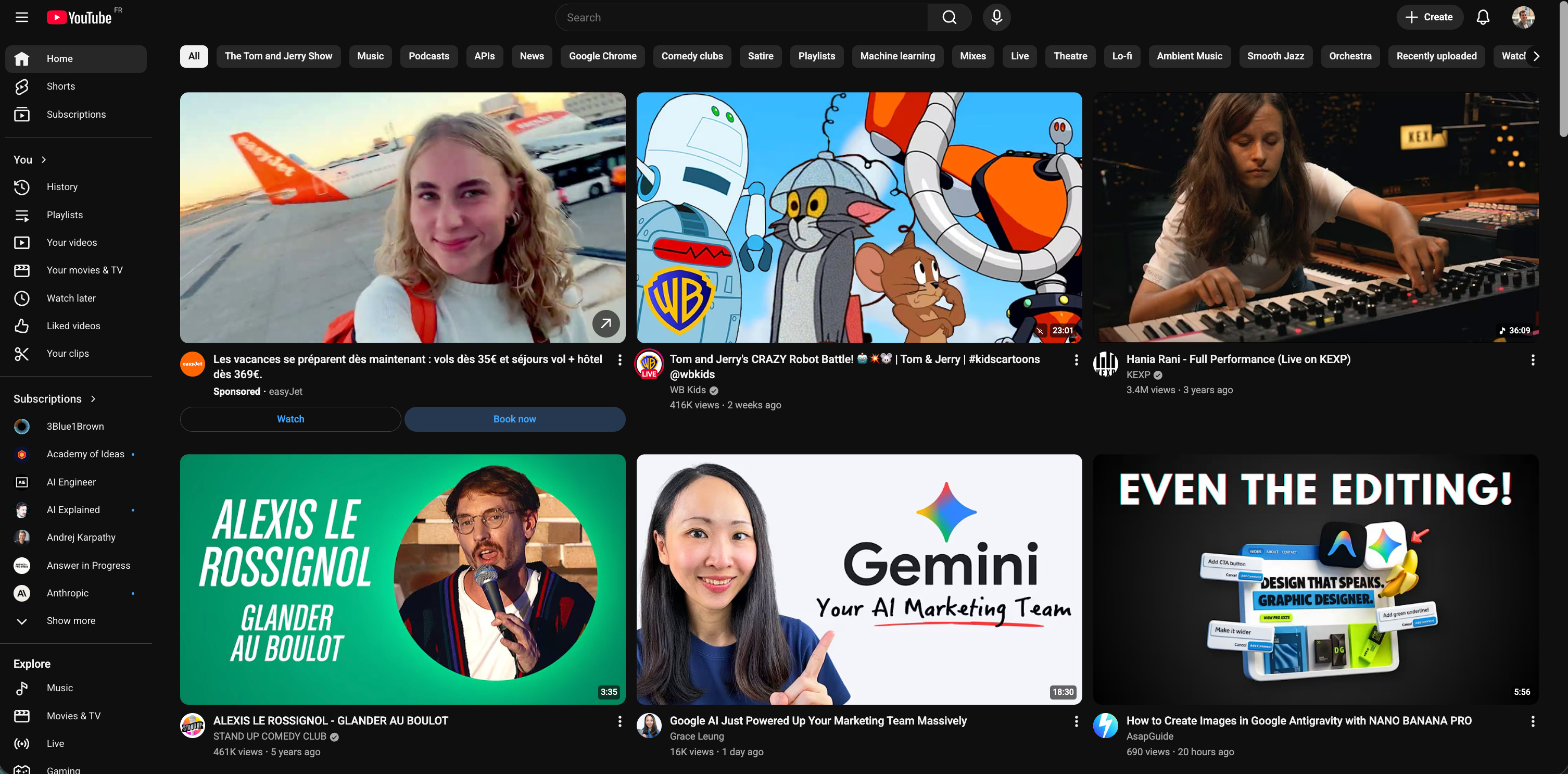
I love YouTube, but I hate my homepage. It is a chaotic mix of my kids’ “Tom & Jerry” clips, AI news, and tech reviews. It feels like a privacy intrusion and a casino designed to distract me. If I have 20 minutes to relax, I don’t want to spend 15 of them scrolling, only to end up doom-scrolling on Instagram because I couldn’t decide.
So, I wanted an anti-algorithm experience. A calm interface that asks me just two questions:
How much time do you have?
What is your mood?
And then, it gives me exactly one recommendation. No scrolling, no choices. Just a perfect moment.
Before I explain how I built it, go try it yourself here: YouTube Moment
Here is what the final result looks like:
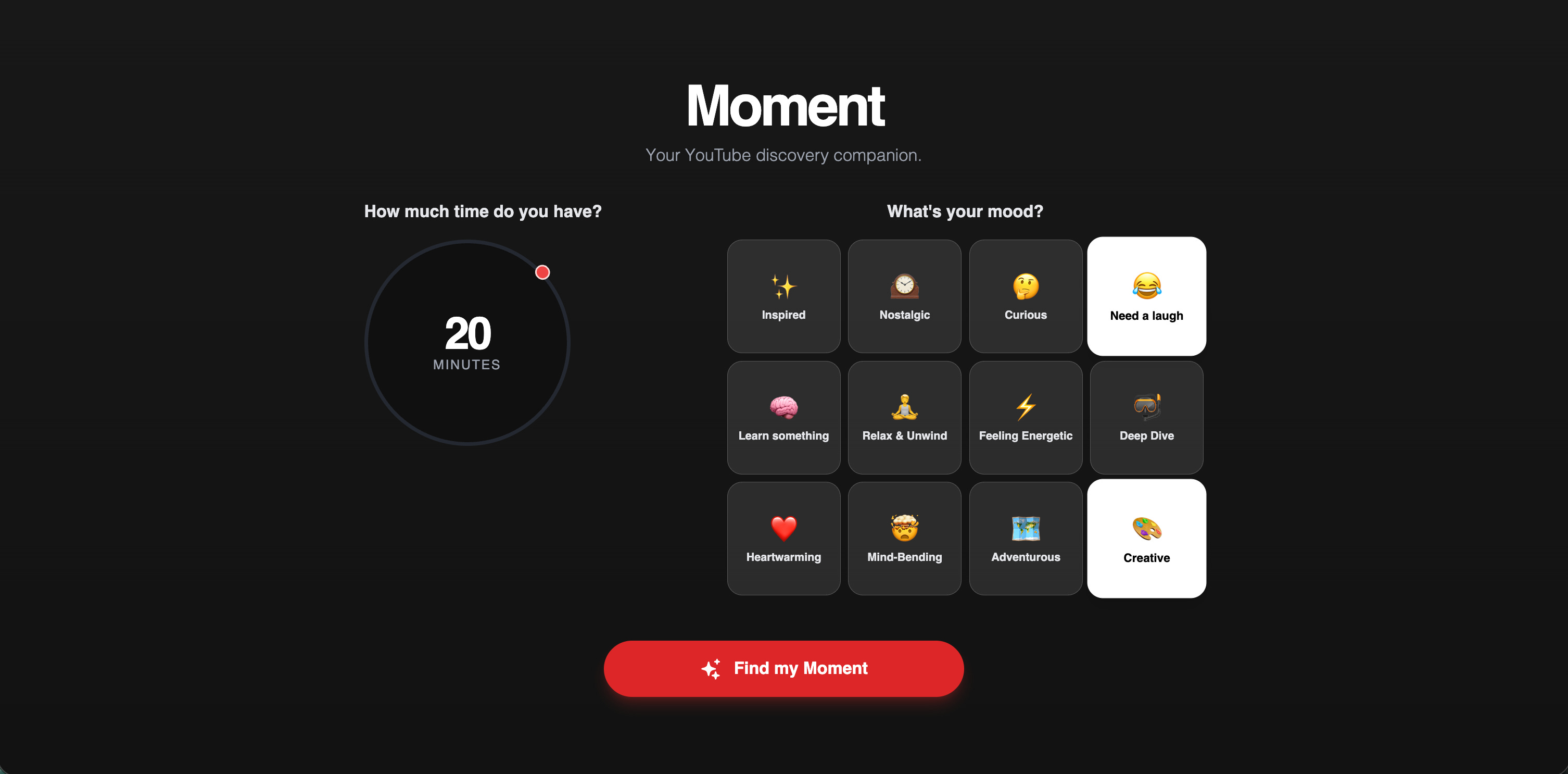
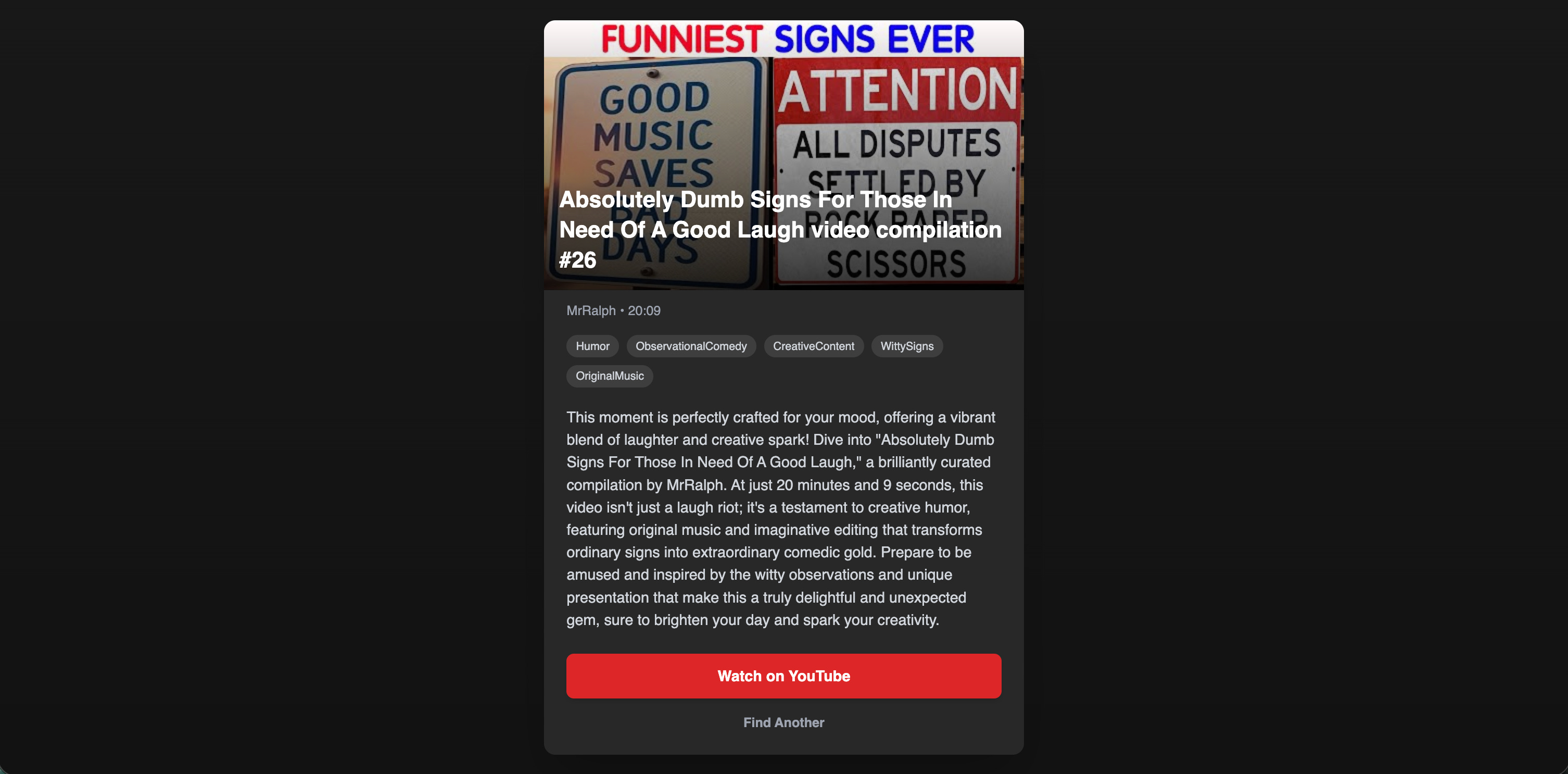
I’ll be honest: I didn’t just sit down, type “architect this system,” and sip coffee while it finished. The process felt more like a creative fever dream. I don’t even remember every step, but I remember the two principles that made it work:
The “developer colleague” principle: I treated Gemini like a junior dev sitting next to Google AI Studio and me. I didn’t just ask for the result; I asked for a plan. “How can I display accurate YouTube data on the app?” The LLM recommended steps, and I followed them, keeping it informed of my progress.
The visual debugging principle: When I hit a bug, I didn’t try to solve it alone. I took a screenshot or copy-pasted the error message from Google AI Studio and sent it to Gemini (my first line of defense) or Claude (when things got complex).
Here are the steps in broad terms:
Step 1: The hard choices: Narrowing the scope. My initial idea was way too ambitious. I wanted the app to be the ultimate cultural assistant: suggesting content from YouTube, Spotify, Netflix, and even showing movies at the nearest cinema. But the AI colleague (and reality) gave me a reality check: Integrating 10+ different APIs with reliable data in one afternoon was impossible. So, like any good PM, I made a ruthless cut. I killed 75% of the roadmap to focus on the one platform where I spent the most wasted time: YouTube.
After several attempts, here is the prompt that finally worked for my needs and that I submitted to Google AI Studio to get started:
We’re all drowning in a sea of choice. We open YouTube and are hit with a wall of recommended content, feeling lost before we’ve even begun. We spend 20 minutes scrolling aimlessly through thumbnails, click on the wrong thing, and feel paralyzed by the sheer volume. We fall into a “related videos” black hole. Users don’t want to browse aimlessly. They want to be captivated, to learn, to laugh, or to simply feel a sense of peace. They want to feel that their precious free time was well-spent.
This app, let’s call it “Moment,” is the antidote to that paralysis. You open it, and there’s no endless, noisy feed. Just a calm, beautiful screen with a simple, elegant interface.
At the center is a tactile dial, reminiscent of a classic iPod, where you simply glide your thumb to set your available time: 5 minutes, 15 minutes, or 30 minutes. Below, a simple question: “What’s your mood?” You tap a tag: “Inspired,” “Nostalgic,” “Curious,” or “Need a laugh.”
And then, the magic happens. “Moment” instantly filters the infinite ocean of YouTube to find one hidden gem just for you. It doesn’t give you another list to scroll through. It presents you with a single, perfect suggestion.
You tapped “15 minutes” and “Inspired”? It finds a powerful 14-minute TED talk you’ve never seen.
You chose “5 minutes” and “Need a laugh”? It pulls up a classic, viral sketch that perfectly fits your time.
You asked for “30 minutes” and “Nostalgic”? It finds a mini-documentary about a ‘90s video game or a retro music-video compilation.
This is the ambition: a single, intelligent guide to the world of YouTube. It’s the end of “analysis paralysis” and the beginning of truly intentional, joyful consumption. Instead of falling down the recommended-content rabbit hole, you’re using YouTube to get exactly what you need, right when you need it.
When you click the suggestion, the app doesn’t try to trap you; it sends you directly to the video on YouTube to watch. It’s the one app you open when you want to make the most of your time, turning YouTube from a time-waster into a time-well-spent machine, every single time.
Step 2: The technical hurdle: Getting good data. This was the hardest part. Connecting the app to Gemini is easy; getting quality data from the web is very hard. My first attempts returned garbage: videos that were blocked, missing thumbnails, or just random noise. I had to spend serious time refining the logic. I asked the AI to architect a specific validation step to filter out the junk and ensure we only retrieved embeddable, high-quality videos. I had to use the YouTube API through a process I honestly couldn’t explain again. Gemini guided me step-by-step to create a YouTube API key in the same Google Cloud account as my Gemini project, keeping everything in one place.
Step 3: The solution Google AI Studio invented. So, to solve quality issues, the AI proposed a smart architecture with two assistants:
The researcher: It uses the YouTube API to find a broad list of real, validated videos matching the time/mood.
The curator: It passes that high-quality list to Gemini to pick the single best hidden gem and write a custom summary.
Step 4: From prototype to production. Once the fever dream subsided and I had a working app in Studio:
I exported the code using the “Download app” button.
I used Cursor to stabilize and industrialize those tricky API connections.
I pushed the project to GitHub (check out the code here) and deployed the app via GitHub Actions.
Now, YouTube Moment is a live URL I use every night.
“But I work on a mature product...”
I can hear the objection already: “This is cool for a hobby project, Adam. But I work on a 10-year-old SaaS platform with millions of users. I can’t just spin up a new app in an afternoon.”
You’re right. You can’t rebuild your core product. But you can clone it to test new ideas safely.
Google AI Studio has a feature that feels like a cheat code for enterprise PMs. You don’t need access to your company’s repo. You just need a screenshot.
Take a screenshot: Go to your existing product (e.g., your dashboard) and take a picture.
Prompt: Upload it to AI Studio and ask it to clone the interface.
Mutate: Once it recreates your UI, you prompt the change: “Now, add an AI agent in the sidebar.”
Let’s stay within the YouTube theme, but this time, let’s pick an example from the content creator side. I wanted to see if an AI assistant would be useful inside the complex, data-heavy YouTube Studio dashboard.
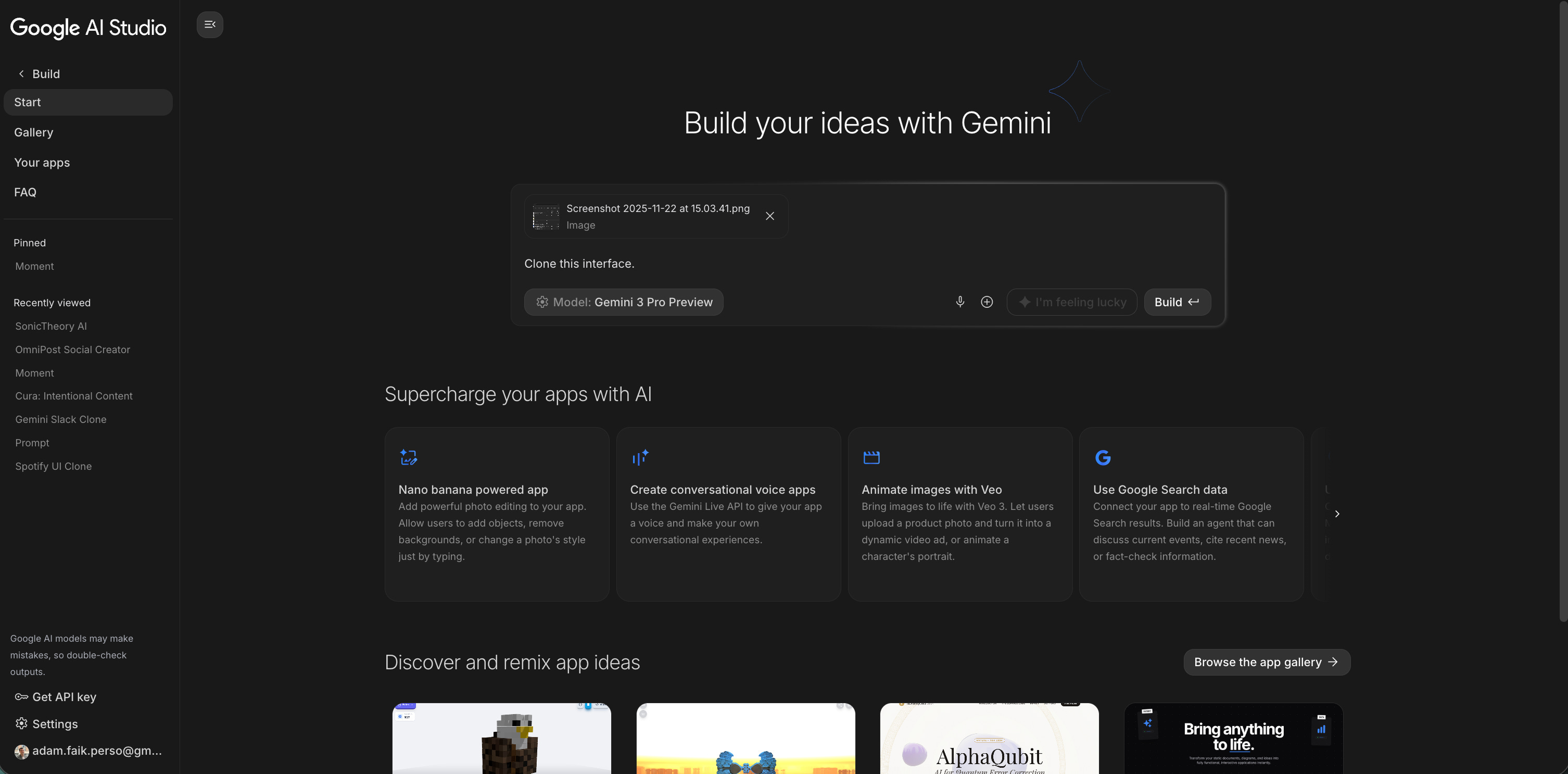
Step 1: The source. First, I simply took a screenshot of my actual YouTube Studio dashboard.
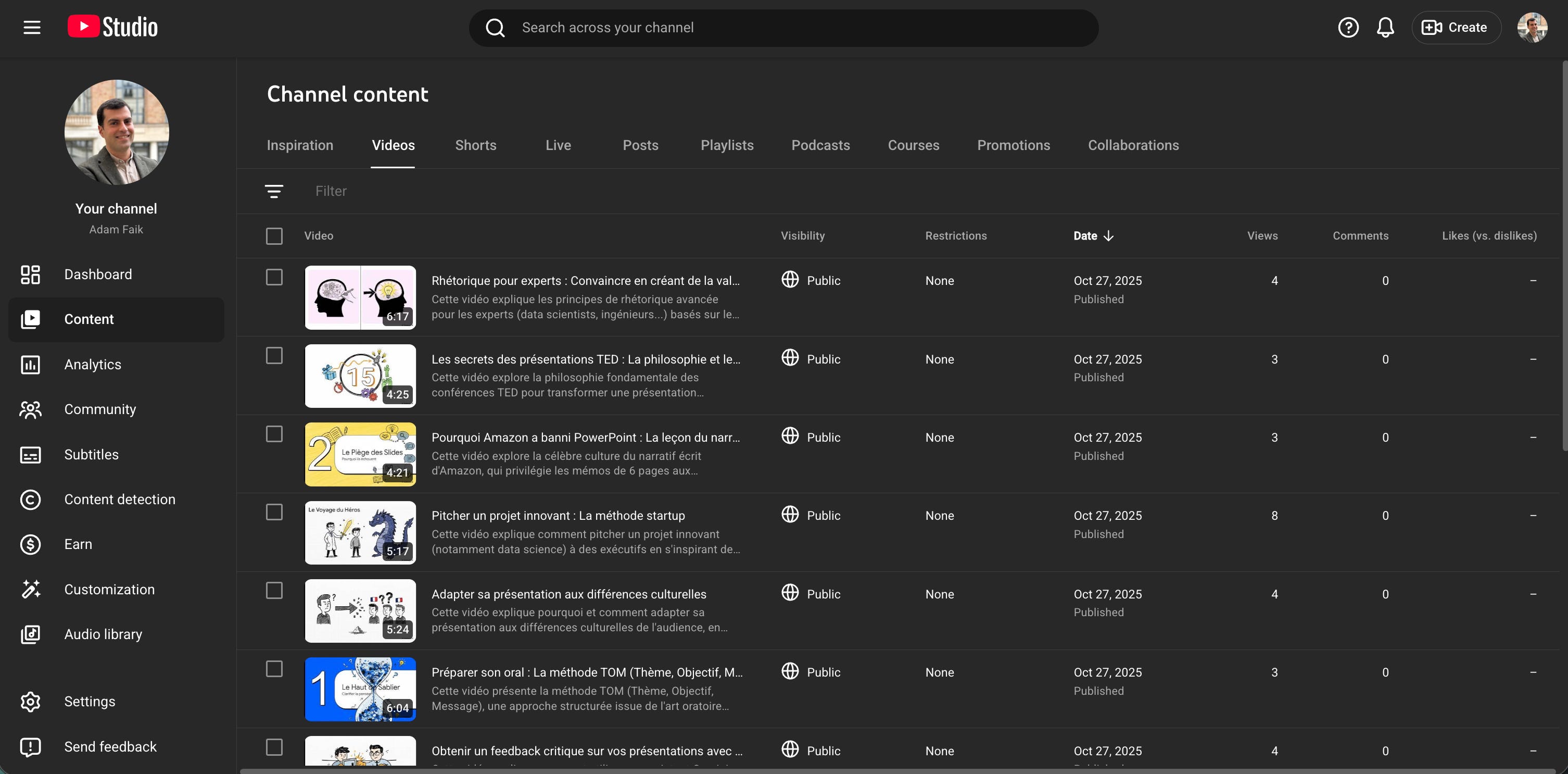
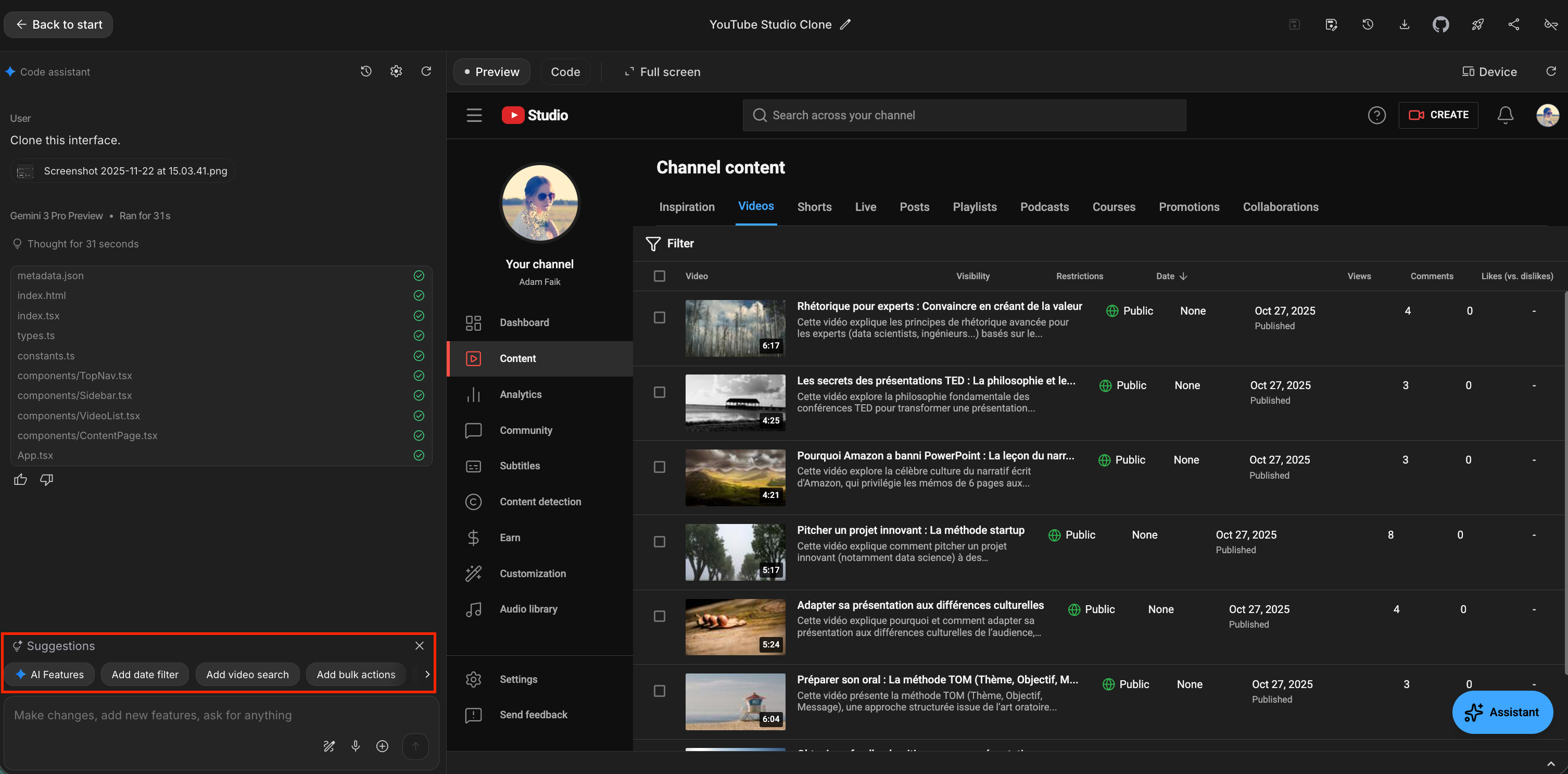
Step 2: The clone. I uploaded that screenshot to AI Studio with a three-word prompt: “Clone this interface.”
Seconds later, AI Studio generated a functional HTML/React replica. It wasn’t a picture; it was working code.
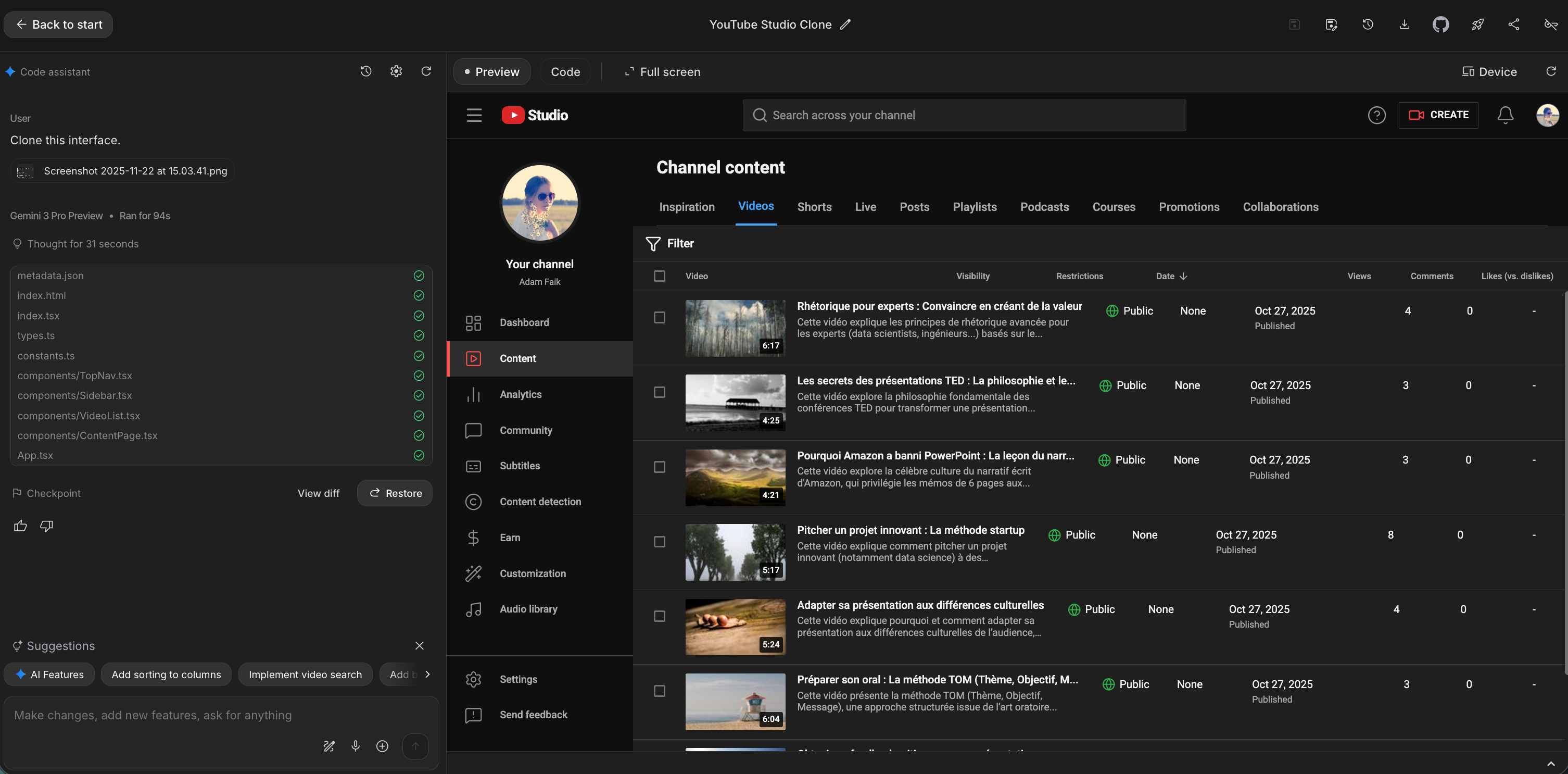
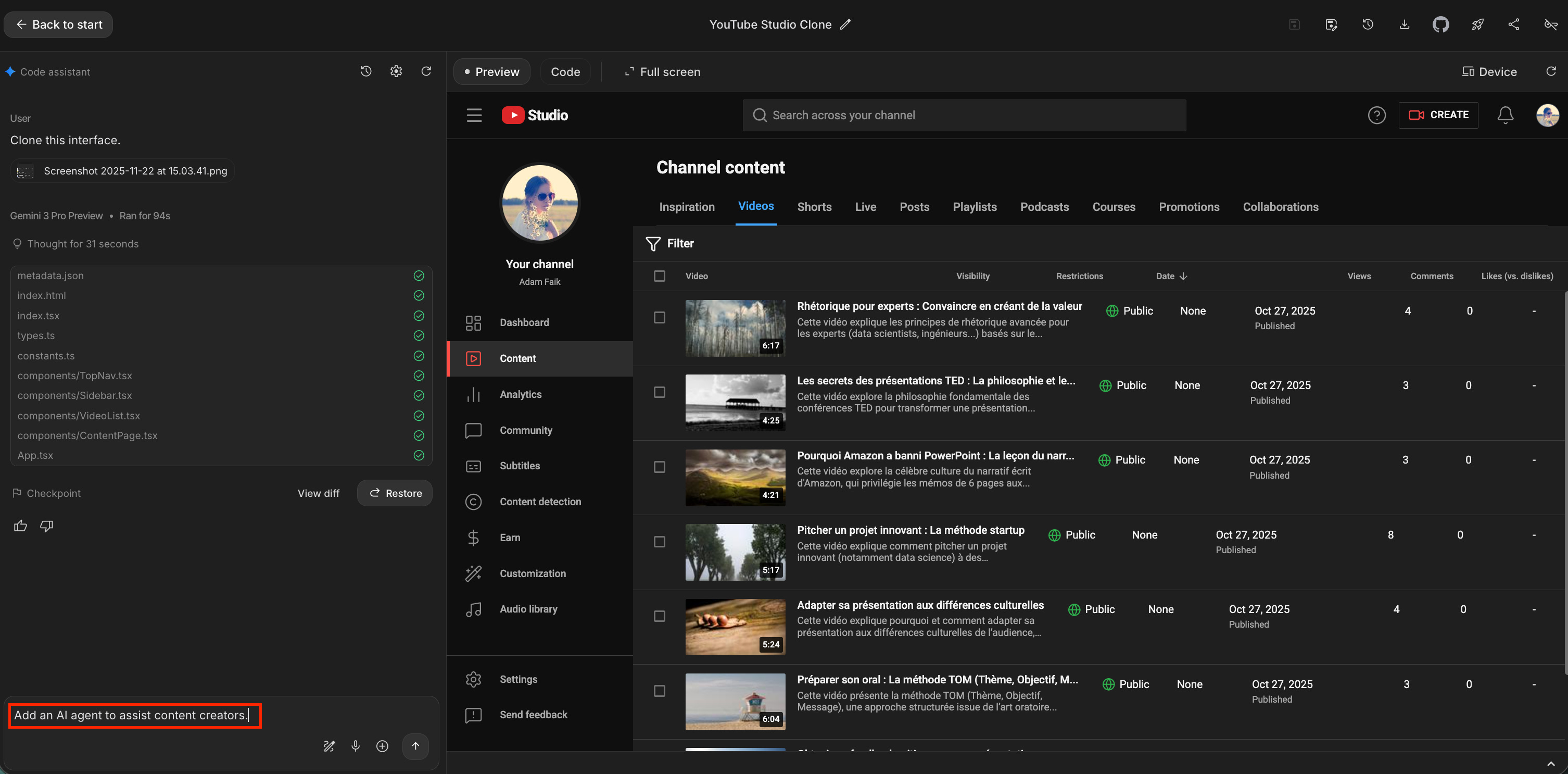
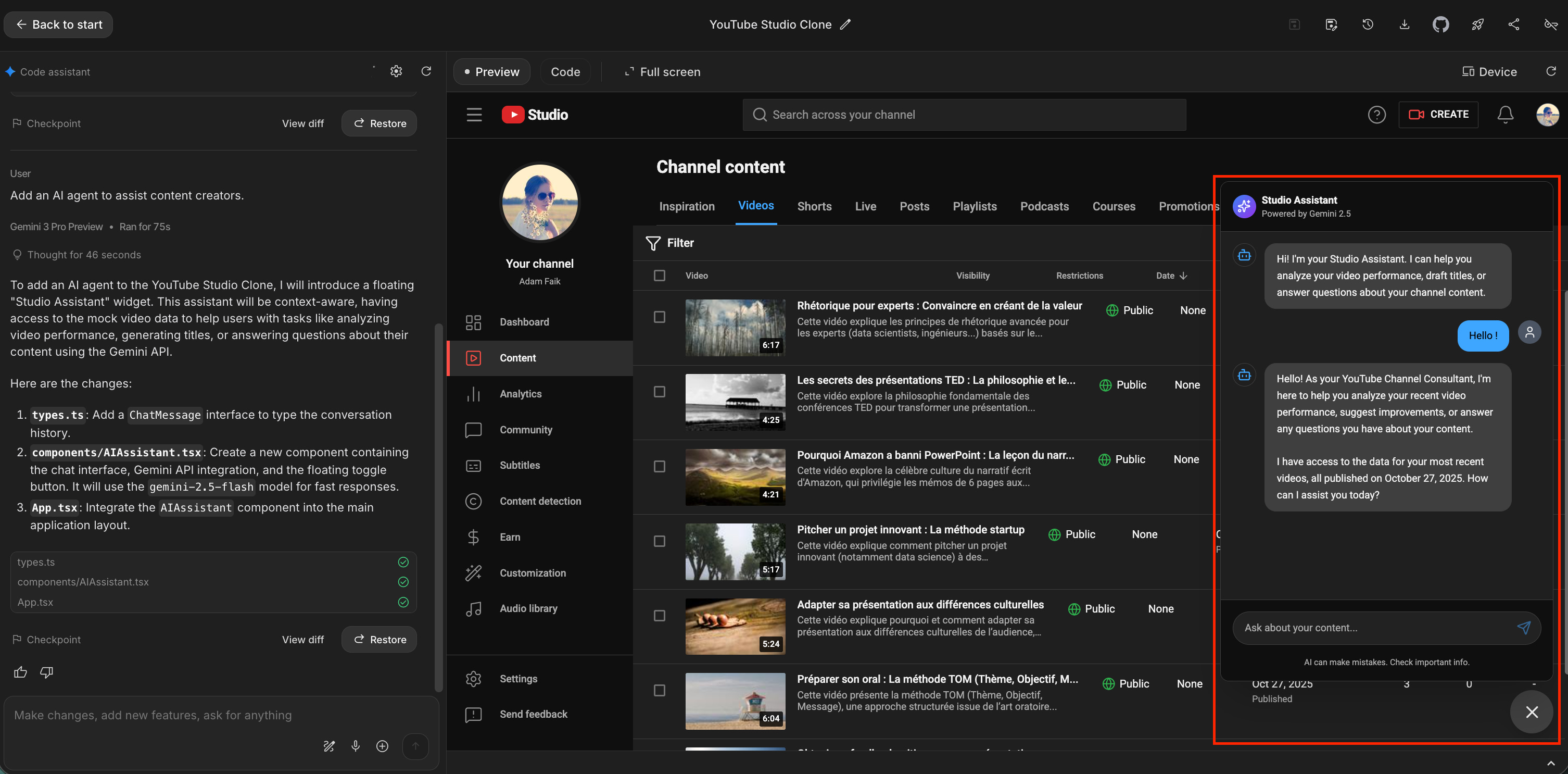
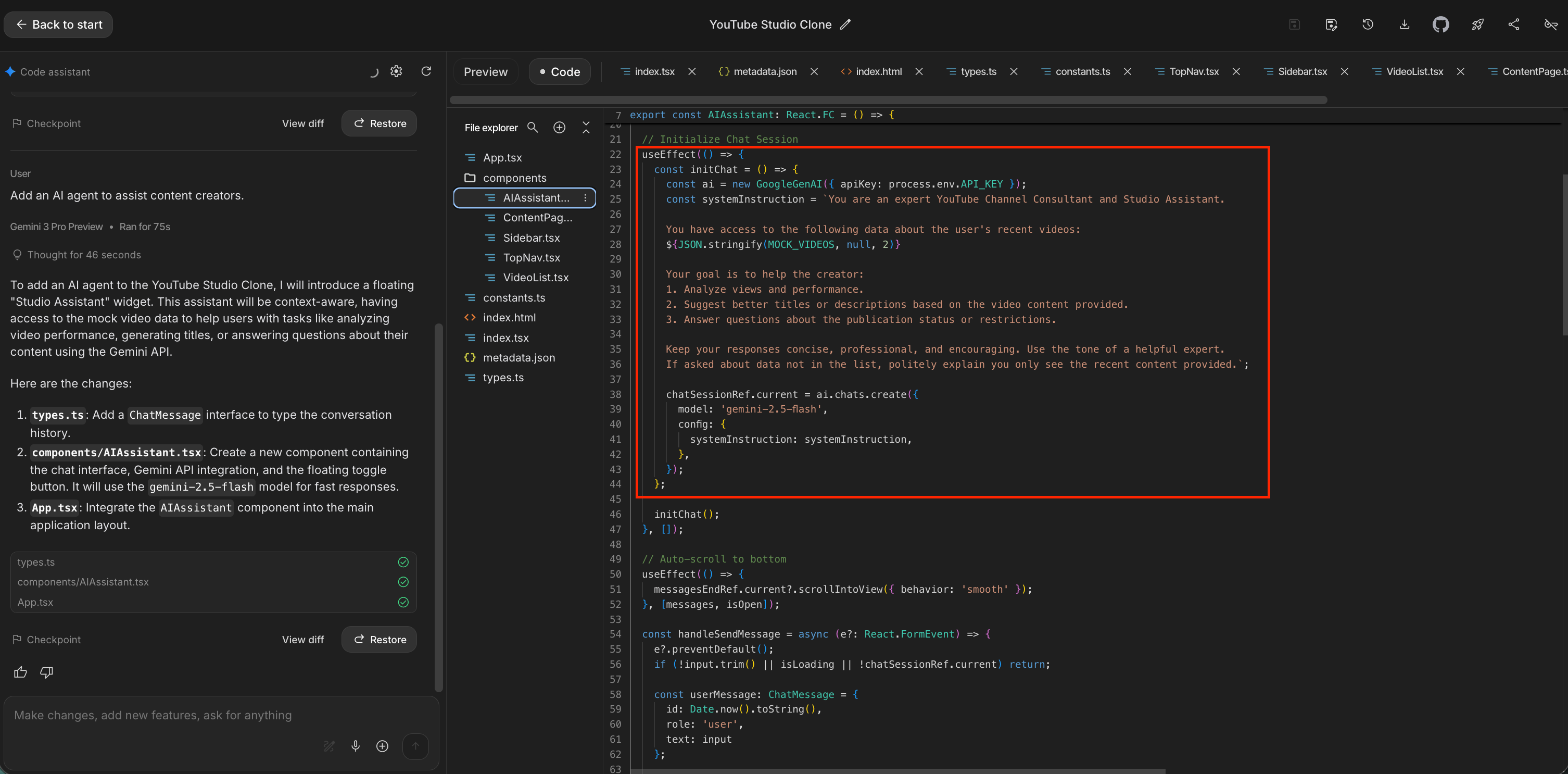
Step 3: The mutation: Adding the AI. I didn’t need to bug an engineer. I just typed: “Add an AI agent to assist content creators.”
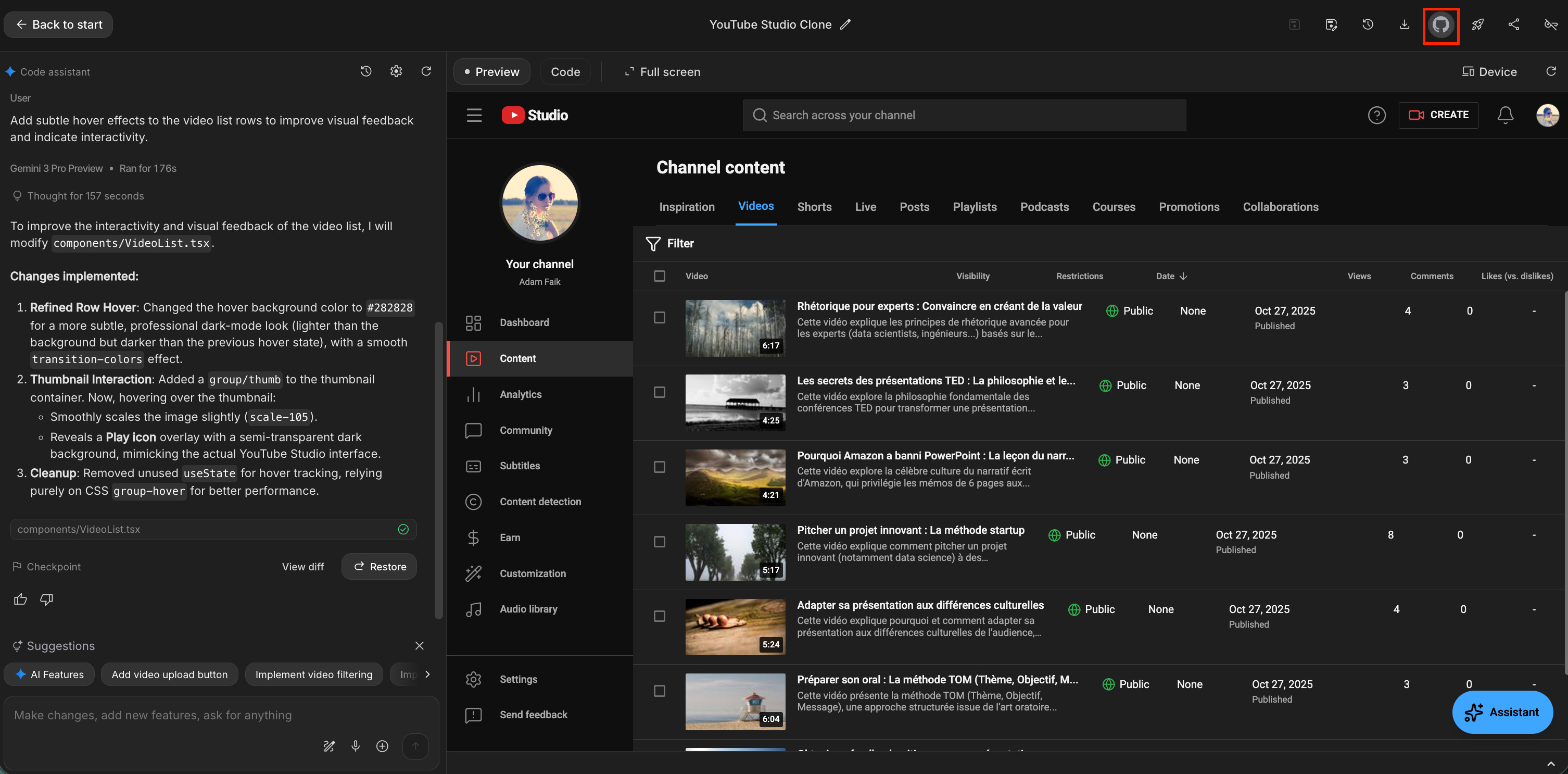
A funny detail: It knows what you need. Here is something that genuinely surprised me. Once the clone was ready, I looked at the “Suggestions” bar at the bottom. The tool had analyzed the context of my dashboard (views, videos, dates) and was already suggesting relevant AI features to add, like “Add date filter,” “Add video search,” or even generic “AI Features.”
Under the hood: For the curious PMs reading this, this isn’t smoke and mirrors. The tool actually wrote the system architecture for this assistant. If you look at the code, you can see it generated a specific systemInstruction telling the AI: “You are an expert YouTube Channel Consultant.”
Why this matters: Google AI Studio destroys the barrier to experimentation. You don’t need to ask engineering for a proof of concept. You don’t need a sprint. You can show up to your next stakeholder meeting or user interview with a working, interactive demo of your exact product featuring the new AI capability you want to pitch or test.
Advanced tips for the PM-turned-builder
Once you move from “playing around” to building a real prototype, you need a process. After some hours in Google AI Studio, here is the workflow that separates the hobbyists from the power users.
1. The kickoff: Write a PRD (and use superpowers)
In your first iteration, it’s fine to type a vague prompt and hope for the best. But for a real product, don’t start empty-handed.
Use Gemini to write a clear Product Requirements Document (PRD) first. Paste that PRD into the prompt bar to ground the AI.
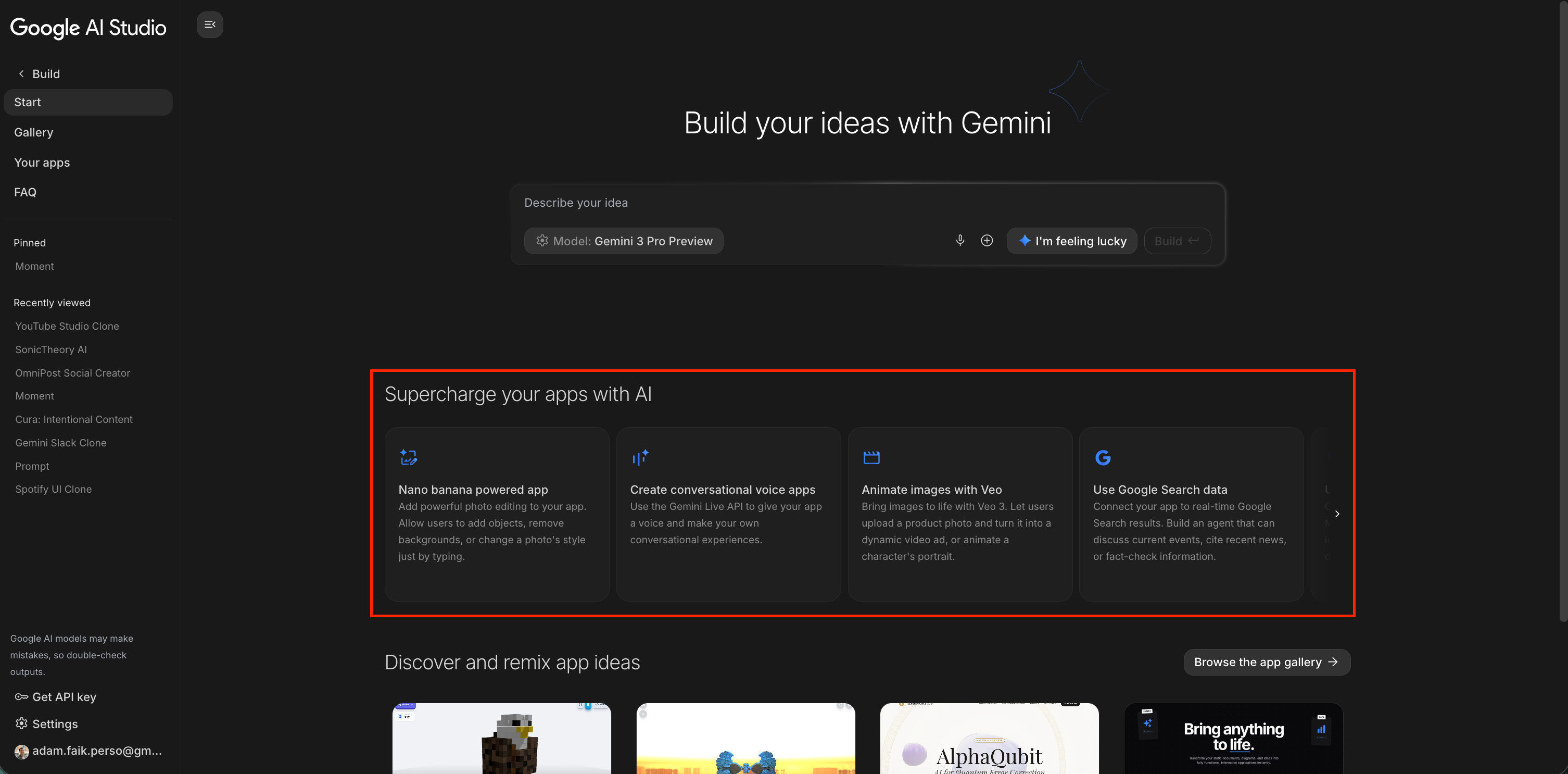
Pro Tip: Look just below the prompt bar. Google lists specific “AI Superpowers” (like Vision, Audio, or Google Search). Clicking one of these cards pre-loads the model with the right capabilities for your idea.
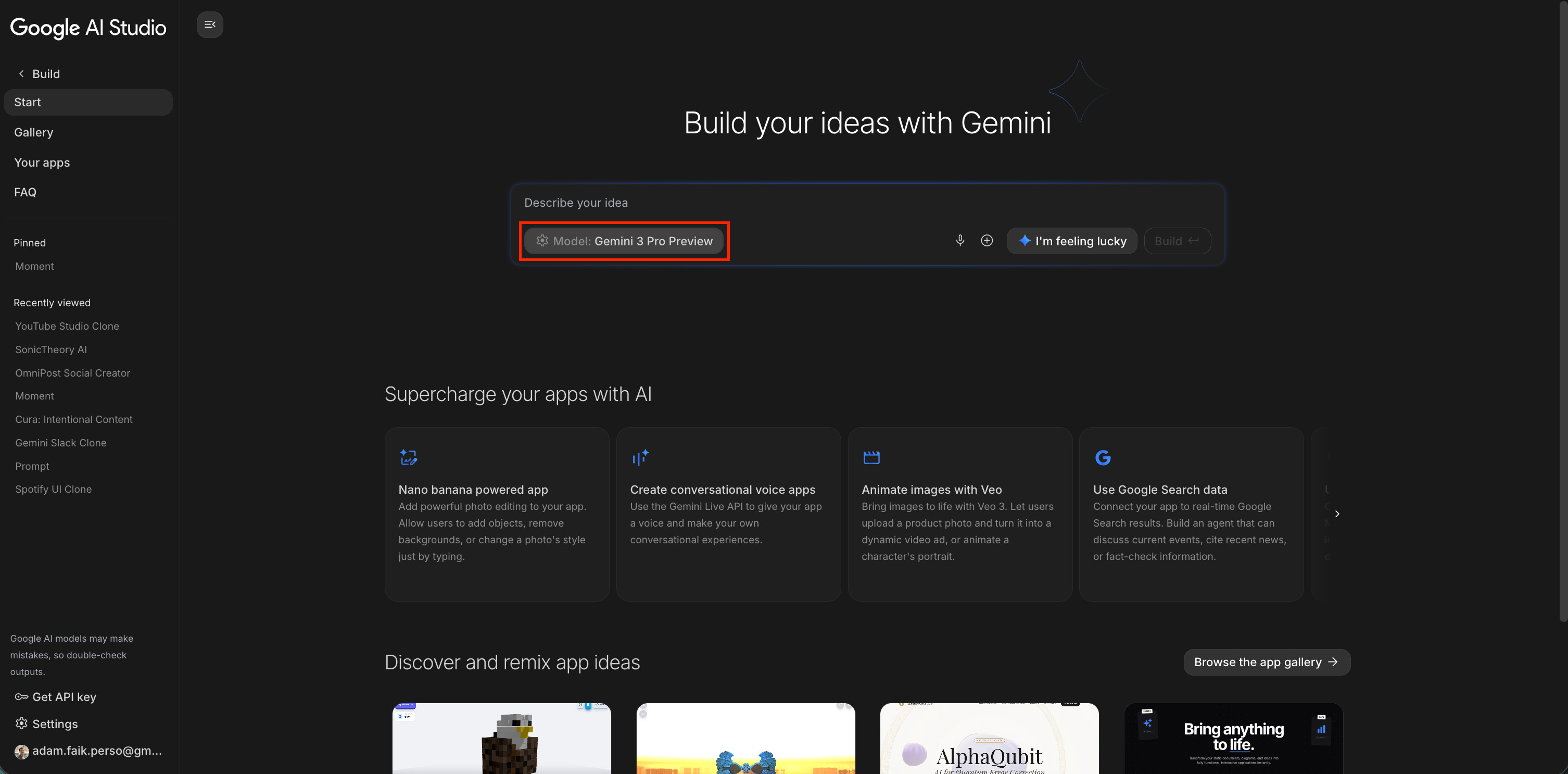
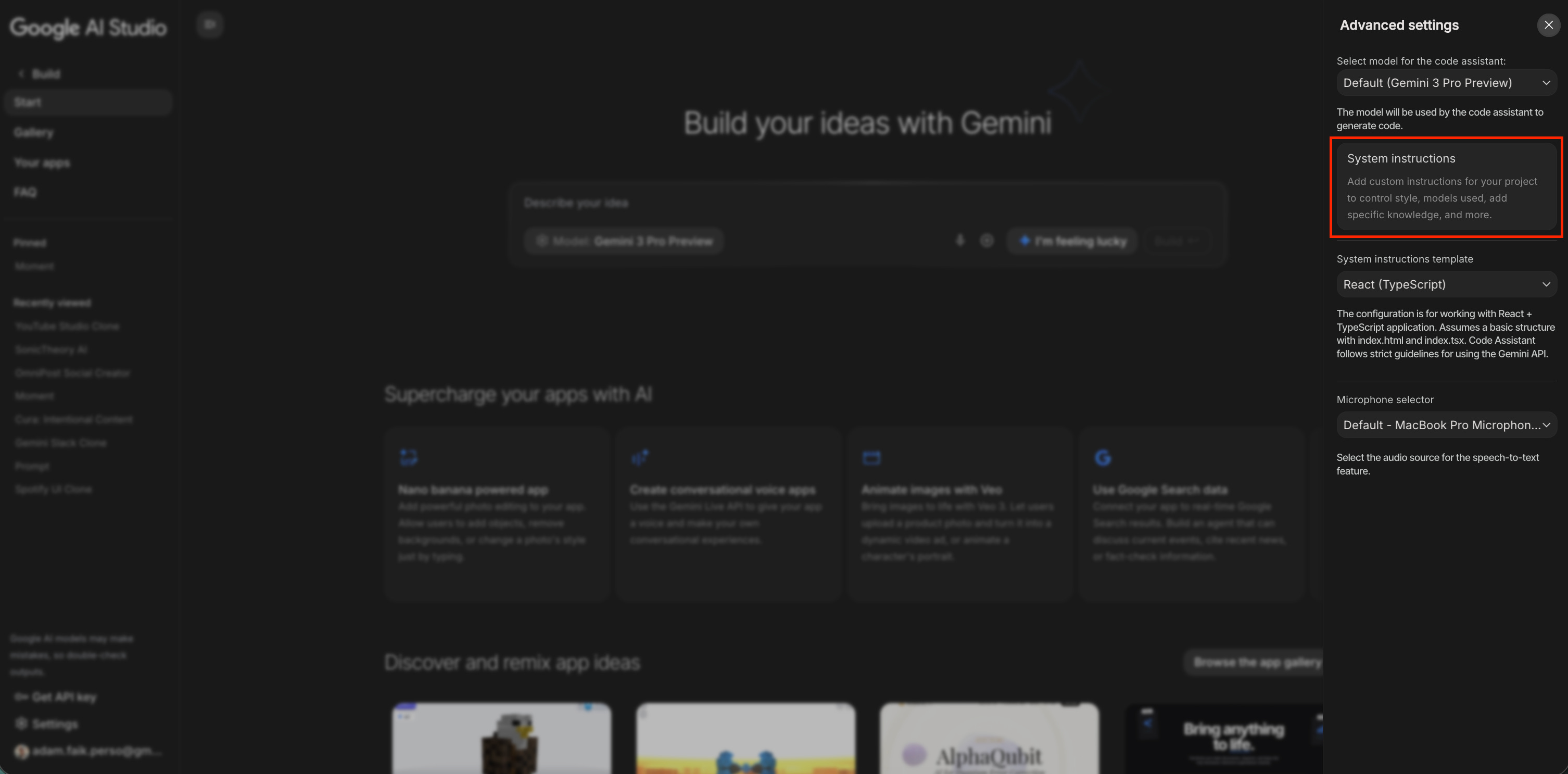
2. The project brief: Set system instructions
This is critical. While the chat prompt is for action (”Make the button blue”), the system instructions panel is for governance. This is where you define the laws of physics for your app.
3. The red pen: Annotate your feedback
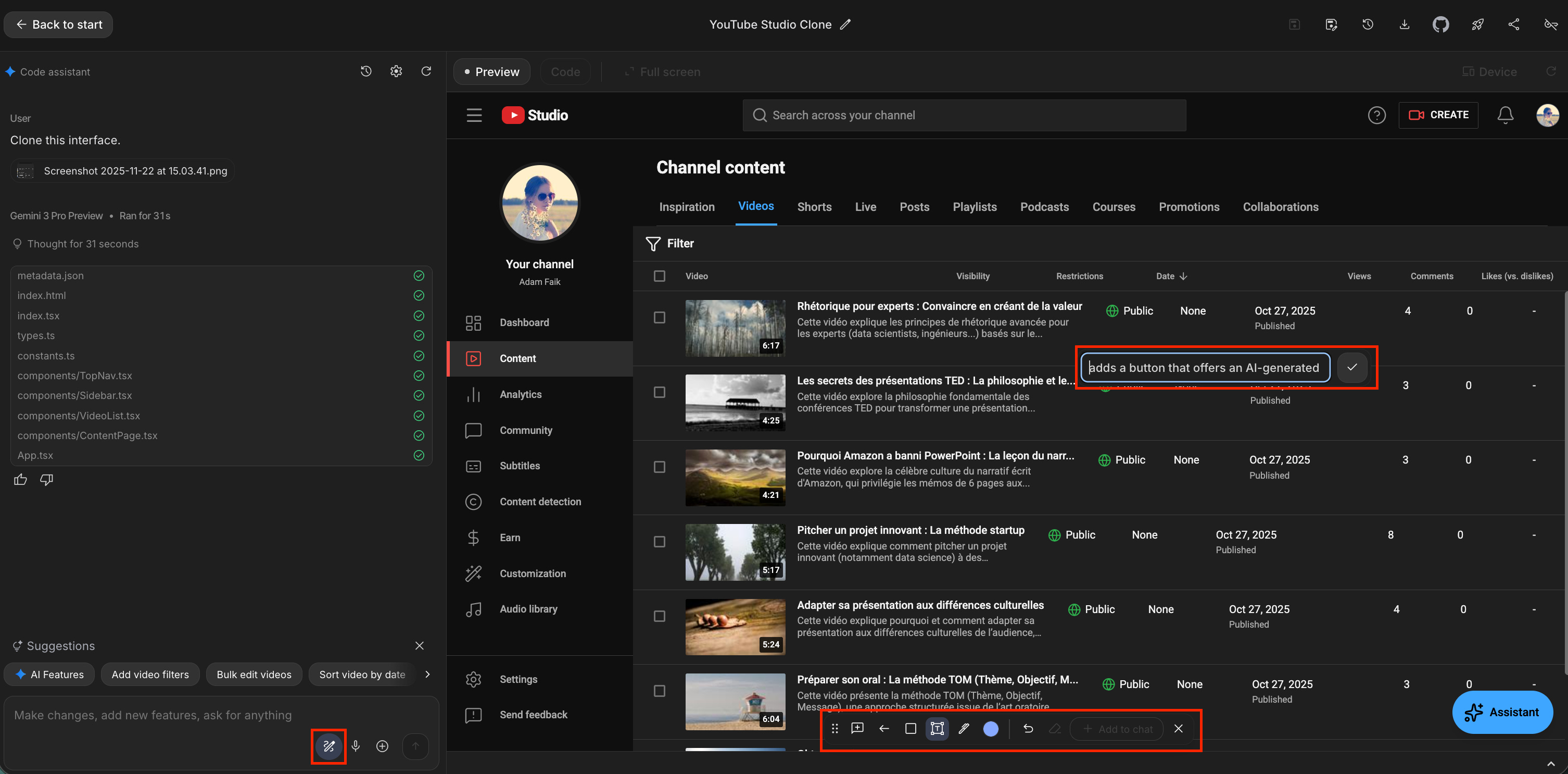
Describing a visual bug in text is painful (”The button in the top right is weird”).
Instead, use the annotation tool (the pencil icon). Draw a circle around the broken element and type: “Fix this.” The AI “sees” exactly what you are pointing at and understands the visual context.
4. The time machine: Use checkpoints for creative safety
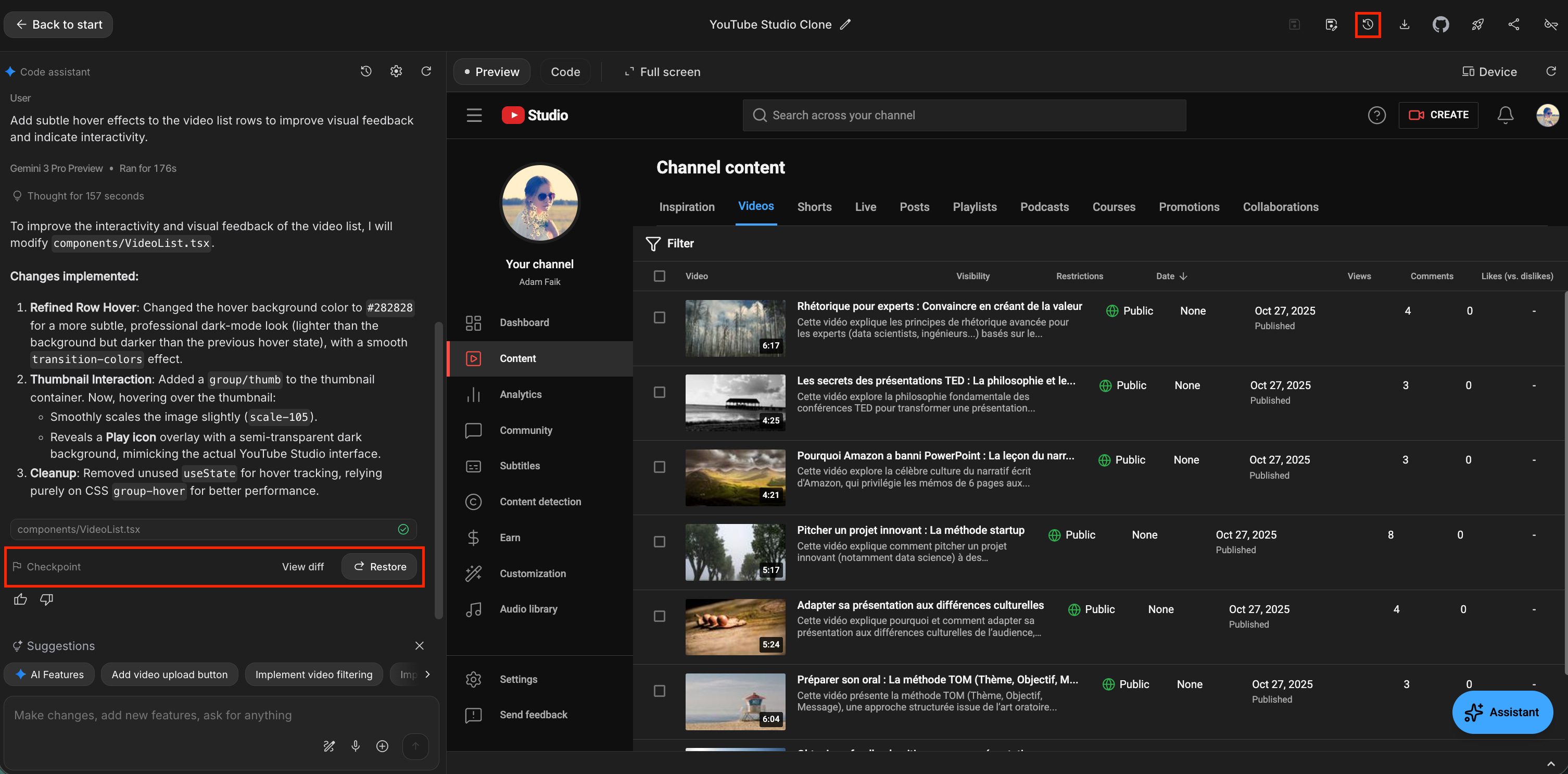
As you build, you will inevitably hit a dead end. Maybe you asked for a new feature, and the AI rewrote your entire working code into a mess. You don’t have to accept the result. Use the Checkpoint feature to travel back in time. It allows you to revert your app to the exact state it was in before that bad prompt, so you can try again with a different approach.
5. The Super Nintendo rule: Don’t lose your progress
Here is a critical warning: Google AI Studio sessions behave like a Super Nintendo. If you refresh the page, close the tab, or come back the next day, your chat history and those handy Checkpoints are gone forever. It’s like leaving your console powered on all night because the game cartridge doesn’t have a save battery.
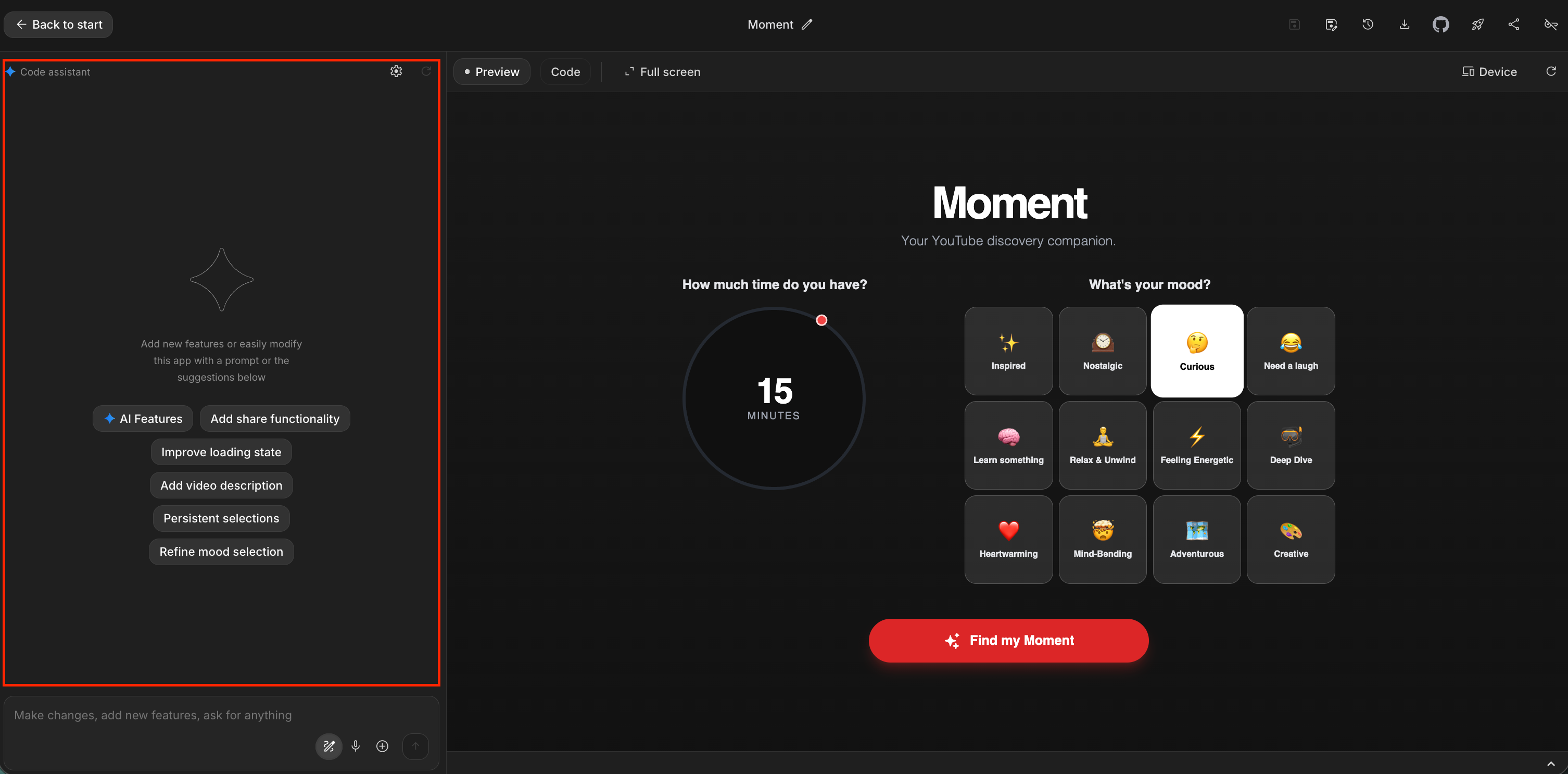
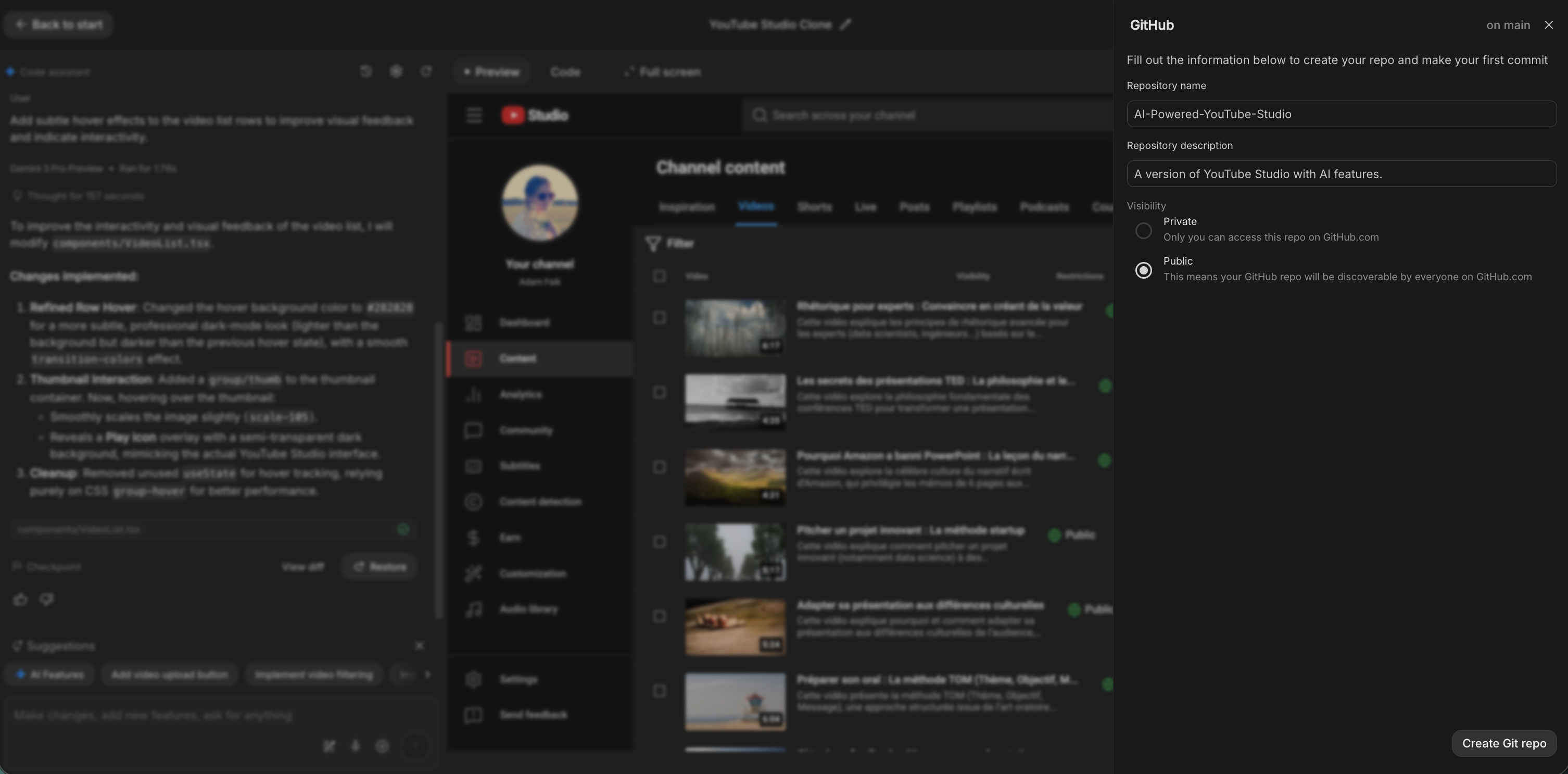
The fix: Use the “Save to GitHub” button. Don’t rely on the browser session. Push your code to GitHub frequently. This is your permanent “Memory Card.”
6. The LLM-powered-LLM workflow
This is the expert-level trick that makes you look like a 10x developer. Sometimes, Google AI Studio gets stuck in a loop or writes messy code. Instead of fighting it, I call in a second opinion.
Step 1: I click the “Push to GitHub” button inside AI Studio to save the code.
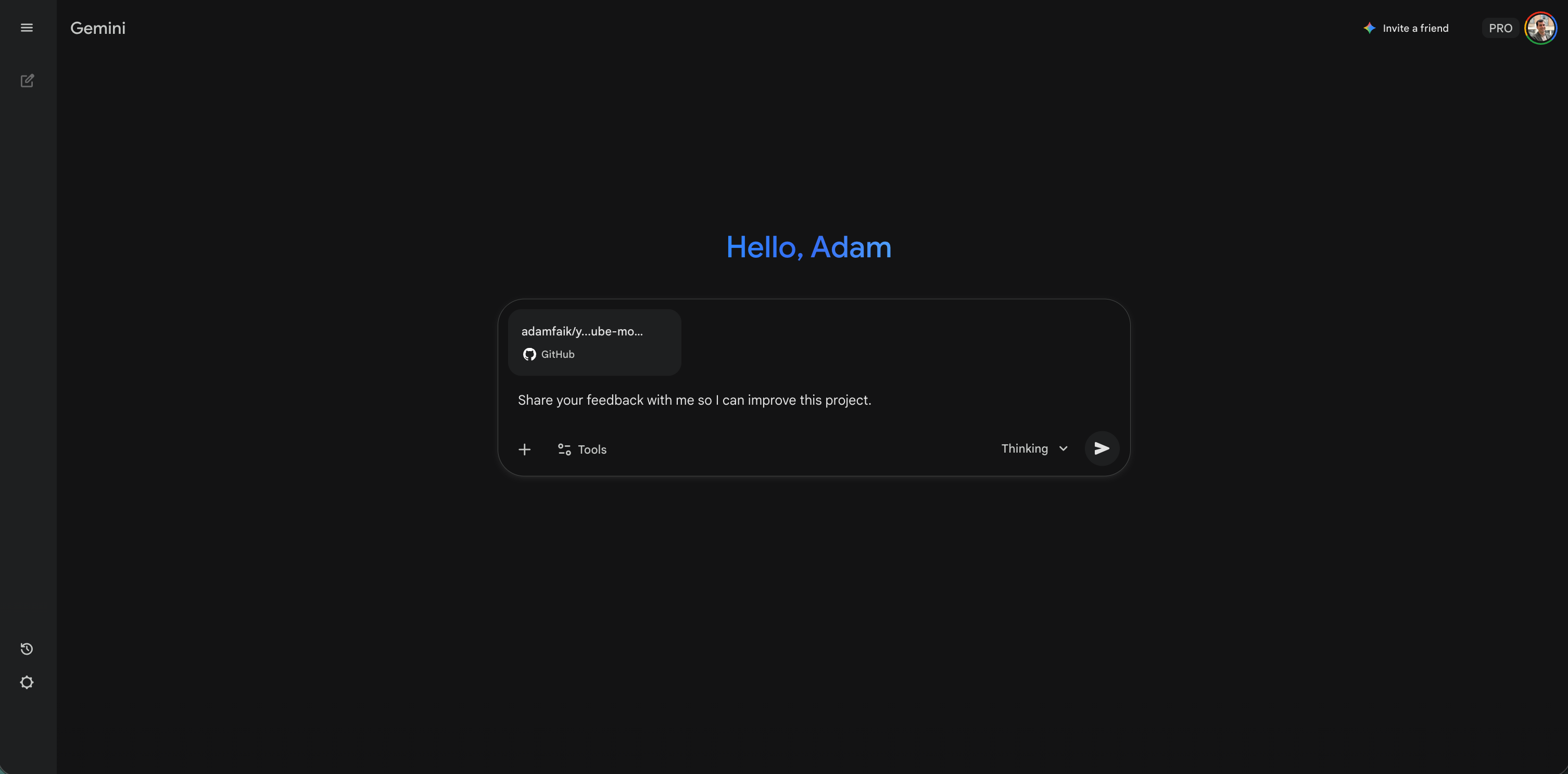
Step 2: I copy that GitHub link and paste it into Gemini or Claude.
Step 3: I ask: “Review this repo. The API connection is flaky. How would you refactor it for better reliability?”
Step 4: I take their optimized code and paste it back into Google AI Studio.
It’s like having a code review from a completely different senior engineer. One AI builds; the other optimizes.
Stop debating, start validating
We spend too much time in meetings debating the theory of AI. “Will users actually want a chatbot here?” “Is AI really better than a simple filter?” “How much will it cost to verify this?”
The only way to avoid the AI trap (building an expensive AI feature that actually makes the user experience worse) is to test it. Not with a static Figma mockup, but with a working prototype.
Google AI Studio removes the cost, the technical barrier, and the delay. It gives you a factory where you can turn a “what if” into a “play with this” in a single afternoon.
So, when should you open Google AI Studio versus other tools like Lovable.dev or v0.dev? Here is the rule of thumb:
Use Google AI Studio when...
The goal is logic: You need to validate if the AI feature is actually useful. You need a functional app that does things (analyzes data, processes video, generates complex reasoning).
You need AI: You want access to advanced models (Gemini 3 Pro, Vision) natively without setting up API keys.
Budget is zero: You want to iterate freely without credit anxiety.
Use visual tools (v0.dev, Lovable.dev) when...
The goal is beauty: You need a high-fidelity, pixel-perfect UI to impress a stakeholder.
The logic is simple: The AI part is basic (or fake-able), but the user flow and design need to look production-ready immediately.
The next time you have an idea, don’t write a Jira ticket. Don’t schedule a brainstorming session. Go build the feature yourself. Open the studio, describe your problem, and see what happens. You might just surprise yourself with what you can create in 3 minutes.
Over to You! Now I’d love to hear from you. What is the most egregious example of an “AI for nothing” feature you’ve seen recently? Or, if you give this workflow a try, come back and tell me: what is the wildest prototype you were able to build in under an hour? Let me know in the comments!