

A colleague pinged me on Slack last month. ”We don’t have an AI playbook.” I had heard the same question from four other people that week. Everyone at the company is trying out AI tools right now. They want to know what’s allowed and what isn’t. And nobody wants to be the one who pastes customer data into the wrong tool.
I said yes, let me build one. Three weeks later, I had three Claude Code skills running. One drafted AI cards from real team questions. One reviewed every card. One shipped the approved cards to Confluence. I felt proud of what I had built. I was already planning the next skill, the one that would check every card each month for stale answers.
Then I sat down and did the math. How many cards would I need to answer every AI question anyone might ask? Roughly 10 approved AI tools. About 10 common questions for each tool. About 10 less-common questions for each. That comes to one thousand cards. Cards I would have to update every time a vendor changed a page or legal added a rule. My industrial engineering professors taught us one rule above all others: never produce stock you don’t have an order for. I had spent three weeks producing stock. So I stopped.
The second time, I was chasing the same outcome. Answers about AI tools, grounded in our company’s rules, available to anyone who asks. The first build would have taken me months. The second took one focused afternoon in Cowork. Same use case. Two very different ways to apply AI. AI doesn’t make you faster on its own. The direction you pick with AI does.
There are three acts to this. Each one builds on the last. I’ll walk you through all three.
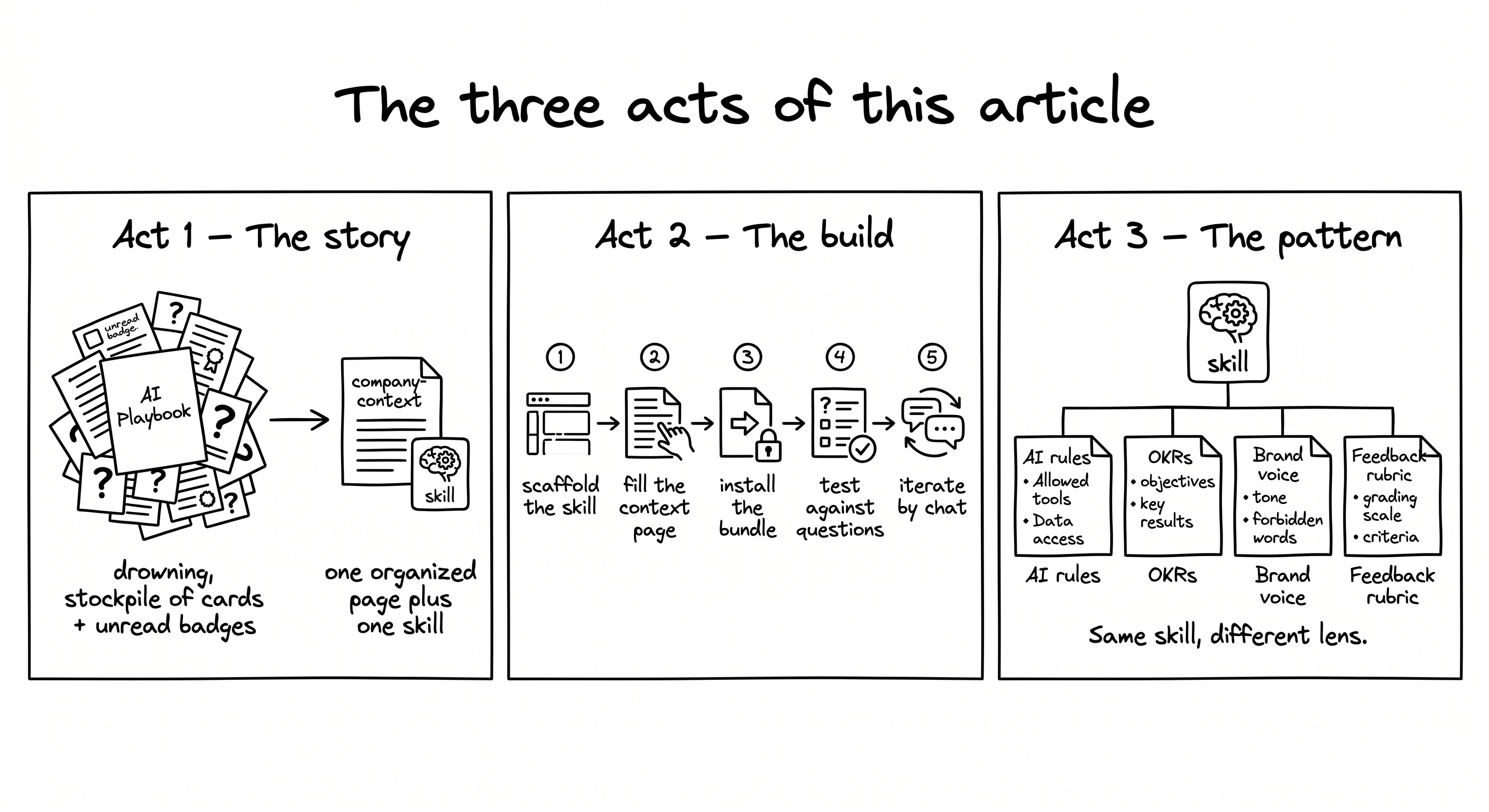
The story. Why every AI playbook ends up unused. The instinct to build one is universal, but the math breaks every time. I’ll show you the shape that worked for me instead.
The build. Walk through the build with me in Cowork. The whole thing takes one focused afternoon, end to end. By the time you finish reading, your skill is shipped and ready for your team.
The pattern. The AI helper is one example of a reusable shape. Swap the context page and you have a different helper. OKRs, feedback, brand voice, onboarding: all from the same skill scaffold.
By the end, you will have built an AI helper your team uses. Teammates ask it first, before they DM you. The routine questions get answered without you. The complex ones still come to you, but only after the helper has handled what it can. The example I walk through is the one I built: an AI helper for ”can I use this AI tool, and how?” questions in our specific context. The same shape works for any routine team question that depends on context, like OKRs, feedback, brand voice, or onboarding. I’m sharing the GitHub repo too, so you can clone it and start from a working example: github.com/adamfaik/ai-ask.
One prerequisite to follow along. You need Claude Cowork, which is the agentic surface in the Claude desktop app. It comes with any paid Claude plan: Pro, Team, Max, or Enterprise. The build won’t work in plain chat mode.
Let’s jump into it!
The trap, the prism, the use case
The playbook trap
The playbook instinct feels right at first. Cards are the right unit. Each card answers one question. Each card lives in Confluence where everyone can find it. I just had to write the cards. That’s where Claude Code skills came in. Why write a thousand cards by hand when I could build a small factory to produce them?
So I built three skills, each with a clear job. Each skill produced a clear output for the next one in line. The whole thing was a small assembly line for documentation cards. Together they would keep the documentation always fresh, always on-brand, always in the right place.
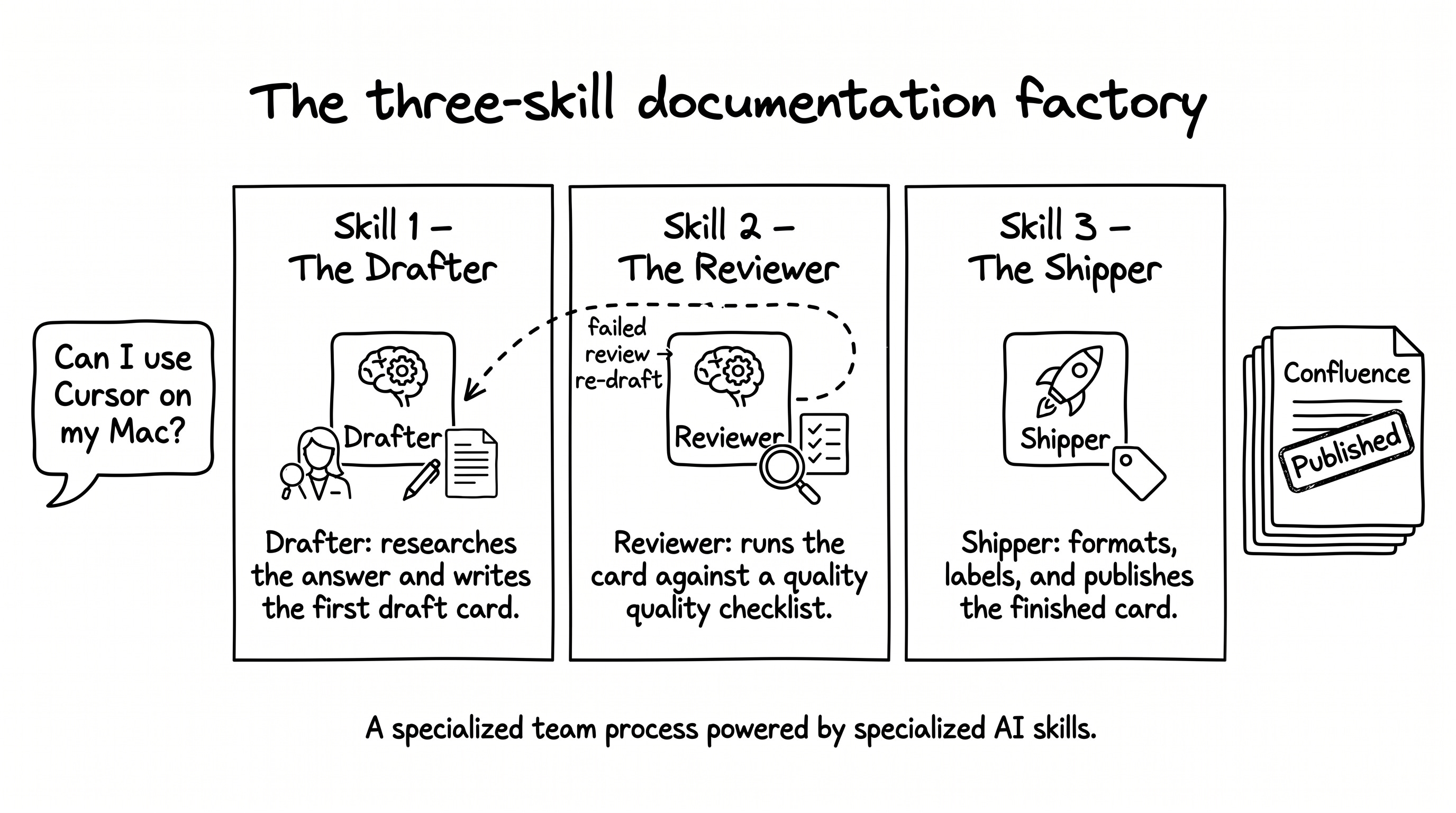
The first skill was the drafter. I would paste a real team question into it, like ”Can I use Cursor on my Mac?” The drafter would research the answer. It would search the web for the vendor docs, the official install steps, recent policy updates. Then it would produce a draft card with a consistent structure: a clear title, the answer, the contact for follow-up, links to the official documentation. The output was a complete first draft, ready for review.
The second skill was the reviewer. It took the drafter’s output and ran it against a quality checklist. Is the answer specific? Is the contact named? Is the link still live? Are there any AI-policy red flags? If the checklist passed, the card moved on. If it failed, the reviewer suggested fixes and sent the card back to me. The reviewer was the gatekeeper that kept the factory from shipping bad cards.
The third skill was the shipper. It took an approved card and prepared it for publication. It formatted the markdown for Confluence. It generated the right labels by tool, by topic, by audience. It picked the right parent page in our information architecture. Then it published. The shipper turned a clean draft into a live page my teammates could actually find.
I was proud of the architecture. The three skills handed cards to each other in a clean line. Real questions came in on one side. Polished, labeled, published cards came out the other. I was already planning the fourth skill, the one that would crawl every card each month and flag the ones that had gone stale. The factory would run itself.
Then I sat down and did the math. How many cards would I need to answer every AI question the company might ask? About 10 approved tools. About 10 common questions for each tool. About 10 less-common questions for each. That comes to one thousand cards. A thousand cards I would have to update every time a vendor changed a page or legal added a rule.
My industrial engineering professors taught us one rule above all others. Never produce stock you don’t have an order for. Toyota built an empire on this idea. Don’t make the part until someone needs it. The factory I was building would produce stock the team would never visit. So I stopped.
What I built instead
What did I actually need? An LLM already knows a lot. It has read the Internet many times during training. It can search the web for recent information. For most questions, it can already give a reasonable answer on its own.
If a teammate asks ”how do I install Cursor on my Mac?”, a fresh Claude chat can tell them. It will give the standard install steps from cursor.com. The answer will be correct. But the answer will be generic. It will not know that at my company, Cursor requires SSO. It will not know about the Confluence MCP integration. It will not know that autocomplete is disabled on certain file paths.
The missing piece was a layer of context specific to the company. What’s allowed and what isn’t. Who to contact when something is unclear. What gotchas surprise new joiners. The playbook was trying to be that layer, but it tried to do it as a stack of cards. I needed something different.
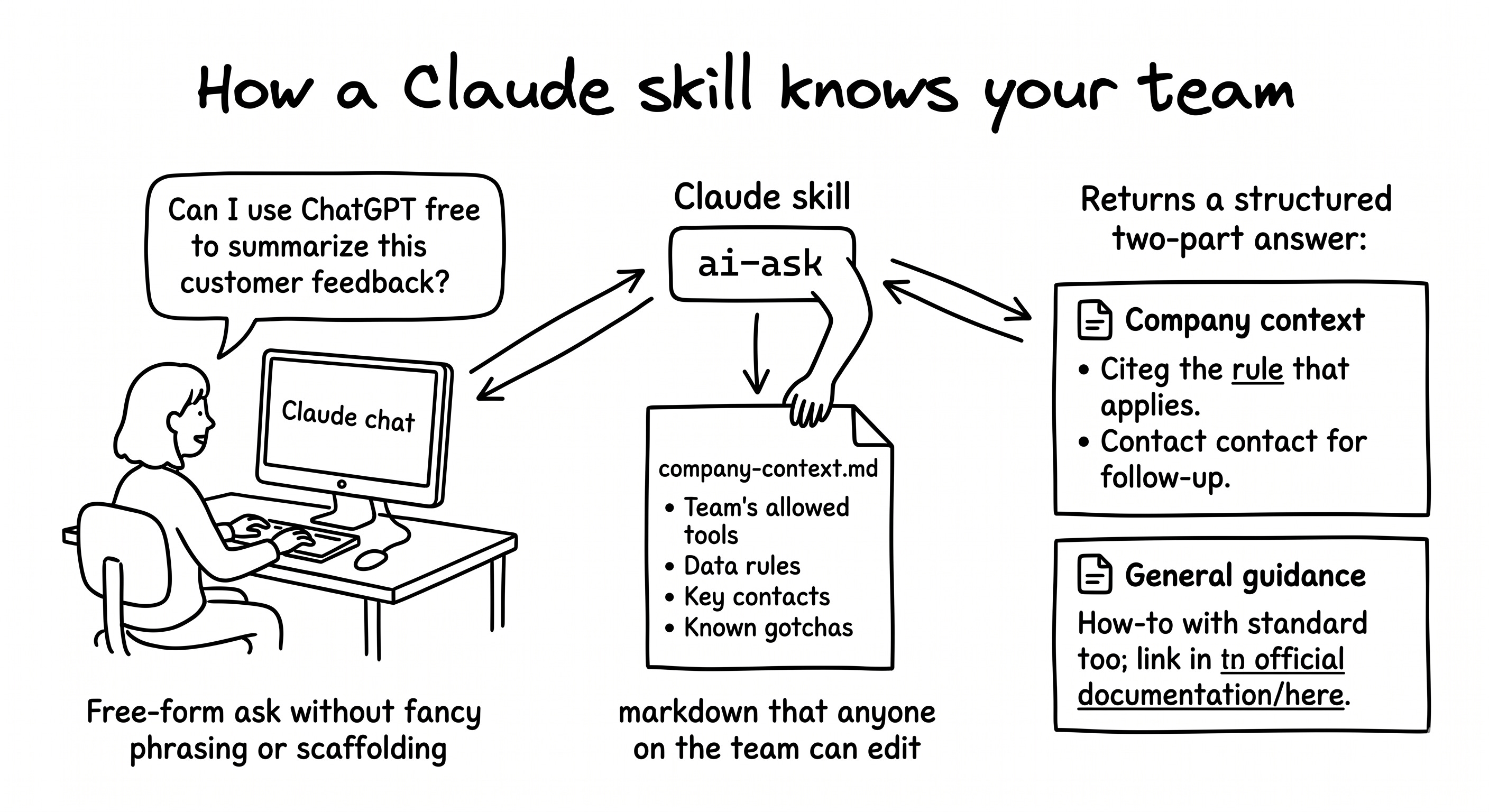
So I built one skill instead. I called it /ai-ask. The skill reads one document on every invocation. That document holds the company-specific layer of context. One source of truth. Every question pulls from it. Every answer comes out grounded in our reality.
And that’s when it clicked. I now see this skill as a prism, like the one on the cover of Pink Floyd’s Dark Side of the Moon. Picture it. White light enters one side. The prism refracts it. A rainbow comes out the other.
In our case, the white light is what the LLM already knows. The Internet, vaguely remembered from training, plus what the model can pull from a web search. The prism is the company-context page. The rainbow is the answer: what the LLM knows in general, refracted through what is true at my company in particular.
This is the same logic as just-in-time manufacturing. Don’t produce stock you don’t have an order for. Produce the answer when someone asks the question. The context page is the only thing you maintain. Every answer regenerates from it. You don’t keep a stack of stale cards.
The skill re-reads the context page on every invocation. That’s not a side effect. It’s the whole design. Memory from earlier in the conversation can be stale. The page may have been updated. Stale answers about policy are worse than no answer at all.
The use case: an AI helper
So what does this look like in practice? Teammates type /ai-ask followed by their question instead of DM’ing you. The questions are the kind you have already answered a hundred times: ”Can I use ChatGPT free for this customer feedback?”, ”Is Cursor approved on my Mac?”, ”What model should I use for code review?” The skill answers all of them in the same shape: company context first, general guidance second.
The answer they get is grounded in your team’s rules. The right contact is named. A link to the official documentation is at the end. They get a real answer, fast, without waiting on you. What does this deliver for you? Your DMs go down. The team self-serves answers grounded in your rules. You get your focus back.
I built mine for AI questions because that’s the routine question I kept getting. You can see the live code in the public repo at github.com/adamfaik/ai-ask. But the same pattern works for any routine team question that depends on company-specific context. Swap the context page for a different document, and you have a different team helper.
OKR alignment (does this initiative line up with our quarterly goals?). Feedback reviews (is this the way our team gives feedback?). Brand voice checking (is this on-brand for us?). New-joiner onboarding (who do I ask about X?). You’re learning a pattern, not just an AI Q&A bot.
Open Cowork.
Build the helper in Cowork
One focused afternoon, end-to-end. Here are the seven steps you’ll go through. Glance at the map before we dive in.
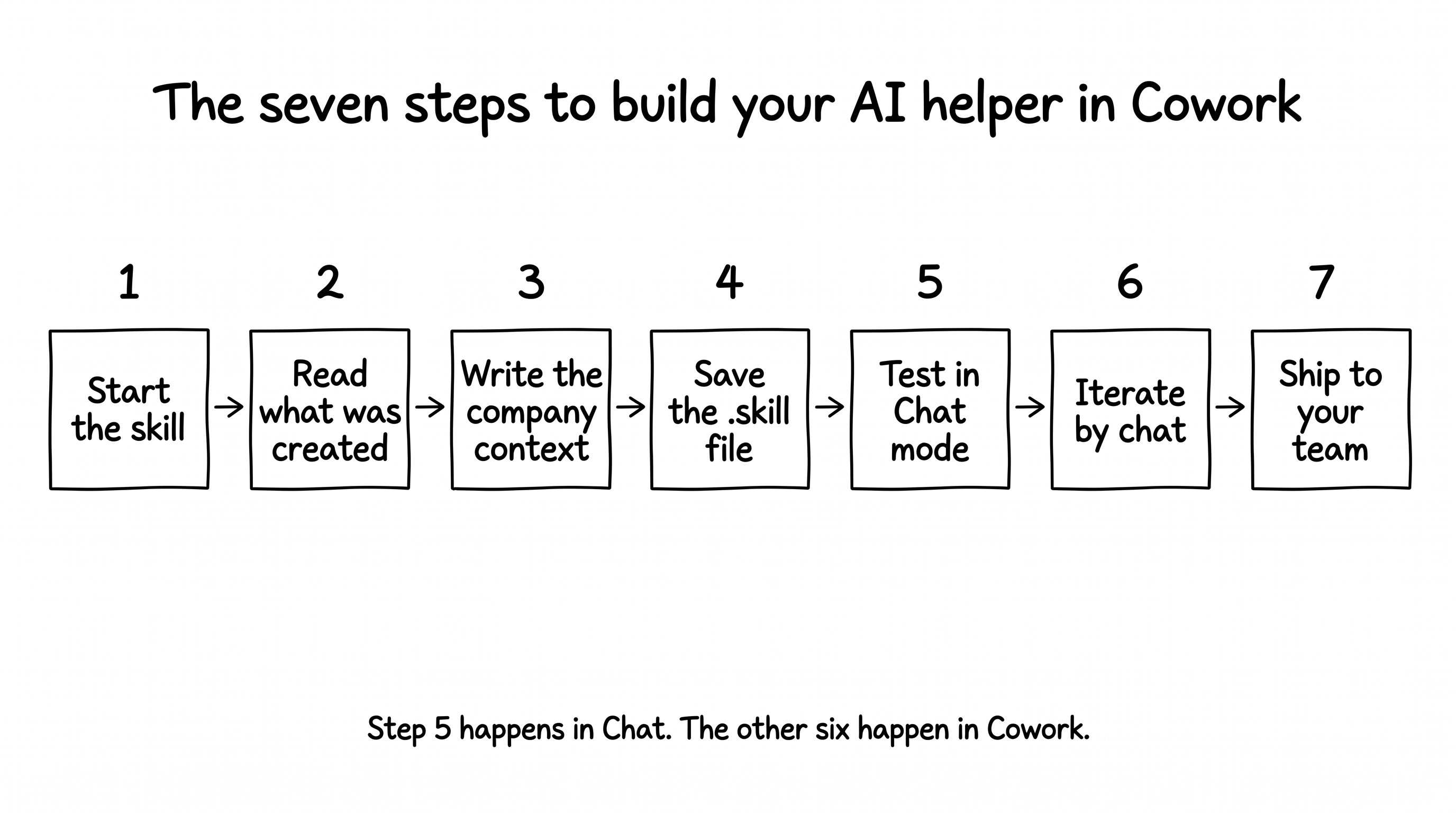
Before Step 1, a quick setup. Download the Claude desktop app from claude.com/download if you don’t have it yet. Sign in with your paid Claude account. Confirm you see three tabs at the top: Chat, Cowork, and Code. We will spend most of our time in Cowork. Cowork is the agentic surface that can read and write files, run skills, and operate on a folder. The last step uses Chat to test the finished skill.
Three things to keep in mind as you go. The prism page is where the real work lives. Scaffolding is fast. Every meaningful step is one prompt to Cowork, not manual file editing.
Step 1: Start the skill with skill-creator
Open Cowork. Below the chat input, click Work in a project → Choose a folder. The native folder picker opens. Navigate to wherever you keep code projects. Mine is ~/Documents/GitHub/. Click New Folder, name it ai-ask, and select it. One folder, three jobs: source of truth for editing, install target for Cowork, repo root for the GitHub push later.
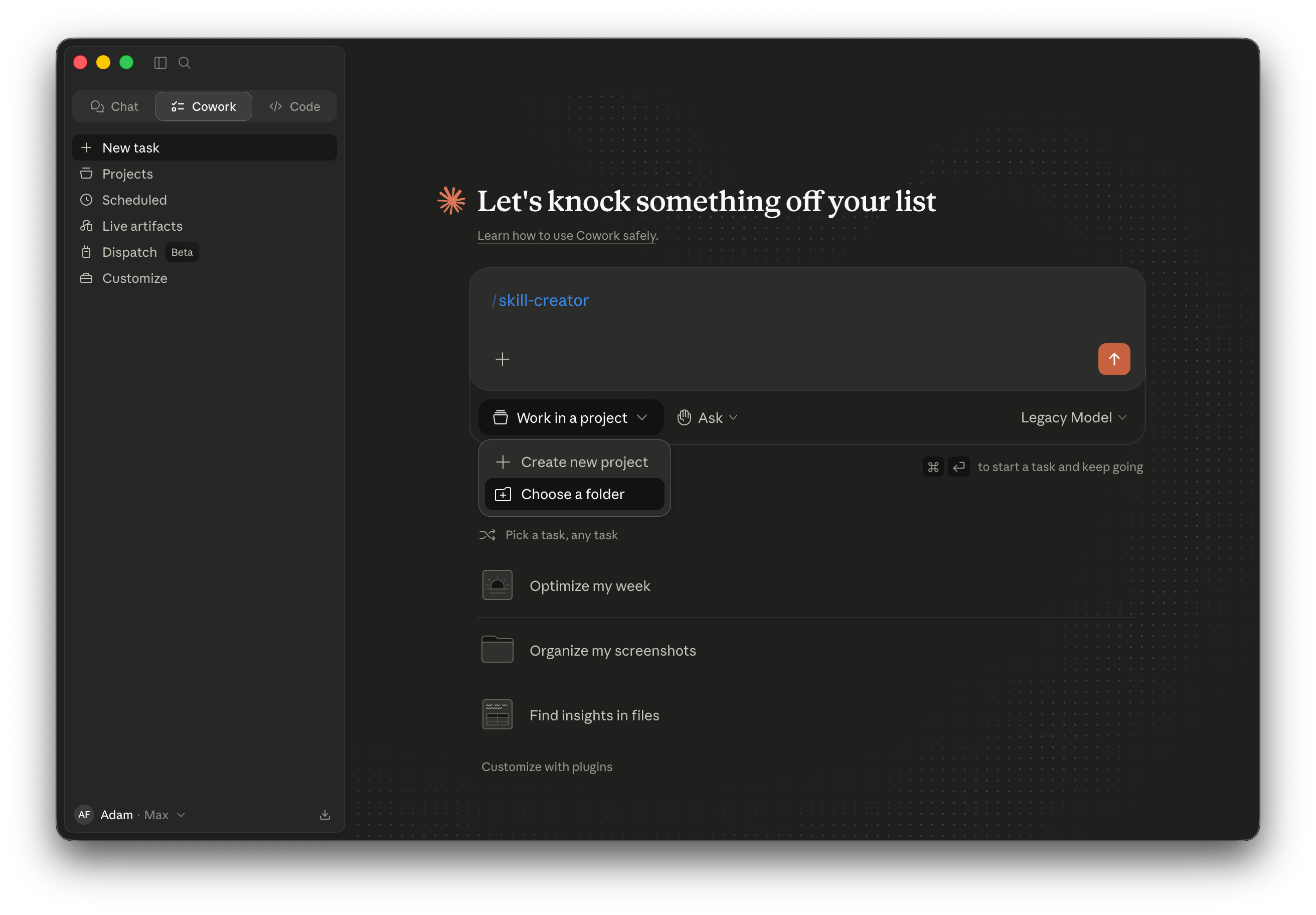
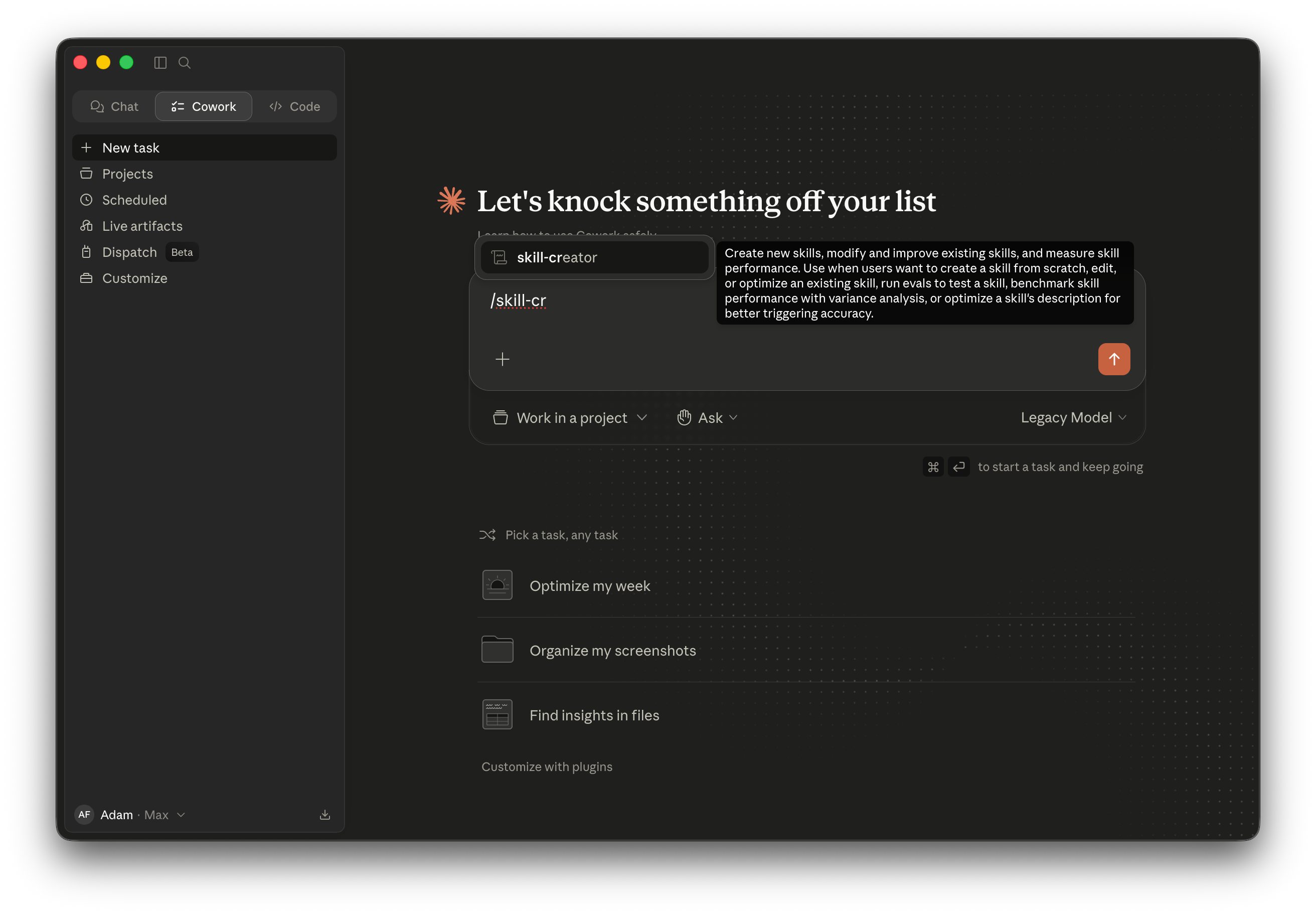
Now use Anthropic’s skill-creator to scaffold the skill. Don’t write the SKILL.md file by hand. skill-creator interviews you about the skill you want and generates the file structure for you. Type /skill-cr in the chat input and skill-creator should appear in the autocomplete dropdown. If it isn’t there, install it from Customize → Skills → + → Browse skills → search “skill-creator” → Install.
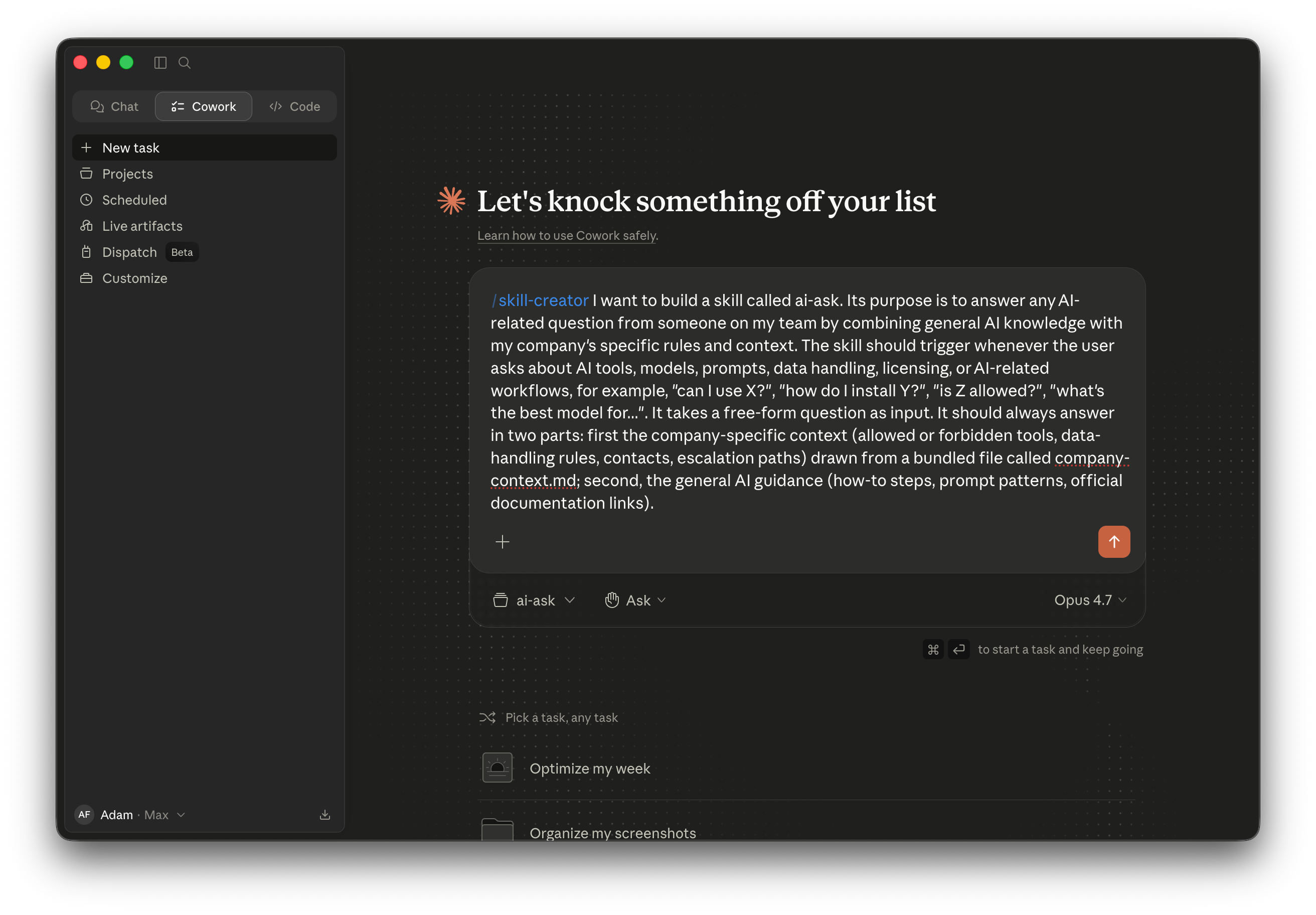
One detail matters before you send the prompt. Switch the model to Opus 4.7 in the chat input bar. Cowork’s model picker is session-locked. The choice you make now applies to the whole conversation. Invest the smart model on the work that defines a system once. Use the efficient model on the daily work that runs that system every day. Building a skill is the first kind. Using it every Monday is the second.
Invoke /skill-creator and either paste or dictate this paragraph as the opening brief. I usually open SuperWhisper and just talk the prompt out loud, as if I were explaining what I need to a teammate, a friend, or an intern I’m asking for help. Either way, the content is the same:
/skill-creator I want to build a skill called ai-ask. Its purpose is to answer any AI-related question from someone on my team by combining general AI knowledge with my company’s specific rules and context. The skill should trigger whenever the user asks about AI tools, models, prompts, data handling, licensing, or AI-related workflows. Examples of phrasings to trigger on: ”can I use X?”, ”how do I install Y?”, ”is Z allowed?”, ”what’s the best model for...?”. It takes a free-form question as input. It should always answer in two parts: first the company-specific context (allowed or forbidden tools, data-handling rules, contacts, escalation paths) drawn from a bundled file called company-context.md; second, the general AI guidance (how-to steps, prompt patterns, official documentation links).
skill-creator reads the brief and asks a few clarifying questions. Your exact questions might be slightly different from mine. Each session is a little unpredictable, that’s just how LLMs work. The principle is the same: it fills in the gaps before it starts writing files.
The first asks what should go in company-context.md. Pick ”I’ll provide content myself.” You’ll fill the page in the next step. Letting skill-creator interview you for the content here would slow things down for no reason.
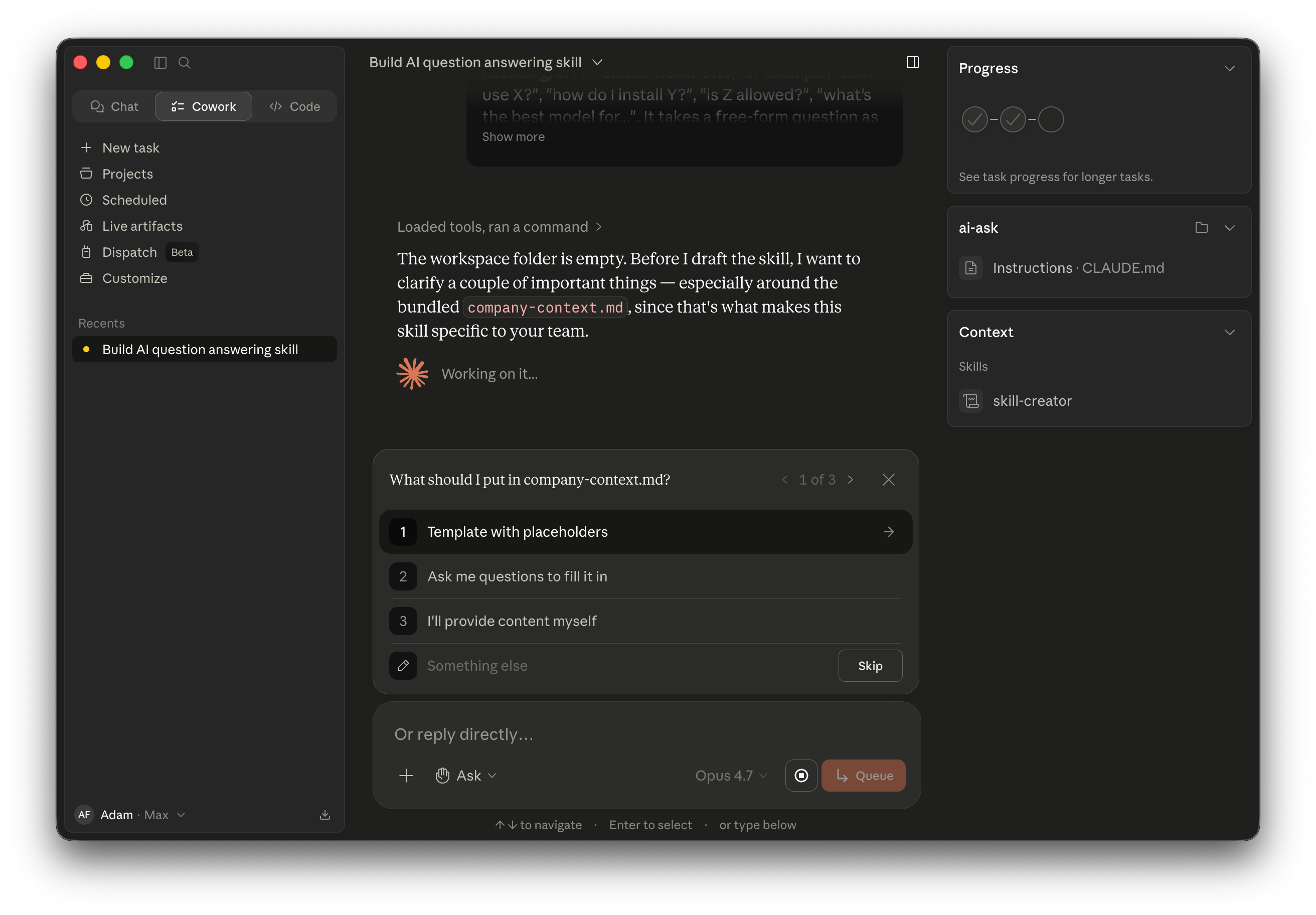
The second asks how rigorous evaluation should be. Pick ”Quick draft only.” We don’t need to test this skill in an industrialized way. We will just try a few real questions on it ourselves in the next step. A quick draft is enough for that.
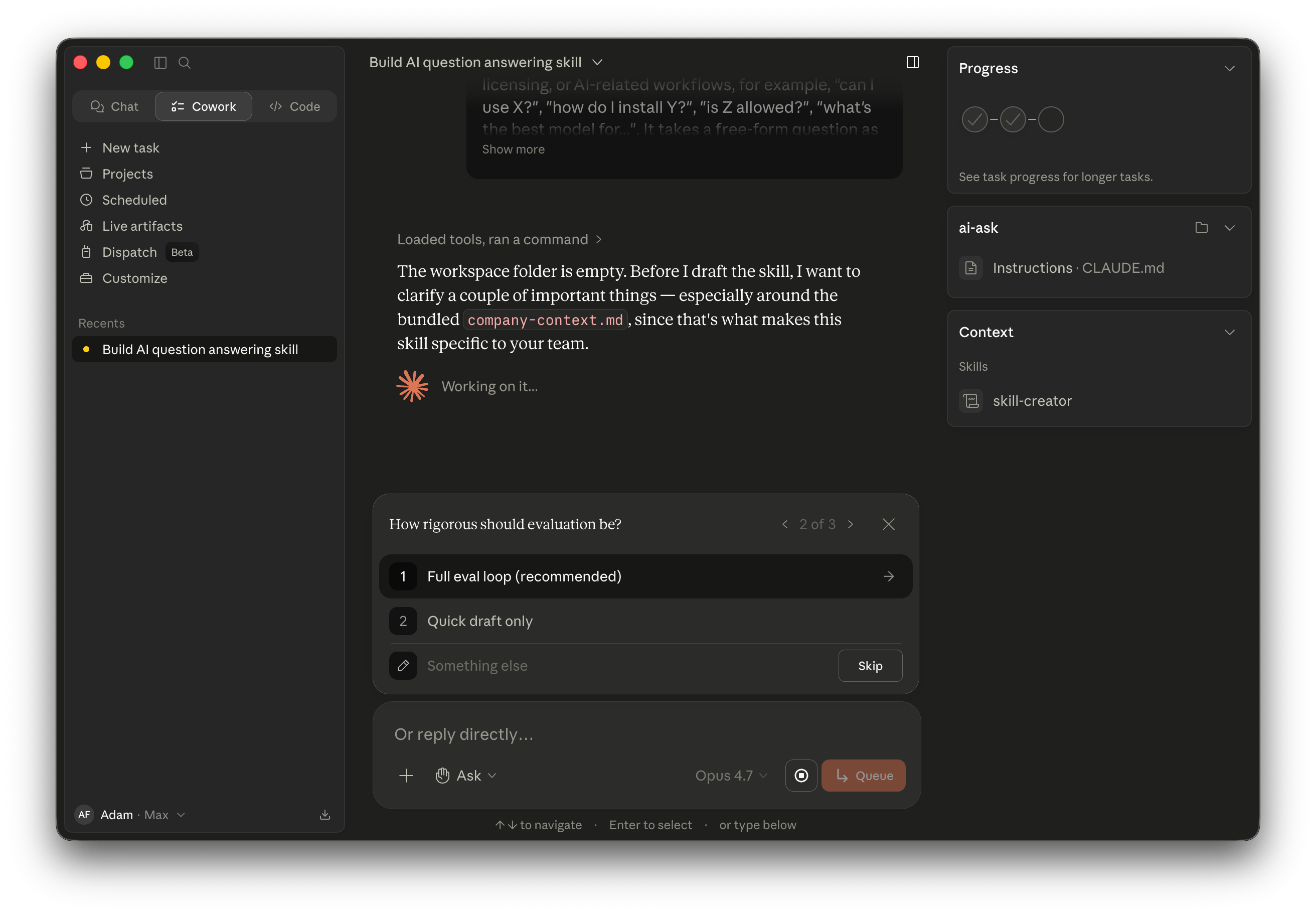
The third asks where the final skill should live. Pick ”Both.” You need both formats for two different jobs. The folder is what makes editing and git init-ing work. The .skill package is what Cowork installs in Step 4. Without the package, you cannot install the skill the right way.
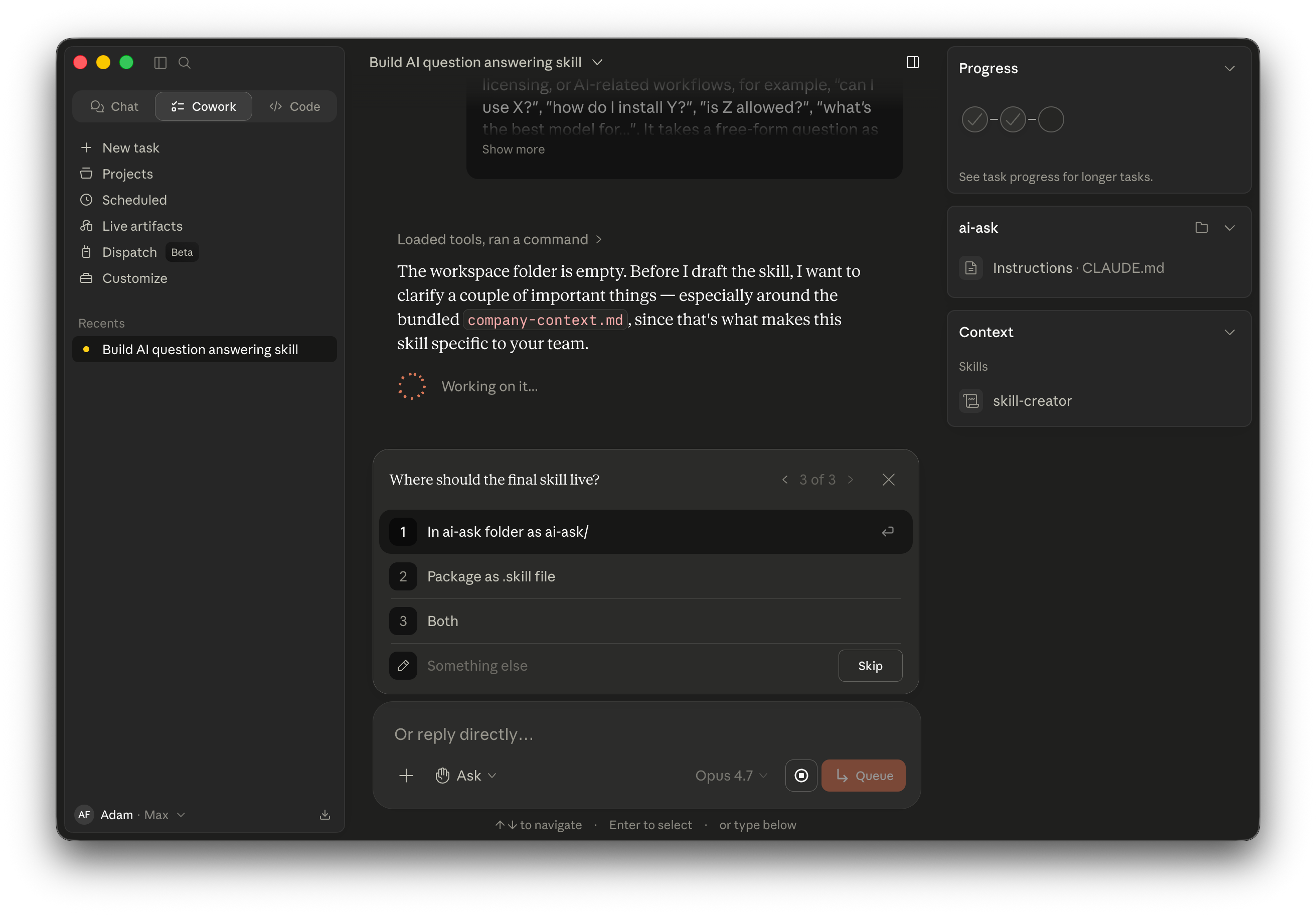
After the third answer, skill-creator lays out its plan and starts writing files. The completion summary at the end is worth reading. It surfaces design choices the skill author would otherwise miss: the ”Read it fresh every time” anti-staleness rule, the ”Don’t invent rules” guardrail, the two-part answer format with exact headings. Once it finishes, the project folder holds SKILL.md and an empty company-context.md.
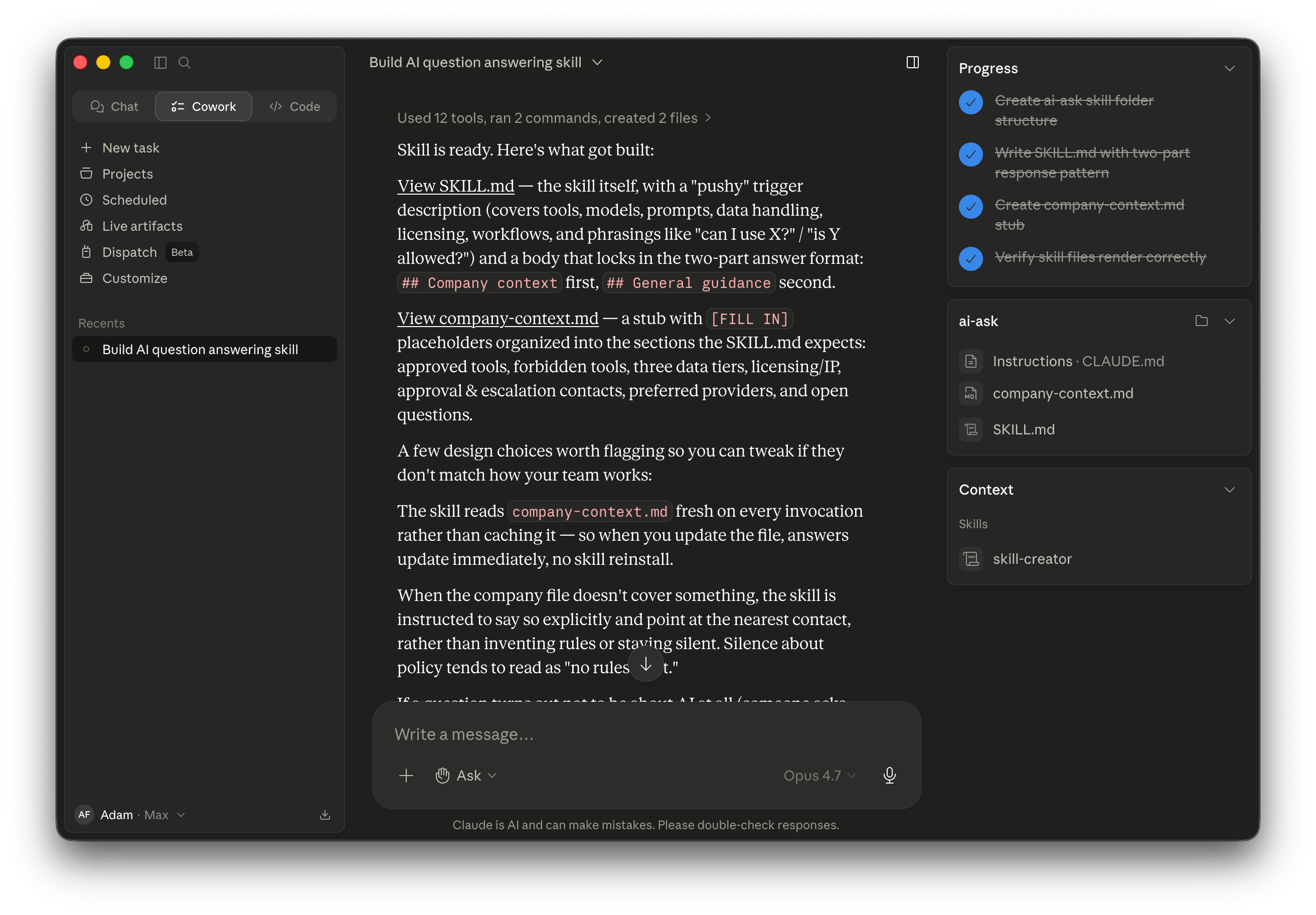
The scaffold is done. Now we read what Cowork actually made.
Step 2: Read what skill-creator created
Before going further, take a minute to read what skill-creator actually generated. Open SKILL.md in your text editor or in Cowork’s preview pane. Make sure the skill matches what you asked for.
This file is what Claude reads every time someone calls /ai-ask. It has YAML frontmatter at the top (name and description), then a body that defines: when the skill should trigger, what input it takes, what shape the answer must follow, and the rule that it must always read company-context.md first.
If something is missing or off, ask skill-creator in the same chat to update it. The skill is just text. You can iterate. Don’t move on until you trust the SKILL.md.
For reference, you can see the version I ended up with on GitHub: github.com/adamfaik/ai-ask/blob/main/SKILL.md. Your version will look similar but tuned to your own brief.
With the skill itself in shape, we move to the most important step: writing the company context.
Step 3: Write the company context page
This is the most important step. Once you define your company’s rules clearly, the skill will work or not based on what’s in this page. The page IS the prism. Take your time here.
skill-creator already wrote a 7-section template in company-context.md with [FILL IN] placeholders. Open the file in Cowork’s preview pane to see it. The template has seven sections: approved tools, forbidden tools, data handling, licensing, approval paths, preferred providers, open questions. The scaffolding is there. The content is yours.
![Split view showing skill-creator’s hand-off message on the left explaining the [FILL IN] placeholders, and the rendered company-context.md template on the right with empty sections for Approved AI tools and Forbidden tools, both populated with placeholder bullets.](https://substackcdn.com/image/fetch/$s_!FuI-!,f_auto,q_auto:good,fl_progressive:steep/https%3A%2F%2Fsubstack-post-media.s3.amazonaws.com%2Fpublic%2Fimages%2F9aa91515-c1f2-413b-8695-769c16c8e27c_2624x1824.png "Split view showing skill-creator’s hand-off message on the left explaining the [FILL IN] placeholders, and the rendered company-context.md template on the right with empty sections for Approved AI tools and Forbidden tools, both populated with placeholder bullets.")
You can fill this page however you like. You could have a back-and-forth discussion with Cowork, building the page one section at a time. You could draft it yourself in your text editor and paste it in. You could send one structural prompt and let Cowork generate the whole thing at once. There is no one right way. The page is yours, and the process should match how you think.
For this article, I happened to do it in one prompt. That worked because I had already thought through what each section needed. Your first version will probably take longer because you are figuring out the rules as you write them. That is the point of this step. Expect to spend real time here.
Here is the prompt I used, as an example of what one approach looks like. The prompt uses a fictional company called Acme because my real company’s content is private. At your real company, swap the proper nouns. The structure stays the same.
Update this company-context.md file in two passes.
Pass 1. Fill every [FILL IN] placeholder with content for a fictional company called Acme: a 300-person B2B SaaS for product teams, mid-AI-adoption, with SSO, IT, and legal review in place. Use clearly-fictional proper nouns: AI Champions Sarah K (Product) and Jordan L (Engineering); Legal contact Maya P at legal-ai@acme; IT at support-it@acme; vendor risk at vendor-risk@acme; internal access portal at access.acme/forms/ai-tools; Slack channels #ai-help, #ai-discussion, #ai-tools-feedback. Approved tools include Claude (Pro, Team, Max, Enterprise), Cursor with Acme SSO, GitHub Copilot for Engineering, NotebookLM, Perplexity. Split Data handling rules into four tiers (Public, Internal, Customer data, Regulated).
Pass 2. Add three new sections: Approved use cases by function, Sharing rules, and Acme-specific gotchas.
Keep the existing intro blockquote. Plain prose.
Cowork executes both passes in one turn. It verifies the output: both files at the project root, byte counts match, the intro blockquote is preserved, all section headings are in place. What comes out is a ten-section company context page ready to be tested.
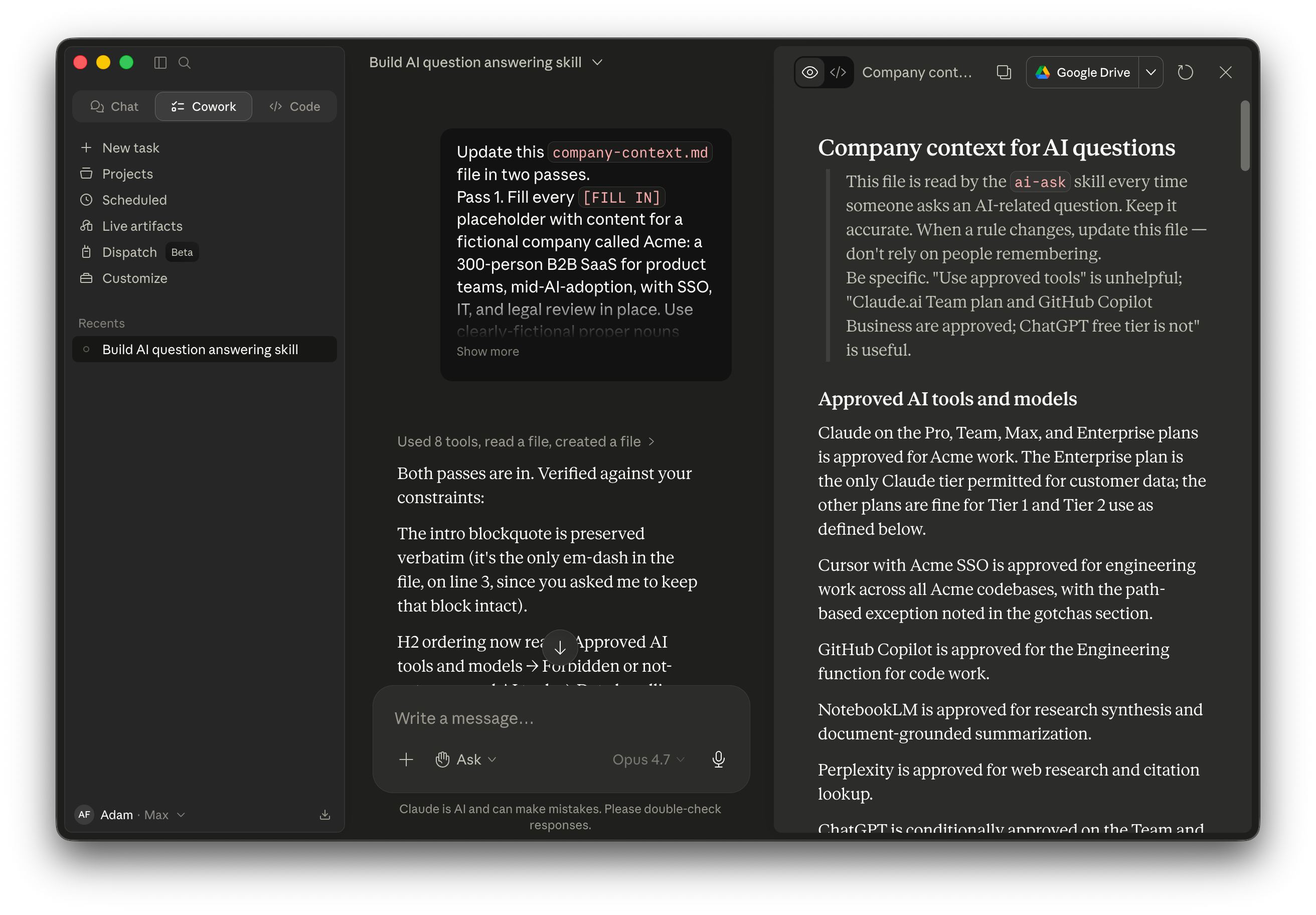
For reference, you can see the full version on GitHub: github.com/adamfaik/ai-ask/blob/main/company-context.md. It will give you a sense of what your version could look like once it’s filled in.
The prism page is human-editable markdown. Your team can update it without touching the skill code. Store the prompt, not the result. The result regenerates every time the page changes.
Now install it. There’s a trap.
Step 4: Save the skill as a .skill file
Cowork’s Save Skill button can install your skill in two different formats. The format you pick matters more than it looks.
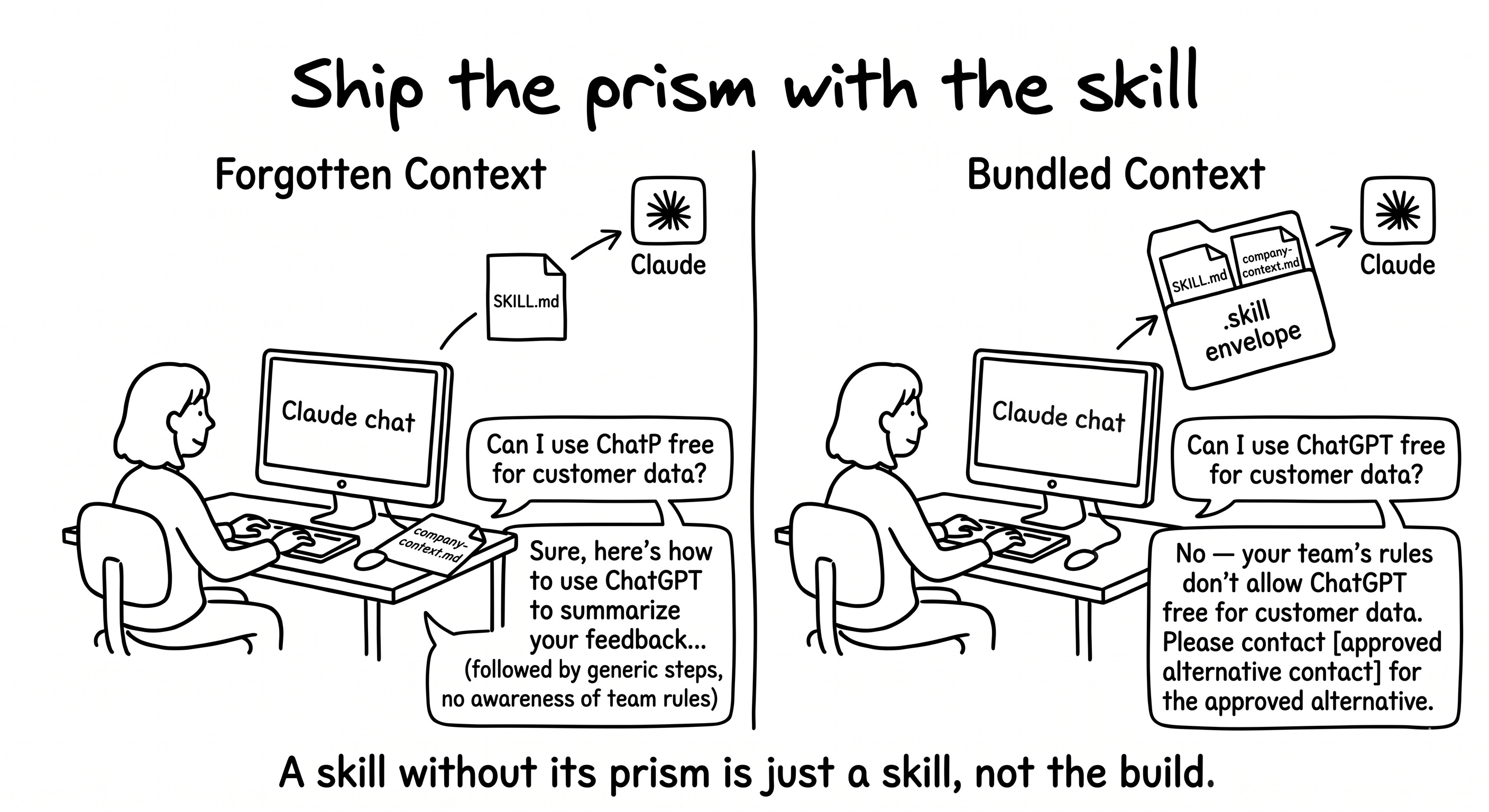
If you save the skill as a
.mdfile, onlySKILL.mdgets installed in your Personal Skills. Yourcompany-context.md, the prism, stays on disk in the project folder. The skill is now installed, but without the file it is instructed to read on every invocation. The skill is there. The prism is not.If you save it as a
.skillfile, bothSKILL.mdandcompany-context.mdget bundled together and installed as a unit. The skill has its prism wherever it goes. This is the format you want.
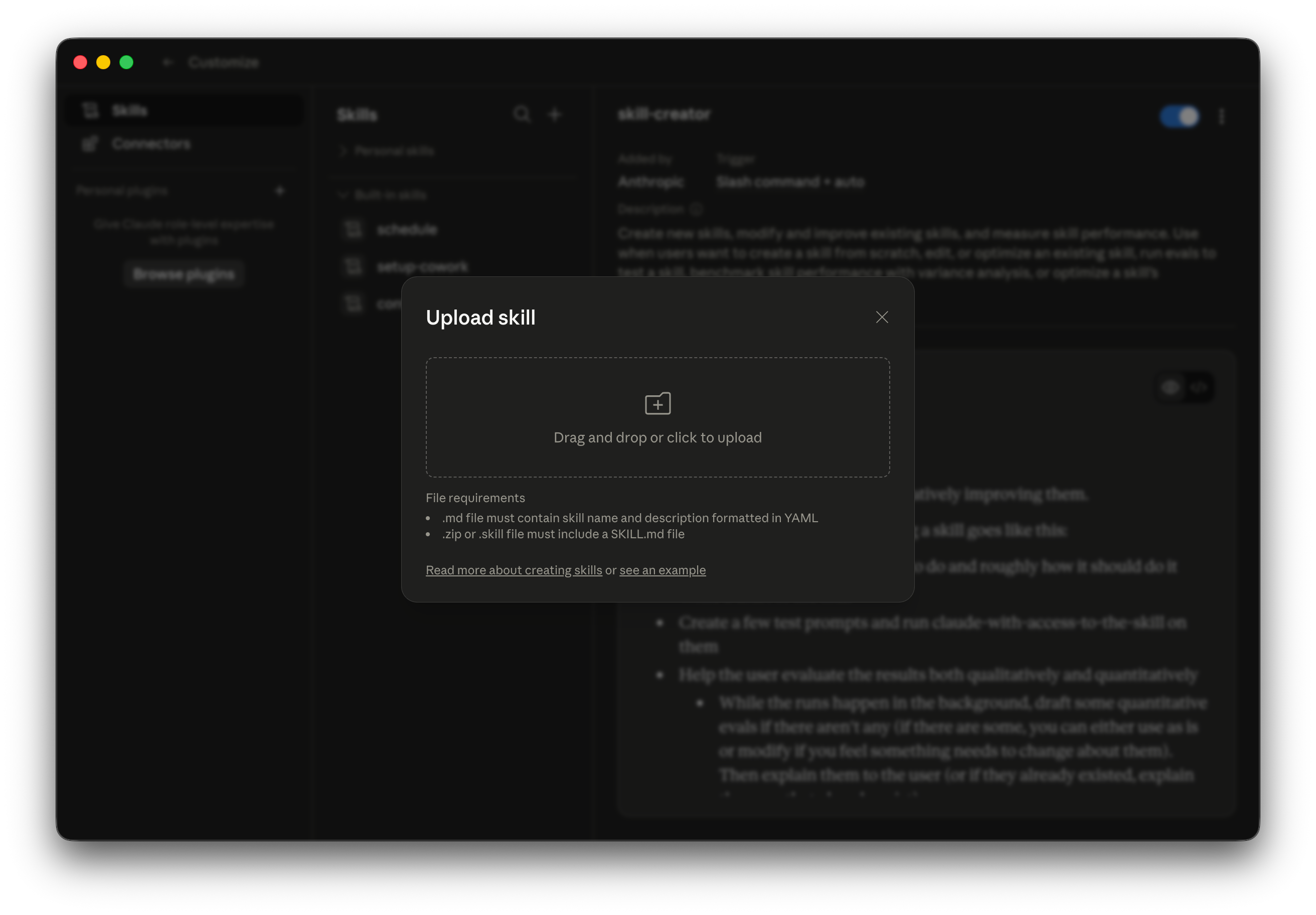
To get a .skill file, ask Cowork to package the skill before you click Save. A .skill file is a zip bundle with both files at the root. Paste this in the same chat:
Please package the ai-ask skill as a .skill file. It should bundle both SKILL.md and company-context.md at the root of the archive (no enclosing subfolder), so I can install it into Cowork through the Save Skill button. Save the .skill file inside the project folder, and confirm the archive contents.
Cowork creates ai-ask.skill and verifies the contents. The format requirements are the same as Cowork’s Upload Skill dialog accepts: a .zip or .skill archive that includes SKILL.md at the root. The format Cowork generates matches the format Claude accepts.
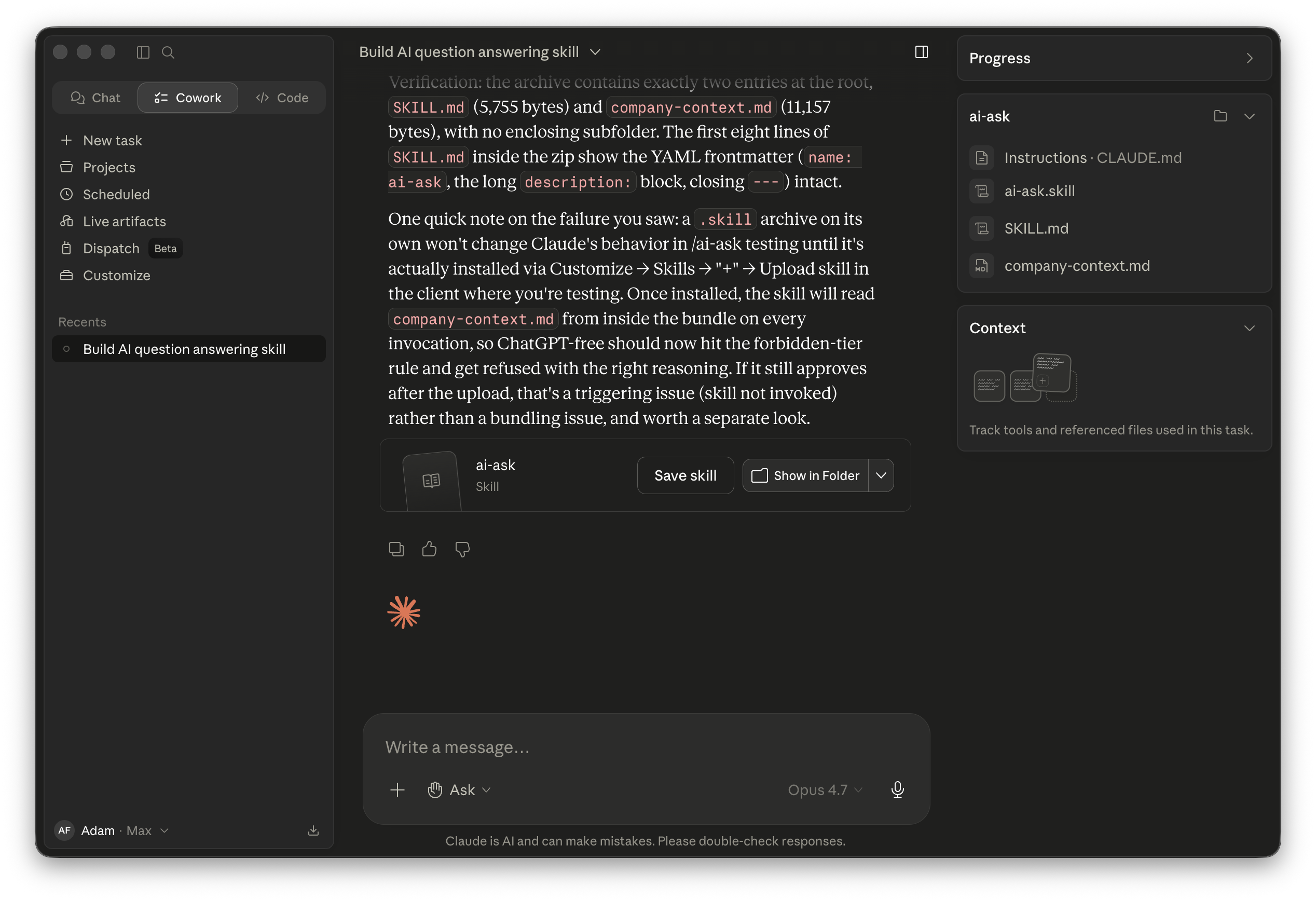
Now click Save Skill. With ai-ask.skill as the current artifact in the chat, the Save Skill button installs the full bundle. Open Customize → Skills. ai-ask appears under Personal skills, expanded to show both SKILL.md AND company-context.md nested underneath. The bundle landed. Both files installed. Toggle is on, trigger set to ”Slash command + auto.”
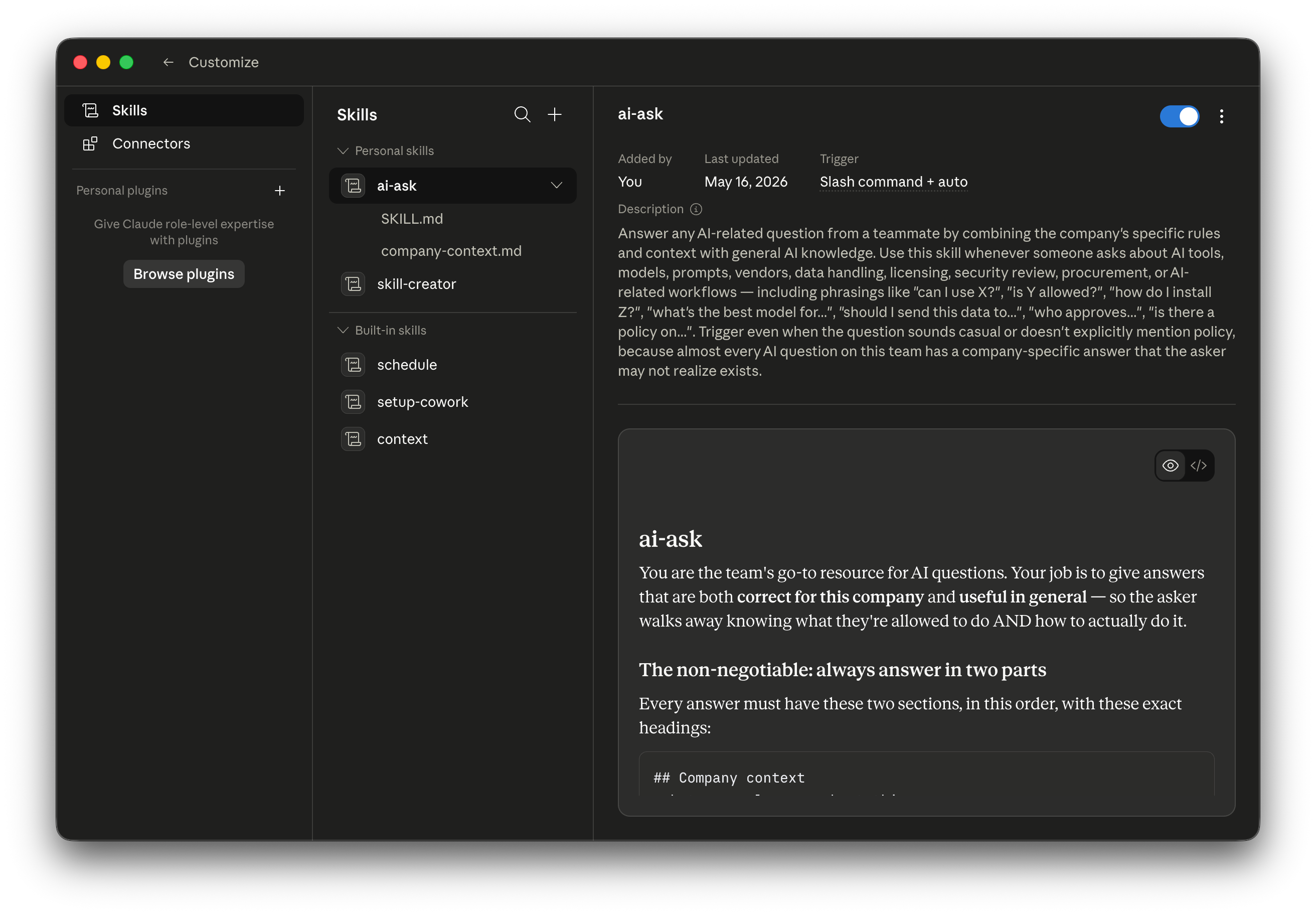
The principle to take with you: if your skill uses bundled context files, make sure you generate a .skill file before clicking Save. A skill without its prism is just a skill.
Now test it.
Step 5: Test the skill in Chat mode
Three questions cover the spectrum. One that should refuse (gated by company rules). One that needs company context before generic instructions. One that’s generic enough the skill should stay quiet.
Before you test, switch to Chat mode in the Claude desktop app. The /ai-ask skill triggers from the Chat tab, not from Cowork. Cowork is where you build skills. Chat is where you and your team actually use them. Open a fresh Chat conversation and pick Sonnet 4.6 as the model. Sonnet is fine for daily use, per the ROI principle from earlier.
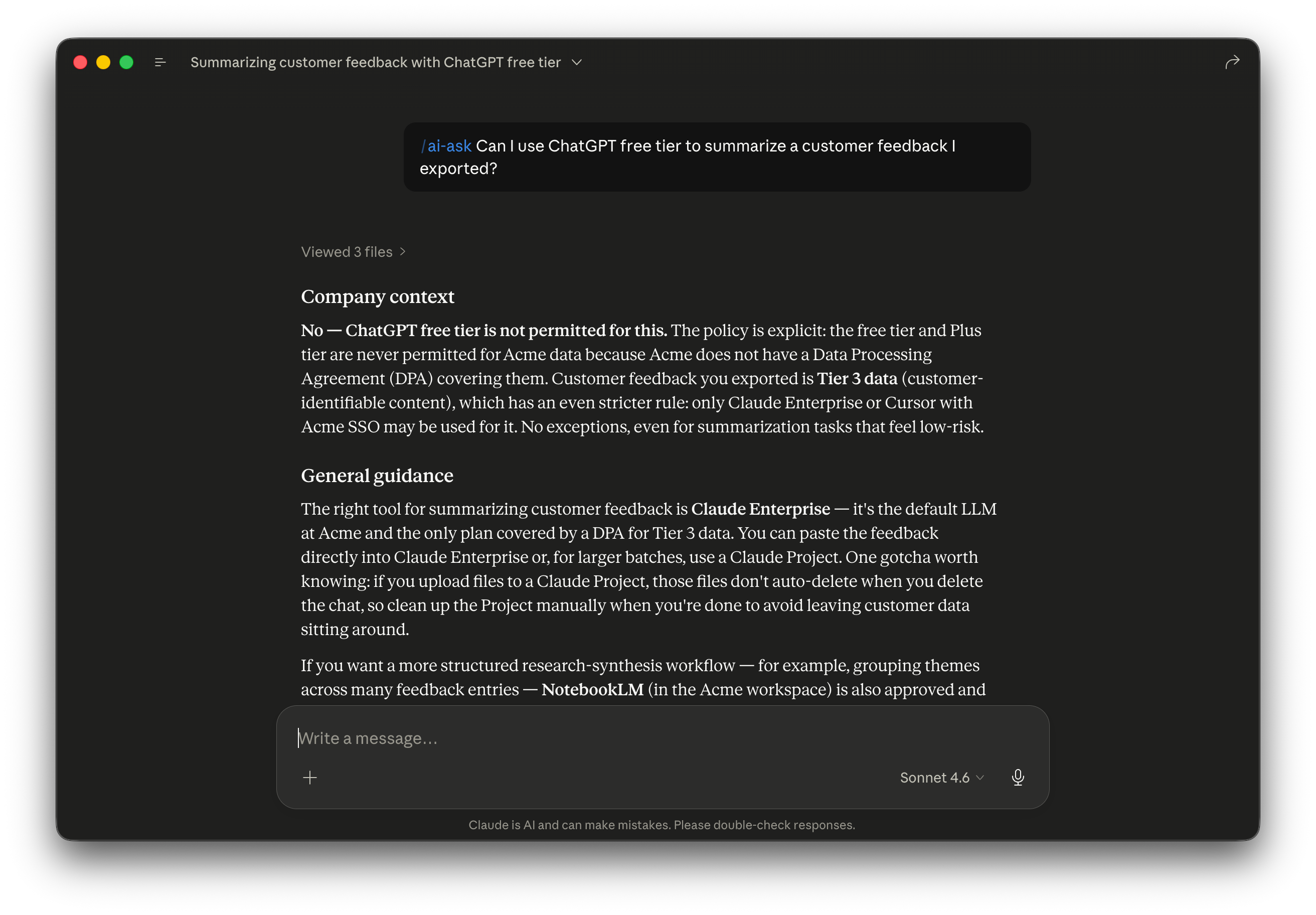
Test 1: refusal.
/ai-ask Can I use ChatGPT free tier to summarize a customer feedback I exported?
Test 2: company context first.
/ai-ask I want to install Cursor on my Mac. How do I do it?
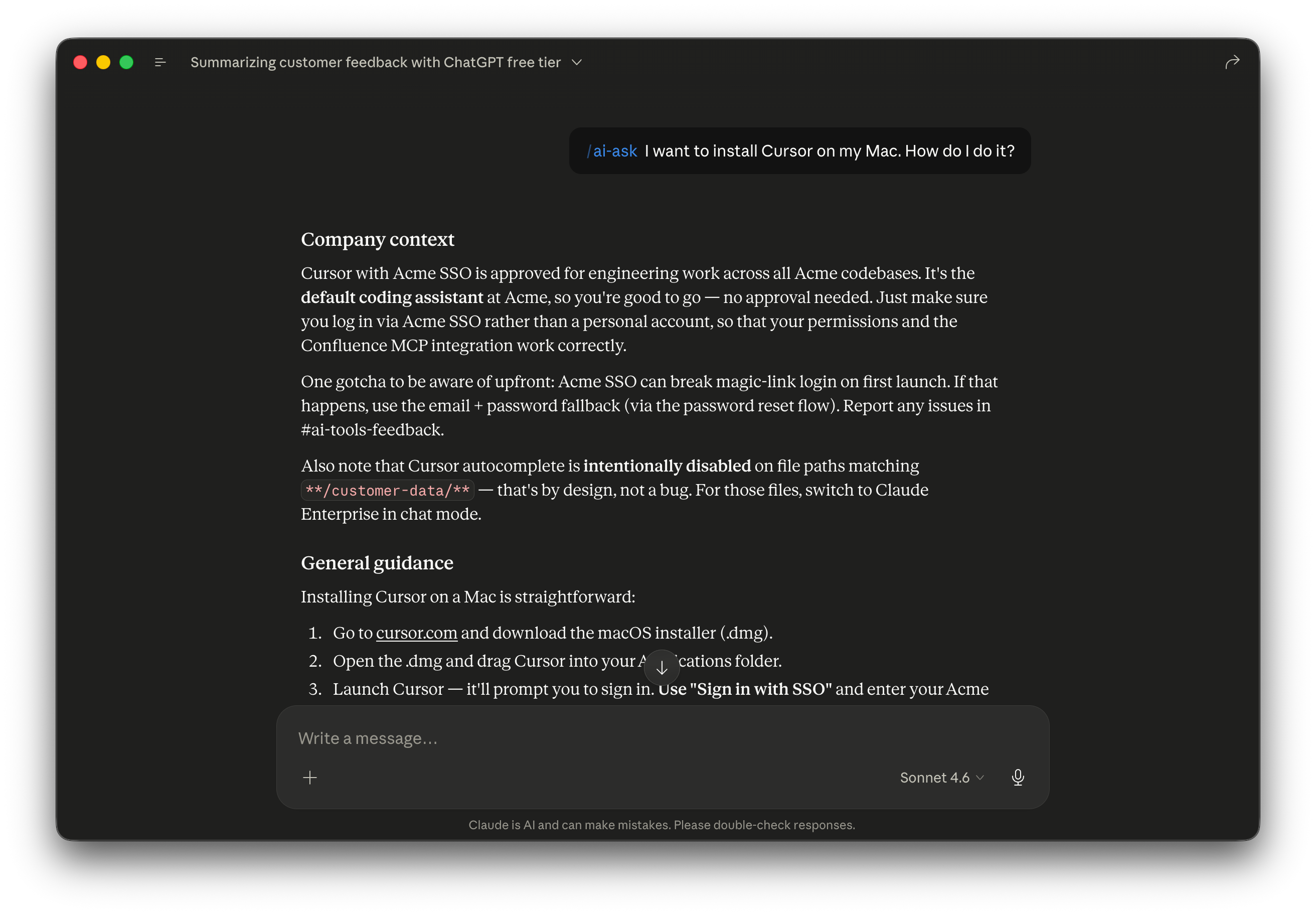
The ordering is the proof. Acme’s actual process comes first: SSO, the Confluence MCP gotcha, the customer-data autocomplete limitation. The generic Cursor install steps come after as a reference. The teammate who reads this knows what to do AND why the company path matters first. Without the prism, the answer would have led with the generic install steps and skipped the company context entirely.
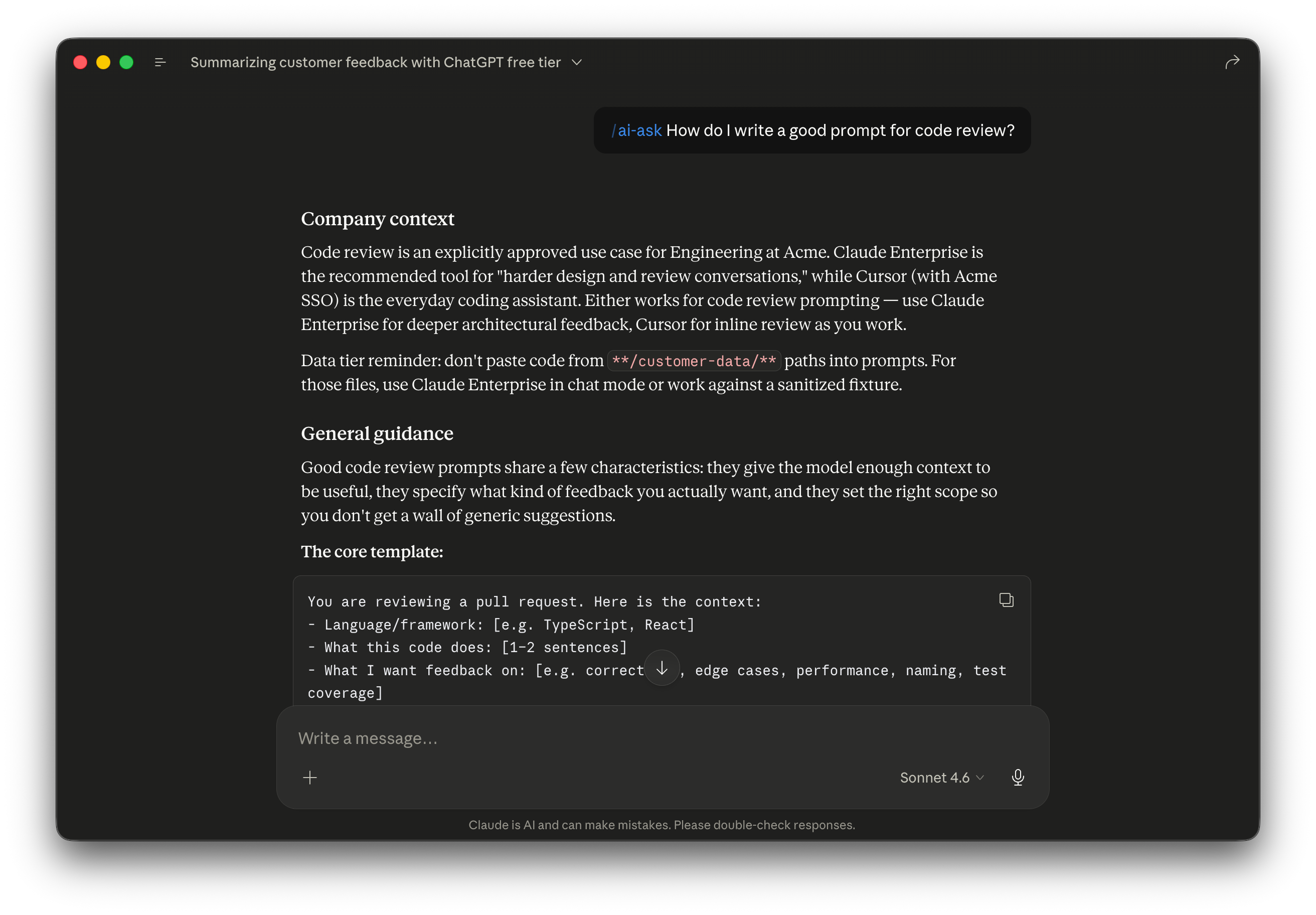
Test 3: restraint.
/ai-ask How do I write a good prompt for code review?
Now sharpen the format.
Step 6: Iterate by talking to Cowork
The tests passed, but the answers were long. They also didn’t link to official docs. Real iteration is structural feedback. Length, ordering, what to include or exclude. Not single-answer tweaking. And it’s a plain-English conversation in the same skill-creator chat: no manual SKILL.md editing, no toggle dance.
Send the feedback as a plain prompt:
The skill works but the answers are too long and there are no links to official docs. Restructure the answer format. Company context: maximum 1-2 sentences. Only the specific rule that applies. Skip the surrounding explanation. Steps: a numbered checklist with one action per line. No paragraphs. Reference docs: at the very end, include a link to the official documentation for the tool or topic the question is about. Search the web for the canonical URL. Update SKILL.md, re-package as .skill, then tell me when it’s ready to re-save.
Cowork updates SKILL.md and re-packages the bundle. The new SKILL.md is 119 bytes shorter than the previous version. Not that the byte count is what matters. The real proof is the re-run.
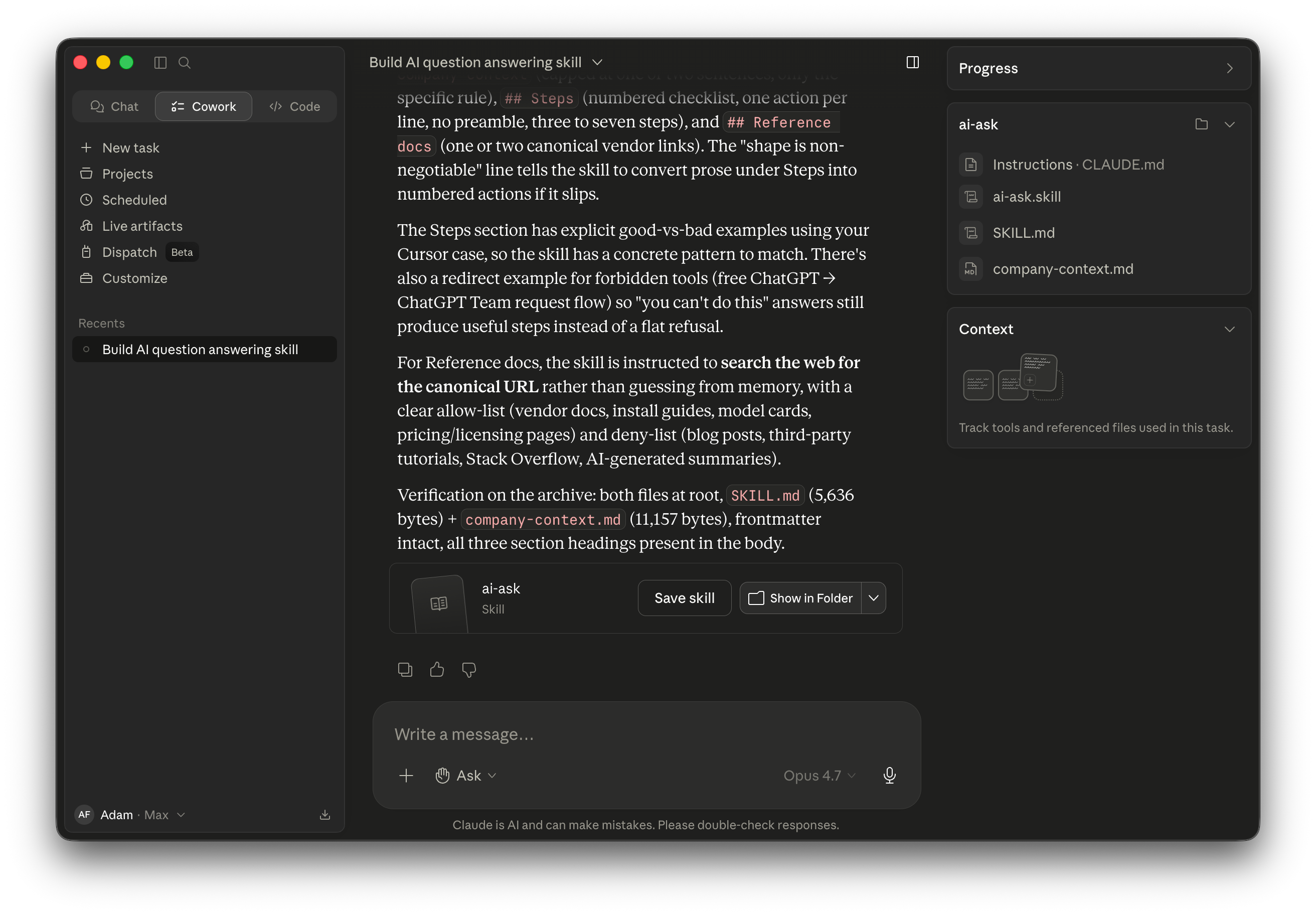
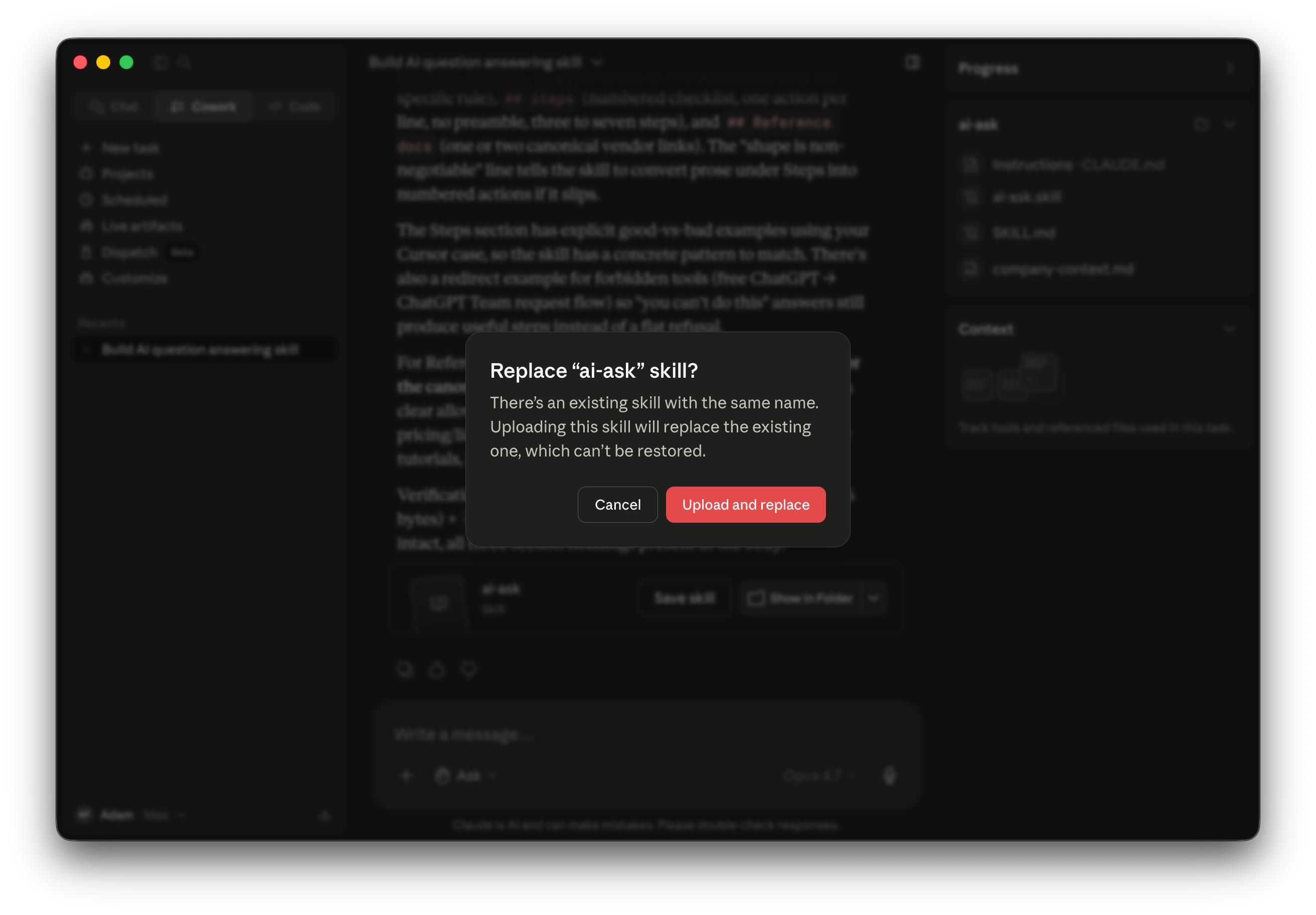
When you click Save Skill, Cowork prompts a confirmation: ”There’s an existing skill with the same name. Uploading this skill will replace the existing one, which can’t be restored.” Click Upload and replace. The new bundle takes over for any future invocation.
Now re-run the Cursor-install question. The answer shape is exactly what you asked for. Two-sentence company context. Five-step numbered checklist. Two canonical doc links at the bottom. The header reads ”Viewed 3 files, searched the web ›”: proof that the skill now searches for official URLs on every invocation.
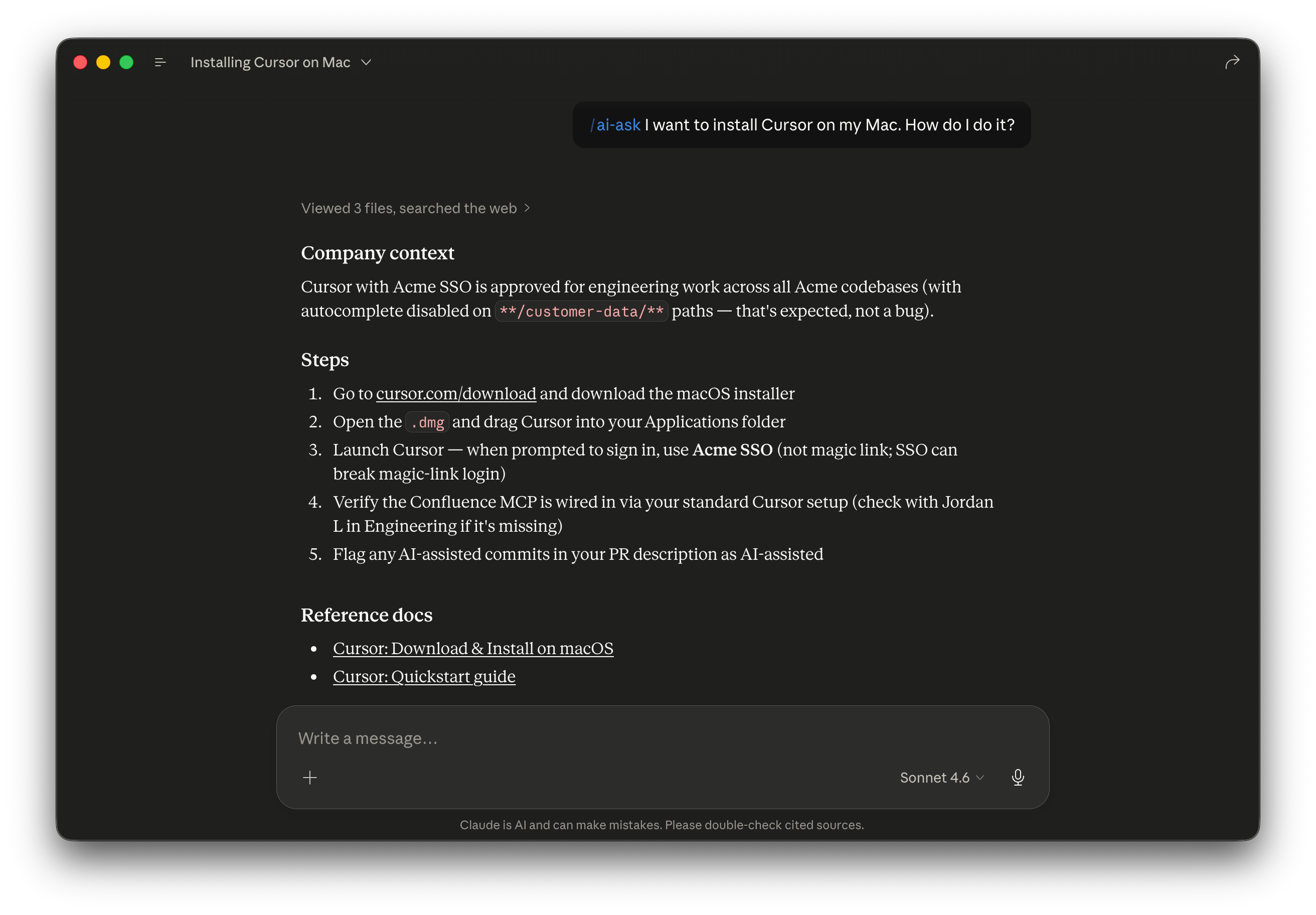
This is the moment that pays off the whole build. One short prompt of feedback. Every future answer reshapes. Tune the lens once, every answer benefits.
This is also where the real time goes on a build like this. Scaffolding a skill takes one focused session. Getting the answer format your team will actually use takes several rounds of iteration across several conversations. Plan the calendar around iteration, not scaffolding. In practice, one to three hours of feedback rounds.
Now share it.
Step 7: Ship it to your team
Two distribution paths, different jobs. Pick both. Each one solves a different problem. Let me show you why.
Inside Claude, shared skills are view-only on the recipient side. Your teammates can enable, disable, and use the skill. But they can’t edit SKILL.md or company-context.md. That single constraint is why the right answer is two paths. One for fast install. One for collaborative iteration. Solve the constraint, don’t fight it.
Path A: Org install via Claude. If you’re on Team or Enterprise, the official path is Organization settings → Skills → Share with organization. The toggle is off by default. Once on, click Share on your skill in Customize. The skill appears in your org’s directory. Teammates install with one click. The fastest way to put a working skill in 50 teammates’ hands.
Two prerequisites worth flagging for your IT conversation. The admin needs to enable Code execution + File creation at Organization settings → Capabilities before the Skills toggle takes effect. And org-wide sharing has no approval workflow. Once enabled, any member can publish a skill to the directory without review. Useful intelligence to bring to that conversation.
Path B: Public GitHub. One prompt to Cowork handles the whole publish. Cowork uses gh repo create to make the public repo, writes a README with a fictional-Acme disclaimer, commits, and pushes. The live repo is at github.com/adamfaik/ai-ask. You can clone it, swap in your context, and start from there.
The AI helper is one use case. Here’s what else this pattern handles.
Adapt the pattern for any team workflow
Everything you just built is a pattern, not just an AI helper. One skill. One context page. A structured two-part answer. Anywhere your team asks the same routine question that depends on your specific context, the prism applies. The article’s example is AI Q&A. The pattern handles much more.
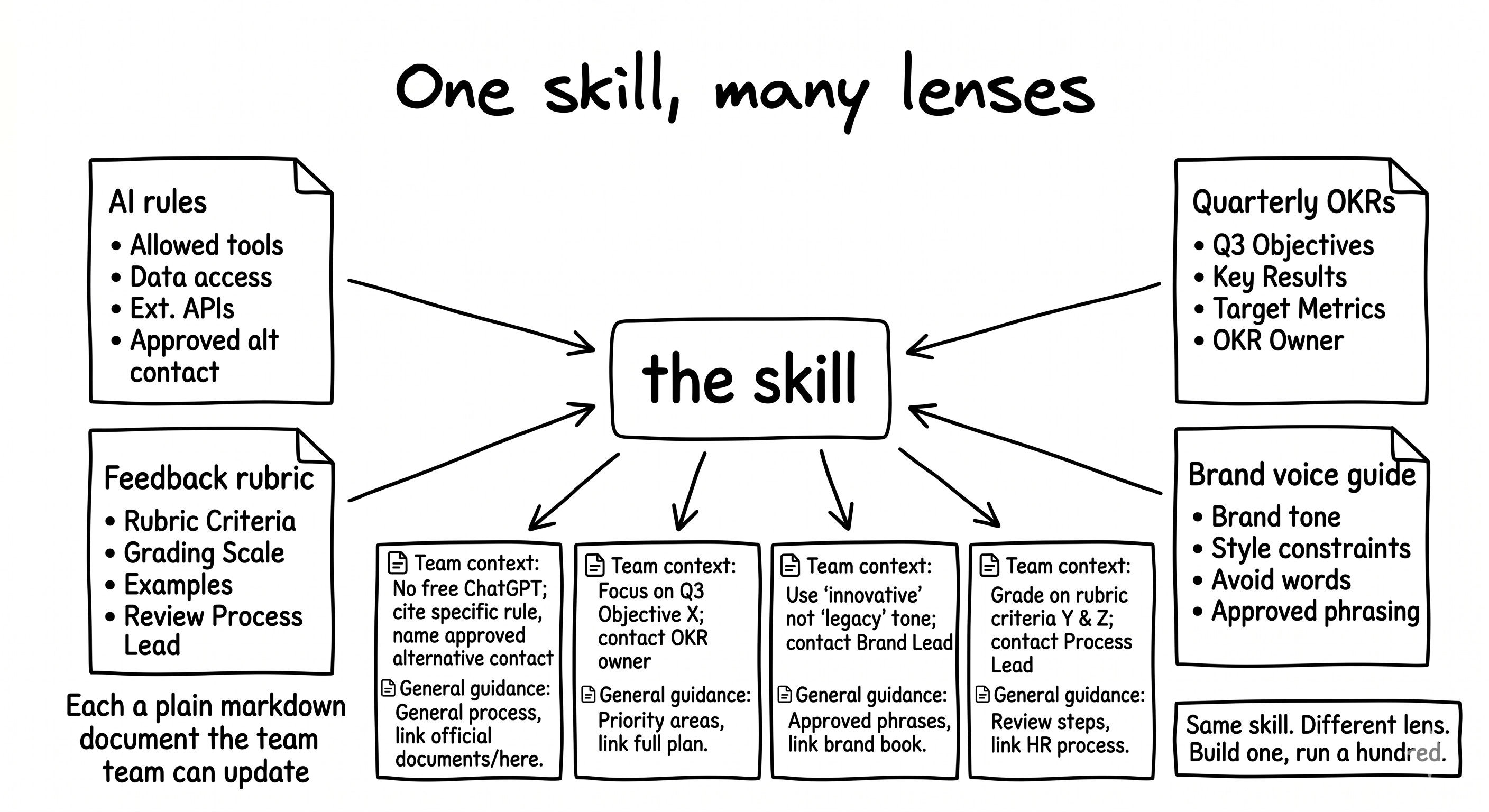
Here are four use cases where the same shape earns its keep. Each one swaps the context page for a different document. The skill scaffold stays the same. Build the skill once, point it at four different pages, ship four different helpers.
OKR alignment helper.
Audience: PMs drafting features.
User request: ”Does this initiative line up with our quarterly OKRs, and which one?”
What comes back: ”Closest match: OKR-Q2-3 ‘increase activation by 15%’ (alignment 0.6). Two stronger fits to consider before locking: OKR-Q2-1 (north-star activation rate) and OKR-Q2-7 (week-one retention).”
Context page: the team’s current-quarter OKR doc.
Feedback reviewer.
Audience: anyone shipping a draft.
User request: ”Is this feedback the way our team gives feedback?”
What comes back: ”Reads well overall. Two SBI-format gaps: paragraph 2 names the situation but not the behavior; paragraph 4 gives behavior but no impact. Add one sentence each.”
Context page: the team’s feedback rubric (SBI, Radical Candor, or whatever you standardized on).
Brand voice checker.
Audience: marketing, sales, or support drafting external copy.
User request: ”Is this on-brand for us?”
What comes back: ”Three off-tone moments. Paragraph 1 uses ‘revolutionary,’ which the brand guide bans as hype. Paragraph 3 leads with what we did rather than what the customer gets. The CTA is passive; our voice is action-first. Suggested swaps listed inline.”
Context page: the brand voice guide.
Onboarding concierge.
Audience: new joiners in week one (and anyone three months in who still doesn’t know who to ask).
User request: ”Who do I ask about X at this company?”
What comes back: ”For laptop and SSO issues, support-it@. For new-tool requests, vendor-risk@. For OKR questions, Sarah K in Product. Fastest path: #ai-help in Slack, answered within a day.”
Context page: an org-chart-style page mapping topics to contacts and channels.
Here is the principle. The skill is the lens. The context page is what you’re looking through it at. Swap the context page, get a different team helper from the same skill scaffold. Build one prism. Run a hundred queries through it.
Your turn!
If you’ve been holding the “we need an AI playbook” assignment from your manager, you don’t need a 1,000-card Confluence space. You need one skill, one context page, and an afternoon in Cowork. The team gets answers grounded in your rules without DM’ing you. You get your focus back. And the same pattern adapts to OKRs, feedback, brand voice, anything routine that depends on context.
Here is where to start. Pick the routine question your team asks you most often. Write a one-page context document for it. Open Cowork. Run skill-creator. Answer the QCM. The scaffolding takes one focused session. Then send one enhancement prompt to fill the page. Package as .skill. Click Save Skill. Test against three real questions from your inbox. Iterate by chat until the answer shape is what your team will actually use. Ship to your team via the org install or GitHub. You’ll have a working helper the same week you read this.
If you want a head start, clone the repo at github.com/adamfaik/ai-ask. Fork it. Replace the Acme content with your context. And tell me what you built.