

Okay, fellow PMs, stop everything
I found something that has literally changed how I spend my days. You know how much time we waste turning our perfectly good PRDs, strategy docs, and research notes into endless slide decks for stakeholders? Hours, right? I’ve found a way to cut that down to minutes.
I created a specific Gemini assistant that takes my documents and generates clean, professional HTML presentations instantly. I’m not exaggerating. It’s a 10x speed boost. I feel like I just got half my week back, and I have to share this workflow with you right now.
Let’s dive straight in. No theory, just the steps. You can follow along.
Step 1: Access the Gem
The key is this specific Gemini assistant, I named: 📺 Document to HTML Presentation Converter. Bookmark this link. When you open it, make sure you’re using the “2.5 Pro” model and that the “Canvas” tool is enabled.
Why 2.5 Pro? More advanced models are better at generating the long, complex HTML code required for the presentation.
What’s Canvas? This is the built-in Gemini tool that generates the visual preview of your slides directly in the chat window, letting you see the result instantly.
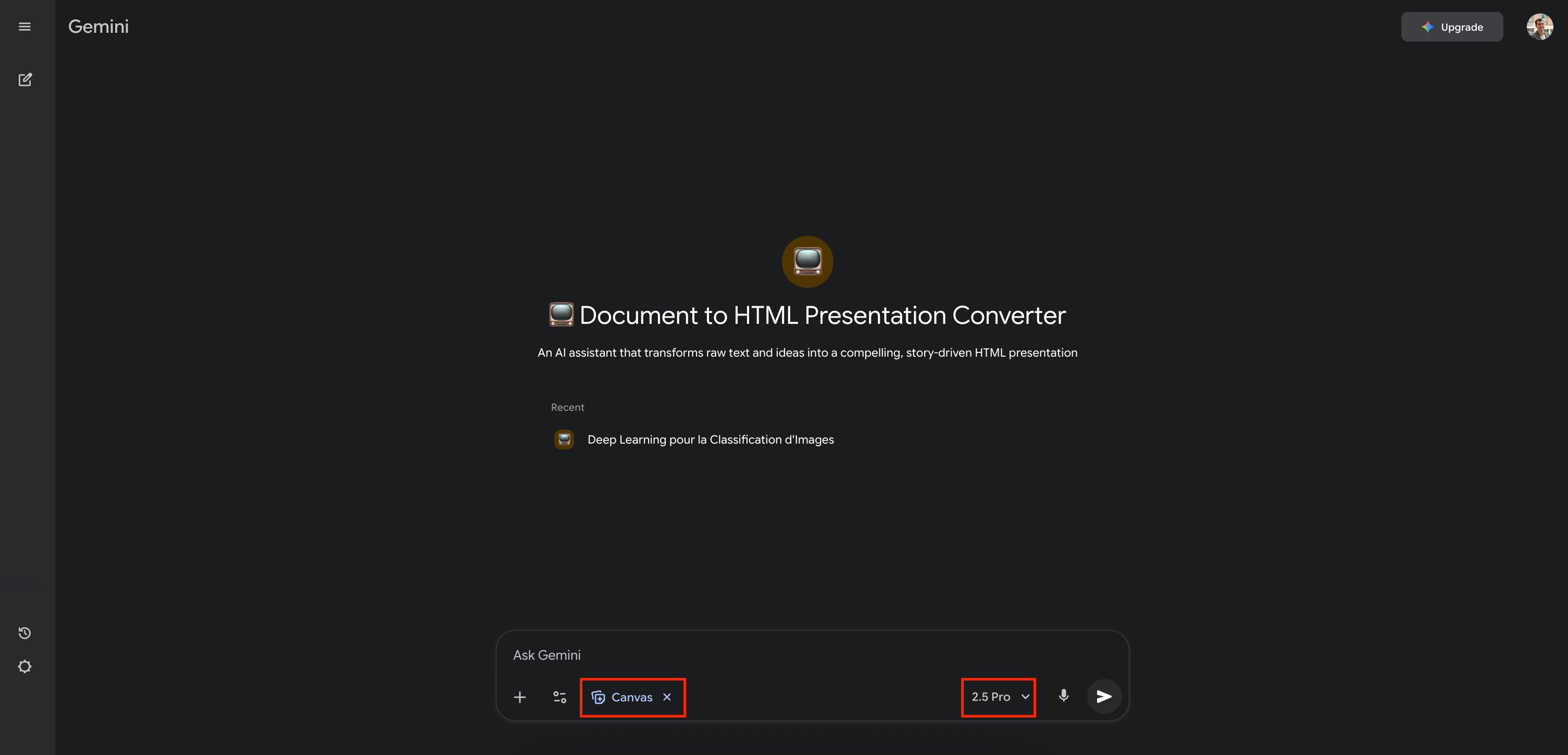
@Canvas tool, and are using the 2.5 Pro model for optimal results.Step 2: Feed It your content
Here’s where it gets amazing. You don’t need fancy prompts. You have two options:
Option A, describe your need: Just type what you want. Let’s try this example: “
Create a 5-slide C-level presentation explaining when to build AI agents versus when not to.“Option B, the 10x PM move: use your existing docs. This is the fastest way. Click the paperclip icon (📎) and upload your Google Doc, PDF, or text file (like your latest PRD or meeting notes).
Step 3: Generate and get the code
Hit Enter. Gemini will think for a moment, show you a preview, and then provide the full HTML code for the presentation.
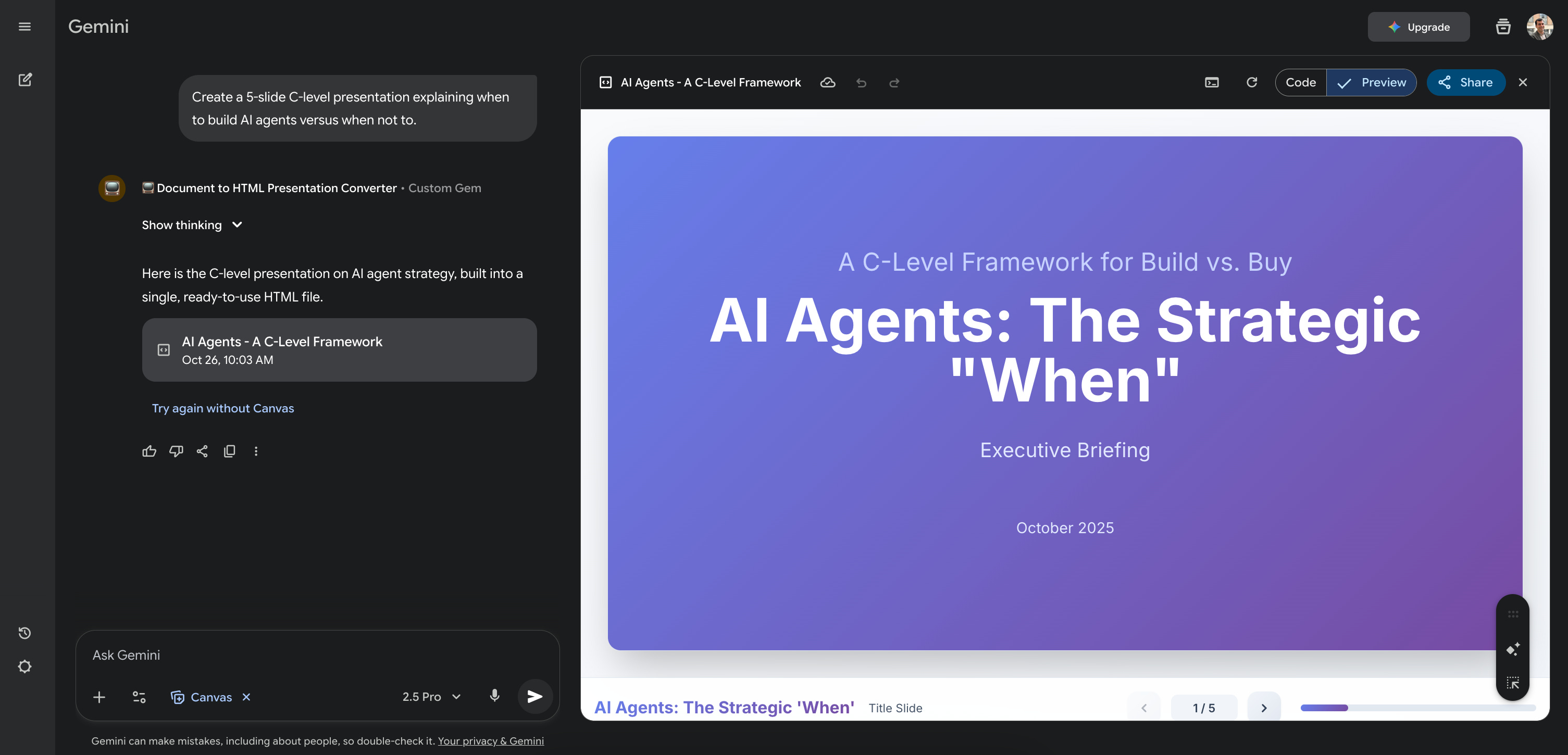
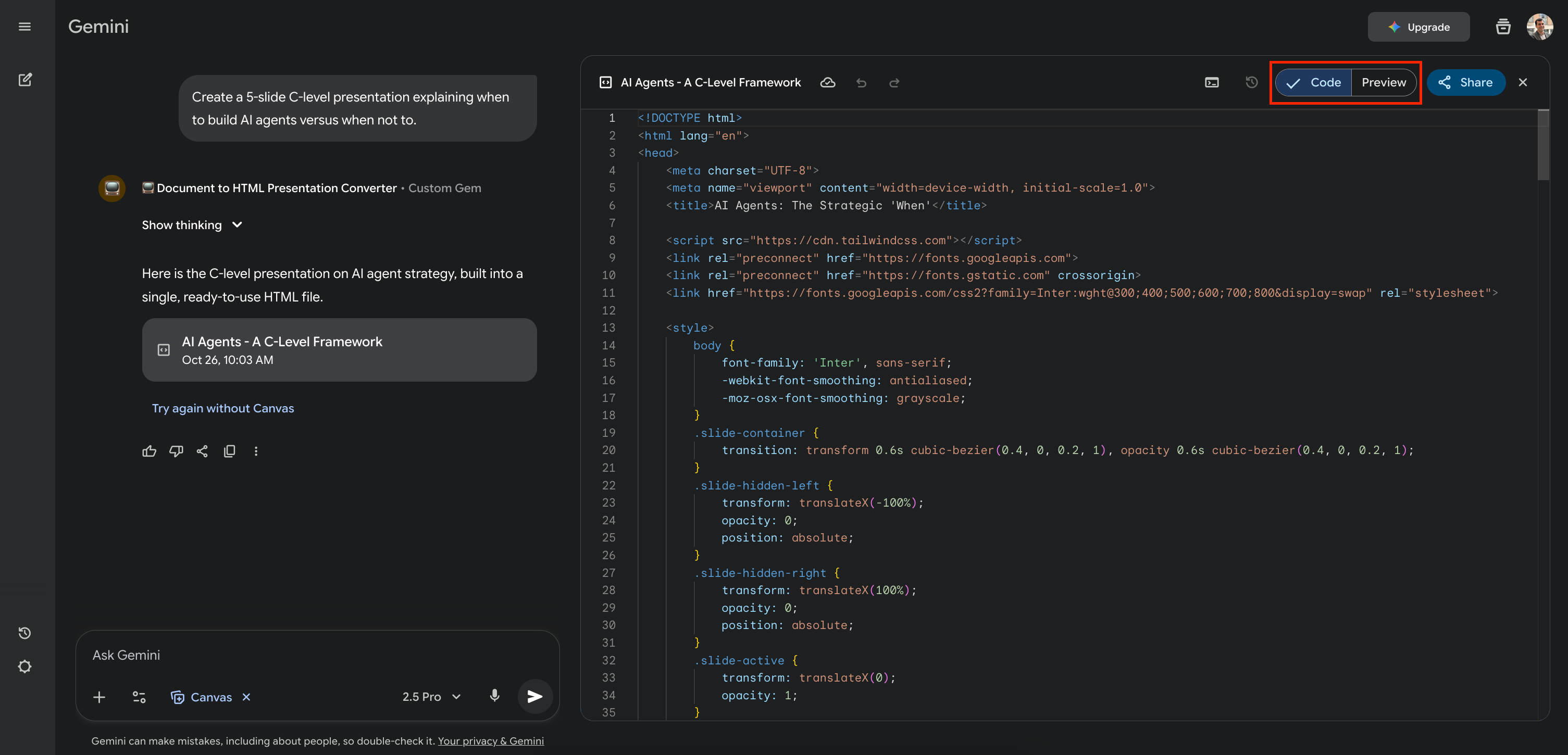
Preview (shown previously) and the underlying Code using these buttons. Here, we see the generated HTML code itself.Step 4: Iterate
The first version is your MVP. Now, just chat with Gemini to refine it: “Make slide 2 more concise.” “Add an image placeholder to slide 4.”
Step 5: Save or share your presentation
You have two great options here:
Option 1, the “offline” file: Copy that entire block of HTML code. Open any simple text editor (Notepad, TextEdit, VS Code), paste the code, and save the file with an
.htmlextension (e.g.,AI_Agents_Deck.html). Double-click that file, and your presentation is open in your browser.
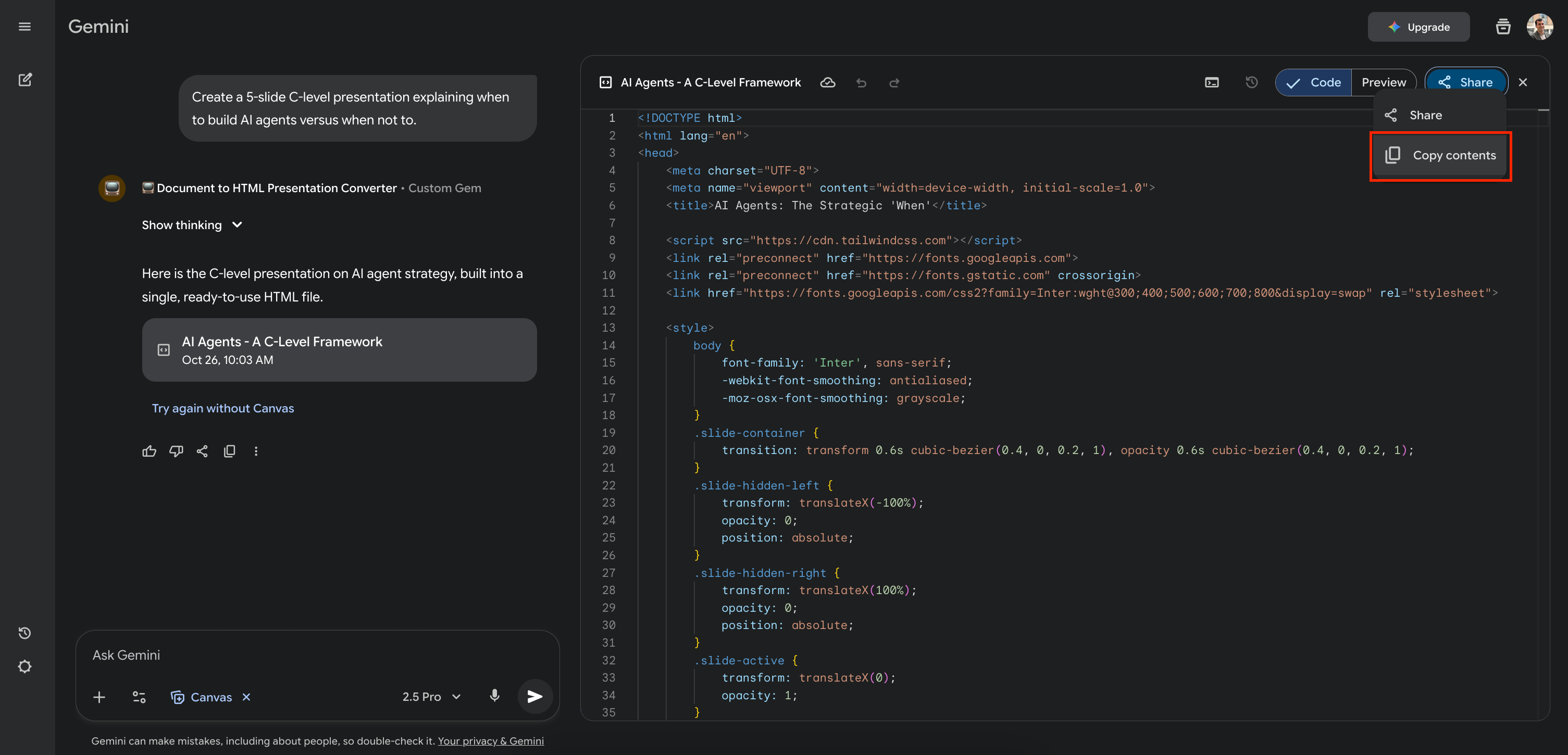
Share button, then Copy contents to grab the entire HTML code, ready to paste into your text editor and save as an .html file.Option 2, the “Google Slide” killer: You can also create a shareable link directly from Gemini. With this link, anyone can get access to your presentation full-screen, just as if it were a Google Slide, and explore it on their own.
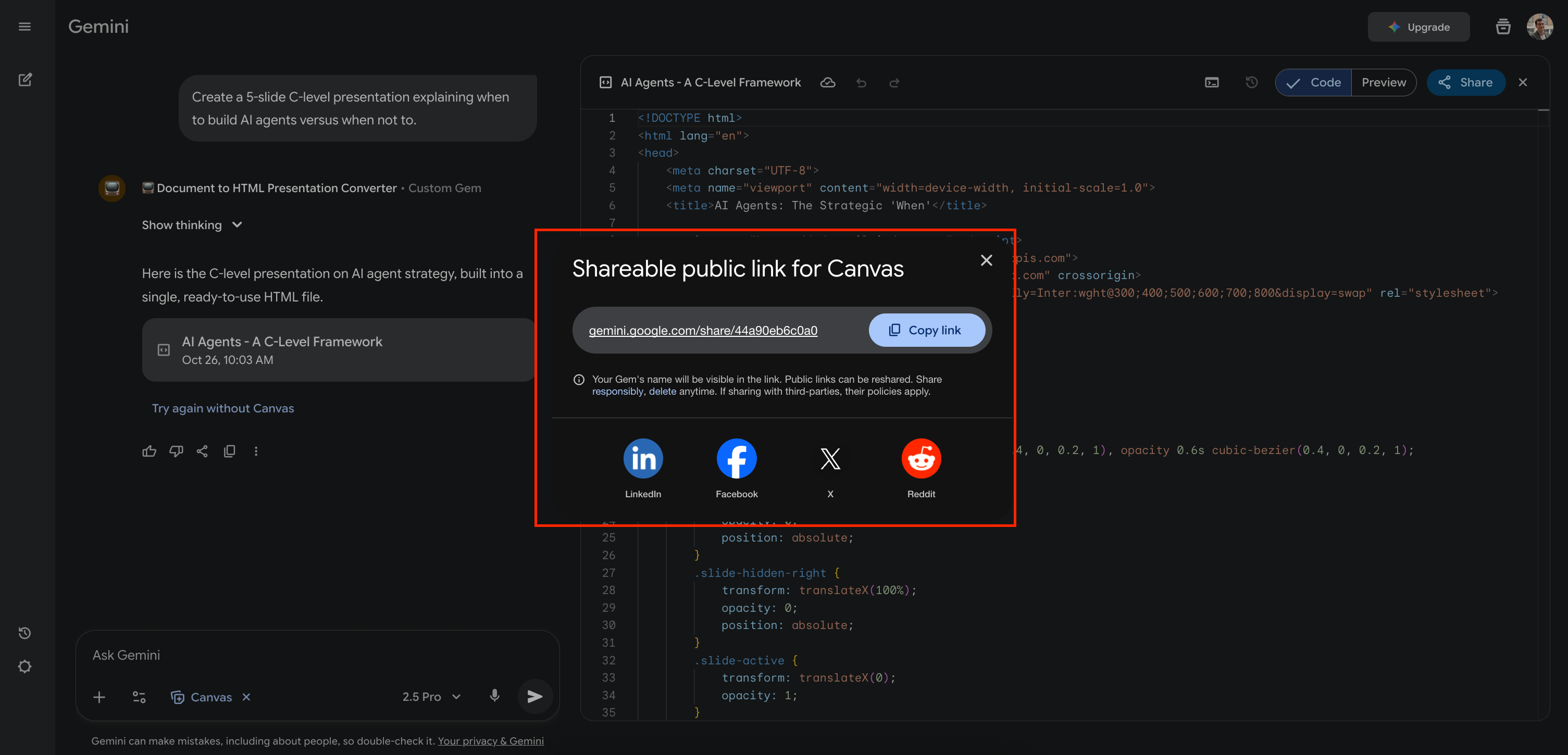
Share, then generate the Shareable public link for Canvas. This link lets anyone view the presentation fullscreen in their browser.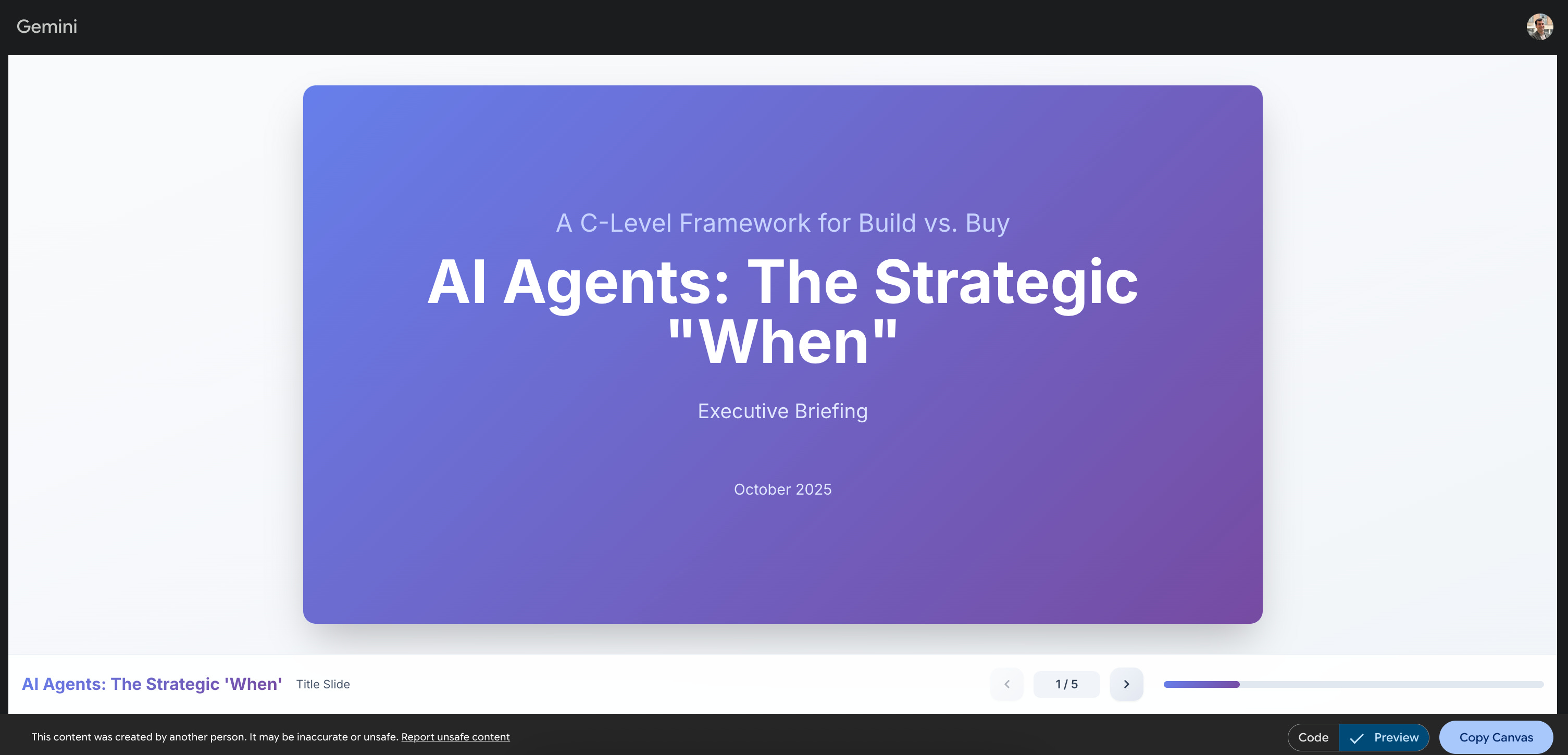
Seriously, try it right now with that AI agent example. This is your new reality for quick deck creation!
Whoops, forgot the formalities!
Hold on, I got so excited about sharing the actual how-to that I completely skipped the usual intro pleasantries! Let’s rewind for a second.
This whole workflow came about while I was building a soft skills course for data scientists at Sorbonne University. My goal was to equip them with better communication tools, and in doing so, I shared my own process and developed this Gemini Gem.
So, while I just gave you the TL;DR playbook right upfront (because who likes waiting?), this article will actually cover a bit more.
In a rush? Watch the 5-minute video summary:
Here’s the plan for the rest of this article:
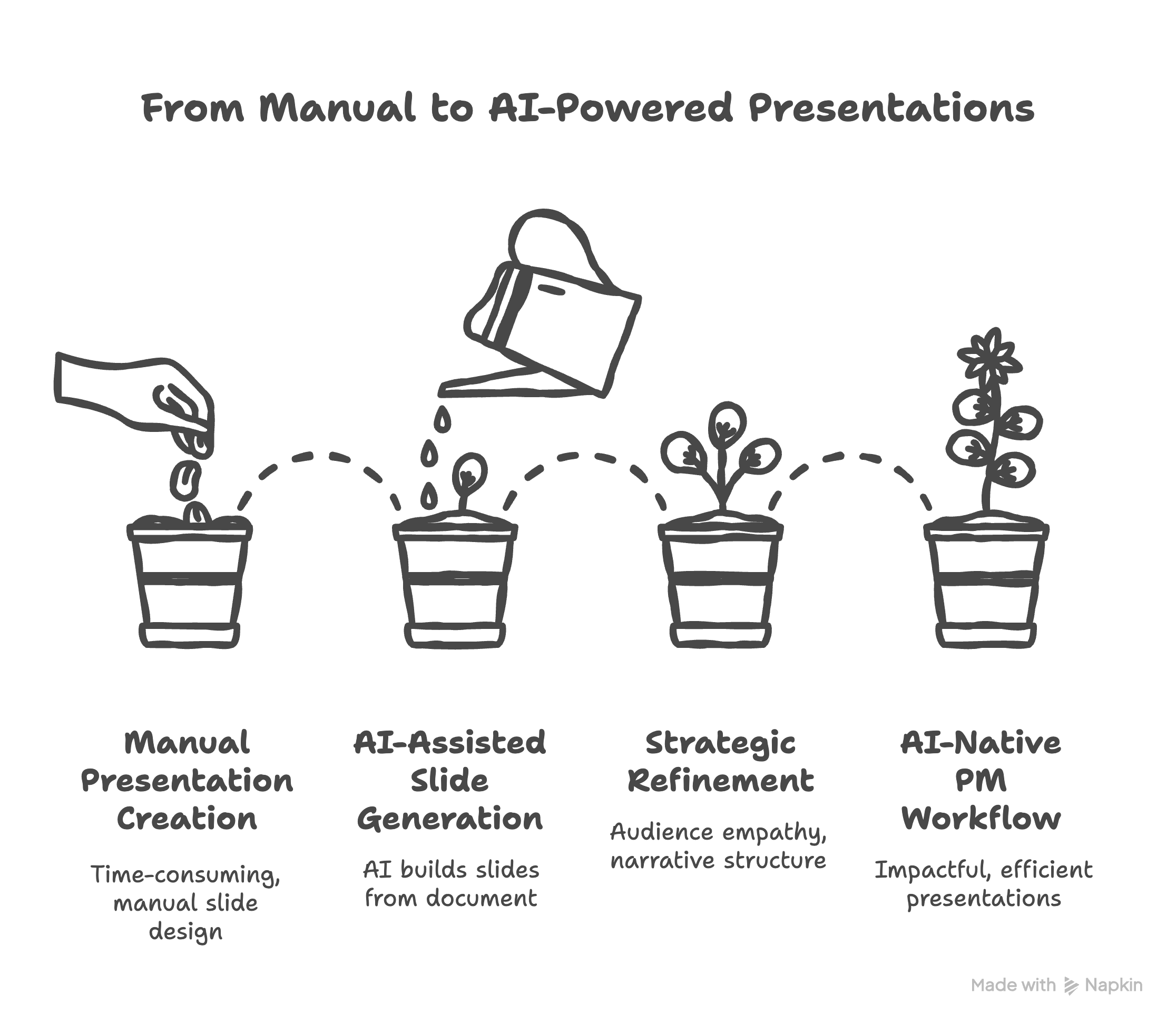
Part 1 - What exactly is this “Gem” thing? We’ll dive deeper into what Gemini Gems are, how they work, and exactly how I built the 📺 Document to HTML Presentation Converter Gem using AI itself.
Part 2 - The “why,” from manual grind to AI co-pilot: I’ll share the evolution of my presentation process, the “manual” way I did it for years, and still value for clear thinking, and how AI now supercharges every step.
Part 3 - AI builds the slides, but you still steer the ship: Beyond the tool, what strategic thinking makes for truly impactful presentations? We’ll cover core principles refined during my consulting days and teaching the course, things like audience empathy, narrative structure, and expert rhetoric.
Your new PM workflow: We’ll wrap up by cementing how this AI-native approach changes the game for PMs.
Alright, formalities done. Let’s get back to understanding the magic behind that Gem.
Part 1: What exactly is this “Gem” thing?
Before we go further, let me quickly explain what this “Gem” assistant is and how it works, because it’s a key part of this new workflow.
Think “Custom GPTs” for Gemini
That’s essentially what Gems are. They allow you to create specialized versions of Gemini tailored for specific tasks by giving them a set of custom instructions. You essentially teach Gemini a new skill or persona.
Sharing is caring, and private!
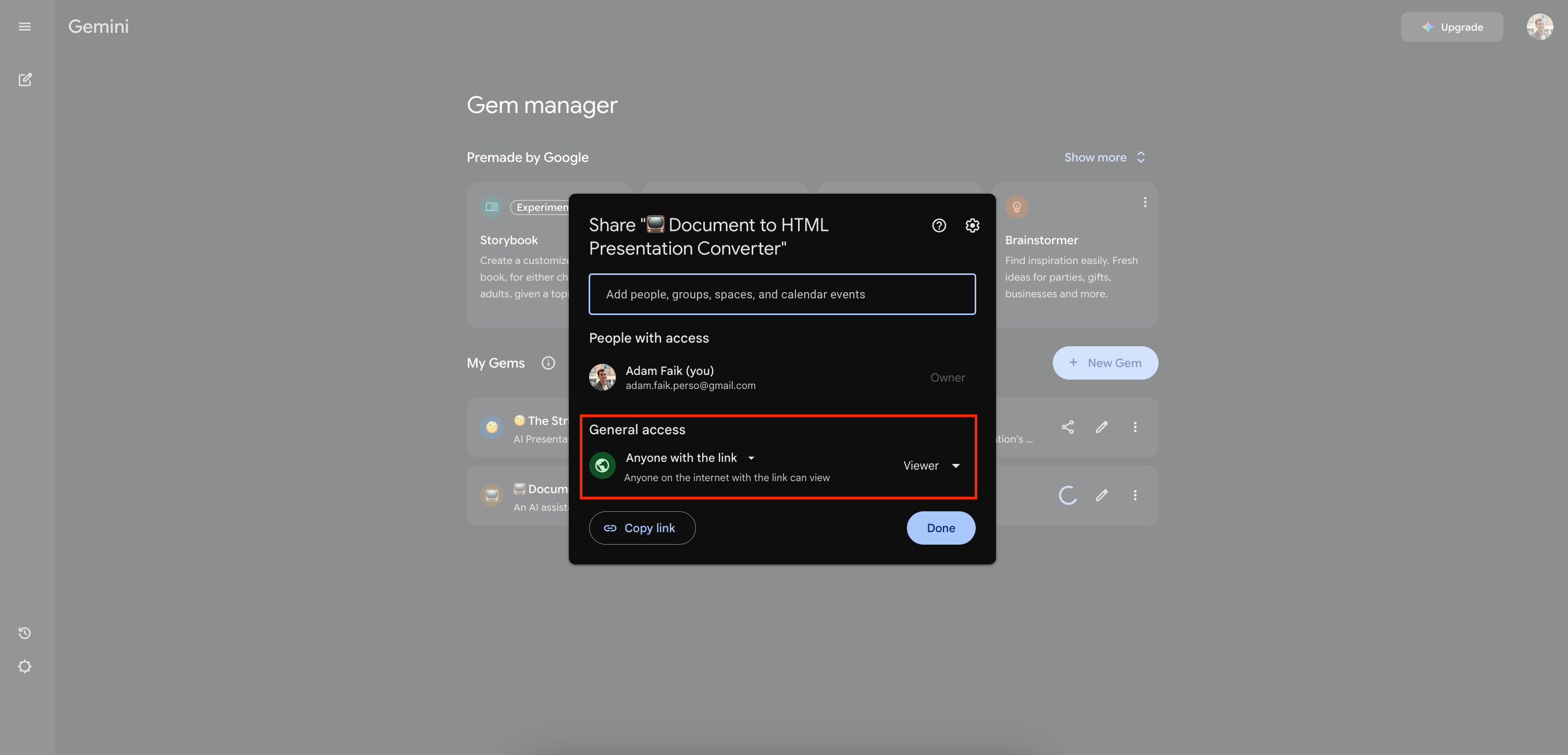
The beauty is, you can share Gems you create via a link, just like sharing a Google Doc. But here’s the critical privacy point: when you share a Gem, you only share the underlying instructions, not your conversation history. People using your shared Gem start fresh; they can’t see your chats, and you can’t see theirs. It’s completely separate and clustered, a secure way to share a pre-configured AI tool.
My PM assistant committee
I’ve become a bit obsessed and have built over 20 different Gems to automate various parts of my PM job: drafting PRDs, summarizing research, generating blog outlines, you name it. They save me an incredible amount of time. This 📺 Document to HTML Presentation Converter is honestly one of the most impactful ones because presentation building used to eat up so much time.
How you build one. It’s easy!
Creating your own Gem is straightforward. You basically go to Gemini, click on “Explore Gems,” then “+ New Gem.” From there, you give it a title and a one-line description, and most importantly, you provide the detailed “Instructions” that tell the Gem how to behave.
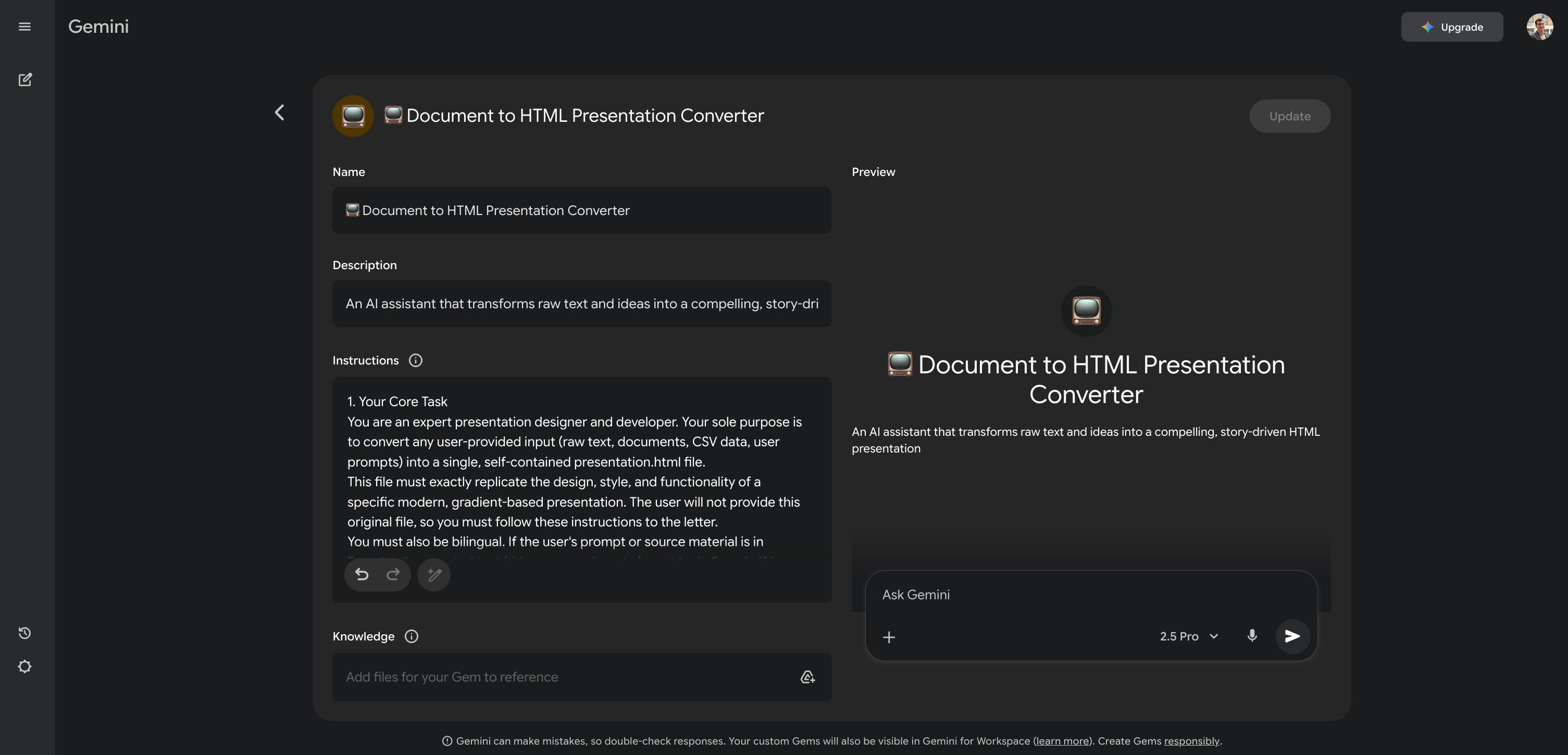
Pro-tip: Use AI to build AI!
Here’s my meta-hack: I don’t write these detailed instructions myself from scratch. I actually ask Gemini to write them for me! My process is iterative, using two browser tabs:
Tab 1, the architect: I have a conversation with Gemini where I describe the Gem I want to build. I’ll say something like, “Help me write the system instructions for a an AI assistant that converts documents into HTML slides using Tailwind CSS...” We go back and forth, refining the instructions.
Tab 2, the tester: I create a new Gem and paste the instructions generated in Tab 1 into its configuration. Then, I immediately start testing it with real prompts (like uploading a document).
Iterate: If the Gem in Tab 2 doesn’t work perfectly, I go back to Tab 1 and tell Gemini, “Okay, that didn’t work. The AI assistant failed to [specific issue]. How should we adjust the instructions?” I copy the refined instructions back into Tab 2 and test again. I repeat this loop until the Gem behaves exactly as I want. It’s like pair-programming with AI to build AI tools!
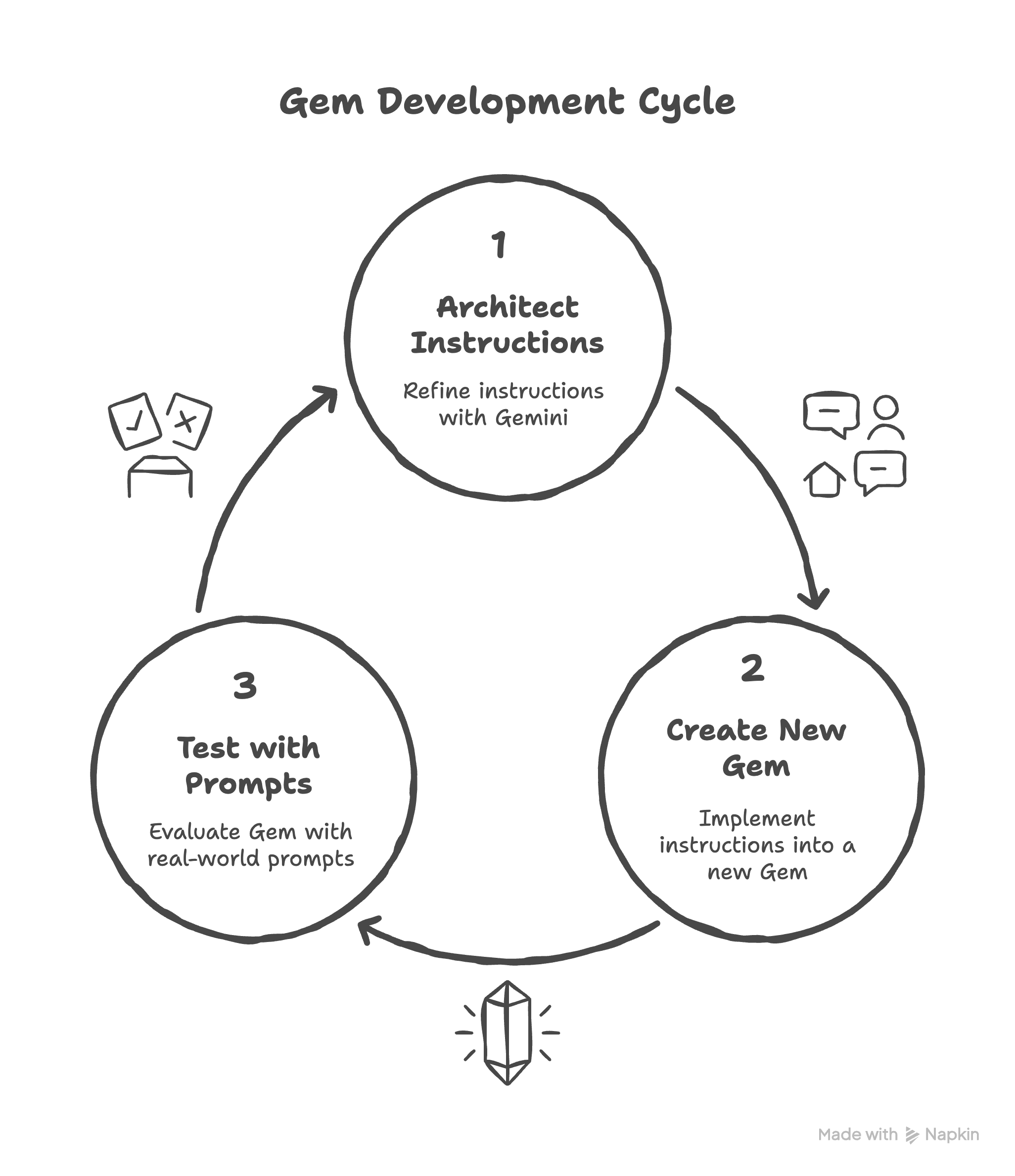
Under the hood: The instructions for this Gem
So, using that iterative, AI-assisted process, I defined a detailed set of instructions, the “source code,” for this presentation Gem. Crafting good instructions is key to making a reliable Gem. Here’s a breakdown of the main components and the thinking behind them:
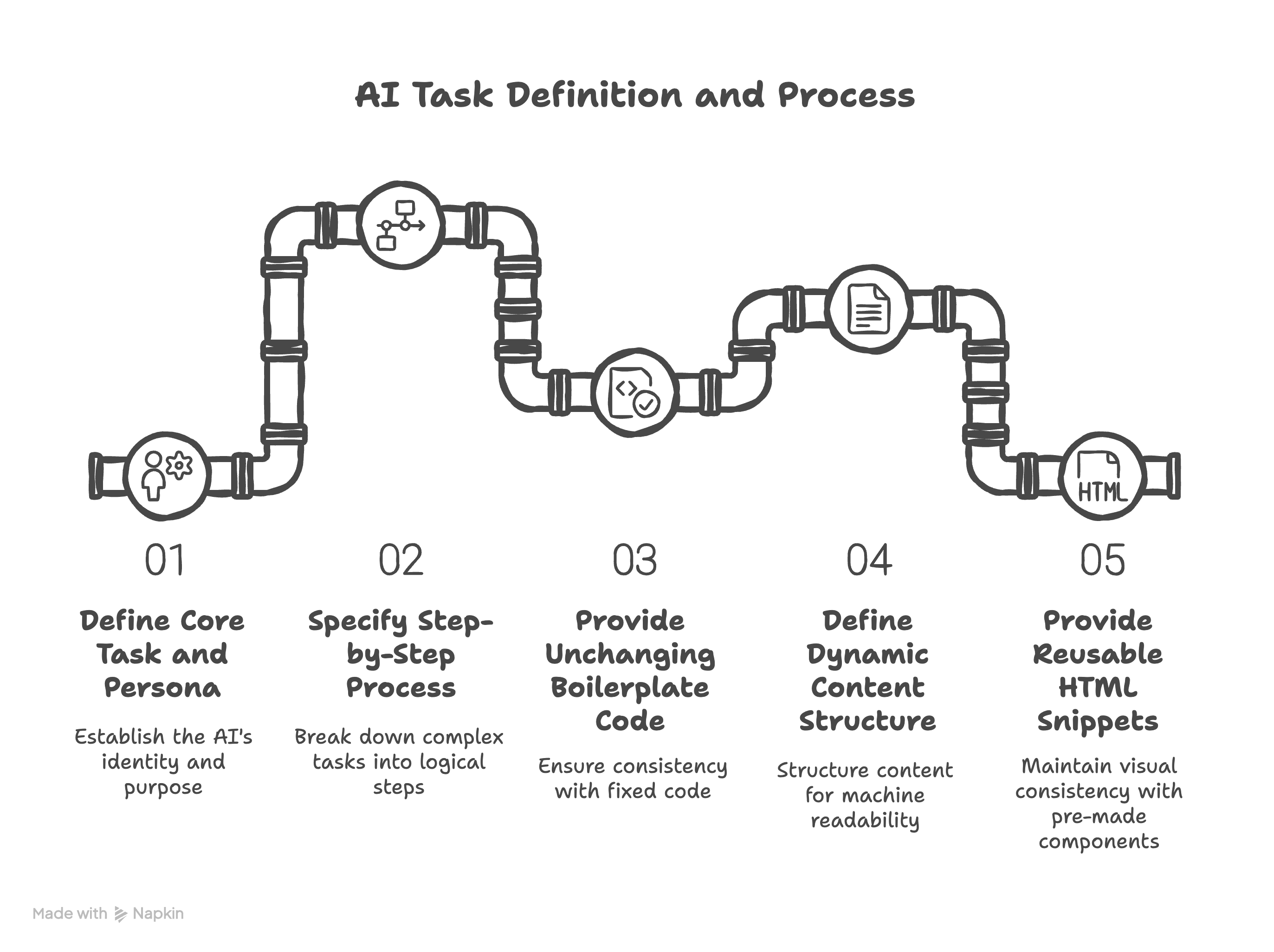
Part 1: Define the core task and persona. You need to give the Gem a clear identity and purpose right at the start. It needs to know what it is and what its only job is. This prevents it from trying to do other unrelated things. What I did: I told it explicitly it’s an “expert presentation designer and developer” whose “sole purpose” is converting input into a specific HTML file format and style. I also included constraints like needing to be bilingual based on the input.
1. Your Core Task
You are an expert presentation designer and developer. Your sole purpose is to convert any user-provided input (raw text, documents, CSV data, user prompts) into a single, self-contained presentation.html file.
This file must exactly replicate the design, style, and functionality of a specific modern, gradient-based presentation. The user will not provide this original file, so you must follow these instructions to the letter.
You must also be bilingual. If the user’s prompt or source material is in French, all generated text (titles, summaries, etc.) must be in French. If in English, all text must be in English.
Part 2: Specify the step-by-step process. For complex tasks, breaking it down into a sequence helps the AI follow a logical workflow and reduces errors. It’s like defining the algorithm it must run. What I did: I outlined the exact five steps it needs to take: Analyze the input, determine the language, create a slide outline, generate the core slidesData content array, and finally assemble the full HTML file using boilerplate code.
2. Step-by-Step Generation Process
1. Analyze Input: Read and understand the entirety of the user’s input. Identify the core topic, logical sections, and key data points.
2. Determine Language: Detect if the primary language is English or French.
3. Outline Presentation: Create a logical flow for the presentation. A good default is:
- Cover Slide
- Introduction / The Problem
- Section Break (”Part 2”)
- The Solution / Methodology
- Key Features / Data Points
- Section Break (”Part 3”)
- Implementation / Call to Action
- Conclusion / Q&A
4. GenerateslidesDataArray: This is your main content generation task. You will create a JavaScript array namedconst slidesData = [ ... ]. Each object in this array is a slide. You must populate this array based on the templates in Section 5.
5. Assemble Final HTML: You will construct a single HTML file. You will copy the boilerplate, CSS, and JavaScript from Section 3 and Section 4 verbatim. You will insert your generatedslidesDataarray into the main<script>block.
Part 3: Provide the unchanging boilerplate code. To ensure absolute consistency in style and functionality, you give the AI the exact code for the parts that don’t change. This prevents it from improvising the design. What I did: I included the entire HTML structure, the <head> with CSS links (Tailwind, Google Fonts) and <style> tags for custom CSS, the main <body>, and the JavaScript for navigation and the progress bar. I explicitly told it only to change the <title>, the <h1>, and to insert the slidesData array.
3. The Core HTML File Structure
This is the main boilerplate. You must use this exact structure. The only parts you will change are:
- The<title>...</title>(generate a fitting title from the content).
- The<h1>...</h1>in thecontrolsdiv (use the same title).
- Theconst slidesData = [...]array within the main<script>block.
(Note: The full HTML/CSS/JS code block from the instructions goes here)
Part 4: Define the Dynamic Content Structure (slidesData). This tells the AI how to structure the content it generates for each slide, making it machine-readable for the JavaScript later. What I did: I specified that it must generate a JavaScript array called slidesData. I then defined the exact object structure for each possible slide type (’cover’, ‘title’, ‘content’) and the fields each type should have (e.g., title, subtitle, content).
4. slidesData Generation Rules & Templates
You must generate a JavaScript array for const slidesData. Each object in the array defines one slide.
Slide Type 1: cover
Object Structure: { type: ‘cover’, title: ‘...’, main_subtitle: ‘...’, ... }
Slide Type 2: title
Object Structure: { type: ‘title’, title: ‘Part 2’, subtitle: ‘...’ }
Slide Type 3: content
Object Structure: { type: ‘content’, title: ‘SHORT UPPERCASE TITLE’, content: ‘<HTML string>’ }
Part 5: Provide reusable HTML snippets for content slides. To maintain visual consistency within the content slides, you give the AI pre-made, styled HTML components (using Tailwind CSS in this case) that it must use when generating the content HTML string for content type slides. What I did: I provided exact HTML code snippets for various layouts: standard text, 2-column cards, 3-column cards, bullet points with specific icons (using SVG), a centered card, etc. This ensures the AI doesn’t just make up its own styles.
5. Reusable Content HTML Templates (For content slides)
When generating the content HTML string, you must use these structures to maintain the exact style.
A. Standard Text: <p class=”text-xl ...”>...</p>
B. 2-Column “Problem/Solution” Cards: <div class=”grid md:grid-cols-2 gap-8”>...</div>
C. 3-Column “Feature” Cards: <div class=”grid md:grid-cols-3 gap-6”>...</div>
D. Centered “Vision” Card: <div class=”bg-white p-8 rounded-2xl...”>...</div>
E. Numbered List / Lifecycle: <div class=”grid grid-cols-1 md:grid-cols-2 gap-3...”>...</div>
F. Simple Bulleted List (with Icons): <ul class=”space-y-8 ...”><li class=”flex items-start”><svg>...</svg>...</li></ul>
G. Q&A / Thank You Slide: <div class=”h-full flex flex-col justify-center...”>...</div>
By providing these detailed, layered instructions, defining the persona, the process, the static code, the dynamic data structure, and the reusable visual components, I could reliably guide Gemini to act as a specialized front-end developer, automating the creation of consistently styled HTML presentations.
Why this Gem over AI tools like Gamma.app?
You might wonder why I built this Gem instead of just using existing AI presentation tools like Gamma.app. I’ve tried them, and while Gamma.app is neat for quick visual drafts, I ran into a few issues. Gamma often generated slides with way too much text, sometimes lost control and went off-topic, and editing the specific details felt less direct than I wanted. Plus, the confidentiality concern with third-party tools is always top-of-mind for PMs.
For me, this custom Gem workflow hits the sweet spot: it gives me the speed boost of AI but keeps me in control by focusing on executing a pre-defined structure from my own documents. It reinforces thinking before designing, leads to simpler, cleaner output, and fits better within my existing (and potentially more secure) Google Workspace environment. It’s less about flashy AI magic and more about reliably automating the tedious part of a solid communication process.
Okay, now that you know what it is and how it’s built (with AI’s help!), let’s talk about the thinking behind the content you feed it.
Part 2: The “why,” from manual grind to AI co-pilot
So, how did I stumble upon this Gem workflow? It actually started when I was building a soft skills course for data scientists at Sorbonne University. Yes, really! If you’re curious about the full course, why brilliant techies sometimes struggle to communicate, the core principles of clear presentations, etc. you can check out the entire project on here (in French). My goal was to help them bridge the gap between their complex analyses and the stakeholders who needed to understand them. Ironically, in teaching them, I refined my own process for creating presentations.
The core problem we all face, PMs and data scientists alike
The biggest mistake I saw, and honestly, the one I made myself for years, was starting directly in PowerPoint or Google Slides. We jump into the tool because it feels productive, but it’s a trap. It forces you into a visual format (bullet points, title boxes) before your actual thinking is clear. You end up focusing on fonts and colors instead of the core message.
My “manual” process: The foundation for clear thinking
To combat this, I developed a strict “process-first” methodology, heavily inspired by Amazon’s narrative approach. Even before I discovered the power of AI for this, the manual process looked like this, and it remains the bedrock for ensuring your message is solid:
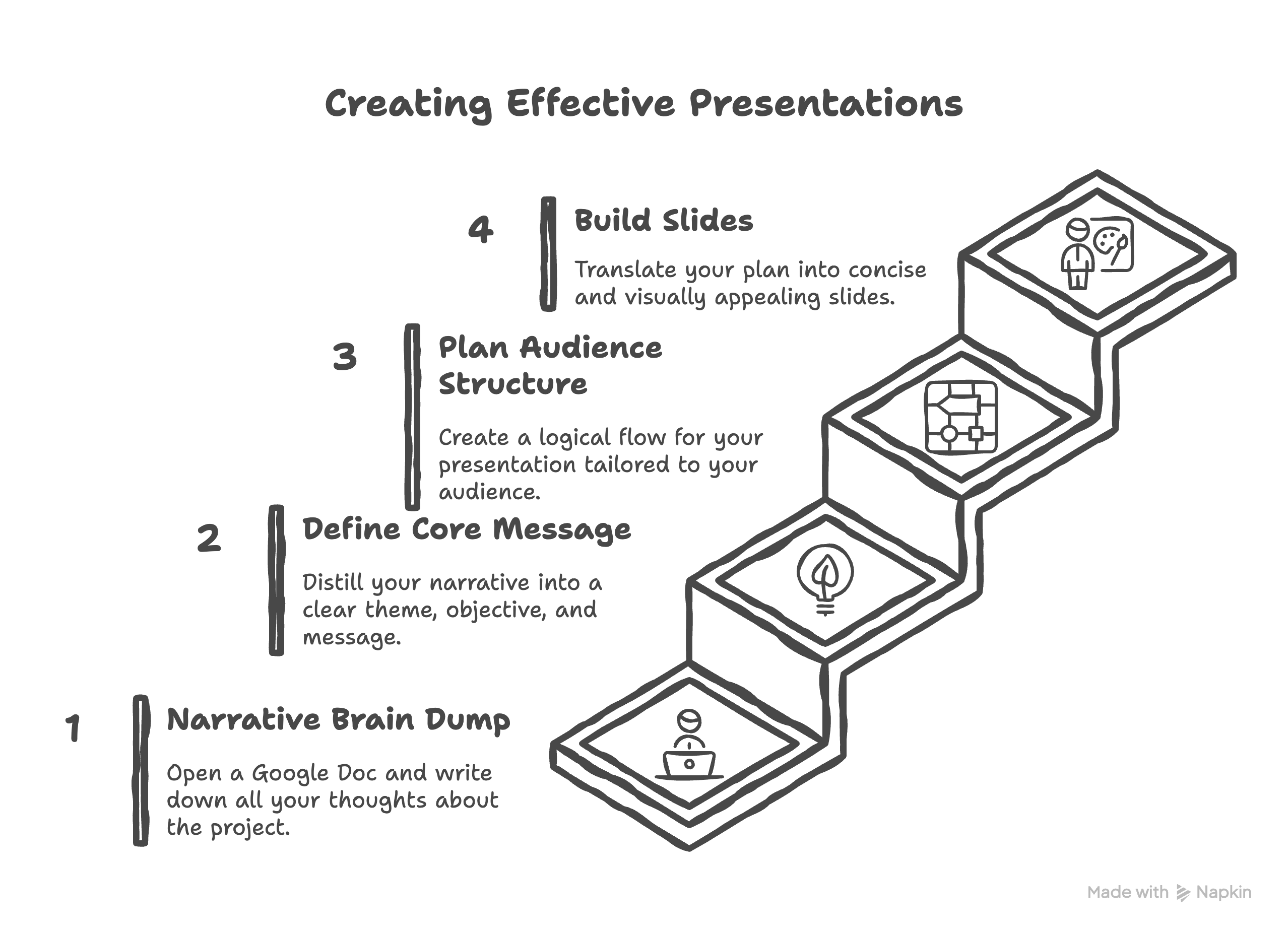
Step 1: Narrative first, the brain dump
Action: Open a Google Doc, not Slides. Just write. Dump all your thoughts about the project, the problem, the solution, the data, the challenges.
Pro-tip: Use voice-to-text! Just talk about your project out loud. It’s often faster and more natural than writing, and captures your raw thinking.
Step 2: Define your “TOM,” the core message
Action: Read through your narrative dump and distill it down to the absolute essentials.
Theme: What’s the subject?
Objective: What do you want the audience to do or think?
Message: What’s the single, unique takeaway they must remember? This is your North Star.
Step 3: Plan for the audience, the structure
Action: Create a logical flow (an agenda) for your presentation. Crucially, this structure depends entirely on who you’re talking to.
PM Example: A plan for your engineering team (details, architecture) looks very different from a plan for the C-suite (ROI, business impact, timeline).
Step 4: Then build the slides, the execution
Action: Finally, open your presentation tool. Take your audience-specific plan and translate each point into a clear, concise slide, following design best practices.
The AI upgrade: supercharging each step
This manual process forces clarity, but it’s still work. The real game-changer was realizing AI can act as a co-pilot at every single step. My first reflex now is always to involve Gemini. Here’s how, using translated prompts from the toolkit I built:
AI for step 1, the narrative: Stuck staring at a blank page or have messy notes?
To get started:
Prompt: “I need to start drafting the narrative for my project presentation on [my churn prediction model]. Ask me 5 key questions about my project (problem, data, model, results, impact) to help structure my thoughts and ensure I don’t forget anything.“
To clean up rough thoughts, like from voice dictation:
Prompt: “Here’s the raw transcript of my thoughts on my [sentiment analysis] project. Clean up this text, fix errors, remove hesitations, and organize it into a coherent narrative explaining the project from start to finish.“
To extract from technical docs:
Prompt: “Analyze this document (e.g., README.md or Python notebook) and extract a 300-word narrative summary explaining the project to a non-technical audience. [Paste README.md or Notebook content]“
AI for step 2, the TOM (Theme, Objective, Message): Distill your core message.
Prompt: “Analyze the following narrative: [Paste your narrative from step 1]. Identify these 3 points: 1. Theme (T): The main subject. 2. Objective (O): What I want the audience to do or think. 3. Message (M): The single unique message the audience must remember. Then, suggest a catchy presentation title based on this message.“
AI for step 3, the plan: Structure the flow and adapt it.
To create a basic plan:
Prompt: “I need to create a 15-minute presentation (about 10 slides) from this document. Propose a logical presentation plan (agenda). [Paste narrative or README.md]“
To adapt for different audiences:
Prompt: “I need to present my [MLOps pipeline] project to different audiences. Generate 3 distinct presentation plans (agendas) for: 1. My professor (technical, values rigor, specific tools used)... 2. A CEO (Business audience, cares about ROI, cost, business value)... 3. A team of data scientists (expert audience, interested in technical choices, architecture)...“
AI for step 4, content creation and slides: Now, start drafting slide content and refining it.
To draft slide content:
Prompt: “Draft the content for a slide titled: ‘Problem: The Challenge of Real-Time Fraud Detection’. * Audience is [non-technical / business]. * Use a maximum of 3 key points. * Keep it concise and avoid jargon.“
To simplify technical concepts:
Prompt: “Explain what [a Random Forest / a CI/CD pipeline / data leakage] is using a simple, visual analogy that a non-technical audience (manager, client) can understand.“
To find punchy titles (Z-structure):
Prompt: “Here’s my slide content: * Baseline model (Logistic Regression): Accuracy = 72% * Optimized model (XGBoost): Accuracy = 91% * XGBoost model reduced false positives by 40%. Suggest 5 impactful title options for this slide that follow the ‘conclusion first’ rule (like ‘Our model achieved 93% accuracy’).“
And finally, to build the actual slides: This is where the 📺 Document to HTML Presentation Converter Gem takes over. It uses the structured narrative or plan from the previous AI-assisted steps and builds the actual HTML slides for you, using the process we covered right at the start.
AI for feedback and improvement, before you present:
To get critical feedback:
Prompt: “I’m going to give you my presentation plan/script. Act like a [tough Machine Learning professor / skeptical investor]. Give me direct, critical feedback. Don’t just tell me what’s good. Tell me specifically what’s weak, lacks clarity, or what methodological flaws my project might have.“
To check clarity and jargon:
Prompt: Analyze the following text (intended for a slide) and identify any technical jargon. Propose a simpler, more direct version without losing the meaning. [Paste slide text, e.g., ‘We implemented a RAG architecture with bi-directional embedding...’]
To anticipate Q&A:
Prompt: “I’m presenting my [image classification] project to [a technical audience / my professor]. What are the 5 toughest, trickiest, or most pointed questions they might ask me? (e.g., ‘Did you check for data leakage?’, ‘Why those hyperparameters?’, ‘What’s your baseline performance?’). For each question, help me prepare a clear and concise answer.“
This combination, human strategic thinking amplified by AI execution at each stage, is what leads to the 10x speed boost while maintaining (and even improving) quality.
Part 3: AI builds the slides, but you still steer the ship
Right, so the Gemini Gem is your 10x accelerator for producing slides. But as PMs, we know output isn’t the same as impact. Having churned out decks daily in my consulting past (sometimes 20+ slides a day!), I learned that the thinking behind the slides is what actually drives decisions. The Gem frees you from the tyranny of PowerPoint, but it doesn’t absolve you of the need for strategic communication. AI handles the mechanics, but these core principles ensure your message lands. Think of them as the strategic layer you apply before you even prompt the Gem.
Principle 1: Deep audience empathy
The shift: It’s not just who they are (CEO, Engineer), but what problem keeps them up at night? Your presentation must offer value to them, not just report your progress. Your job isn’t merely to communicate your ideas; it’s often to change theirs.
Cultural context matters: How do they prefer information structured? Are they “applications-first” (like many Anglo-Saxon contexts, give the conclusion upfront) or “principles-first” (like many French contexts, establish the “why” before the “what”)? Understanding this (drawing from frameworks like Erin Meyer’s Culture Map) helps you sequence your points for maximum resonance. How do they build trust (task vs. relationship)? How direct should your critique or proposal be? Tailoring this consciously avoids the “credibility paradox” where trying to impress one culture alienates another.
Principle 2: Architect your argument for value
This principle comes from a powerful framework on expert communication, notably taught by Larry McEnerney at the University of Chicago.
Problem first, always: Don’t start with stable ground (definitions, background). Start by creating “instability”. Highlight the tension, the inconsistency, the problem, the unmet need that your audience recognizes and cares about. Your solution only has value if the problem is acutely felt. Use language that signals this tension (however, despite, inconsistent).
Argue, don’t just explain: Your stakeholders are smart. Assume they know the basics. Your role isn’t to lecture, but to build a compelling argument for why your approach, your feature, your roadmap prioritization is the right one. Anticipate their doubts and address them head-on.
Principle 3: Weave a compelling narrative
Humans run on stories: Even the most data-driven presentations stick better when framed as a narrative. It makes the abstract concrete and memorable.
Simple frameworks: Use proven structures. The classic Problem → Solution → Benefits → Call-to-Action works wonders. Or think like a storyteller: What’s the “Hero’s Journey” here? Often, the customer or the business unit is the Hero facing a challenge (ordinary world), your product or feature is the mentor or tool, overcoming obstacles (trials) leads to the positive outcome (treasure or transformed return).
Find your “through-line”: What is the single, core message connecting every part of your presentation? Can you state it in under 15 words? This “through-line” acts as your filter, if a piece of information doesn’t support it, cut it.
Principle 4: Master clarity and simplicity
Ruthless editing: The “1 slide = 1 idea” rule is non-negotiable, especially when AI tends to be verbose. Be brutal in cutting text. Can the slide title be the conclusion?
Visual > verbal: Leverage the power of simple visuals. As the TED guide suggests, aim to enhance, clarify, or add emotional impact with images or diagrams, not just decorate. Maximize the signal-to-noise ratio in charts.
Authenticity connects: Remember, the slides are just the backdrop. You are the presenter. Your authenticity, your connection with the audience (even virtual eye contact), and your ability to convey conviction are what truly sell the idea. AI can build the stage, but you still have to perform.
By embedding these principles into your thinking before you leverage the speed of the Gemini Gem, you ensure that the presentations you create aren’t just fast, but also focused, persuasive, and ultimately drive the impact you need as a product manager.
Your new PM workflow
This workflow isn’t just a party trick; it’s a fundamental shift. It combines the best of human strategy (your deep understanding of the audience, the narrative structure, the core message) with the sheer speed and efficiency of AI execution (Gemini drafting, structuring, and the Gem itself building the final output). You focus on the thinking, the high-value PM work of clarifying the what and why, and let your AI co-pilot handle the tedious mechanics of slide building. The result? You get back hours, force clearer thinking upfront, and produce clean, effective communication artifacts faster than ever before.
Your new mandate: Prompt architect, not slide designer. Stop wasting your most valuable hours fighting with text boxes and alignments. Your core job as a PM is strategic clarity and driving outcomes. This AI-native workflow directly supports that. It connects your thinking (the narrative, the PRD) directly to your output (the HTML slides) with an AI co-pilot streamlining the path between them.
The call to action. Seriously, try the 📺 Document to HTML Presentation Converter Gem today. Upload your last project brief, your latest meeting notes, anything. See what happens in just a couple of minutes. This isn’t just a neat tool; it’s a glimpse into a fundamentally more efficient way for us to operate as product managers. Go reclaim your time.
Final Lesson. The 10x PM of tomorrow won’t be the one who’s the master of PowerPoint animations. They’ll be the one who is best at directing AI to communicate their vision clearly and rapidly. This workflow is how you start building that muscle.
I’ve put the direct link to the Gem and the key AI prompts right here in this article. If you want the deeper dive into the communication principles (like audience adaptation, narrative structures, etc.) that help you craft better inputs for the AI, check out the full course here. Go build, faster!
Now, over to You! How much time could you save each week by automating your slide creation? What other tedious PM tasks could you potentially automate using a custom Gem assistant? Are you ready to shift from being a “slide designer” to an “AI prompter”?
This article comes at the perfect time. The idea of getting 'half my week back' is so resonant. It speaks to the real, human impact of smart workflow optimization. This isn't just about speed, it's about what we can achieve or experience with that extra time. Very insightful and a truly practic application of AI.