

When Google released the Slide Deck feature for NotebookLM, I was the first in line.
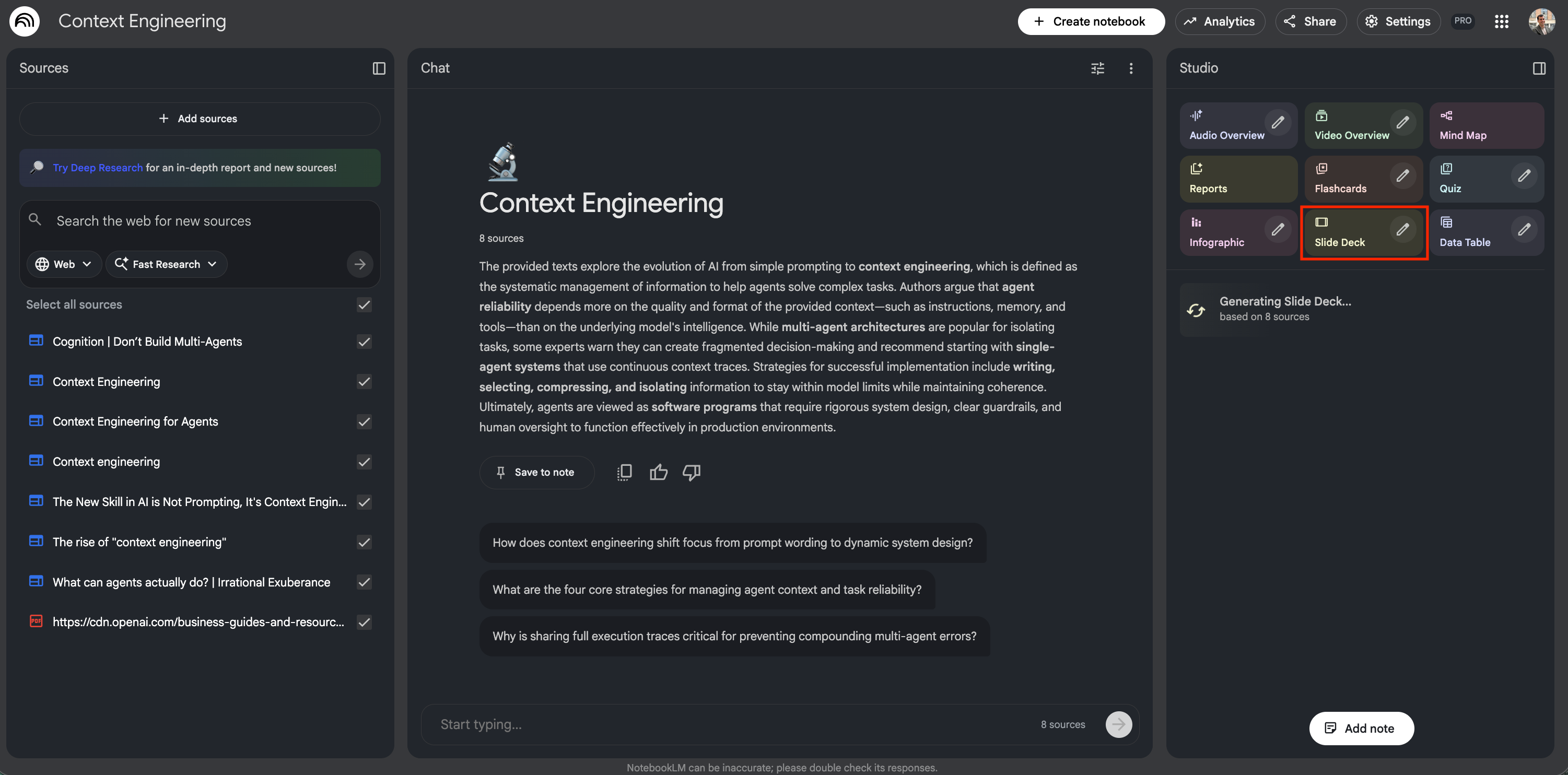
This was my first attempt. I uploaded a set of resources found on the Internet on context engineering and asked for a summary deck.
After the 15-minute processing time, the result genuinely surprised me. Visually, it was flawless: it looked like a deck delivered by a top-tier strategy consultancy.
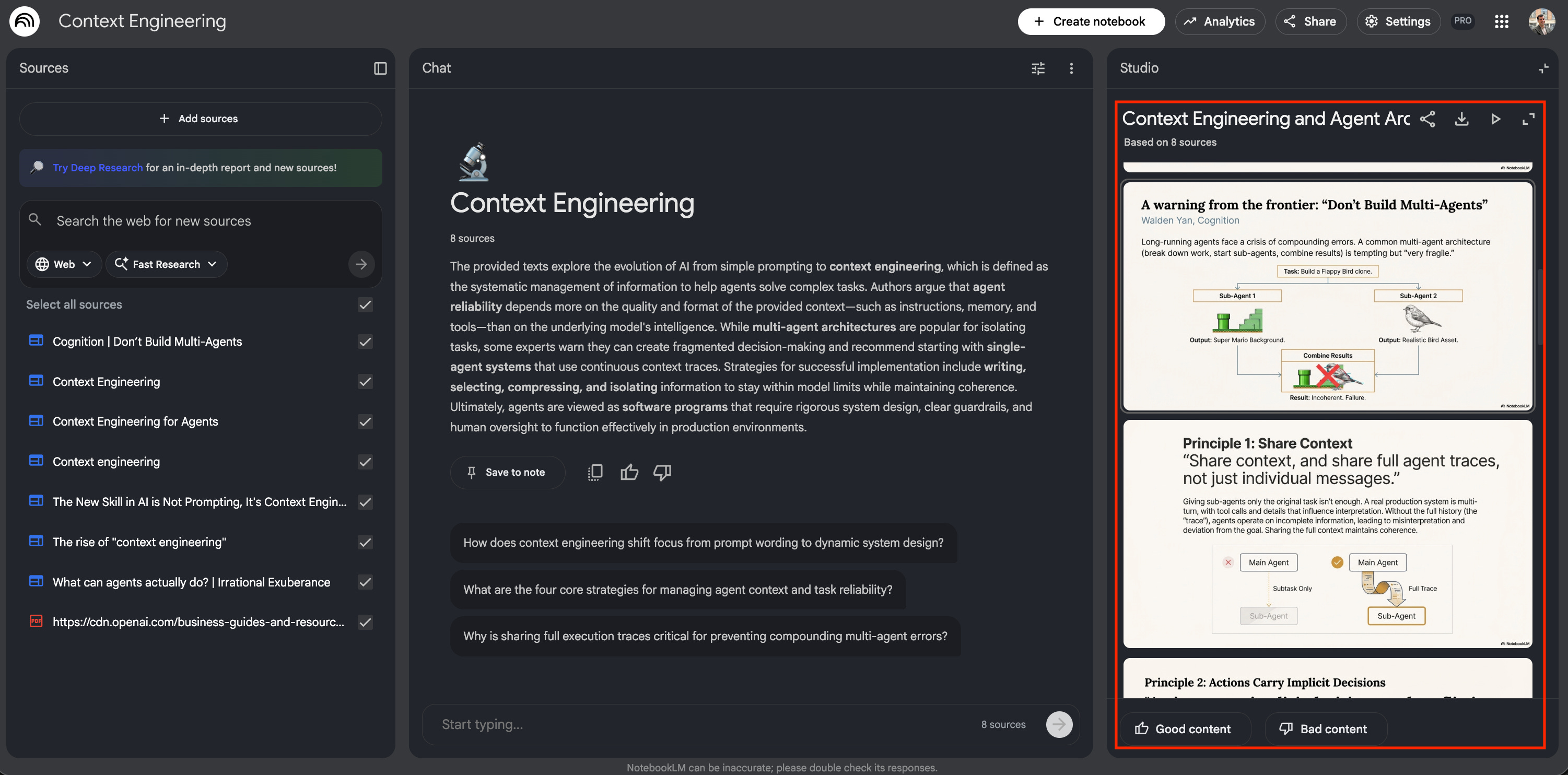
But as soon as I actually read the content, the illusion shattered:

You see? Slide 4 strongly advised against multi-agent architectures, calling them “very fragile”. By Slide 11? It was recommending them as an advanced solution. It was a incoherent deck: polished on the surface, but logically broken underneath.
Worse, the iteration loop was punishing. To fix that one contradiction, I had to trigger a full regeneration, waiting another 15 minutes only to watch the AI rewrite the entire deck and potentially break the parts it actually got right. So, it wasn’t the magic button I hoped for.
Oh, by the way, if you are reading this and thinking “What is NotebookLM?”, I don’t want to say your life is sad, but you are missing out on one of the most powerful AI tools. It’s essentially a brain where you upload documents (PDFs, Google Docs, audios, websites, etc.) and it becomes an instant expert on them. If you need to catch up, go watch this video on YouTube: it’s 17 minutes that might change the way you learn. Don’t skip it.
Let’s get back to the story. Recently, I had to produce a C-level strategy brief in a very short amount of time. I didn't have four hours to spend moving squares and circles around in Google Slides, so I decided to give the tool a second chance.
I ended up spending about 4 hours on that deck. That might sound like a lot, but it’s still significantly faster than starting from scratch. More importantly, those 4 hours were spent cracking the code. I discovered a specific workflow that actually works: how to limit hallucinations, how to apply a design template, and most critically a trick to iterate on specific slides without regenerating the whole deck.
The lesson was clear:
If you control the sources, you control the output.
By the end of this article, you will be able to generate a deck like this one below:

And here is the entire PDF:
This article breaks down the exact 5-step process I used to build it, so you can save time and go straight to the result.
Let’s dive in!
Use case: the AI builder program at LinkedIn
Before we jump into the steps, let’s set the stage. Since I cannot share my company’s confidential strategy, I’m going to use a real-world, high-stakes example that is public.
Imagine this scenario: You are an AI enabler at LinkedIn. Your mission is to convince the C-suite to shift the entire product organization toward a full stack builder model. You need to present a roadmap that explains how AI will allow single individuals to take products from idea to launch, collapsing the traditional silos of product management, design, and engineering.
I chose this specific case because I recently watched an interview on Lenny's Newsletter podcast with Tomer Cohen, LinkedIn’s CPO. He detailed exactly how they are scrapping their traditional associate product manager program in favor of an AI-native builder program.

The content is dense and strategic:
The why: 70% of skills needed for jobs will change by 2030.
The how: A 3-pillar strategy involving platform re-architecture, custom AI agents, and culture change.
The what: Moving from a 6-month feature cycle to rapid, AI-assisted iteration.
Since this information is public, it’s the perfect sandbox. We are going to take that 1-hour audio transcript and turn it into the C-level pitch deck below using NotebookLM.
Overview: a 5-step workflow
Here are the 5 steps to transform a raw transcript into a strategic presentation:
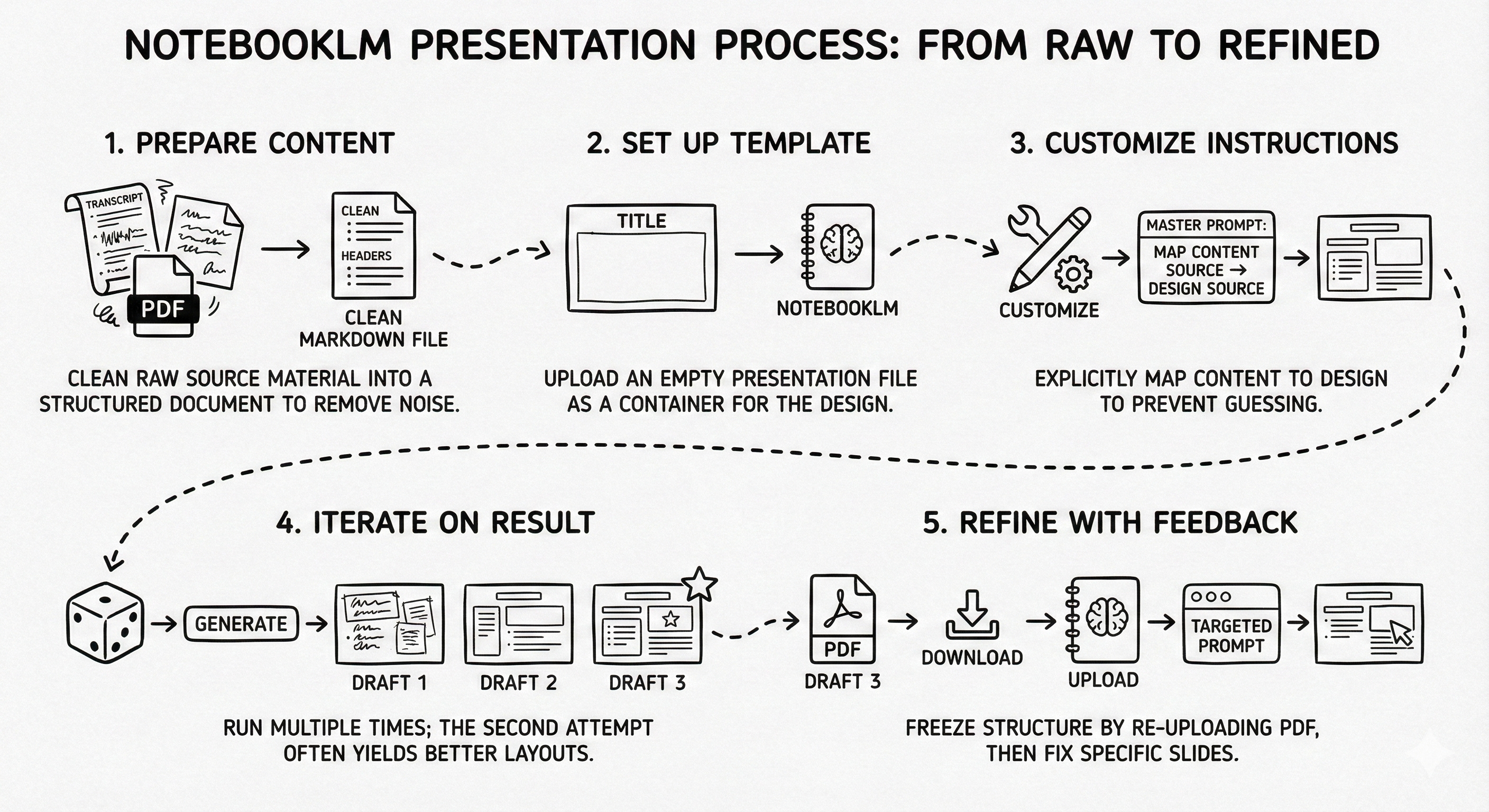
Prepare the content: Clean your raw source material (transcripts, notes, PDFs) into a structured document with clear headers and bullet points. I use Cursor to generate a markdown file, but you can do this in a Google Doc; the goal is to remove noise so NotebookLM focuses purely on the signal.
Set up the template: Upload a clean, empty presentation file to NotebookLM as a source. This acts as a container for the design.
Customize the instructions: Use the “Customize” feature in the Slide Deck tool to input a master prompt that explicitly maps your content source to your design source. This prevents NotebookLM from guessing and forces it to follow your specific narrative structure.
Iterate on the result: Run the generation process multiple times, as the AI’s non-deterministic nature means the second attempt often yields better layouts than the first. Treat the first output as a draft and reroll the dice to improve the visual structure.
Refine with feedback: Download the best draft as a PDF and re-upload it as a new source to freeze the structure. Then, run a targeted prompt to fix specific slides without regenerating, and potentially breaking, the rest of the deck.
Note: NotebookLM is impressive, but it is not the right tool for every situation. At the end of this article, discussion includes the specific challenges I faced and when to avoid using this workflow.
Step 1: Prepare the content
The most common mistake people make with NotebookLM is treating it like a storage dump. In the past, I would just download random PDFs from Confluence, upload them all, add websites and YouTube video as sources, and hope for the best.
This does not work.
Too much irrelevant data confuses the model; too little data forces it to hallucinate. To get professional results, you must practice context engineering: creating a dedicated, clean dataset specifically for this task.
The goal: A single document (or a tight set of documents) that contains only the truth you want to present: nothing more, nothing less.
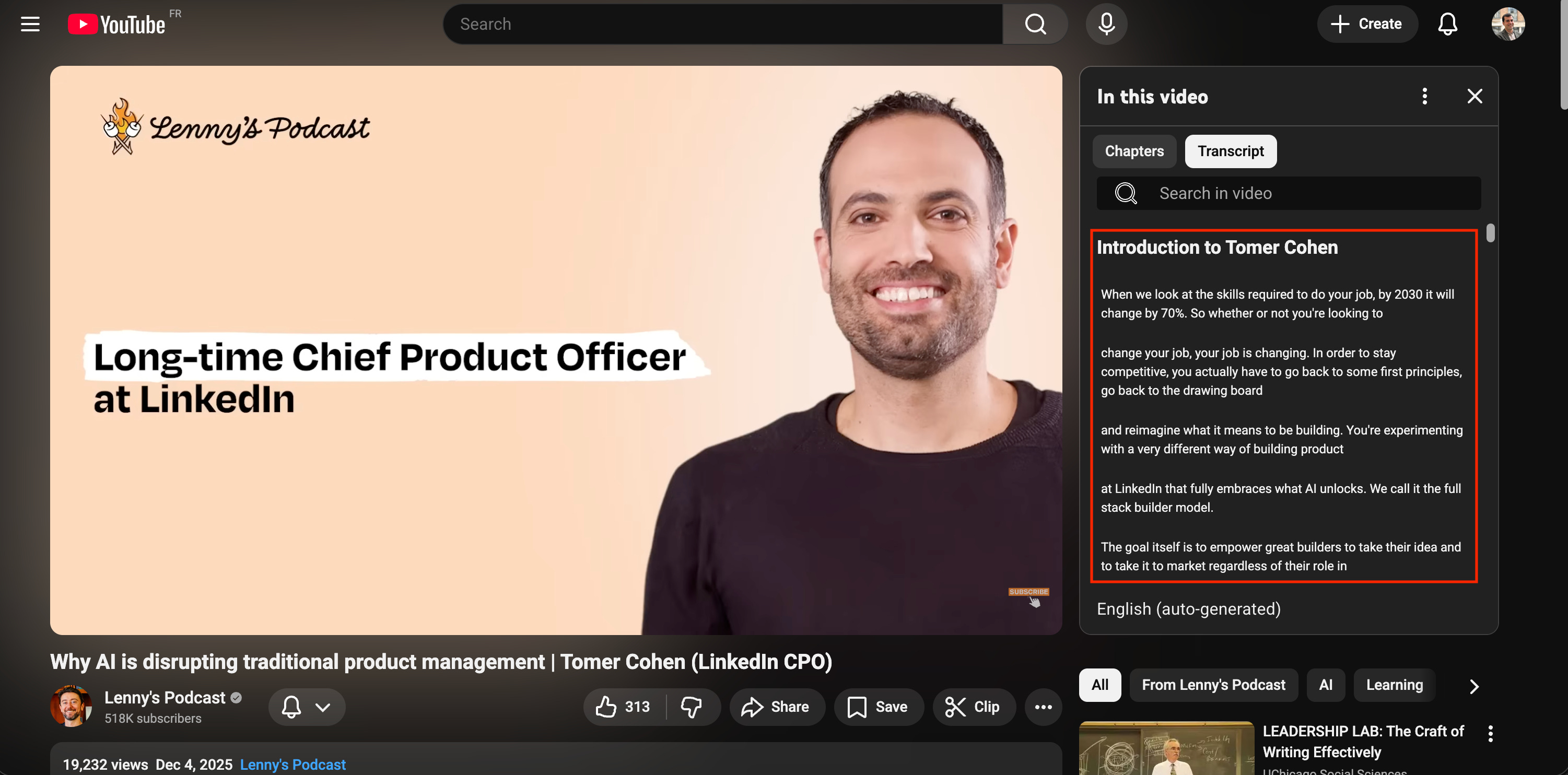
The workflow: For the LinkedIn strategy use case, I didn’t just paste the YouTube URL into NotebookLM (which often captures the intro fluff). I wanted control.
Get the raw text: I went to the video, opened the transcript, and copied the text into a markdown (
.md) file.
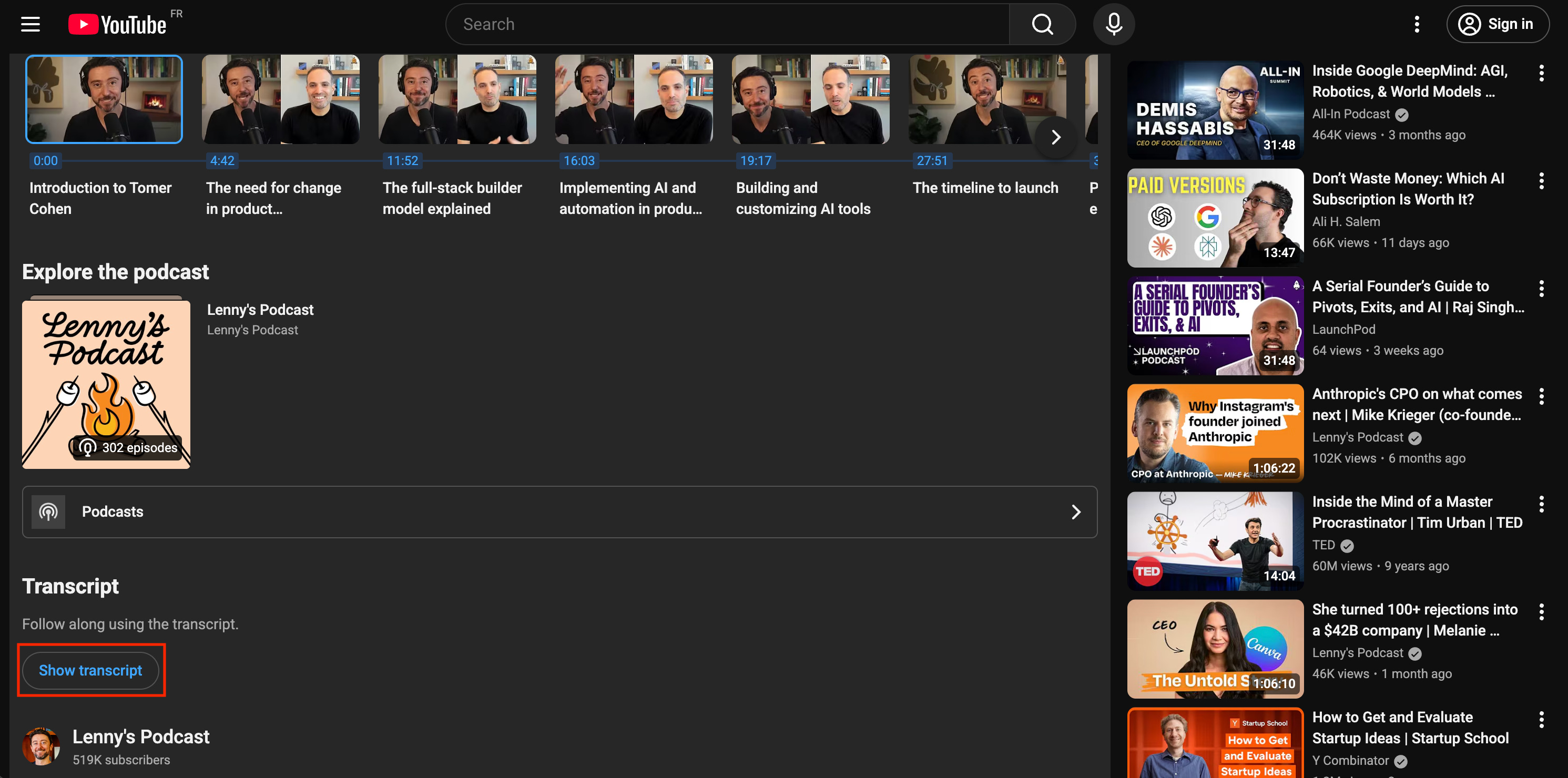
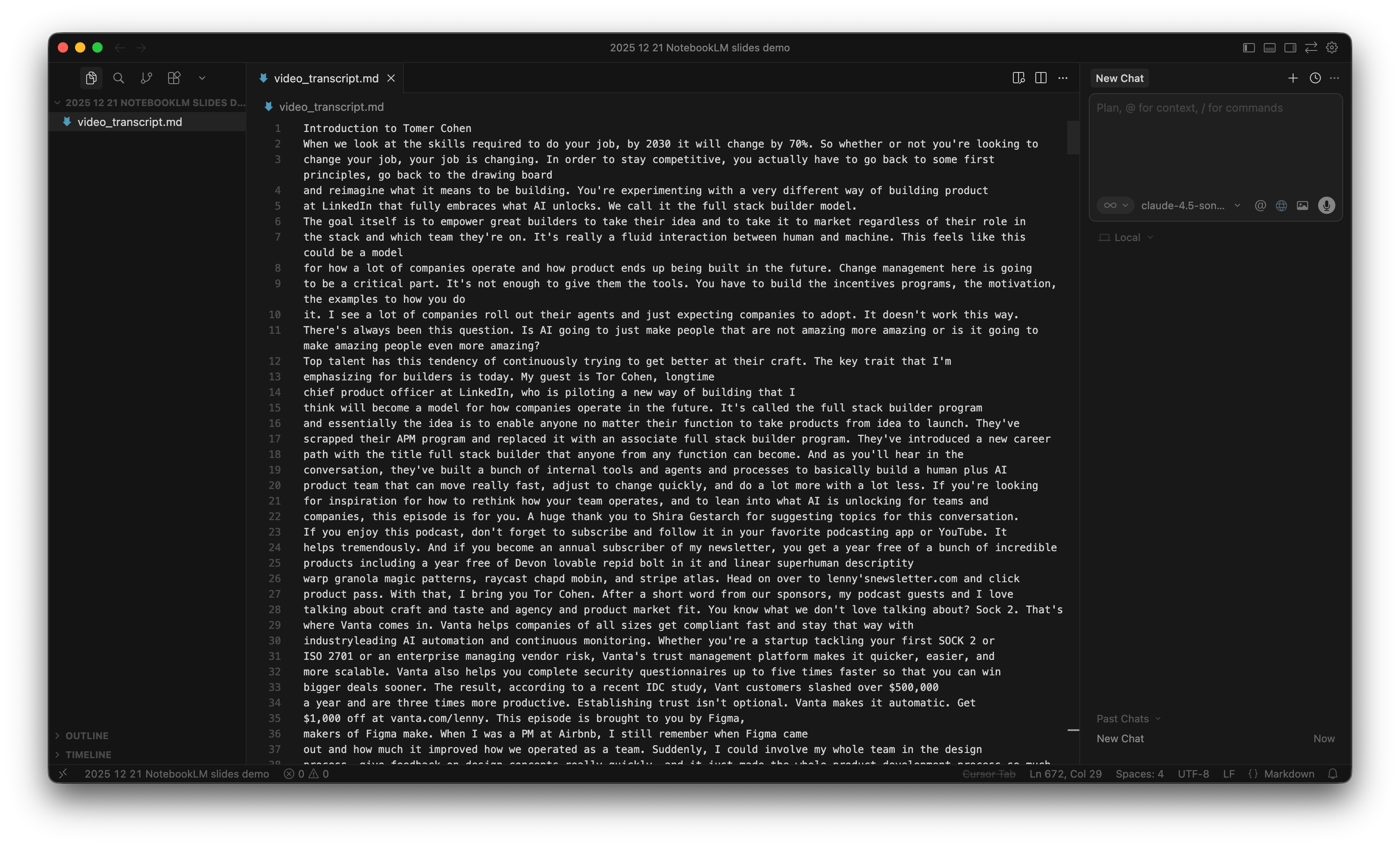
Refine with AI: I used Cursor to paste this transcript into an
.mdfile.
Note: I use Cursor because its Atlassian MCP integration allows me to crawl my company’s Confluence pages in real-life scenarios, which is a massive time-saver. But for this example, you can use Google Doc. The tool matters less than the principle.
Run the prompt: I asked Cursor to act as a strategist and convert the raw transcript into a structured brief.
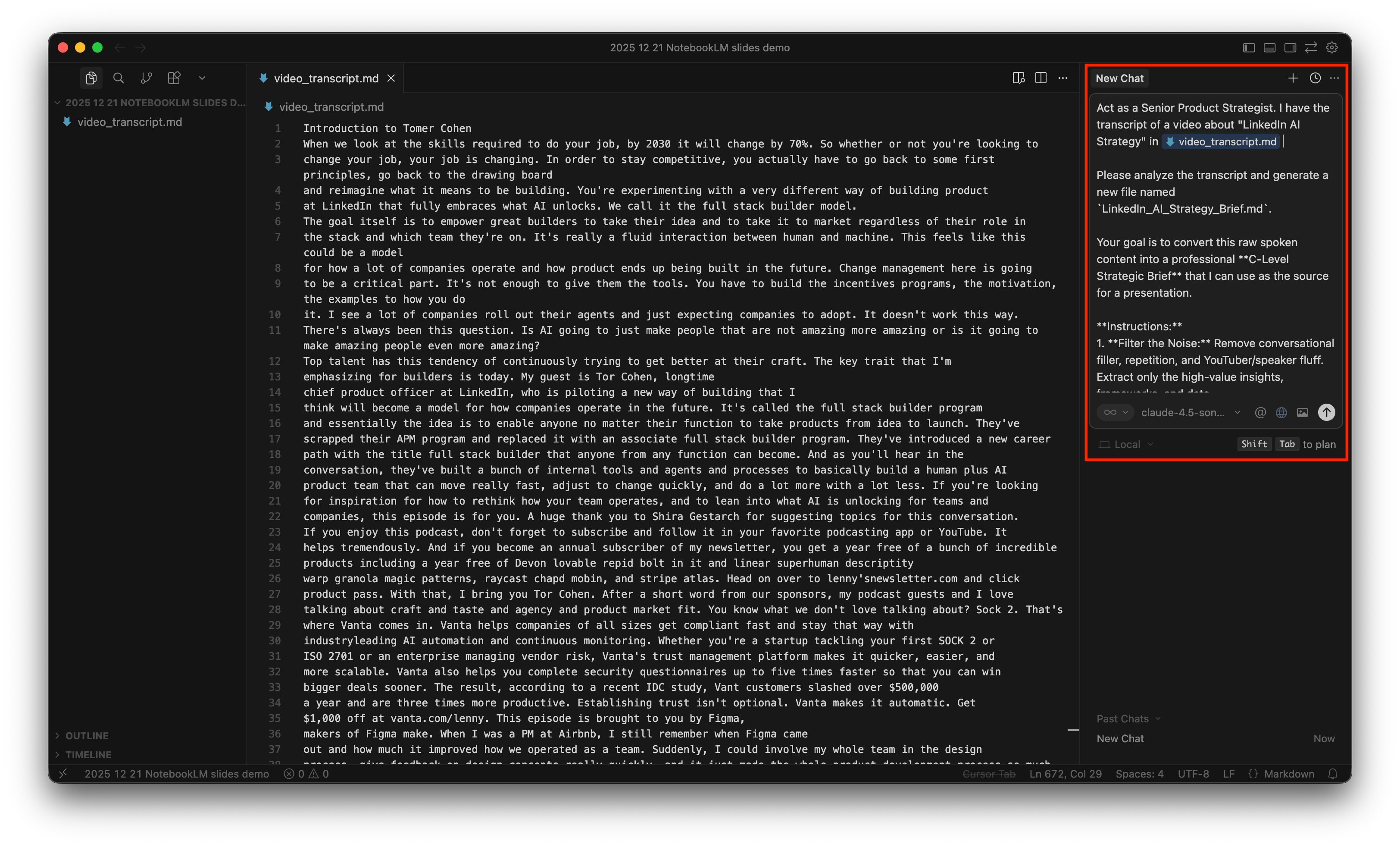
Here is the exact prompt I used:
Act as a Senior Product Strategist. I have the transcript of a video about "LinkedIn AI Strategy" in `video_transcript.md`.

Please analyze the transcript and generate a new file named `LinkedIn_AI_Strategy_Brief.md`.

Your goal is to convert this raw spoken content into a professional C-Level Strategic Brief that I can use as the source for a presentation.

Instructions:
1. Filter the Noise: Remove conversational filler, repetition, and YouTuber/speaker fluff. Extract only the high-value insights, frameworks, and data.
2. Tone: Professional, persuasive, and executive-ready.
3. Format: Clean Markdown with clear H1/H2 headers, bullet points, and bold text for emphasis.

Structure the content as follows:
* Executive Summary: A 3-sentence hook explaining the opportunity.
* The Strategic Shift: Why we need to adopt this AI strategy on LinkedIn now (The "Problem" or "Opportunity" space).
* Core Pillars: The main components or tactics of the strategy explained clearly.
* Implementation Plan: A high-level roadmap or "Next Steps" derived from the content.
* Expected Outcomes: The ROI, metrics, or benefits of executing this strategy.

Please generate the `LinkedIn_AI_Strategy_Brief.md` file now.
And here is the result:
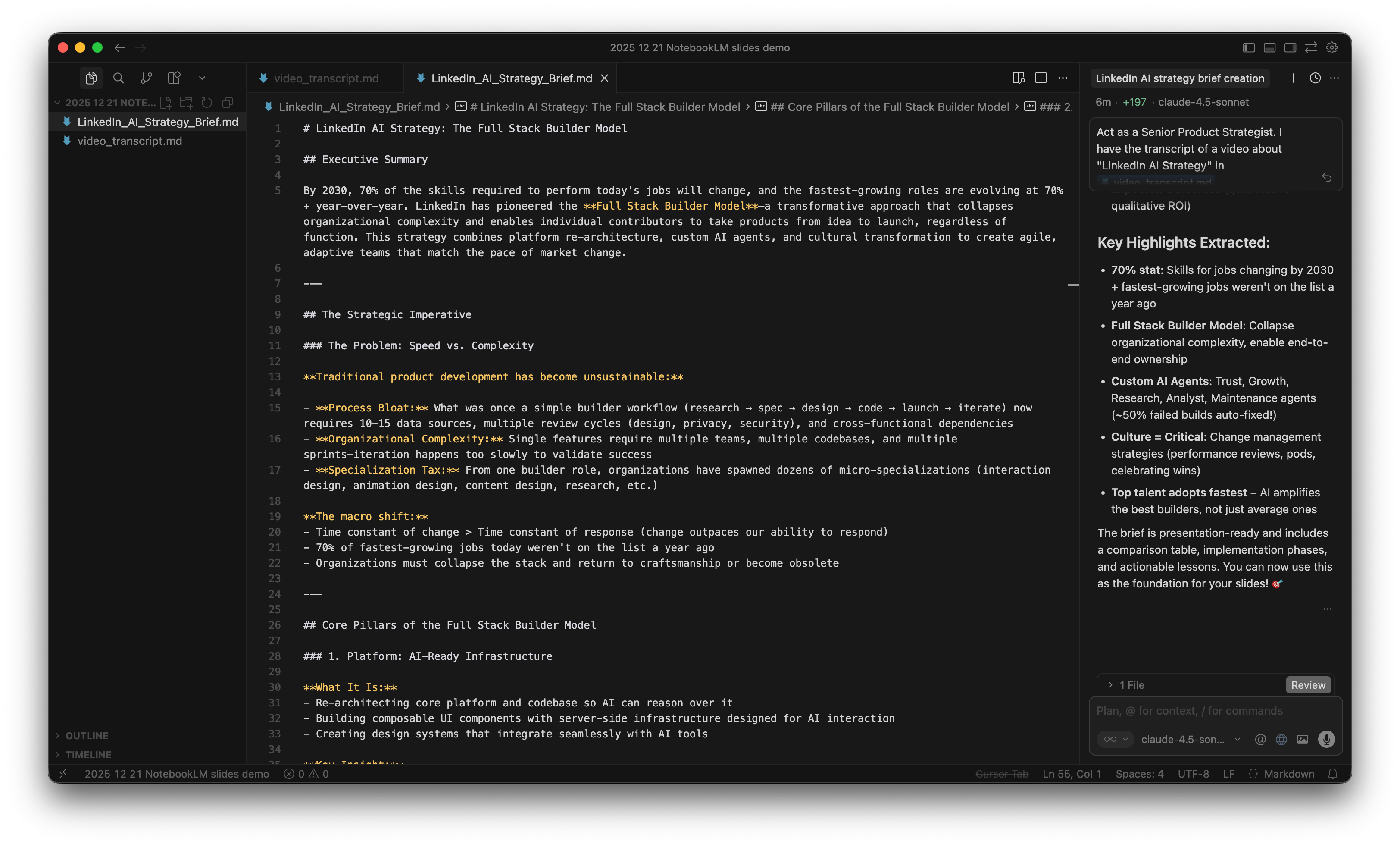
The human layer is crucial: Do not trust the output blindly. Even with a good prompt, AI can miss the point. I read the generated markdown file line-by-line. In my real-world projects, this is where I cross-reference with Confluence to ensure facts aren’t outdated. I ruthlessly deleted any paragraph that wasn’t relevant to the specific story I wanted to tell.
Why this matters:
Too much context: The model gets confused and prioritizes the wrong points.
Too little context: The model fills in the blanks with hallucinations.
Curated context: The model acts as a designer, not a writer. It focuses on visualizing your facts rather than inventing them.
In my real-world project, this preparation phase was actually the part that took the most time, because once the foundation is solid, the rest is just execution.
Step 2: Set up the template
Now that we have our strategy brief, we need a container for it.
I went to NotebookLM, created a new notebook, and uploaded two specific files:
The brain, the content we just created in Step 1:
LinkedIn_AI_Strategy_Brief.mdThe body, the design skeleton: I found this LinkedIn branding template on the Internet.
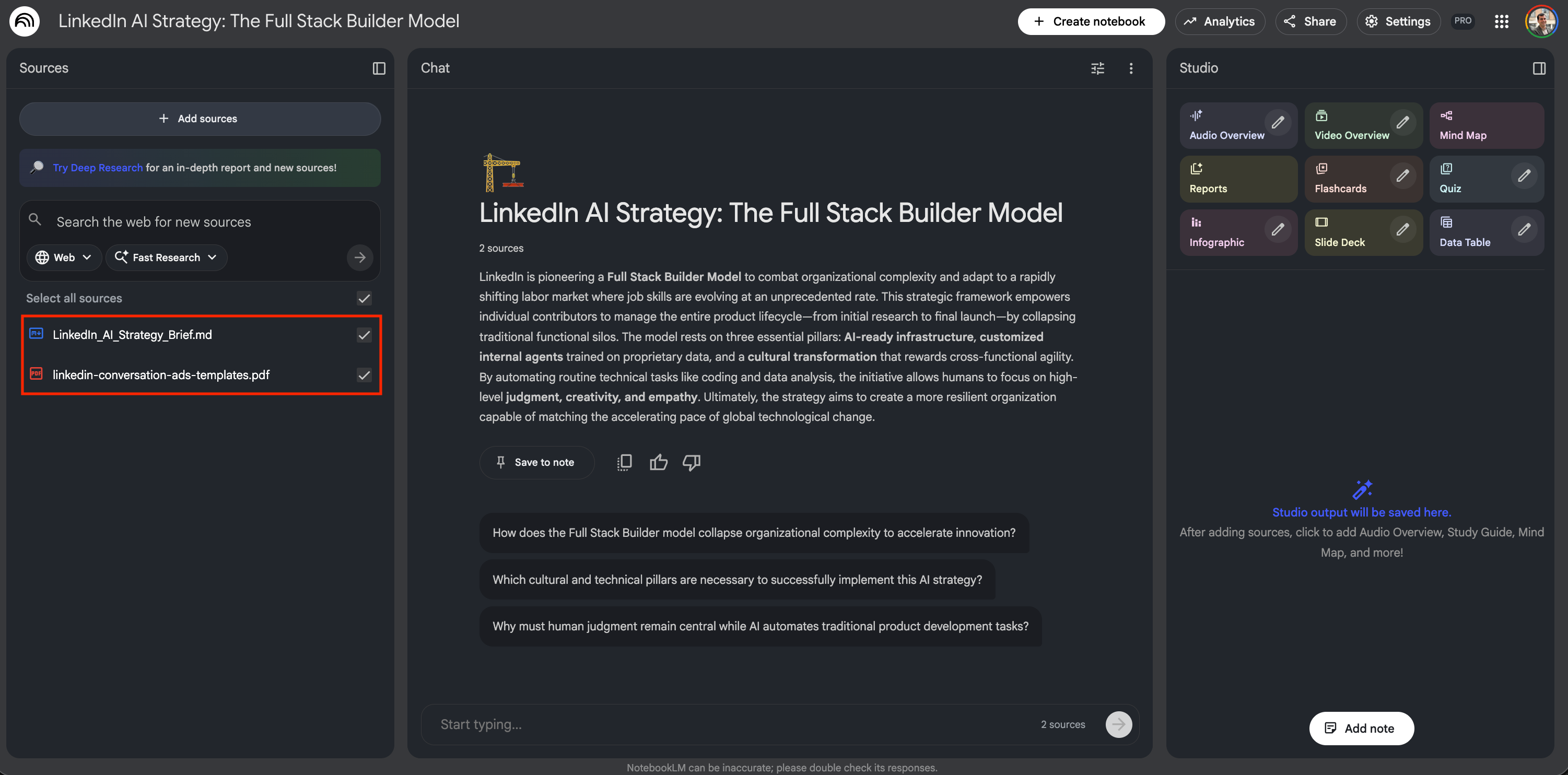
Why the template must be empty: This is a critical detail. If you upload a previous version of a deck to use as a template, the AI gets confused. It struggles to distinguish between layout rules and old text, and you risk it hallucinating. By using a clean, empty template, like the one I used for this LinkedIn example, you ensure the model focuses 100% on your new content and 0% on legacy noise.
Step 3: Customize the instructions
Click the customize (pen icon) button.
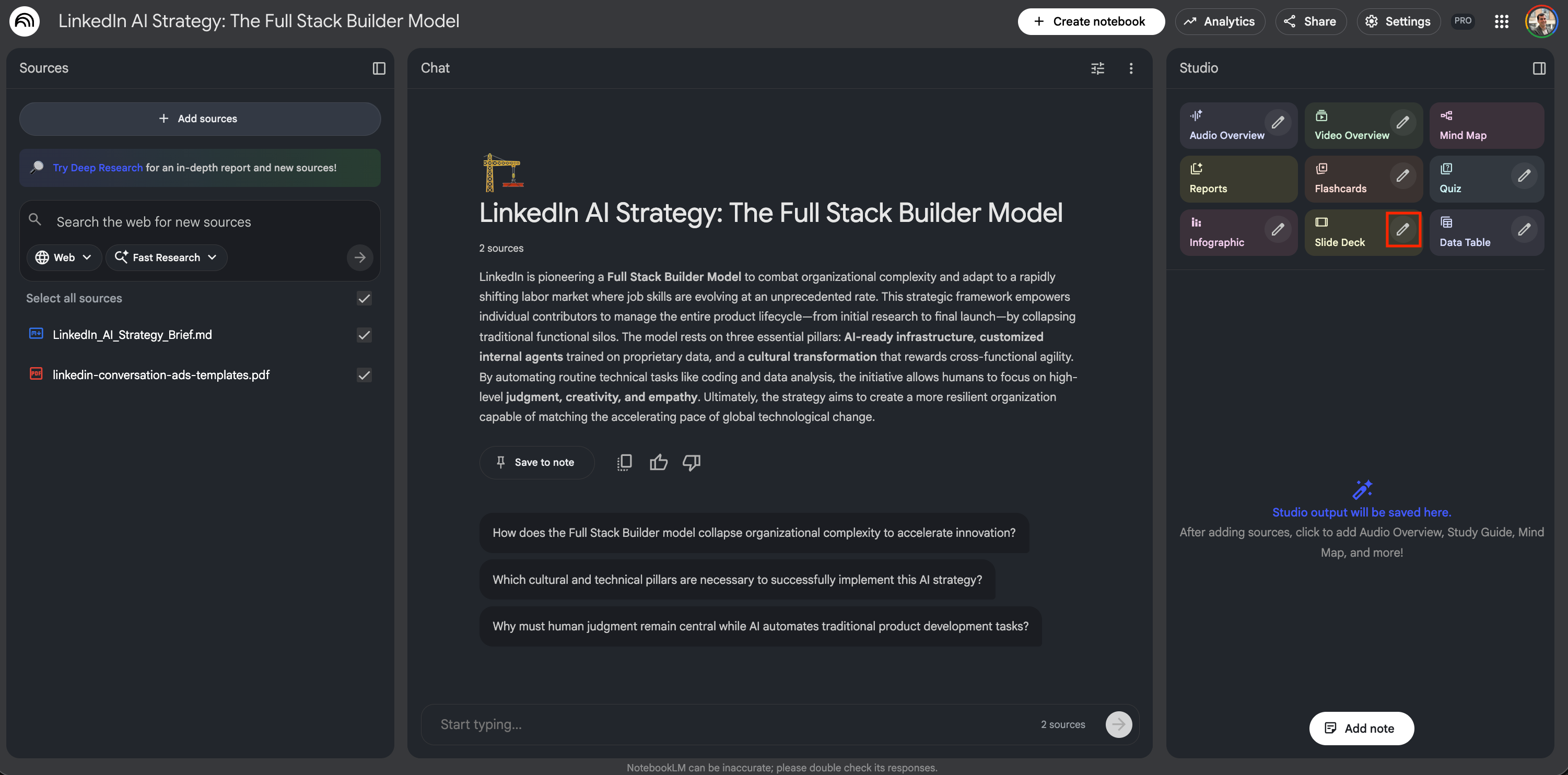
This opens a dialogue box where you can inject a master prompt.
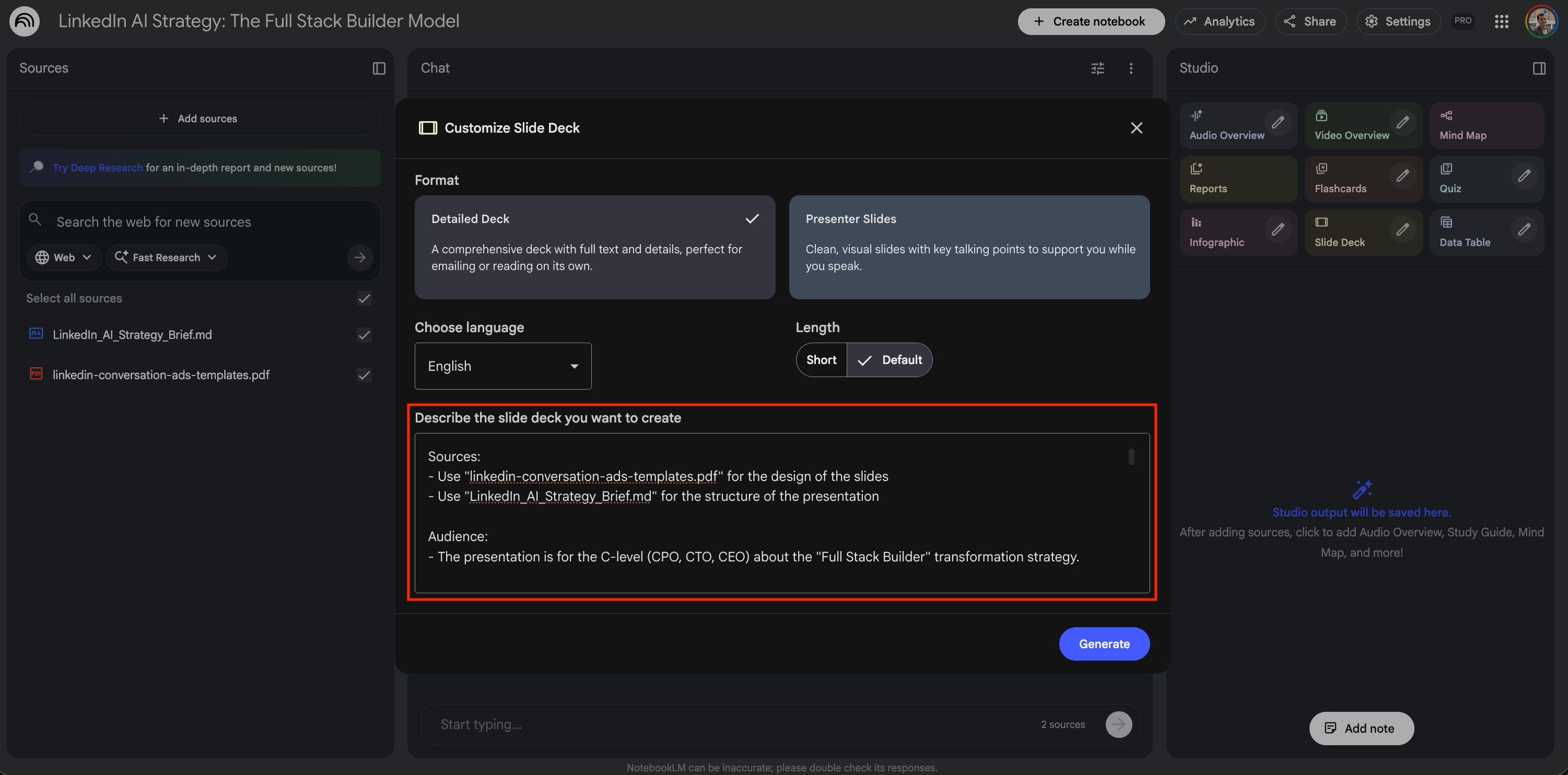
Think of this prompt as your director’s note. This is where you control the output. You can dictate the visual style (e.g., “create a split-screen comparison”), enforce negative constraints (e.g., “do not mention X”), and inject strategic nuance that might not be explicit in the source text.
The master prompt template: Here is the exact structure I developed to force the model to respect my logic. You can copy-paste this for your own projects:
Sources:
- Use "[Name of your uploaded Template]" for the design of the slides
- Use "[Name of your Source File]" for the structure of the presentation

Audience:
- The presentation is for [Target Audience] about [Project Name].

Goals:
- Explain the current status of [Project Name] and the next steps.
- Ask for [Specific Resource Ask].

Structure:
- [Topic 1]: [Detail]
- [Topic 2]: [Detail]
- [Topic 3]: [Detail]

Requirements:
- Stick to this plan and don't add other things.
- Add an agenda slide before moving on to the topics.
- Use infographics or diagrams to present the roadmap; make the presentation visual.

Key Messages (Nuance and Strategy):
- [Concept A]: [Your specific definition or constraint].
- [Concept B]: [Your specific definition or constraint].
Why this prompt works:
Source segregation: You explicitly tell the AI which file is for Design and which is for Content.
Constraint enforcement: Phrases like “stick to this plan” and “don’t add other things” significantly reduce NotebookLM’s approximations.
Nuance injection: The “key messages” section prevents generic summaries by forcing the AI to include your specific strategic angles (e.g., “cost reduction means X, not Y”).
The use case example: For the LinkedIn strategy deck, here is the actual prompt I used to turn the C-Level brief into a first presentation:
Sources:
- Use "linkedin-conversation-ads-templates.pdf" for the design of the slides
- Use "LinkedIn_AI_Strategy_Brief.md" for the structure of the presentation

Audience:
- The presentation is for the C-level (CPO, CTO, CEO) about the "Full Stack Builder" transformation strategy.

Goals:
- Explain the shift to the "Full Stack Builder Model" to solve the "Speed vs. Complexity" problem.
- Ask for approval on the 4-Phase Implementation Roadmap and resources for Platform Re-architecture.

Structure:
- The Problem: The "Specialization Tax" and "Process Bloat" that is slowing us down (Current State).
- The Vision: The "Full Stack Builder Model" (collapsing the stack so one person can go from idea to launch).
- Pillar 1 (Platform): Re-architecting our infrastructure so AI can reason over our code (The foundational investment).
- Pillar 2 (Tools): The suite of Custom Agents we are building (Trust, Growth, Research, Analyst).
- Pillar 3 (Culture): The Change Management Playbook (Performance reviews, Pod structure, Navy SEALs model).
- The Roadmap: Phase 1 (Foundation) through Phase 4 (Continuous Evolution) with timelines.
- Expected Outcomes: Quantitative wins (Hours saved, 50% auto-resolved builds) and Qualitative wins (Career mobility, Resilience).

Requirements:
- Stick to this plan and don't add other things.
- Add an agenda slide before moving on to the topics.
- Use infographics or diagrams to present the "4-Phase Roadmap" and the "3 Core Pillars"; make the presentation visual.
- Include a visualization of the **Agent Ecosystem** (Trust Agent, Growth Agent, Coding Agent) showing how they support the human builder.

Key Messages (Nuance and Strategy):
- Customization is Non-Negotiable: Emphasize that off-the-shelf tools (Cursor, Devon) fail on our legacy codebase without heavy customization. We need to build our own context-aware layers.
- Culture is the Bottleneck: Explicitly state that "Tools alone don't drive adoption." We need to change how we do performance reviews to reward "Full Stack" behaviors.
- The "Trust Agent" Role: Highlight the Trust Agent specifically as a way to mitigate risk (identifying security vulnerabilities/harm vectors) that human reviewers might miss.
- Metric for Success: The ultimate KPI is not just speed, but: *(Experiment Volume × Quality) ÷ Time to Launch*.
- The Macro Threat: Use the stat that "70% of skills required will change by 2030." We are doing this to avoid obsolescence, not just to save money.
- Human Judgment: Clarify that AI takes over data gathering and coding, but Human Builders focus on Vision, Empathy, and Judgment.
- Immediate Next Step: We are not starting from zero; we are moving to "Phase 1: Foundation" to identify golden examples and clean our data corpus.
Once you hit submit, go get a coffee. The generation process takes about 15 minutes. It is not instant, but it is thorough.
Step 4: Iterate on the result
The first result is rarely the final result. In the LinkedIn use case, the first draft was good, but it missed some things I explicitly asked for in the requirements.

Strategy: review, refine, reroll
Review: Look at where it failed. Did it ignore a specific constraint? Did it hallucinate a deadline? (e.g., Did it actually include the “Orchestration Layer” vision?)
Refine: If the model missed a key instruction, go back to your master prompt (Step 3). Tweak it by bolding the missed requirement or moving it to the very top of the list. LLMs pay the most attention to the beginning and end of a prompt.
Reroll: Sometimes, you don’t even need to change the prompt. You just need to run the generation again.
Rule of thumb: Never accept the first draft as the final truth. I always run the generation at least twice to compare how the AI interprets the prompt differently. Yes, this means investing another 15 minutes, but it usually yields a significantly better layout.
Albert Einstein famously said, “Insanity is doing the same thing over and over and expecting different results.”
With LLMs, that’s not quite right: re-running the exact same prompt is not insanity; it is a valid strategy. These models are probabilistic, not deterministic. Rolling the dice a second time often solves a layout issue or a logic gap that the first attempt missed, simply because the model took a different statistical path.
Step 5: Refine with feedback
At this stage, you likely have a deck that is 80% perfect and 20% frustrating. Maybe Slide 4 misses a nuance, or Slide 10 has a generic visual.
The rookie mistake is to ask the AI to “fix Slide 10” without giving it the context of the rest of the deck. If you do this, the AI might regenerate the whole thing and accidentally break Slide 4 while fixing Slide 10.
To solve this, we use a freeze and patch technique:
Action: Download the best iteration from Step 4 as a PDF.
Re-upload: Add this new PDF back into NotebookLM as a specific source.
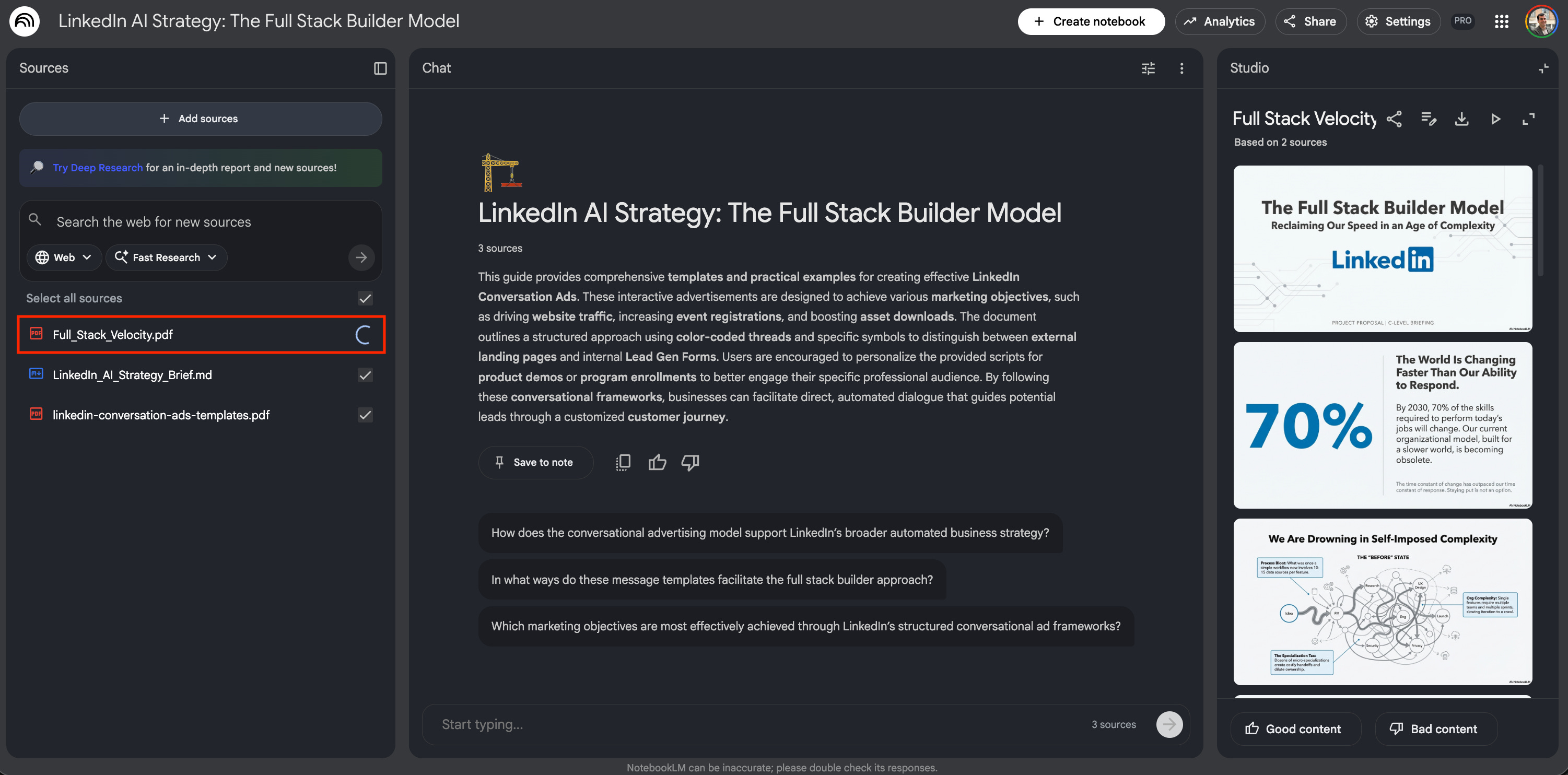
Run the prompt: Run a refinement prompt that anchors the AI to the PDF you just uploaded.
The refinement prompt template: By referencing the generated PDF and using the phrase “keep exactly the same,” you prevent the AI from re-rolling the dice on the slides you are already happy with.
Sources:
- Use "[Name of your Design Template]" for the design of the slides
- Use "[The PDF you just generated/downloaded]" as the document to improve
- Use "[Original Markdown/Content Source]" for the content reference

Audience:
- The presentation is for [Target Audience] about [Project Name].

Goals:
- Explain the current status of [Project Name] and the next steps.
- Ask for [Specific Resource Ask].

Structure and Content:
- Keep exactly the same as "[The PDF you just generated/downloaded]"
- Exception in [Slide X]: Be more precise about [Topic A].
- Explain the difference between [Concept A] and [Concept B].
Why this prompt works:
Targeted surgery: You focus all the model’s thinking power on just one specific slide rather than diluting its attention across the whole deck.
Version control: You can address specific stakeholder feedback (”My colleague didn’t understand the orchestration layer”) without risking the layout of the rest of the presentation.
The use case example: For the LinkedIn deck, my draft was good, but it lacked punch. I needed to sharpen the argument against buying off-the-shelf tools and clarify the KPI formula.
Here is the exact prompt I used to perform that surgical edit:
Sources:
- Use "linkedin-conversation-ads-templates.pdf" for the design of the slides
- Use "Full_Stack_Velocity.pdf" as the document to improve
- Use "LinkedIn_AI_Strategy_Brief.md" for the content reference

Audience:
- The presentation is for the C-level (CPO, CTO) about the Full Stack Builder Strategy.

Goals:
- Explain the current status of the Full Stack Builder model and the next steps.
- Ask for resources for Platform Re-architecture.

Structure and Content:
- Keep exactly the same as "Full_Stack_Velocity.pdf" for most slides.
- Exception in Slide 8 (Tools): Be more precise about the "Trust Agent" and "Growth Agent." Add a comparison: Explain the difference between "Off-the-shelf Copilots" (which lack context and hallucinate) and "Our Custom Agents" (which are trained on our data and processes). This is the key argument for building vs. buying.
- Exception in Slide 10 (Roadmap): In Phase 2, expand on the "Orchestration Layer." Explain the ambition: we are building a system where agents can hand off tasks to each other (e.g., Research Agent passing data to the Coding Agent) without human pasting.
- Exception in Slide 11 (KPIs): Clarify the KPI formula. Explicitly state that "Quality" is included in the numerator to ensure we don't just ship "garbage faster." Label this as our "Velocity vs. Quality Balance" metric.
And it worked. The next result took my feedback into account without changing the rest of the presentation too much:
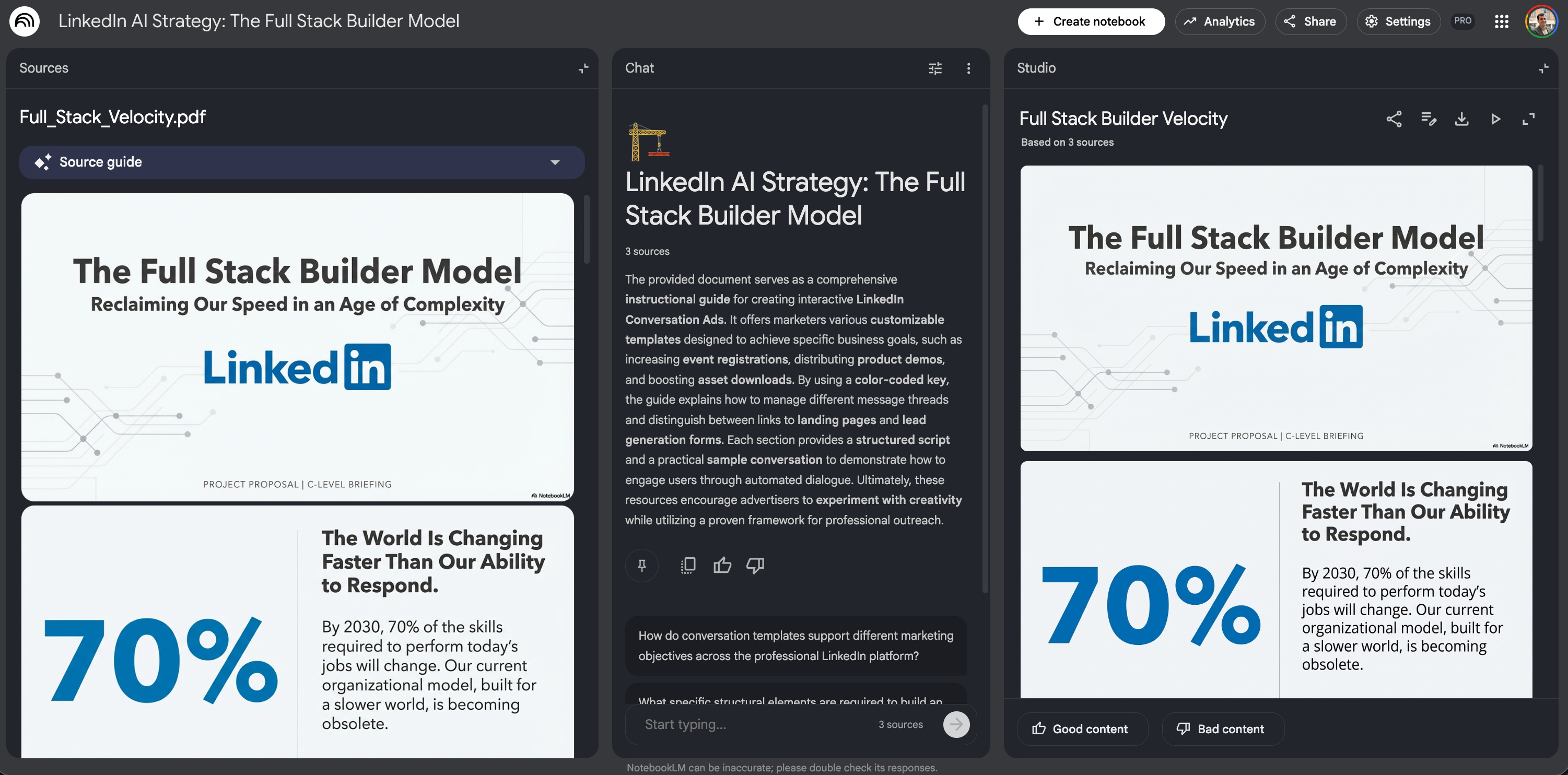
That’s how I obtained the PDF that I shared at the beginning of the article!
When (and when not) to use this workflow
Before you go all-in on this tool for slides, you need to understand its limits. NotebookLM is not a replacement for Google Slides; it is a different beast entirely.
✅ When to use NotebookLM for slides:
Vision and strategy: It excels at presenting concepts, north star visions, and ambitious ideas. The AI in NotebookLM is tuned for storytelling and high creativity.
Visual impact: If you need infographics, diagrams, or layouts that break the standard “title + 3 bullets” mold, this is a strong choice.
PDF deliverables: Use this only if the final output is meant to be read (like a pre-read brief) or presented as a static deck.
❌ When NOT to use NotebookLM for slides:
Rigid reporting: Do not use this for quarterly financial reports or data-heavy reviews where precision is non-negotiable. The high creativity dial leads to hallucinations that take too long to fact-check.
Collaborative work: If you need a Google Slides deck that your team can edit later, stop. NotebookLM generates static images (PDFs), not editable text boxes. You cannot fix a typo without regenerating the slide.
Simple text decks: If you just need to convey simple updates, this workflow is overkill. Stick to a memo.
⚠️ Warnings:
The pixel prediction effect. NotebookLM generates slides by predicting pixels, not by drawing vectors. It is closer to Nano Banana than to Google Slides. A slide might look beautiful from a distance, but if you zoom in, you might see artifacts, text that looks slightly melted or pixels that don’t align perfectly. It creates an image of a slide, not a slide build.
The golden rule: read every line. Because the creativity is dialed up, you must read every single word. The tool will happily invent a strategic pillar that sounds plausible but doesn’t exist. It generates surprises: sometimes they are brilliant, sometimes they are completely wrong. You cannot skip the review phase.
Your turn! The next time you face a high-stakes presentation, do not open Google Slides. Do not start moving squares and circles around a blank slide. Open a markdown file. Take your strategy document, strip it down to the raw truth, and let NotebookLM handle the pixels. You might just save yourself 4 hours of formatting work.