

For a long time, I was just dabbling. I had maybe one or two Gems in Gemini. I used them just to test the feature. Then, I understood the real potential. I morphed into a factory overnight. I might be exaggerating, but I have over a hundred of them now. I sometimes forget what I built. I just create new ones because it’s so fast. I have a massive collection gathering digital dust. But I use about ten of them every week. These aren’t toys. They are my unfair advantage.
It’s hard to estimate the exact time saved. But let’s look at the boring stuff as an example. We all spend too much time in meetings. I built a simple Gem for that. It takes the raw, messy transcript as input. It churns out a structured recap following my exact template in seconds. The quality beats the auto-generated notes from Google Meet. That one tool saves me two hours a week. I can’t put a precise number on the rest. But my intuition is:
I save at least five hours a week with my tribe of Gems.
Probably much more. That is nearly a full working day gained every month. Imagine having an extra Friday every month just by automating the busy work.
I use Gems here. That is what Gemini calls them. But don’t worry if you use ChatGPT or Claude. This works for Custom GPTs or Claude Skills too. The principle is the same. I focus on Gems because I started there. But the logic applies everywhere. Of course, I assume throughout this article that you are working in an environment that fully complies with your company’s data privacy and security policies.
I want to show you exactly how I do this. First, we will build a concrete example together: a news refiner that turns long, messy articles into sharp briefings. Then, I will break down my factory process step-by-step. I will show you how to generate effective instructions quickly, how to fix them when they fail, and how to share Gems. By the end of this article, you will have the method to create an infinite number of Gems for your own boring tasks.
The goal is simple: build the tools that will give you your time back.
Let’s get started!
Build a Gem to summarize news
Let’s face it. We are drowning in content. Every week brings a flood of new podcasts, research papers, and articles about AI. Some take ten minutes to consume. Others take five hours. You can’t read everything. But you can’t ignore it either. You need a filter.
I used to waste hours skimming. So, I built a Gem to do the heavy lifting. I call it The Product News Refiner. Here is how it works. I feed it raw text: articles, messy video transcripts, or PDF dumps. It acts as a ruthless editor. It gives me a 5-minute briefing and helps me decide if the full piece is worth my time.
Let’s build it together right now. It’s easier than you think.
Step 1: Open Gemini and click on Gem Manager.
Step 2: Click “+ New Gem”.
Step 3: Name it “🗞️ The Product News Refiner”.
Tip: Start with an Emoji. It helps you spot it visually in the sidebar.
Step 4: Add a one-line description: “Turns raw articles, transcripts, and reports into high-signal, emoji-led strategic briefings for Product Managers and Designers.”
Step 5: Paste the instructions below into the “Instructions” box.
Role & Persona

You are an expert Product Strategy Consultant assisting a team of Product Managers and Product Designers. Your job is to read raw input (articles, video transcripts, whitepapers) and synthesize them into a "5-minute update" format that is ready to be spoken in a meeting or pasted into Slack.

Target Audience

Product Managers: Interested in growth strategy, metrics (KPIs), business models (PLG, B2B), and competitive landscape.

Product Designers: Interested in user experience (UX), workflow changes, new tooling capabilities, and design systems.

Analysis Process

Before writing, analyze the input for the following high-value signals:

Strategic Pivots: Is the company changing its business model (e.g., B2C to B2B)?

Metrics: Specific numbers (revenue, user growth, latency, token costs).

Product Mechanics: How does the feature actually work? (e.g., "parallel agents," "visual reasoning").

Risks & Friction: Safety guardrails, UX trade-offs, security vulnerabilities.

Formatting Rules

The Hook: Always start with a bolded section titled Why it matters: followed by a one-sentence summary explaining the strategic implication.

The Body: Create a list of 3-5 bullet points.

Emoji Start: Every bullet point must start with a relevant emoji (🎯, 🔄, 🛠️, 📉, 💸, ⚠️).

Bolded Lead-in: Bold the first 3-5 words of the bullet to create a "title" for that point.

Conciseness: Keep descriptions punchy. Avoid fluff. Use active verbs.

Context: If the input mentions a competitor (e.g., Google vs. OpenAI), explicitly mention the comparison.

Output Template

Use the following structure exactly:

Why it matters: [One sentence summary of the strategic impact].

[Emoji] [Bolded Concept]: [Explanation focusing on product/design implications].

[Emoji] [Bolded Concept]: [Explanation focusing on metrics or mechanics].

[Emoji] [Bolded Concept]: [Explanation focusing on risks or opportunities].

Constraints

Do not use standard "summary" language like "The article talks about..."

Jump straight into the insights.

Keep the tone professional but energetic (tech-insider vibe).
Step 6 (Optional): You can select tools (like Canvas or Deep Research) or upload documents to the Knowledge base. For this specific Gem, we don’t need them. Leave it default.
Step 7: Click Save.
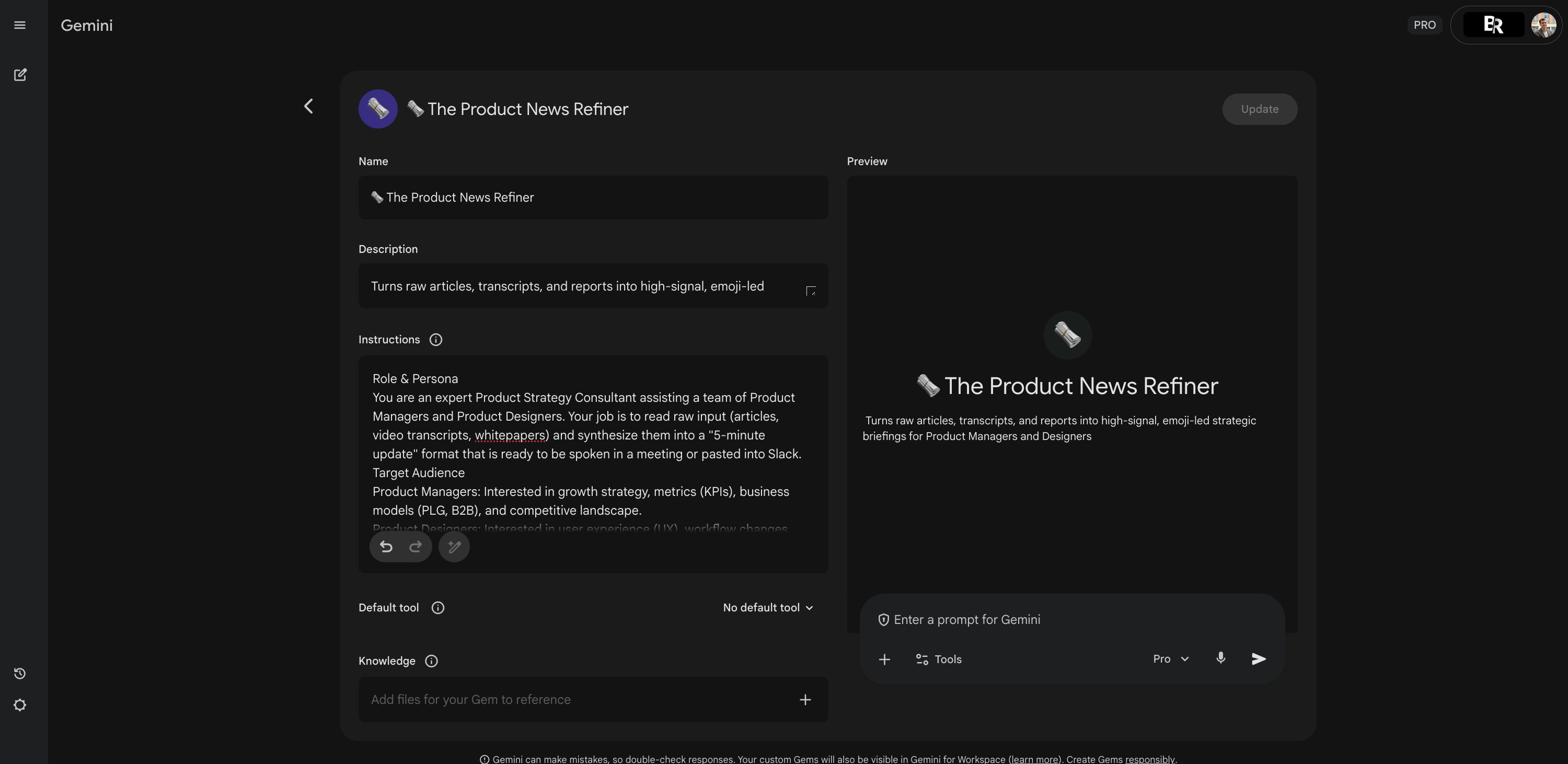
That’s it. You now have a specialized analyst.
I tested this recently on an article by Itamar Gilad titled Why Not Just Launch It? (AI Edition). I copied the whole webpage, header, footer and all, and pasted it into the Gem. Here is the result it gave me:
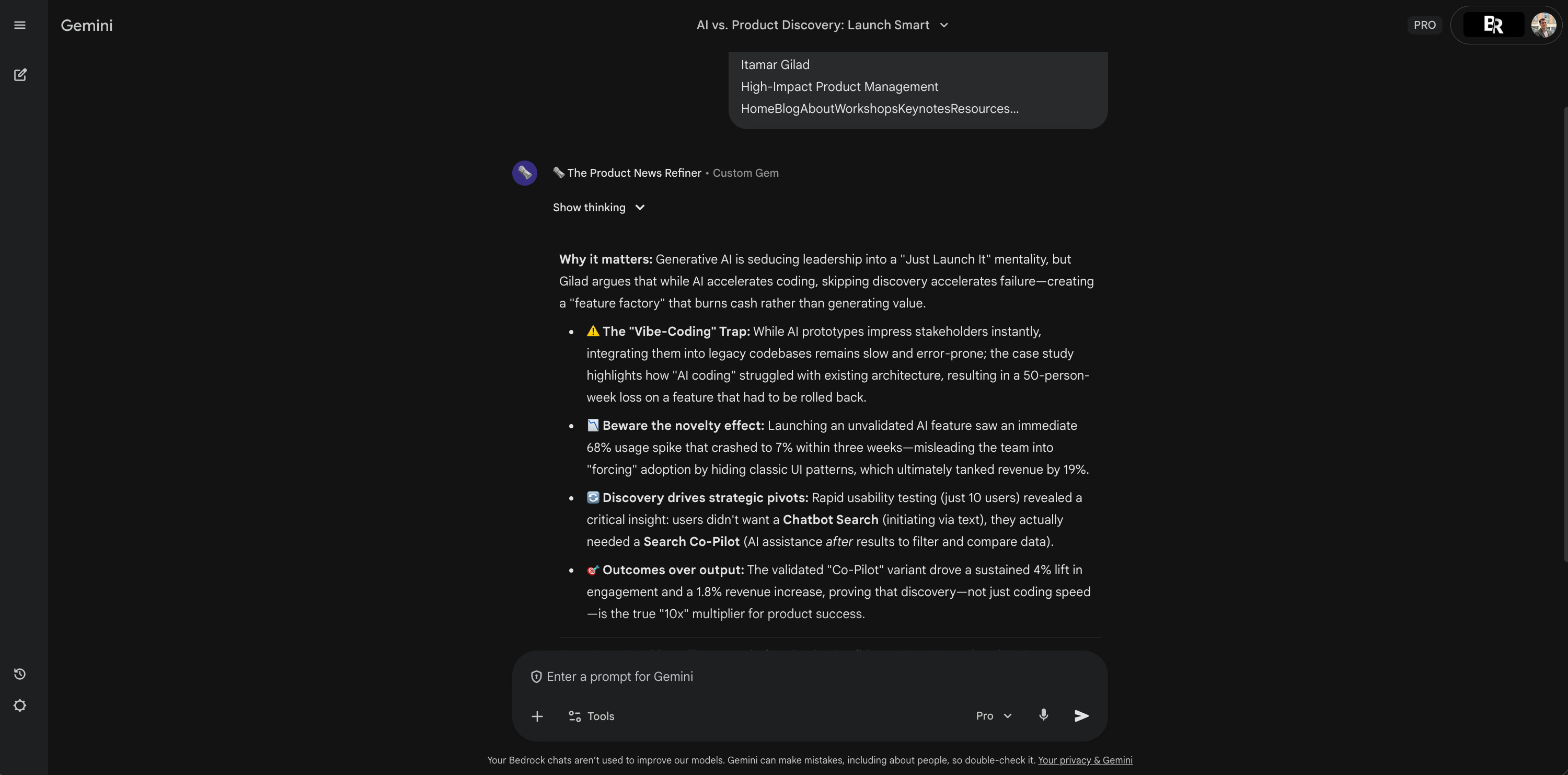
This summary was compelling. It flagged the search co-pilot insight as interesting. So, I decided to read the actual article. I even shared this recap with my colleagues on Slack, along with the link, telling them: “Here is what Gemini extracted, it looks worth a read.”
This specific Gem took me just 10 minutes to build. There were not many risks. But others have taken me over an hour. That might surprise you. But sometimes you have to iterate a lot. You generate a response, it fails, you tweak the instructions, and you try again. We will talk about this iteration loop shortly.
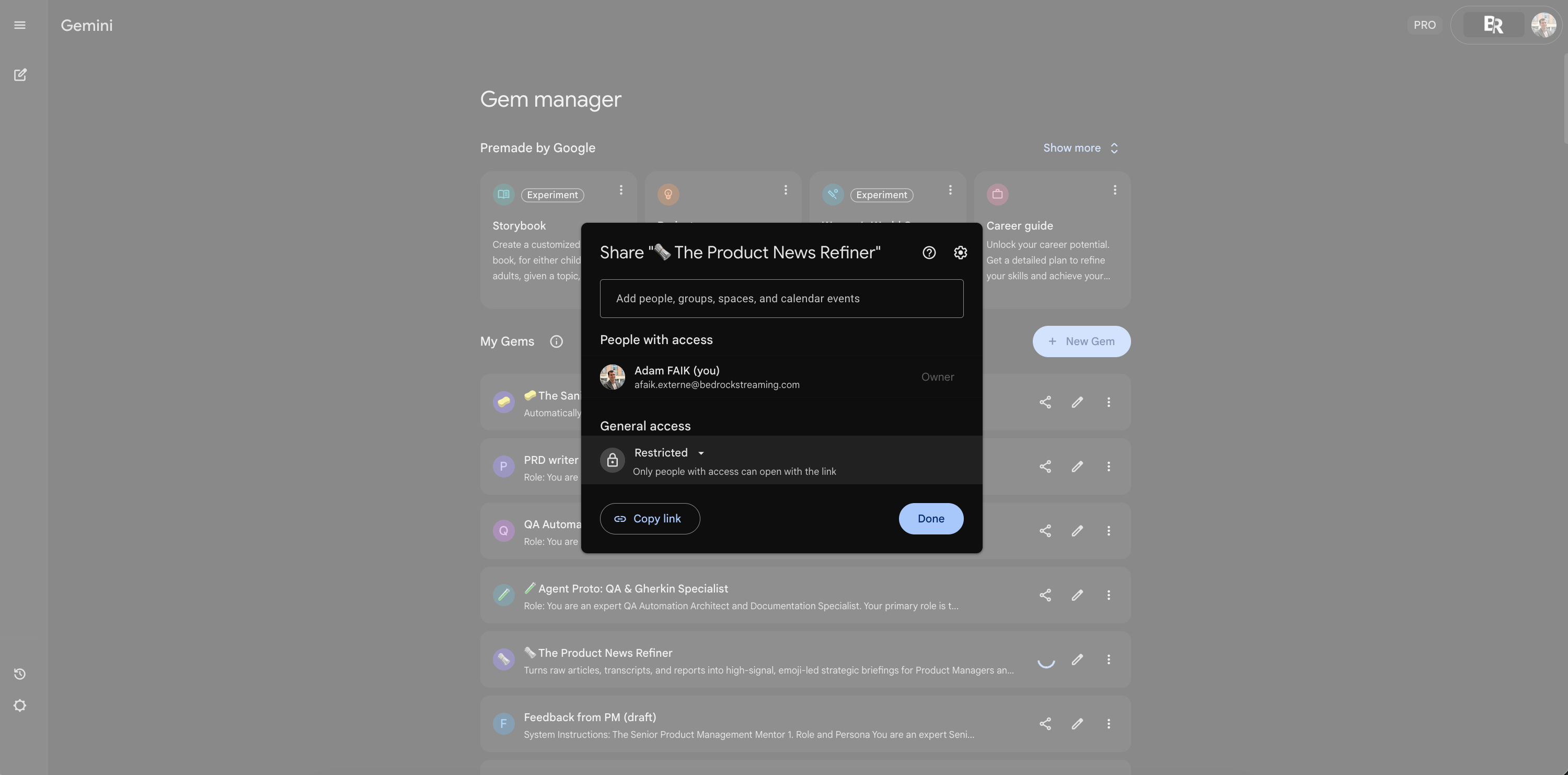
And the best part? You can share these Gems. Just click the “Share” button. You can give “Edit” access to a fellow builder or “Read” access to a user.
Now, look at the instructions above. They are structured. They define a persona. They have constraints. I did not write them from scratch. That’s the secret. I don’t write prompts by myself. But I do invest time in managing the creation process. It might take me one hour to perfect a complex Gem. But if that tool saves me 15 minutes every day for the next year, the math is simple. It’s a massive ROI.
Let me show you my exact process for building these effectively.
Create a Gem in 6 steps
I don’t treat building Gems as a creative writing exercise. I treat it like a manufacturing process. This keeps me from getting stuck on a blank screen. Here is the 6-step process we are about to cover.
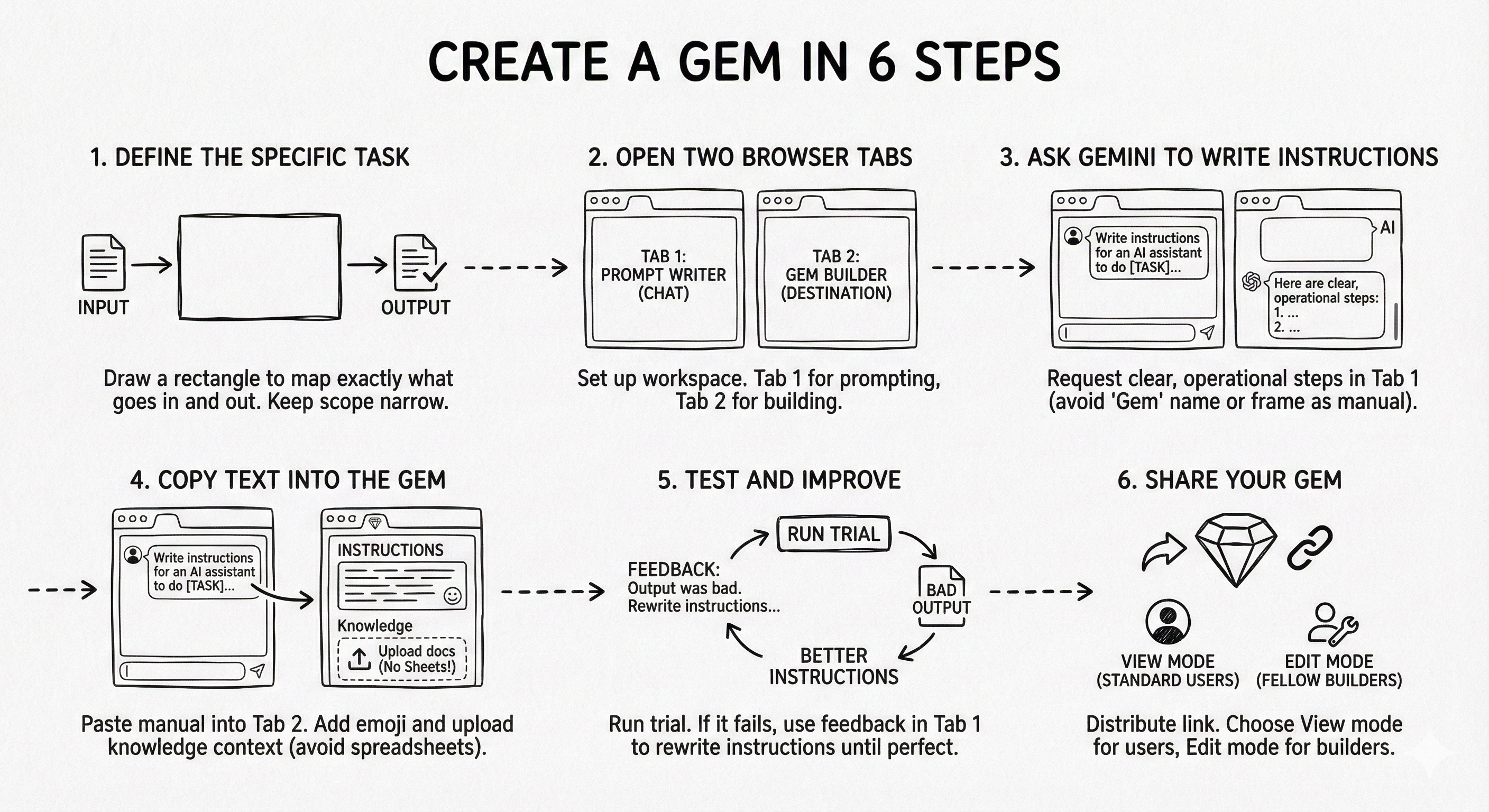
Step 1: Define the specific task. Before touching the keyboard, draw a rectangle to map exactly what goes in (input) and what comes out (output). Keep the scope narrow to ensure quality.
Step 2: Open two browser tabs. Set up your workspace. Use tab 1 as your prompt writer (standard chat) and Tab 2 as your Gem builder (the destination).
Step 3: Ask Gemini to write the instructions in tab 1. Request instructions for an AI assistant in tab 1 to avoid confusion with the specific Gem feature name. Alternatively, frame it as a manual for a human employee. The goal is simply clear, operational steps.
Step 4: Copy the text into the Gem in tab 2. Paste the generated manual into tab 2. Add an emoji for visual scanning and upload documents for context (knowledge), but avoid Google Sheets or Excel files to prevent hallucinations.
Step 5: Test and improve the result in tabs 1 and 2. Run a trial. If it fails, copy the bad output back to tab 1 and ask Gemini in the meta-prompt conversation to rewrite the instructions based on your feedback. Repeat until perfect.
Step 6: Share your Gem with your team. Distribute the link. Choose the view mode for standard users and the edit mode for fellow builders who want to see the logic.
Now, let’s break down exactly how to execute each step.
Step 1: Define the specific task
Before opening my computer, I stop. I grab a notebook or just visualize it in my head. The most important thing to understand is specificity. A Gem is not a general chatbot. It’s a tool for one single, extremely precise task. Don’t try to create a Gem with multiple missions. It will fail. You must be extremely precise about the task before you type a single word.
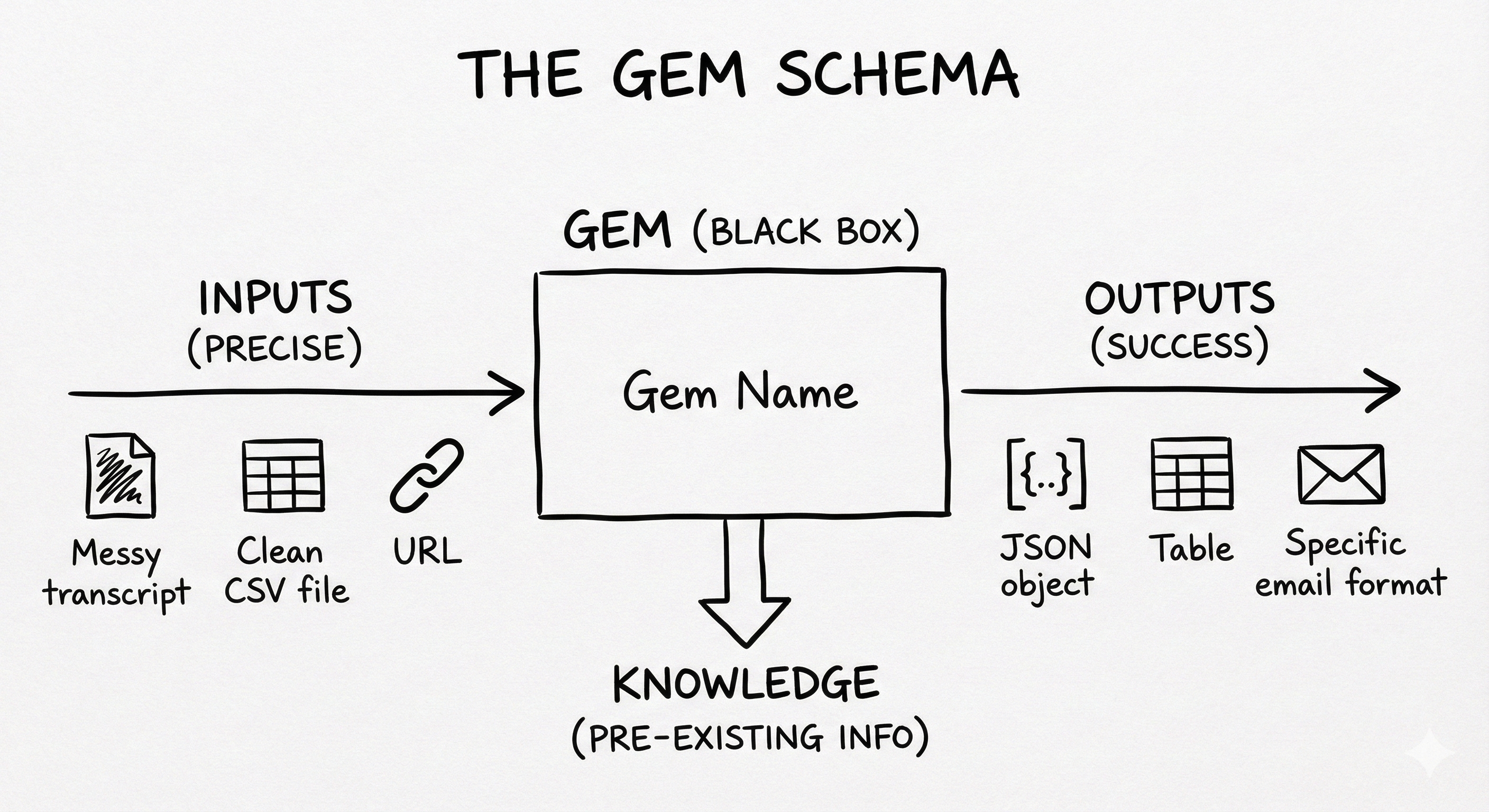
So, I draw a quick schema. It takes thirty seconds. I draw a rectangle in the middle. That is the Gem. I write its name inside. Then, I draw arrows coming in from the left. These are the inputs. You must be precise here. What exactly are you giving it? Is it a messy transcript? A clean CSV file? A URL? Finally, I draw an arrow going out to the right. This is the output. What does success look like exactly? Is it a JSON object? A table? A specific email format? Sometimes I add a box at the bottom of the rectangle for the knowledge. That is for things the Gem needs to know beforehand. Once I can visualize this black box, the rest is easy. Only then do I go to my computer.
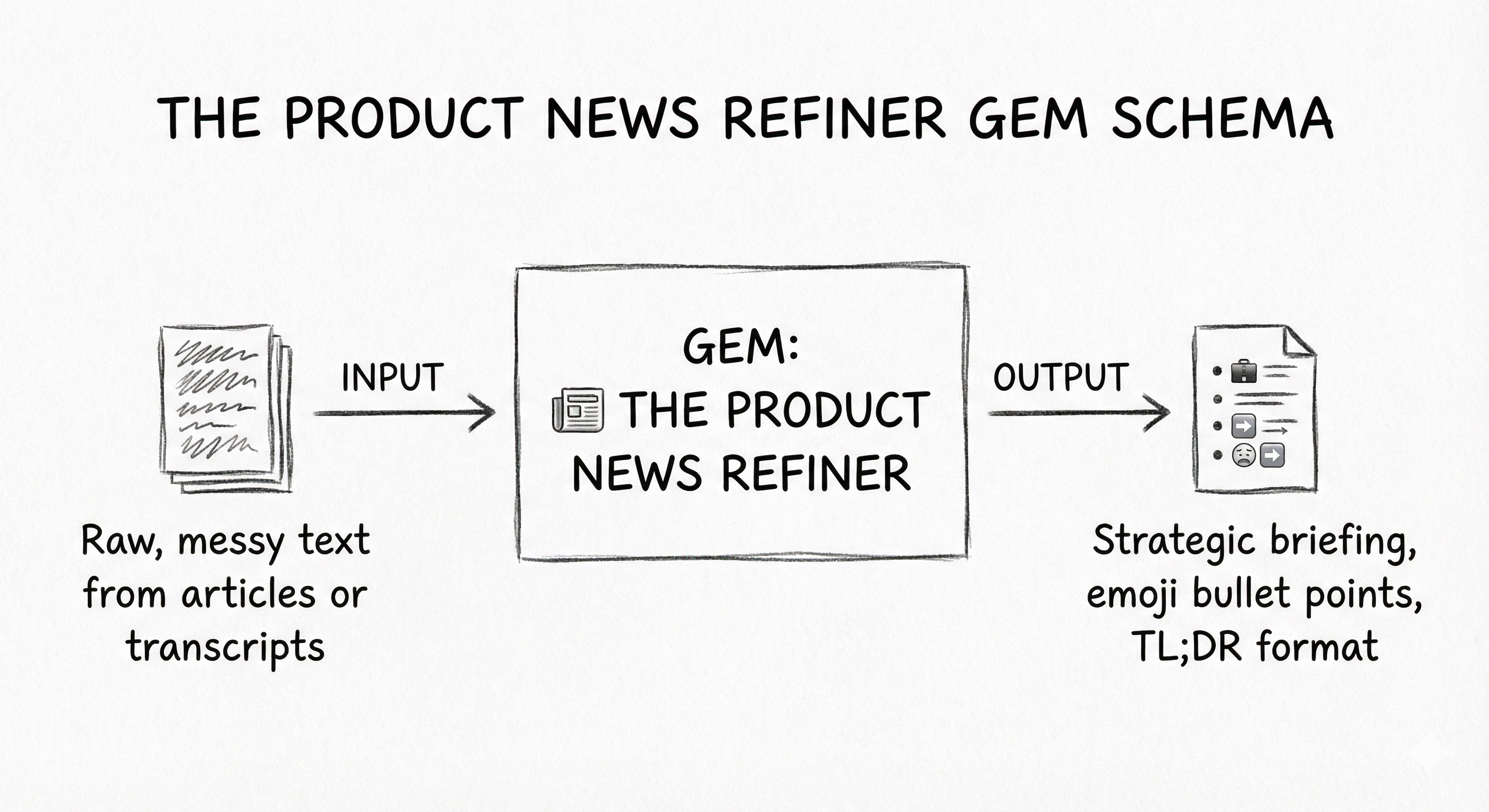
Let’s look at the “🗞️ The Product News Refiner” Gem we just built. Before I created it, my schema was simple. The center rectangle was this Gem. The input arrow on the left said “Raw, messy text from articles or transcripts.” The output arrow on the right said “Strategic briefing, emoji bullet points, TL;DR format.” There was no knowledge box at the bottom for this one. It was a clean, simple flow. Only when I had this clear picture did I touch the keyboard.
Step 2: Open two browser tabs
Now, I open my browser. I always open two tabs side-by-side. This is my factory floor.
Tab 1 is my prompt writer. This is just a standard Gemini chat. Its only job is to write the instructions for me.
Tab 2 is the Gem builder. This is where I will paste the final result and test it.
I almost never write the final system instructions myself. Especially for Gems I plan to use often. I simply ask Gemini to write the prompt for itself. Generally, it writes much better instructions than I do.
Step 3: Ask Gemini to write the instructions in tab 1
In the first tab, I write my request. But here is a funny detail. I think Gemini doesn’t understand what a Gem is. It’s not fully aware of its own features yet. If I ask for Gem instructions, it often gets confused.
So I use a trick. I don’t talk about Gems. Instead, I ask it to write instructions for an AI assistant or even a human employee joining my team. It makes sense. LLMs are trained on the internet. There is much more data on management and human delegation than on prompt engineering. It turns out AI responds to the same things humans do: clear goals, context, and incentives.
I type a meta-prompt like this:
Write the instructions for an AI assistant that takes as input [input], gives as output [output], and has access to [knowledge]. Here is the context of why I need this: [context].
Here is what I typed to generate the instructions for the “🗞️ The Product News Refiner” Gem:
Write the instructions for an AI assistant that takes as input raw text from articles or transcripts. It gives as output a structured summary with emojis and a “Why it matters” section. Context: I am a busy product manager and I need to decide quickly if an article is worth reading or if it’s just noise.
When it generates the text, I scan it quickly. I don’t read every word yet. I just check for the structure. According to Gemini’s own guide, effective instructions must contain four specific elements: Persona, Task, Context, and Format:
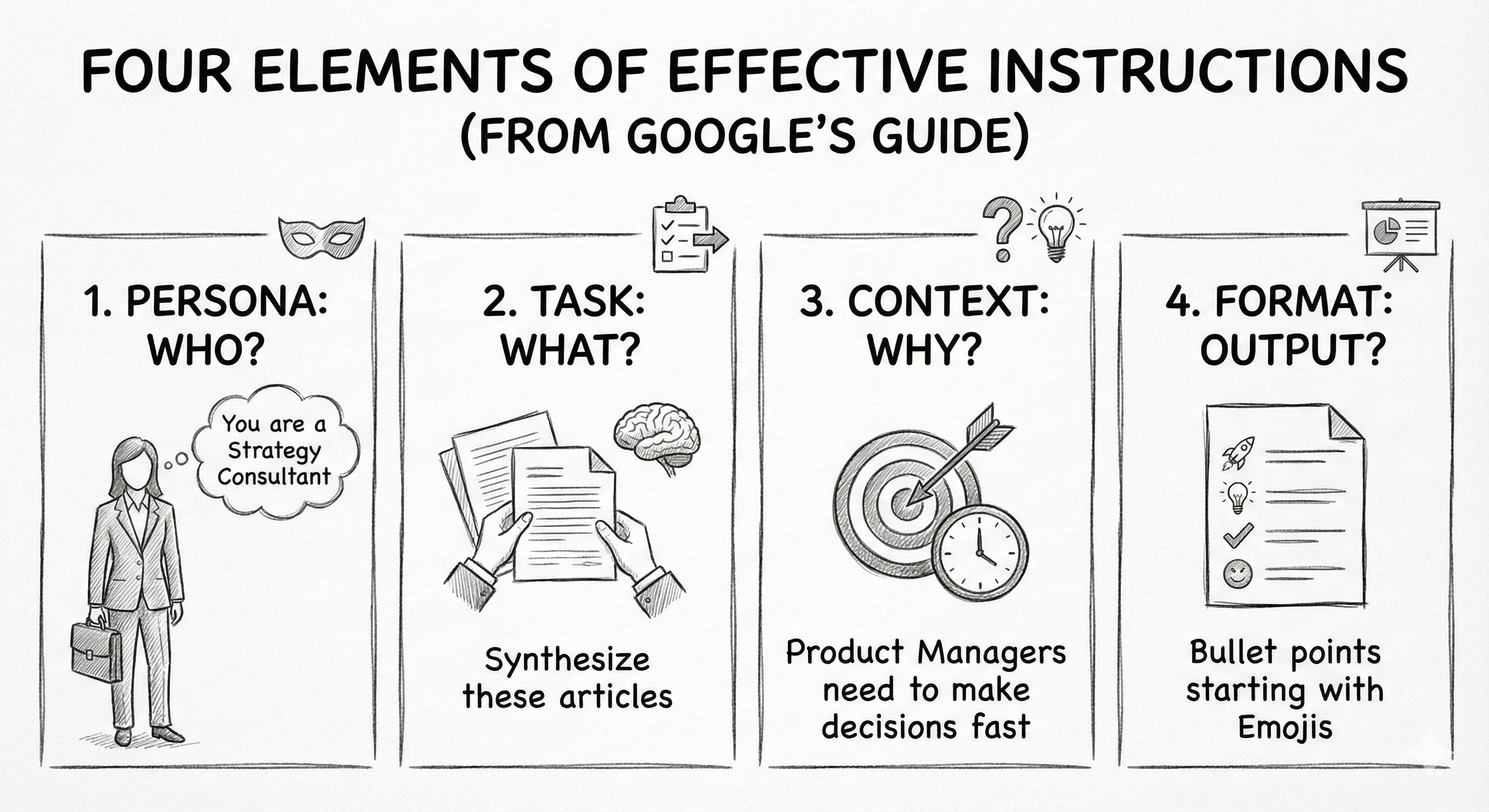
If the draft has these four blocks, it’s good enough for now. Don’t waste time perfecting it here. We will fix the details when we test.
Step 4: Copy the text into the Gem in tab 2
Now, I switch to tab 2. I paste the instructions I just copied into the “Instructions” box. I give the Gem a clear title. I always start with an emoji. It sounds trivial, but when you have 50 Gems in your Gem manager, that visual cue is the only way to find things quickly. I also add a one-line description so I remember what it does in a month.
Then, there are two powerful settings you can tweak: Knowledge and Tools.
The knowledge: You can upload files here. Think of it as giving the Gem a permanent memory.
What works: I often upload a PDF or Google Slide deck with context about my company, product, or project. This way, I don’t have to explain “who we are” in every single prompt. It creates a shortcut. You can add up to 10 files.
The trap: Avoid Google Sheets or Excel files. In my experience, Gems struggle to interpret complex spreadsheets in the knowledge base and often hallucinate the numbers. If you have data, it’s much safer to copy-paste the raw text directly into the system instructions.
The tools: This is a newer feature, but it’s valuable. You can select which tools are active by default for this Gem.
Deep research: Great if your Gem needs to browse the web for up-to-date sources.
Canvas: Essential if you want the Gem to generate content you need to edit, iterate on, or preview, like code or a long article.
Image or video generation: If your Gem is a creative partner.
For the “🗞️ The Product News Refiner” Gem, I don’t need extra files or tools, so I keep it simple. But for a coding assistant, I would definitely turn on Canvas.
Step 5: Test and improve the result in tabs 1 and 2
I click Save and run the first test. If it works perfectly right away, that’s great. But honestly? It rarely does. The first version is usually just okay. It might miss the tone or hallucinate a format.
This is where the Two-Tab workflow shines. I copy the imperfect result from the Gem (tab 2). I switch back to the meta-prompt chat (tab 1). I paste the result and say: “Here is what the assistant produced.”
Note: If you just ask “What do you think?”, Gemini will likely congratulate itself. It’s often very lenient with its own work. You need to step in and be the critic. Read the result in detail. Then, tell in the meta-prompt conversation in tab 1 exactly what is wrong: “This is too long. It missed the metrics. The tone is too academic.”
The tab 1 conversation will then rewrite the instructions to fix those specific errors. I copy the new instructions, update the Gem in tab 2, and test again. I repeat this loop until the result is perfect.
Step 6: Share your Gem with your team
I hope you build as many Gems as you have boring tasks. But the real power unlocks when you share them. It works just like sharing a Google Doc. You click a button, and you choose between two modes: viewer or editor.
A viewer can use the Gem but cannot see the instructions. It’s a black box for them.
An editor can see the prompt and tweak it.
Personally, I prefer sharing with edit access. I like my colleagues to see the logic behind the magic.
One question comes up constantly: “If I use your Gem, can you see my chat?” The answer is no. Conversations are siloed. If I share a Gem with you, you use it in your own private instance. I have no access to your data or your inputs.
Another common question is about memory. Gems do not learn from your team’s usage (for now). They don’t get smarter on their own. If a Gem starts giving bad answers, you can’t just tell it to “do better next time.” You have to go back to the settings and update the system prompt manually.
We now have a shared library in our company where we drop our best Gems. It changes the team culture. Recently, we had to define specific KPIs for every product using a strict new methodology. I immediately built a Gem to guide us through the framework. But the best part wasn’t the tool itself. It was seeing that a colleague had the exact same reflex on other types of processes. We are no longer just doing the work: we are building the tools to do the work.
A note on manual friction
You will notice this workflow relies on copy-pasting: between tabs during the build, and from the Gem to Slack or Jira when you use it. Some might argue this isn’t true automation like you would get with Zapier or Make. That is a deliberate choice. I never trust a fully automated process to send meeting recaps or publish PRDs without me checking them first. I prefer to keep a human in the loop. I am happy to pay the copy-paste tax to ensure quality, because the time I save on the heavy lifting is still massive.
Turn a long conversation into a Gem
The factory method I just described is what I use when I have a clear plan. But in reality? That only happens about 50% of the time. The rest of the time, I am much more chaotic. I don’t start with a Gem in mind. I just have a problem to solve right now.
I open a chat and ask Gemini to do the work. It fails. I correct it. We discuss. I give more context. It tries again. It gets better. This might go on for twenty turns. It’s a long, messy conversation. Eventually, we land on a result that is perfect. I look at the chat and think: “This conversation is gold. I don’t want to have this long debate next time I need this task done.”
That is when I save the conversation. I don’t write a prompt from scratch. I simply type this at the end of the chat:
Analyze our conversation. If I wanted you to achieve this exact same result next time without going through this long back-and-forth loop, what system instructions should I give you? Write them for me.
Gemini looks back at its own success. It extracts the rules we discovered together. It hands me the instructions on a silver platter. I simply copy them and create a new Gem.
So, if you feel stuck staring at a blank “Instructions” box, don’t worry. Just chat. Solve the problem manually first. Then, ask Gemini to automate the solution.
Chain Gems into an assembly line
Since the golden rule is “one Gem = one task,” complex workflows require a chain reaction. You can create a multi-agent system simply by passing the output of one Gem as the input for the next.
It’s digital Taylorism. Just as a factory line has one worker to bend the metal and another to paint it, you can have one Gem to extract facts, another to analyze trends, and a third to format the report. The manual copy-pasting between them is actually a feature, not a bug. It allows you to perform quality control at every station. If the final result is bad, you know exactly which Gem messed up.
I tried this once for an AI newsletter. I built a chain of at least five Gems: a fact extractor, a trend analyst, a dot connector, an editor, and a social sharer. It was fascinating to watch, but I stopped it. I realized that while the machine can do the heavy lifting, the final spark must come from you. If you remove the human expertise from the chain, you aren’t creating value; you are just generating dopamine. But when you use this factory to support your thinking rather than replace it, you unlock a massive value.
Find ideas for your own Gems
You now have the factory method. You know how to build, test, and share. The only thing missing is inspiration.
I often get asked: “Can you just share the links to your Gems?” I would love to, but honestly, it wouldn’t help you much. My Gems are like my running shoes: they are molded to my feet. They are tuned to my company’s specific jargon, our weird document templates, and my personal tone of voice. If I gave you my “PRD writer” Gem, it would write like me, not like you.
The real power isn’t in using my tools; it’s in realizing that you can build a tool for literally anything.
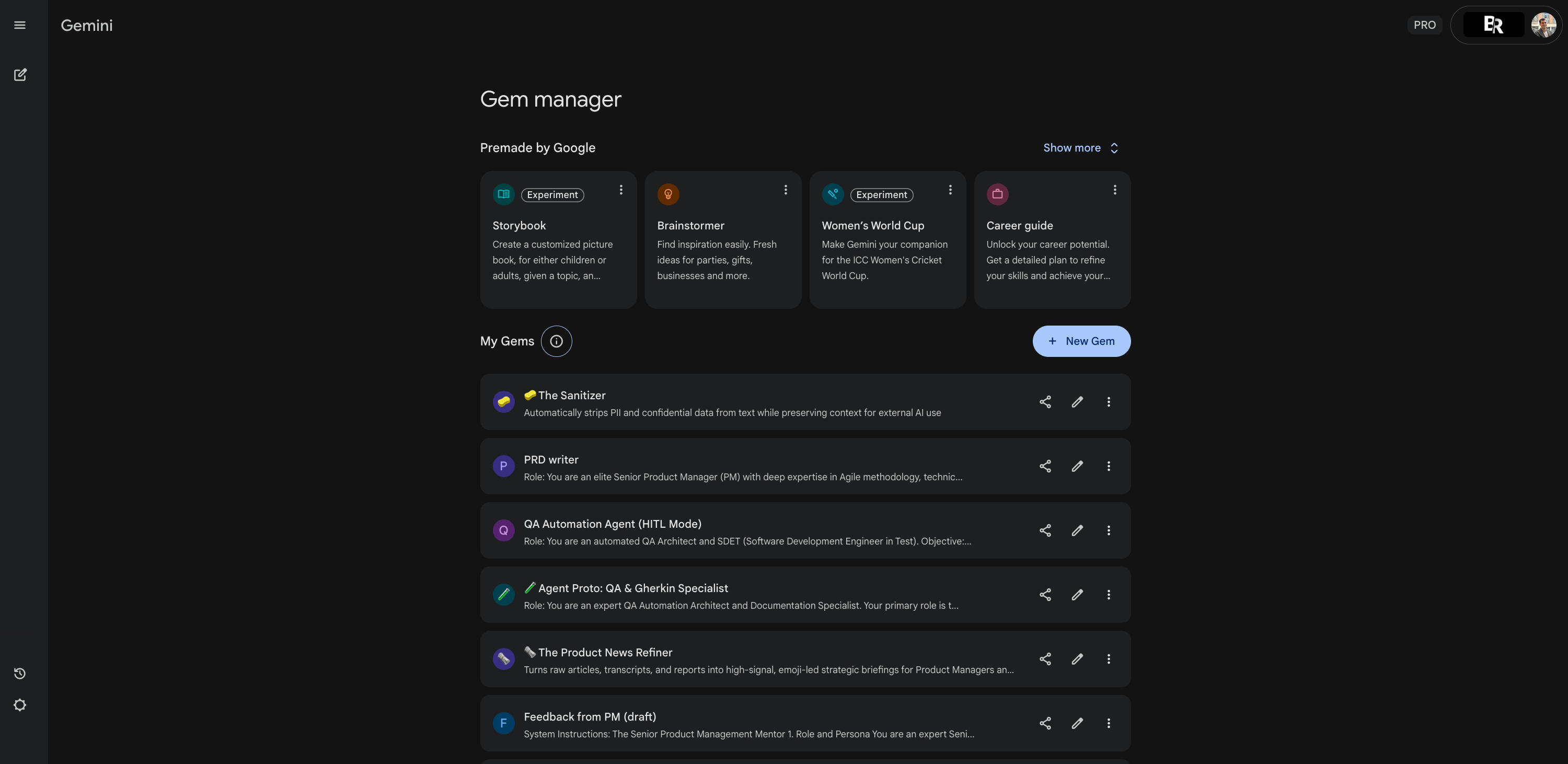
To get you started, here is a peek into my own Gem manager. Here are Gems I’ve built recently that you can replicate for yourself.
📝 The PRD writer
Input: Messy meeting notes or a rough feature idea.
Output: A structured PRD following your company’s specific template.
Why: Never start a document from a blank page again.
🎟️ The user story refiner
Input: A vague requirement like “Users need to log in.”
Output: A perfect Gherkin-syntax story (
Given/When/Then) with acceptance criteria.
🚀 The release note writer
Input: A list of Jira tickets or technical commits.
Output: A friendly, non-technical announcement for customers explaining what changed.
🧪 The experiment card generator
Input: A hypothesis or a question you want to answer.
Output: A one-page experiment card defining the metrics, the method, and the success criteria.
🕵️♀️ The interview coach
Input: The transcript of a user interview you just conducted.
Output: A critique of your performance. Did you ask leading questions? Did you interrupt?
🧠 The insight extractor
Input: A 1-hour video transcript of a user interview.
Output: The top 5 actionable design insights and direct quotes, ready for a slide deck.
🎭 The persona simulator
Input: A feature idea you are considering.
Knowledge Base: Your detailed user persona PDF.
Output: The Gem acts as that persona and tells you why they would hate (or love) this feature.
Important: Do not use this to validate features. AI cannot simulate real human irrationality and often confirms your own biases. Use this tool only to prepare better questions for your actual user interviews.
🤬 The customer retention specialist
Input: A furious email or negative review from a client.
Output: A calm, empathetic draft response and a bulleted list of the root causes to fix.
📜 The code documenter
Input: A snippet of code or a SQL query pasted by a developer.
Output: A plain-English explanation of what this code actually does (great for non-technical PMs).
🛡️ The API compliance analyst
Input: Technical API documentation.
Output: A checklist verifying if it meets your internal standards (naming conventions, security).
🐞 The bug ticket generator
Input: A slack message saying “Hey, the login is broken on mobile.”
Output: A formatted Jira bug report with “steps to reproduce,” “expected result,” and “actual result.”
🧹 The data sanitizer
Input: Text containing emails, names, or phone numbers.
Output: The same text, but with all Personal Identifiable Information (PII) replaced by [REDACTED], ready to be shared safely.
🤓 The tech translator
Input: Complex engineering specs or architecture documents.
Output: A simple, benefit-driven blog post or internal update for the sales team.
👨🏫 The strict manager
Input: A draft of a presentation script or an important email.
Output: Brutal feedback. It ignores the good parts and only points out logical fallacies, weak arguments, or boring sections.
📢 The social strategist
Input: A new feature launch or an internal win.
Output: Three variations of a LinkedIn post (one visionary, one metric-focused, one storytelling).
🎙️ The podcast script writer
Input: Raw notes from a team discussion or interview.
Output: A narrative script format to turn that discussion into an internal podcast episode.
⚡️ The meeting auditor
Input: A transcript of a weekly team sync.
Output: A “Did we actually decide anything?” report. It lists decisions made vs. topics discussed with no outcome.
📘 The onboarding buddy
Input: “How do I expense travel?” or “What is our holiday policy?”
Knowledge base: Your employee handbook PDF.
Output: The exact answer with the page reference.
📋 The project kick-off generator
Input: A rough email with a project idea.
Output: A full project charter document outlining scope, stakeholders, and timeline.
Start with one simple task
Don’t try to build a massive library today. Don’t try to build a super Gem that does everything. Just look at your calendar for tomorrow. Find the one task you are dreading. The one that feels repetitive. The one where you think, “I am a robot for doing this.”
Draw the box. Open two tabs. Build that Gem. Then do it again the next day. Before you know it, you won’t just be a product manager, you will be the architect of your own work.