

I still see workshops and courses popping up everywhere about the art of writing prompts. I’m not sure we should elevate this to the rank of an art. Personally, I write my prompts quickly most of the time. When the task is important, I simply ask the model to write the prompt for me. That’s how I manage. You could honestly stop reading right here and just do that. Everything else I’m about to share is just training and muscle memory, but you don’t need to spend hours studying theory.
This current phase with LLMs reminds me exactly of my childhood. My parents put a computer and a stack of floppy disks on my desk. It felt magical to look at that black screen where you could type commands and watch programs run. The problem was that I didn’t know how to read yet, let alone write. I just wanted to play with the arrow keys. I had to wait for my uncle to visit so he could type the right command for me to finally see something happen.

We are back in that exact era with LLMs today. We stare at a blinking cursor and need to know precisely what to type to get a quality result. It’s ironic when you think about it. Designers spent decades fighting to prove that user experience matters more than raw features. They built beautiful interfaces to hide the complexity of the machine. Now, with the arrival of LLMs, all that work has reset to zero. We are effectively back to the command line.
Interfaces will eventually evolve to become more intuitive. We won’t always need to guess the right words. But in the meantime, we have to understand how the system works to get what we want. It’s like Aladdin’s magic lamp. It can do almost anything, but you still need to know how to rub it the right way.
I checked my usage statistics recently and was actually shocked. I send a prompt roughly every ten minutes. I haven’t studied the theory, I just tested things relentlessly.
In this article, I share a list of what actually works for me. To be clear, these are tips from my personal experience, so it’s very empirical. Some might be interesting for you, others you may already know, and some might not benefit you at all. But I wanted to list everything, speaking as an extensive user of Gemini, while also applying lessons from ChatGPT and Claude. I have no scientific background or experimentation to prove my points; I am just sharing the practical workflows that make me a better professional today.
Tip 1: Push through the initial disappointment
If this is your first time prompting, or if you are trying again after a break, here is the secret: just keep going. You have to force the habit. Eventually, something will click. In the meantime, you must make the LLM your default reflex for every single task.
It’s perfectly normal to feel disappointed at the start. I went through this exact phase. I gave up for a while because I thought asking AI was slowing me down. But then I changed my approach. I stopped asking the AI to do the job for me. Instead, I started asking it to help me do the job. That small shift changed everything. But even today, when a new AI tool doesn’t work instantly, I sometimes get frustrated and want to go back to my old, comfortable workflow.
If you are staring at that empty bar and don’t know where to start, keep it simple. Talk to it like a colleague. Don’t worry about being formal. You don’t need to say “Hello” or be polite. Just ask your question directly, exactly as you would to a peer sitting next to you. You have to be resilient enough to push past the friction until you truly understand how the tool thinks.
Tip 2: Fix your delegation skills to fix your prompts
I’ve noticed a revealing pattern. The people who find it hardest to write prompts are often the same people who struggle to communicate their needs to other humans. Prompting is not really a technical skill: it’s a communication skill.
When I draft a prompt, especially orally, I play a mental trick. I visualize a specific colleague sitting across from me. I imagine I’m formally delegating a task to them. I explain the project, the background, the current problem, and exactly what I need them to do.
If you treat the prompt bar like a Google search, you will get vague results. But if you treat it like a delegation meeting, you will naturally include the right context, the right nuance, and the right constraints. If you can explain it clearly to a smart intern, you can explain it to the model.
Tip 3: Replace your Google reflex with an AI query
We all have the same reflex: when we need information, we open a new tab and type it into Google. Even I still catch myself doing it, yet it’s often the least efficient way.
Recently, I needed to know exactly which AI models are used by Miro’s new features. I instinctively Googled “AI models Miro support center.” I had to click through five different links, accept cookies, and scan vague support pages. If I had just asked Gemini, it would have browsed the web for me and given me the answer in seconds, with sources.
Some argue that AI consumes too much energy for simple queries. But my opinion is that one targeted prompt is more efficient than ten hazardous Google searches that load ads and scripts on every page.
This is even more true for complex searches. Search engines are optimized for SEO and engagement, not for relevance. Recently, I was looking for specific YouTube videos about a niche AI feature. YouTube’s native search kept feeding me popular, generic videos that had nothing to do with my query. When I launched a deep research on Gemini for the same topic, it ignored the algorithm’s noise and found the exact videos I needed, even ones that weren’t trending.
For specific technical queries, having an AI extract the exact answer is often much more efficient than filtering through a list of search results yourself.
Tip 4: Make reasoning models your default
The choice of model is actually more important than the prompt itself. I use a reasoning model (like Gemini 3 Pro) by default, even if it takes a few extra seconds to generate an answer. The value is that it acts like a translator: it takes my rough, hand-waving input and converts it into detailed instructions automatically.
There was a time when prompt experts told us we had to list every action step-by-step to get a good result. They called it “chain of thought” prompting. That’s no longer necessary. With reasoning models, you can write a lazy prompt. The model will pause, think, breaking your request down into logical steps before it even starts writing the answer.
For me, fast, non-reasoning models are now the exception. I only use them when I don’t want a complex answer or when I am in a rush. For everything else, I let the model do the heavy lifting of structuring the problem.
Tip 5: Anonymize everything unless you have an NDA
At first, in the euphoria of discovery, we tend to dump everything into the prompt. Client names, confidential figures, internal strategy. You have to be careful. Unless your company has a specific enterprise agreement with the provider, assume your data isn’t private. I’m not a lawyer, but with so many new tools appearing, it’s risky to trust them blindly.
My golden rule is simple: if you wouldn’t post it on LinkedIn, don’t paste it into the model.
When I need to analyze a spreadsheet or sensitive feedback, I am extra cautious because simply changing a name to “client A” is often not enough. Unique data patterns can still identify a company (a risk known as “fingerprinting”). So, instead of relying on manual editing which is prone to error, I ask the model to write a Python script to anonymize the file locally before I upload the real data. It’s a small habit to build, but it allows you to work with peace of mind.
Tip 6: Unfreeze your thinking by speaking
I write about 60% of my prompts vocally. I’m not talking about the conversational voice mode where you chat back and forth. I mean using speech-to-text dictation. I use this for prompts, messages, and notes because typing on a keyboard tends to freeze your thinking. You worry about structure while you type.
When you speak, you can just dump everything out. It doesn’t matter if it’s unstructured or repetitive. In fact, repetition is good: it tells the model which points are important.
My best documents were created when I got up from my chair, put in my AirPods, and went for a walk. I just ranted to the model about all my problems on a project. Then, I simply asked it to turn that chaotic monologue into a structured document. I do this at the office, too. I find a quiet spot and just talk. My colleagues probably think I am in a meeting, but I am just having a meeting with my models.
Standard dictation tools (like on Mac) can make you want to pull your hair out. I recommend using dedicated tools like Superwhisper, Better Dictation, Voice Ink, or Wispr Flow. Otherwise, the voice feature in the ChatGPT is also very reliable (the small microphone “dictate” icon in the text bar). Their dictation feature is surprisingly accurate.
You don’t have to do everything this way, but for complex topics, speaking beats typing every time.
Tip 7: Ask the model to write the prompt for you
I honestly don’t know why I waited this long to share this one. It’s probably the most important tip on this list. Sometimes the stakes are high. Maybe you are launching a deep research task that will run for 20 minutes, or you are building a prompt you intend to reuse fifty times. You cannot afford to be vague.
In these specific cases, I stop trying to be the expert. I admit that the model knows how to speak AI better than I do. Instead of struggling to write a prompt that respects all the complex standards and best practices, I simply ask Gemini to do it for me.
Here is how it works. I tell the model: “I want to create an AI assistant that analyzes a project and suggests success metrics. Write the best possible system instructions for this assistant.” The model will then generate a perfectly structured prompt, often better than anything I could have crafted myself. It’s like asking a chef to write down the recipe for you, rather than trying to guess the ingredients by taste.
Tip 8: Assign a persona to unlock specific skills
I mentioned earlier that you should talk to the AI like a colleague. But I realized that it works even better if you choose exactly which colleague. If you don’t specify anything, you get a generic, average response from someone polite, smooth, who tries to please everyone but delivers nothing remarkable.
You have to cast the role. If I explicitly say “act as a ruthless senior developer” or “act as a pedagogical expert for children,” everything changes. The vocabulary shifts, the sentence structure adapts, and the depth increases. It feels like unlocking a hidden part of the model’s brain.
Recently, I tried something extreme: I asked the model to “act as a skeptic who absolutely hates this project.” The arguments it produced were brutal, but they were incredibly valuable. They helped me prepare a solid defense for my actual stakeholders.
Tip 9: Show the format, don’t just describe it
Sometimes you have a very specific picture in your head of what the result should look like. Describing it with words can be frustrating and imprecise. If you try to explain “I want a summary with a title in bold, then a list, but not too long...”, the model might interpret it differently.
The solution is stupidly simple: don’t describe the format, show it.
If I want meeting notes that follow a specific company standard, I don’t write a paragraph describing the standard. I just copy-paste a previous, perfect email into the prompt and say: “Here is an example of the expected format. Follow this exact structure.” It removes all ambiguity. The model stops guessing and starts mimicking.
Tip 10: Feed it images instead of long descriptions
We have this reflex to try and describe everything with text, and sometimes it’s absolute hell. Trying to explain a buggy web interface or a complex diagram in writing is a waste of time. You risk the model misunderstanding you completely.
Now, I have stopped fighting. I simply take a screenshot and feed it to the model. Whether it is a messy sketch on my notebook about a new architecture or a dense slide, I just upload it and say: “Look at this and base your answer on it.”
One image is truly worth 1,000 tokens in this case. The model sees the context instantly. We avoid paragraphs of clumsy explanations and get straight to the point.
Tip 11: Use “---” to separate instructions from data
When you paste a document or a transcript into the prompt, you have to be careful. The model can get confused between what you want it to do and what is written in the text.
Imagine you upload a meeting transcript where a colleague says, “We really need to write an email to the client about this.” If you are not careful, the model might read that sentence and think the instruction is directed at it. Instead of summarizing the meeting, it starts drafting that email.
To prevent this confusion, I created a simple habit. I build a wall between my command and the data. I write my instruction at the top, then I type three dashes “---”, and only then do I paste the text. It seems like a small detail, but it tells the model clearly: “Everything above the line is the order, everything below is just raw material.”
Tip 12: Ask the model to interview you before answering
Sometimes, I feel like I have been crystal clear. I wrote a long prompt, gave all the context, and yet, the answer falls flat. I realized that the problem is that I don’t know what I don’t know. I might have forgotten a technical constraint, a specific audience detail, or a format requirement that is obvious to me but invisible to the model.
So, for complex topics, I use a safeguard. I don’t let the model answer immediately. Instead, I end my prompt with this specific instruction: “Before you start, ask me 3 questions to ensure you have all the context.”
It’s surprisingly effective. The model often points out blind spots I hadn’t even considered. It might ask, “Do you want this for technical or non-technical users?” or “Is there a budget limit?” I answer the questions, and the final result is better on the first try. It saves me from five rounds of corrections later and actually helps me clarify my own thinking.
Tip 13: Use a magic word to hold the answer
While I mostly use dictation, sometimes I switch to the conversational voice mode to have a real back-and-forth discussion. The problem with these modes is that they are often too eager. You pause for two seconds to catch your breath or think, and the AI thinks you are done. It interrupts you immediately to answer.
To fix this, I use a magic word. This is crucial when you are in a reasoning or creative phase and need to dump a lot of complex context. At the very start of the session, I tell the model: “I have a lot of context to give you. Don’t answer me yet. Just say okay and keep listening until I say the word abracadabra.”
Then, I can take my time. I can pause, think, hesitate, and rephrase without being interrupted. I treat the AI like a silent listener. I build the full picture, layer by layer. Only when I am absolutely sure I have said everything do I drop the magic word. “Abracadabra.” That’s the signal. The model instantly processes the whole monologue and gives me a much smarter, holistic answer.
Tip 14: Break down mountains into step-by-step checklists
The vast majority of my prompts are surprisingly simple: I just ask for plans. Before the AI era, I often found myself procrastinating on complex, high-value tasks like strategy or organizational changes. Instead, I would focus on busy work like writing meeting notes. Why? Because busy work gives you an immediate feeling of progress. Strategy requires so many invisible steps that you often don’t see the light at the end of the tunnel.
I realized that the root cause of my procrastination was not laziness, but the lack of a clear path. Now, whenever I face a daunting task that feels too big to handle, like scaling a complex project, I stop staring at the blank page. I talk to the AI, explain the full context, and ask one specific thing: “Generate a detailed, step-by-step plan to achieve this.”
It works like magic because it turns a scary, abstract goal into a simple checklist. I suddenly have a roadmap. I just need to execute the first step, report back to the model, and ask for guidance on the second step. This loop keeps me focused on deep work instead of superficial tasks.
Today, I feel like nothing can stop me. No task feels inaccessible anymore, simply because I know I can always get a plan to navigate it.
Tip 15: Explicitly trigger the tools you need
Modern models have access to incredible tools, but they are often shy about using them. Sometimes the tools are visible in the interface, sometimes they are hidden. Even when you activate them on the interface, the model might try to answer with its own internal knowledge instead of using the specialized tool. Don’t leave this to chance.
When I know a specific tool is the best fit for the job, I ask for it explicitly in the prompt. “Use Python to calculate this,” or “Search the web for the latest data.” It forces the model out of its comfort zone.
Here is a list of tools I use most frequently (specifically on Gemini, but the logic applies to ChatGPT or Claude):
Internet search: Essential when I need real-time data or fact-checking, rather than the model’s frozen training data.
Canvas: My go-to for iterative work. It opens a separate window to draft documents or code side-by-side with the chat.
Python code: I force this whenever I need math, logic puzzles, or complex data processing. It reduces hallucinations significantly.
Google Slides: This one was a total surprise. One day, just for fun, I asked Gemini “Generate a slide deck for this,” and it actually worked. Always test if a feature exists, even if you don’t see a button for it.
Audio overviews: I upload a PDF document and ask for an audio summary. It turns a boring report into a podcast I can listen to while commuting.
Github analysis: I connect Gemini to public or private repositories to analyze codebases or understand a complex library.
Video analysis (a Gemini superpower): I can ask questions about a YouTube video or an .mp4 file without watching it. It analyzes the visual frames and the transcript.
Image generation: For creating visuals or infographics on the fly.
Google Sheets export: I ask specifically for a “table exportable to Google Sheets” so I don’t have to copy-paste cells manually.
The possibilities are expanding every week, especially with Claude and ChatGPT adding integrations with external apps. My advice? Be curious. If you wonder “Can it do X?”, just ask. You might be surprised.
Tip 16: Chain your prompts
Even though reasoning models are capable of handling complex tasks in one block, sometimes I prefer to keep the control. I have noticed that if I ask “Find an idea, critique it, and write the final post” all in the same prompt, the result is often just average.
I prefer to chain the prompts. First, “Give me 10 ideas.” I choose the winner. Then, “Critique this specific idea.” I read the feedback. Only then do I say, “Now, write the draft.”
The fact that I validate each step myself prevents the model from going off the rails or hallucinating in the middle of the process. It’s a bit like building with Legos; I assemble the prompts piece by piece rather than dumping the whole bucket on the floor and hoping for the best.
Tip 17: Be ruthless, less context, more honesty
In contrast to the brainstorming phase where context is king, when I want the tool to perform a specific transactional action, I have noticed something counter-intuitive: extremely short prompts often work better than long ones. We often think we need to tell the model our whole life story to get a good result, but that can actually backfire.
Take slide decks, for example. In the beginning, I used to upload my slides and write a novel: “Here is why I made this, here is the context, here is how hard I worked on it.” The result? The feedback was weak. It was polite. The model sensed my emotional attachment to the work and tried to be nice to me. It became a people pleaser.
Now, I do the opposite. I upload the document and type just two words: “Ruthless feedback.” The difference is night and day. The results are sharper, more critical, and much more reliable.
If you explain too much or are too polite during these execution tasks, the model tends to drift into a mode where it validates you rather than correcting you. So when you need a specific task done without creative interpretation, cut the polite small talk. Be direct, be surgical, and don’t be afraid to be brief.
Tip 18: Don’t fix a broken thread, just restart
Remember that these models are probabilistic, not deterministic. A single phrase or a slight change in wording can send the answer in a completely different direction. Even with the exact same prompt, the results can vary wildly from one attempt to the next.
So, if a conversation isn’t going where you want, stop fighting it. Don’t waste energy trying to correct it with endless feedback, especially at the start. It’s much easier to just hit “new chat” and try again. Starting from scratch is often faster than trying to steer a derailed train back onto the tracks.
I use this tactic frequently, especially with image generation where styles fluctuate randomly. I often open five tabs and paste the exact same prompt in all of them at once. I don’t try to perfect one image; I just look at the five results and pick the winner.
Tip 19: Use sliders to fine-tune the output
When I want to adjust a text, I used to struggle with vague instructions. I would say things like “make it a little shorter” or “make it more dynamic.” The problem is that “a little” means nothing to a machine. It’s too subjective. The model guesses, and usually, it guesses wrong.
I found a technique that works much better: I use scales from 1 to 10 with clear anchors. Instead of using adjectives, I give it coordinates. I say, “Rewrite this with a simplification level of 8/10 where 1 is a PhD thesis and 10 is a viral Tweet.”
It seems stupid, but it works because models understand structure better than nuance. It treats the number like a volume knob or a slider. Without anchors, “8/10” is just a random guess. But when you define the extremes, it calibrates the cursor instantly. This saves me from having to say “no, a little bit more” three times in a row.
Tip 20: Demand 3 versions, safe, risky, and crazy
I used to fall into a trap: I would ask for one thing, get one answer, and then spend my time fixing it. I was just a proofreader. Recently, I noticed that Gemini sometimes automatically proposes three drafts for emails, messages, titles, etc. I found that incredibly useful, but it doesn’t do it every time.
So now, whenever I need creativity or ideas, I force it to happen systematically. I don’t just ask for a solution; I ask for the spectrum. I tell the model: “Propose 3 versions: one very conservative, one completely risky, and one humorous.”
This immediately breaks the tunnel vision. It allows me to see the full range of possibilities. Often, the perfect solution is actually a mix of the safe and the risky version. By doing this, I stop being a person who corrects mistakes and I go back to being a decision maker who picks the winning strategy.
Tip 21: Demand exact quotes and timestamps
When I am doing deep research or analysis, like processing transcripts from user interviews, I cannot afford approximation. I don’t want the model to give me a summary in its own words”or, worse, to hallucinate things that weren’t said. I need the raw truth.
So, I don’t just ask for an analysis. I demand proof. I explicitly ask the model: “Support every point with an exact quote and its timestamp.” This changes everything. Instead of a vague generalization, I get the exact verbatims and the precise moment they were spoken.
This is where Gemini shines with a specific feature. When you upload a PDF or a document, it often adds small clickable citations next to its claims. When I click one, it opens the original document and highlights the exact passage where it found the information. It allows me to verify facts in a split second and ensures I am quoting my users correctly, not quoting the AI’s interpretation of them.
Tip 22: Reverse-engineer your best conversations
Sometimes, my conversations get extremely long. I give feedback, the model corrects itself, and we slowly build something powerful. By the end, the result is intelligent and perfectly tailored to my needs. It feels like a waste to just leave it there. My first reflex is to bookmark the chat, but I also want to capture the recipe that got us there.
So, I do one more thing before closing the tab. I ask the model: “Write the single prompt I should have used from the start to get this result immediately.”
Here is a concrete example. I often use AI to write product documentation. It rarely works on the first try. I have to nag it: “Make sentences shorter,” “Use active voice,” “Stop using gerunds,” “Make it professional but neutral.” It can take ten tries to get the style right. Once we finally nail it, I ask for that meta prompt. Next time, I don’t have to fight. I just paste that optimized prompt and get the same result instantly.
Tip 23: Create keyboard shortcuts to replace text
In many conversations, I find myself repeating the exact same introductions. I have to explain my job, my current focus, or my long-term goals just to give the model the right context. It gets tedious very quickly.
To avoid this, I use a native feature on my Mac called “text replacement”. It allows you to type a short keyword, and the system instantly replaces it with a long block of text. You don’t need fancy software for this. If you are on a Mac, just open your System Settings, go to Keyboard, and click on “text replacements…”. Windows surely has an equivalent.
I built a library of prompt bricks. Now, I don't just use it for my bio. As you can see in the screenshot, I have shortcuts for specific project needs:
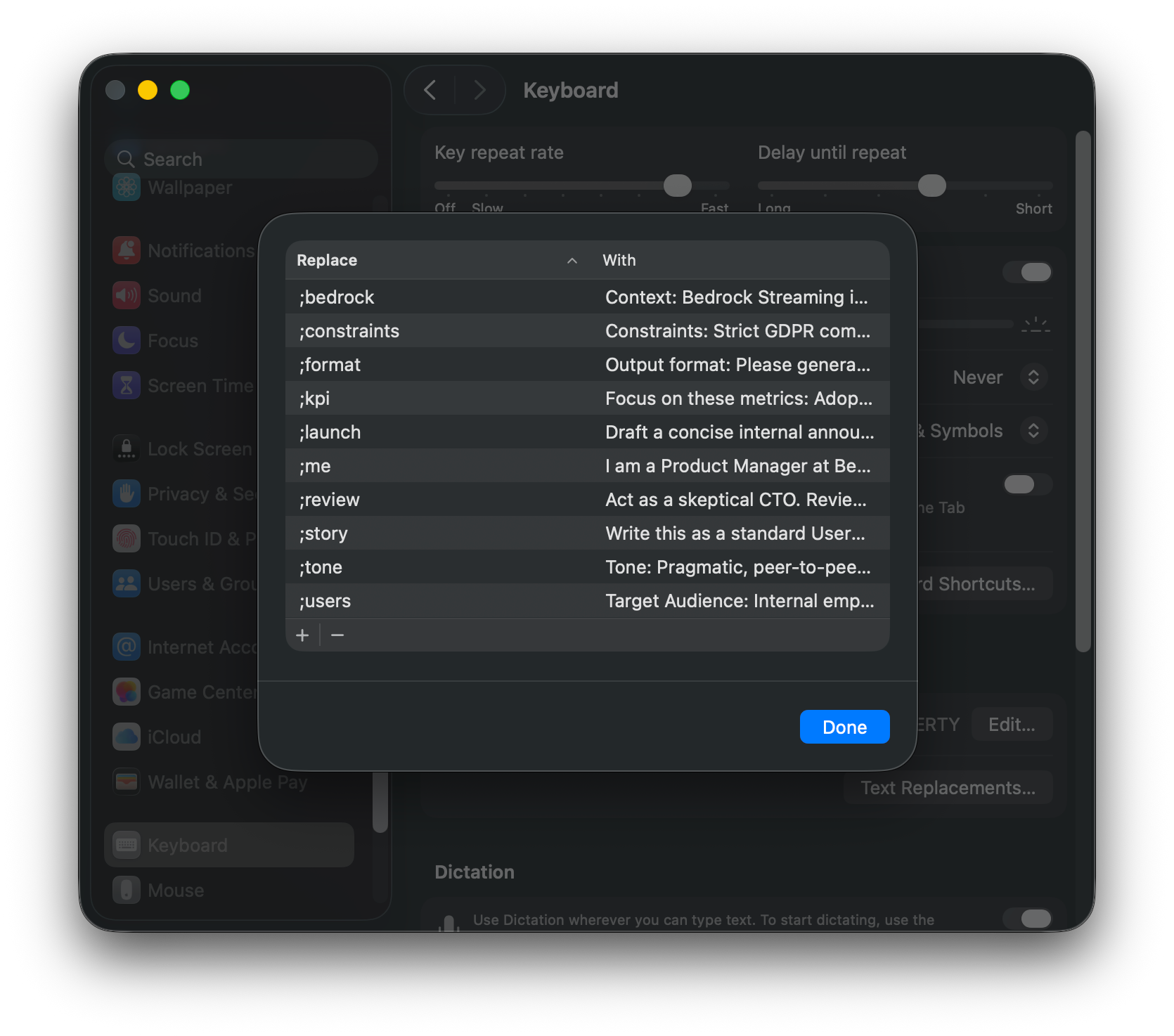
;bedrock→ Inserts a full paragraph explaining my company’s business model and tech stack.;constraints→ Adds a standard block about strict GDPR compliance and data privacy.;tone→ Sets the output voice to pragmatic, peer-to-peer so I don’t get a fluffy marketing-style answer.;review→ Triggers a specific persona instruction: “Act as a skeptical CTO.”
I just type these codes in sequence, and boom: a detailed, perfectly contextualized text appears instantly without me typing a sentence.
Tip 24: Turn your best prompts into Gems or custom GPTs
I don’t have a massive document where I hoard all my prompts. I used to do that, but it becomes unmanageable. Now, when I have a prompt that works really well, I save it as a Gem in Gemini or Custom GPT in ChatGPT.
I take that meta prompt I just generated and turn it into a dedicated mini app. This way, I don’t have to search through my notes or copy-paste text every time. I just click the button, and the model already knows exactly what to do.
I actually wrote a detailed edition about how to build these Gems previously, so I won’t repeat it all here:

But the takeaway is simple: build a library of mini apps, not a text file of prompts.
I didn’t expect to write this much when I started listing these tips. But looking back at them, I want to answer the most important question: So what?
Why bother learning these subtleties? Why make the effort to cast a persona, structure a plan, or dictate your thoughts?
It’s certainly not just to satisfy a corporate AI-first mandate or to avoid FOMO. The goal isn’t to become a professional prompt engineer. The goal is to expand what you are capable of delivering.
When you master these interactions, the benefits are concrete:
You clear the noise: By delegating low-value, time-consuming tasks (like formatting, summarizing, or initial drafting) to the machine, you buy back time for high-level strategy.
You upgrade your quality: Having a tireless colleague who can ruthlessly critique your logic or propose ten creative variations ensures you never settle for your first, average idea.
You unlock new skills: With the right checklist and guidance, you can suddenly execute tasks (like coding a script, analyzing complex data, or designing a strategy) that were previously outside your skillset.
Ultimately, AI is just a lever. The better you are at communicating your intent (the prompt), the heavier the load you can lift.
The good news? You already have the core skill. If you can explain a project to a human colleague, you can explain it to a model. It requires the same clarity, the same context, and the same patience. The only difference is that this colleague never gets tired and has trained by reading the internet several times.
Your turn: You don’t need to apply all these tips tomorrow. That would be overwhelming. Here is my challenge to you: Pick just one tip from this list, whether it’s asking for a plan to avoid procrastination, or using a “magic word” to force deep listening, and use it to solve a real problem next week. Don’t prompt just to prompt. Prompt to get a result you couldn’t have achieved alone.