

NotebookLM keeps quietly dropping new things. A month ago I opened it for something else and spotted a new video format hiding in the studio panel: cinematic. I generated one with zero instructions. The result was unexpectedly polished.
A few weeks later I came back with proper time. Wrote instructions. Specified duration, format, on-screen elements. The output mostly ignored them. Tried again. Same thing. I was a few minutes from dropping this article.
Then NotebookLM surprised me with this one. Take a look.
Honestly, not bad, right? Style. The Netflix logo woven into the staging. Animated transitions, generated charts, stock-footage cuts that fit the narration. It felt like someone had art-directed it.
That’s what’s possible when the brief lands. Most briefs don’t. One in ten does.
Cinematic is a creative tool, not a prompt-and-go tool. Write it like a film brief, not like a chat message.
Here’s the rough flow that produces a generation worth keeping.
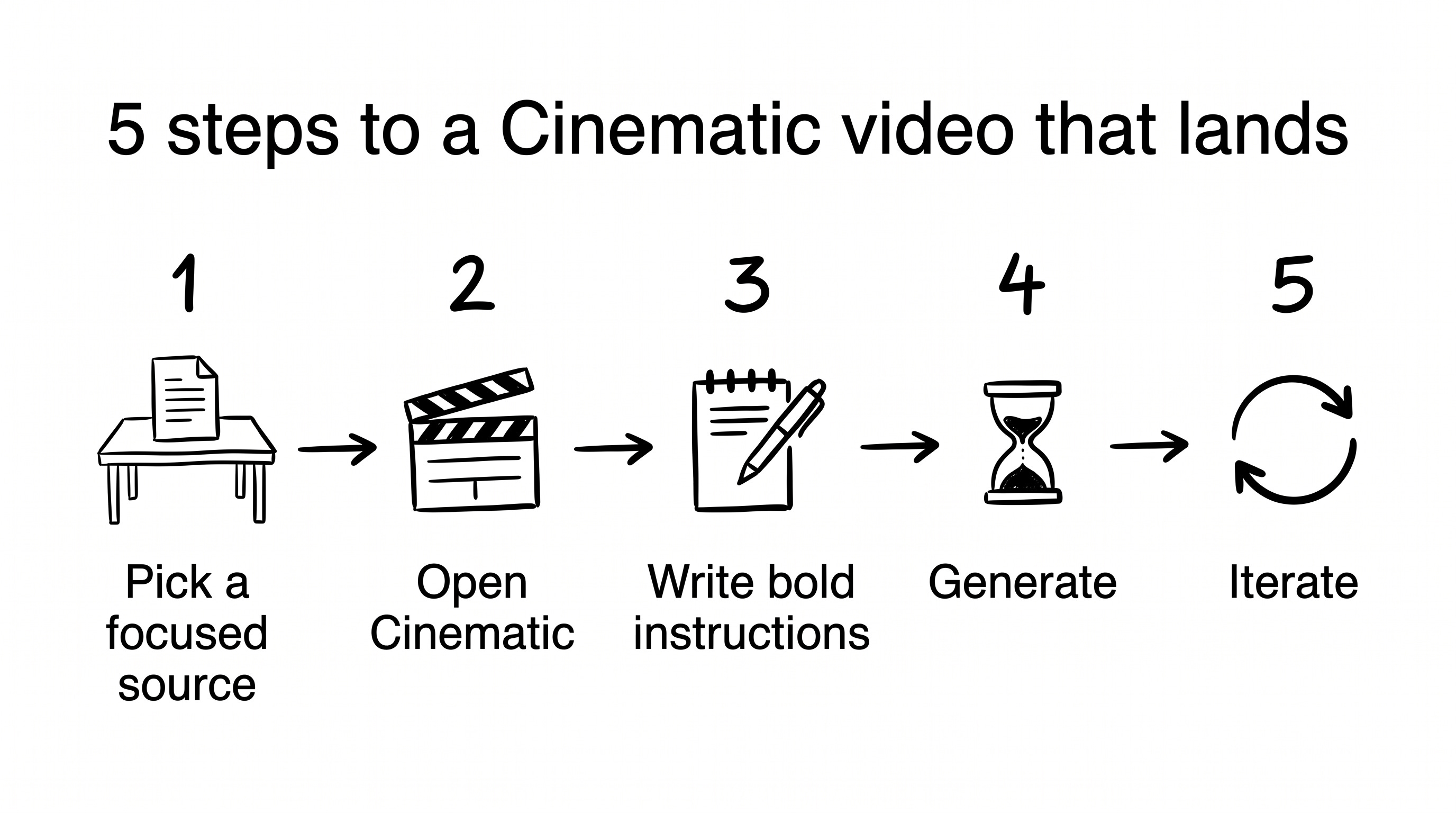
Three sections from here to your own working video:
Learn from my experiments: what I tested and where it broke.
Make your first cinematic video: the click-by-click and the five patterns that worked.
Apply it to real work: five product-work use cases plus when to play these in a meeting.
Press play.
Learn from my experiments
The setup: one PRD, +10 cinematic videos
I didn’t go far for the topic. I’m reusing the same fictional Netflix feature I built around in my previous post on visual storytelling:

The pretend feature is “random shuffle.” One button on the Netflix home screen that picks a comfort show and starts playing it instantly, so you don’t lose another twenty minutes scrolling at 11pm. I wrote a PRD for it. Last time, I turned that PRD into a visual library using Nano Banana Pro and a voice note. This time: same PRD, same notebook, generating videos instead of static images.
NotebookLM offers three video formats. The differences matter.
Cinematic (New!): A stitched composition of animated clips, generated images, stock-footage cuts, and on-screen graphs, with a visual style that changes per generation. The video at the top is one.
Explainer: A structured, comprehensive overview that connects the dots within your sources. Single voice, single visual style, more linear.
Brief: A bite-sized version of the “explainer”. Same single voice and recognizable style, just shorter. Useful when you want a quick summary, not a vibe.
To feel the difference, here’s a “brief “generation from the same workspace.
Cinematic is the one I came to test. Same source, very different output per generation.
I generated more than ten cinematic videos with different instructions, varying the framing, the audience, and the visual style each time. The list piled up in the studio panel.
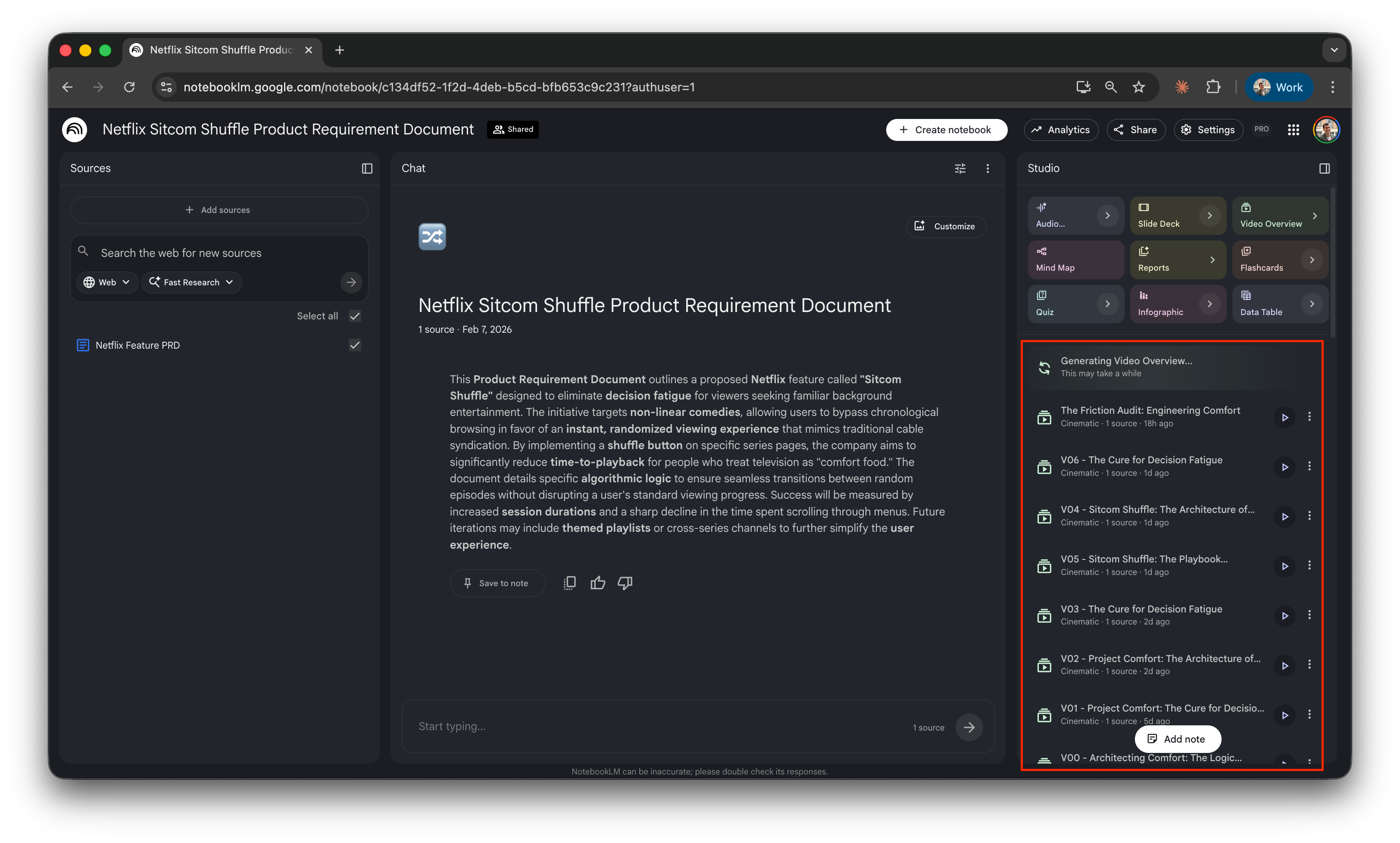
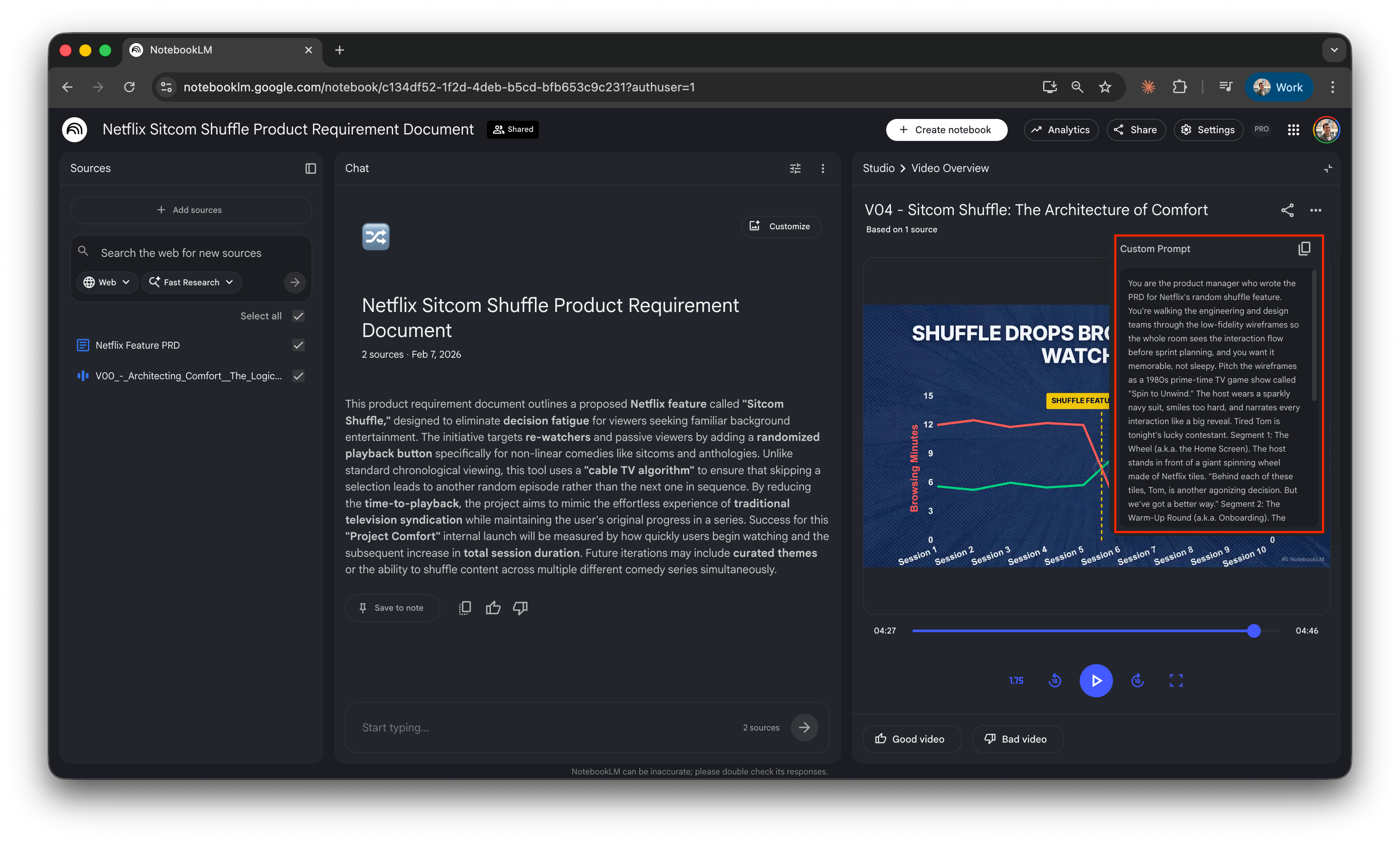
To see every prompt I tested, open the workspace, click any video, hit the “…” menu, and pick “show prompt”. The full instructions for that generation appear on the right.
Honest summary of the batch: V04 is my favorite, the one at the top. V05 is also nice, the kind you’d ship if V04 didn’t exist. The other eight are okay. Animated graphs, on-screen diagrams, transitions that work. Maybe I’m being too demanding, but they’re not at the same level. Not bad videos. Just okay ones.
You’ll find the full instructions behind the video further down, plus a template to inspire your own.
The honest fight: three constraints to know
I want to be honest about three constraints I hit. They set the rules of the game.
Instruction-following: partial. Specify duration, on-screen elements, narrator register, and the system honors maybe half of what you asked for. Sometimes less. You write a brief; the model interprets. The output is a mix of what you said and what the model decided to do anyway.
The quota: punishing on Pro. Two cinematic generations per day on AI Pro. Twenty on Ultra. You’re probably on Pro. Two shots before tomorrow. A bad brief costs you the whole day.
No feedback loop, at all. You can’t say ”redo this but tighten the third beat.” Each generation is one-shot. If you don’t love it, you scrap it and start over with a new full brief.
That’s what made V04 feel lucky. None of these are reasons not to try cinematic, they’re reasons the method has to be deliberate.
Make your first cinematic video
Set up your first generation
The clicks are the easy part. Five steps to a generation in flight.
Create a new notebook. Go to notebooklm.google.com. Click “New notebook”.
Add one focused source. One. The reflex is to dump every PDF, slide deck, and meeting transcript into the notebook. More context ≠ better output. A PRD. A brief. A one-page strategy doc. A research summary. Pick one. If you really need several, merge them into a single document and read every line: keep only what’s useful, still valid, and meant to be there.
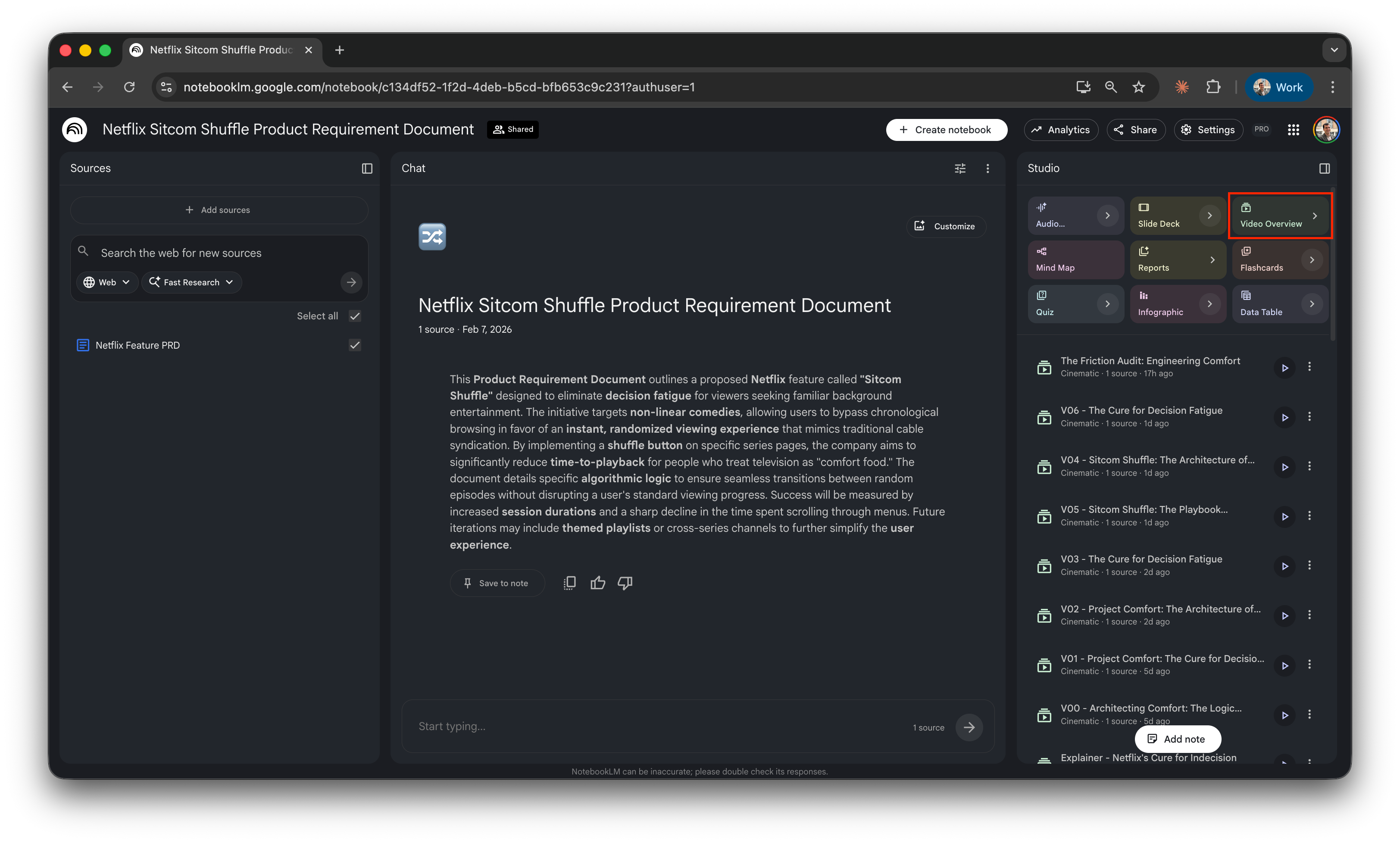
Open Cinematic. Studio panel → Video overview tile →small arrow. Three formats appear. Pick cinematic.
Write your instructions. The field is labeled, exact wording, ”How would you like the video to be customized?” Style, structure, central metaphor, narrator register, brand hooks, visual style cues. Everything goes here.
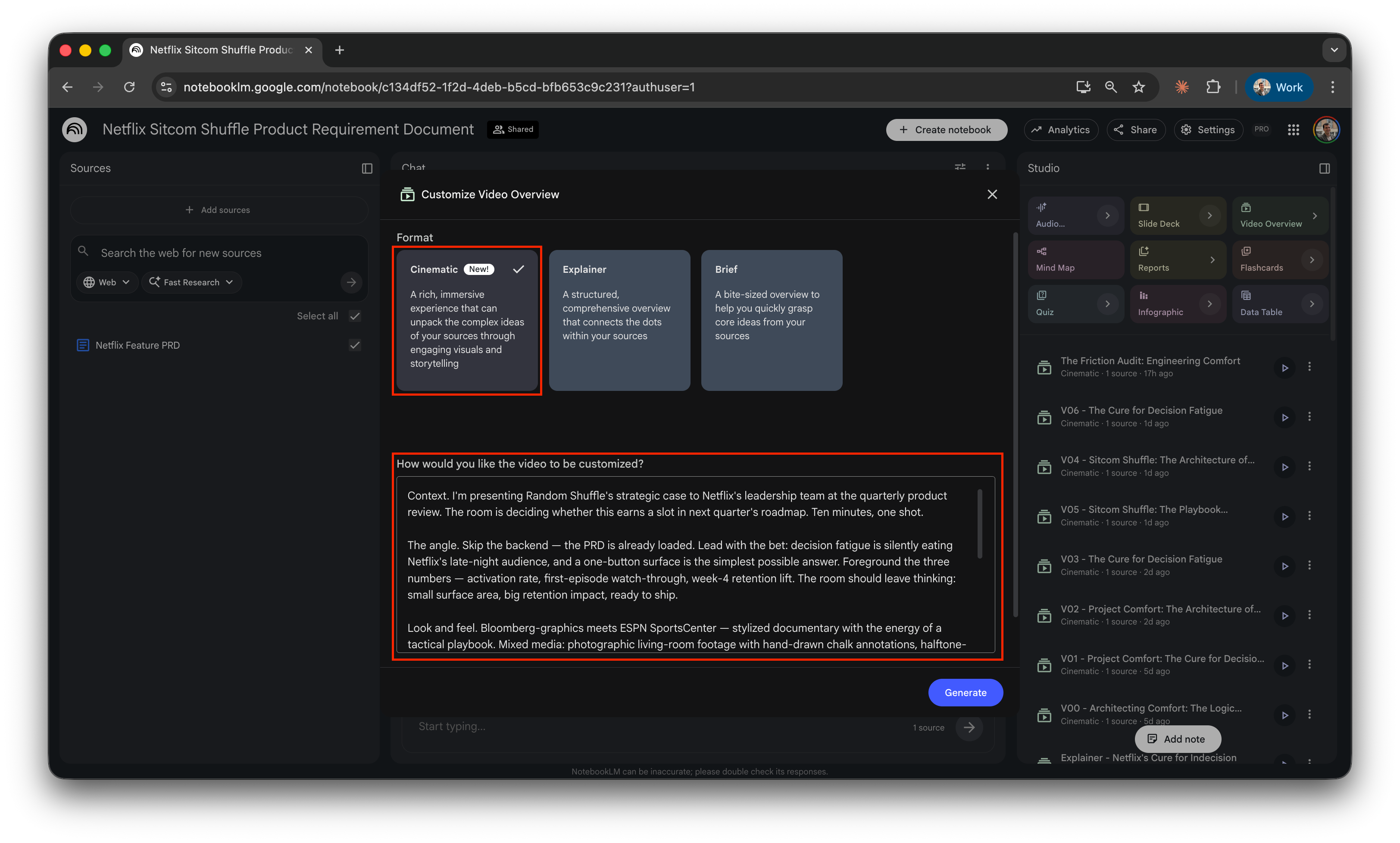
Generate. Wait. Fifteen to thirty minutes. NotebookLM doesn’t block the tab. The mobile app sends a push when it’s ready, worth installing for that reason alone.
The clicks are easy. The instructions are the work.
Write instructions that land
Five patterns showed up across V04 and V05. Here they are, with one example each, pulled from the briefs that produced both videos.
First-person setup. Tell the system who you are, who you’re presenting to, and the feeling you want in the room. Specific, not abstract.
I’m the PM who wrote the random shuffle PRD. I’m walking the engineering team through the wireframes at sprint planning, and I want it memorable, not sleepy.
One bold genre or format metaphor. Game show. Sports broadcast. Movie trailer. Late-night talk show. The metaphor gives the model permission to leave its default explainer voice and produce something with actual style.
Pitch the wireframes as a 1980s prime-time TV game show called “spin to unwind.”
A named central scene with brand woven in. The brand belongs in the first paragraph, not as an afterthought.
Behind them, a velvet-curtain wall is studded with Netflix show tiles. Friends, Seinfeld, Brooklyn 99, Breaking Bad. Each glowing under studio spotlights.
Segmented beats with PRD-element labels. This is the trick. Each beat of the metaphor gets a name and a label pointing at its source-document equivalent in parentheses. The model uses both.
The buzzer (a.k.a. the random shuffle button): A gigantic red buzzer sits center stage. Dramatic close-up. The audience gasps.
A tone directive, a sign-off, a visual style paragraph. Tone translates content into the metaphor’s currency. Sign-off lands the metaphor. Visual style is 8 to 12 comma-separated phrases on palette, lighting, typography, voiceover, and sound, appended to the same block.
Tone: Treat every wireframe element like a game-show set piece.
Sign-off: Press the button. Win the night.
Visual style: 1980s American prime-time game show, neon-accented set, chunky Las Vegas-style typography, studio spotlights, velvet curtains, lower-third prize graphics in flashing yellow...
The reusable template. Strip out the Netflix specifics and you have a fill-in-the-blanks shape that works for any source artifact and any audience.
I’m the [role] who [authored the source artifact]. I’m presenting [the artifact] to [audience] at [occasion], and I want the room to feel [the desired register].
Deliver it as [a bold genre or format metaphor]. [Two sentences naming the central setting, with at least one brand visual hook woven in.]
The beats:
- [Beat 1] (a.k.a. [source element]): [vivid scene + how the narrator frames it].
- [Beat 2] (a.k.a. [source element]): [same shape].
- [Beat 3] (a.k.a. [source element]): [same shape].
- [Beat 4] (a.k.a. [source element]): [same shape].
Sign-off: [one closing line that lands the metaphor].
Tone: [three-word descriptor]. No irony. Treat [the source content] like [the metaphor’s currency].
Visual style: [8 to 12 comma-separated phrases on palette, lighting, typography, graphics, voiceover, sound, with 1 to 2 brand-specific hooks].
The patterns in action: V04 in full. Here’s the actual instructions block that produced the video at the top. Read it as a showcase of how the five patterns play out together, not as something to copy. The template above is your starting point.
You are the product manager who wrote the PRD for Netflix’s random shuffle feature. You’re walking the engineering and design teams through the low-fidelity wireframes so the whole room sees the interaction flow before sprint planning, and you want it memorable, not sleepy.
Pitch the wireframes as a 1980s prime-time TV game show called “spin to unwind.” The host wears a sparkly navy suit, smiles too hard, and narrates every interaction like a big reveal. Tired Tom is tonight’s lucky contestant.
- Segment 1: The wheel (a.k.a. the home screen). The host stands in front of a giant spinning wheel made of Netflix tiles. “Behind each of these tiles, Tom, is another agonizing decision. But we’ve got a better way.”
- Segment 2: The warm-up round (a.k.a. onboarding). The host walks Tom through three quick onboarding taps with studio applause after each one. “Now choose your three favorite sitcoms, Tom. Lock ‘em in!”
- Segment 3: The buzzer (a.k.a. the random shuffle button). A gigantic red buzzer sits center stage. Dramatic close-up. The audience gasps as Tom hovers. Slam cut when he presses. Lights go wild.
- Segment 4: The prize (a.k.a. the playback screen). The Friends opening credits begin. Confetti falls. Tom lifts a trophy shaped like a remote control.
The host narrates wireframe elements as game-show set pieces, not as UX components. Each step gets a studio sting, a lower-third prize-value graphic, and at least one audience reaction shot. Around 2 minutes total.
Visual style: 1980s American prime-time game show, neon-accented set, chunky Las Vegas-style block typography, studio spotlights, enthusiastic announcer voiceover, orchestral stings between segments, lower-third prize graphics in flashing yellow, velvet curtains, audience reaction shots.
This worked once. Plenty of close variants didn’t. The five patterns above are your best shot at finding your own working version.
Iterate on what almost worked
No native feedback loop in NotebookLM. You can’t comment on a generation and ask for a tweak the way you would in chat. Each Cinematic generation is one-shot. Default move: scrap it and start over with a new full brief.
There’s a workaround I haven’t tested on cinematic yet. I think it’s the path forward when you land a near-perfect generation.
Download the video. Add it back to the notebook as a source. NotebookLM accepts video files. Once it’s in there, launch a new generation that starts from that source video with small adjustments. The kind of feedback you’d give:
Change one specific sequence and keep the others as they are.
Swap a specific line of narration for new wording.
Restructure the order of the beats.
Adjust the visual style or palette of one segment.
I haven’t run this on cinematic, quota burned. I tested the same trick on slides for the slides post a few months ago, and it worked surprisingly well:

Same idea: feed the system its own previous output as a starting point, then steer.
It’s not officially documented. It emerged from how NotebookLM treats video as a valid source format. If you try it on cinematic before I do, tell me what you find.
Apply it to real work
Pick from five use cases
With only two cinematic generations per day on AI Pro, the question is which moments at work are worth one of your shots.
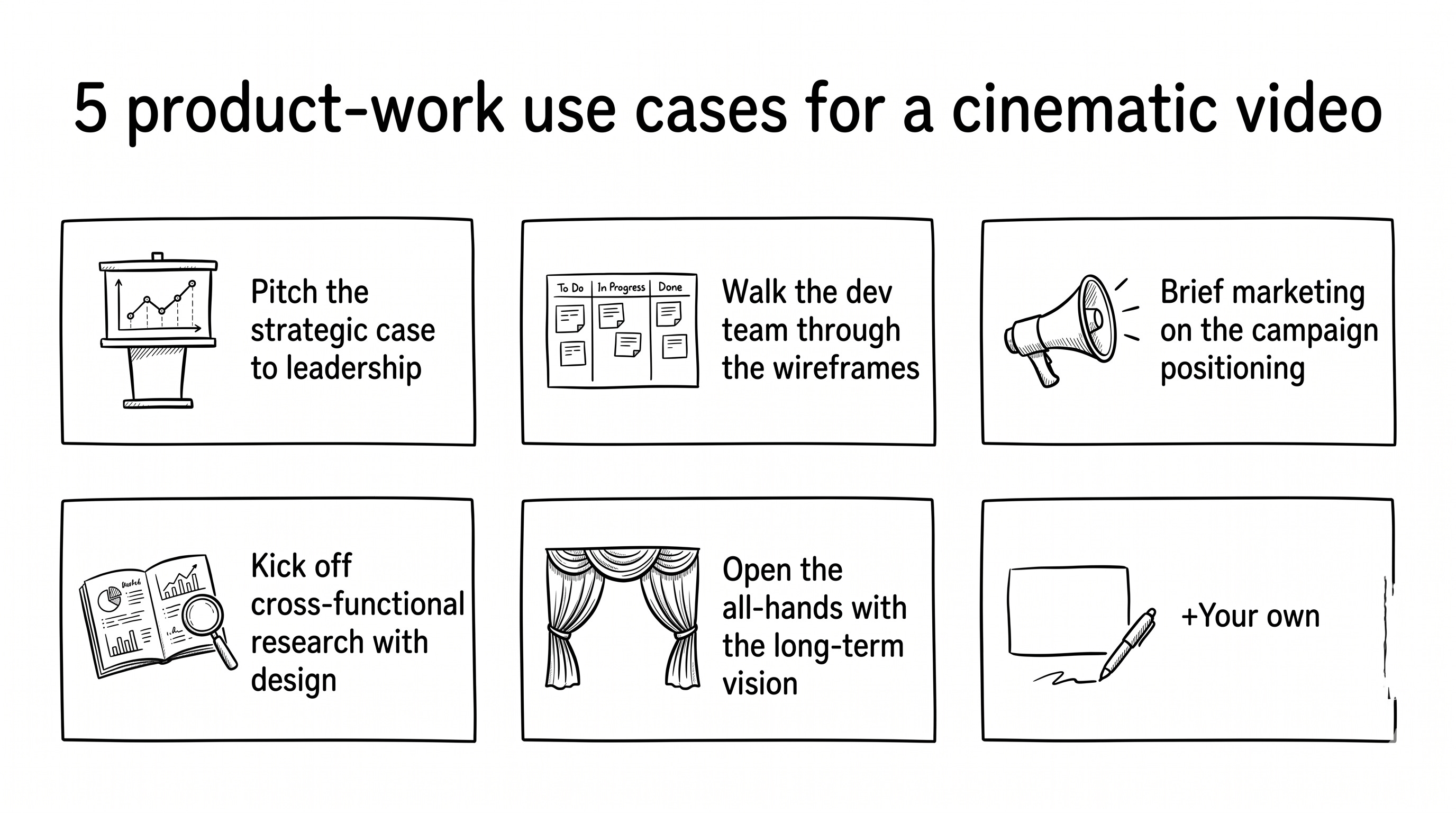
Five places this format genuinely pays off. Each comes with a one-line snippet to spark your own brief.
Pitch the strategic case to leadership. Quarterly reviews, board prep, exec narrative. Makes the bet feel like a story, not a slide deck.
Deliver it as an ESPN SportsCenter broadcast. The anchor calls activation, watch-through, and retention like championship stats.
Walk the dev team through the wireframes. Sprint planning, design reviews, kickoff sessions. Forces the room to pay attention to a UI flow they’d otherwise zone out on.
Pitch the wireframes as a 1980s prime-time TV game show called “spin to unwind.” A host in a sparkly navy suit narrates every interaction like a big reveal.
Brief marketing on the campaign positioning. Before anyone writes a line of copy. Marketing writes copy after feeling the trailer, not before.
Deliver it as a summer-blockbuster trailer drop. A booming voiceover, a hundred-foot Netflix marquee, lens flares across every brand reveal.
Kick off cross-functional research with design. Surface the user pain before the team designs around it. Each viewer persona becomes a guest with a story.
Pitch it as a late-night talk show. Three guests walk through the curtain, each tells a 20-second story of last night’s viewing chaos.
Open the all-hands with the long-term vision. Town hall, off-site, Product Week. Makes the long-term bet feel inevitable, not abstract.
Render it as a prestige-drama teaser. Somewhere between Black Mirror and Stranger Things in tone. Serious. Cinematic. Slightly melodramatic.
Use it before the meeting, not in it
These videos don’t belong inside most meetings. A working meeting is an exchange between people. A generated video is a broadcast. Stopping a discussion to play two to four minutes of a robotic AI voice saying exactly what the person could have said is awkward. The two don’t mix.
The exception is broadcast moments: all-hands, off-site keynotes, product week openers. The room has already accepted that one person is going to talk at them. A 2-minute cinematic video as the cold open lands hard. That’s exactly why use case 5 above is the one meeting where I’d press play in the room.
For every other kind of meeting, these videos earn their place before the meeting starts. Drop the link in the calendar invite. Send it the morning of, in a Slack message, or as the first item in a pre-read packet.
The audience arrives with the picture in their heads, with formed opinions, with sharper questions. The meeting becomes the discussion the picture provoked, not the picture itself.
That’s where this format unlocks something a static deck doesn’t: a shared visual frame the room arrives with, instead of one you spend the meeting building from scratch.
Try it and tell me what landed
One in ten generations produced something I’d share with a team. The other nine taught me what a working brief looks like.
The patterns from V04 and V05 are the closest thing I have to a recipe. Recipes for creative tools are aspirational, not deterministic. Plenty of close variants of the same brief produced forgettable output.
NotebookLM recently added a per-slide feedback feature for slides. You comment on a single slide, and the system regenerates that slide with the comment applied. If that pattern lands on cinematic, the workaround above becomes unnecessary, and real iteration becomes possible inside the tool. Worth checking back in a few months.
In the meantime: try it on something you’d otherwise put in a deck. Tell me what landed. If you crack a different pattern that works, send the instructions, I’ll share it in a follow-up post.